
Jellyfin
Library clean-up
Tidy watched films into a holding folder. Never deleted.
- Mark: Reviewed
- Mark: Starboard's own
- Version 1.0.3
At a glance
- Reviewed
- 23 November 2026, version 1.0.3
- Works with
- Jellyfin only
- Starboard
- Needs Starboard 0.19 or later
- Memory use
- Memory use not measured yet
- On a test server
- About 13 MB of memory on a test server
What it does
Library clean-up moves films and series that everyone has watched, or that nobody has watched for a long time, to a holding folder, so a small server's disks do not fill up. It never deletes anything, and each item can be put back.
Rules have settings, such as how many days since anyone last watched. Anything marked as a favourite, part way through, in a collection or tagged keep stays. A Preview lists what would move before anything does, and nothing moves each day until you turn that on.
Made by TheMightyTRexUK. Licence: MIT.
- clean up
- disk space
- free space
- old films
- watched
- holding folder
- storage
- jellyfin
Who it is for
For people with a small server whose disks are filling up with films and series that nobody is watching any more, and who want a careful clean-up they can undo instead of deleting.
What you will see
One dashboard card, Holding folder, showing how much is in the holding folder, how many items are held and when it checks next. Its tab has the rules, a Libraries page, Always keep settings, a Preview page and a Holding folder page with a Put back button beside each item.
Pictures

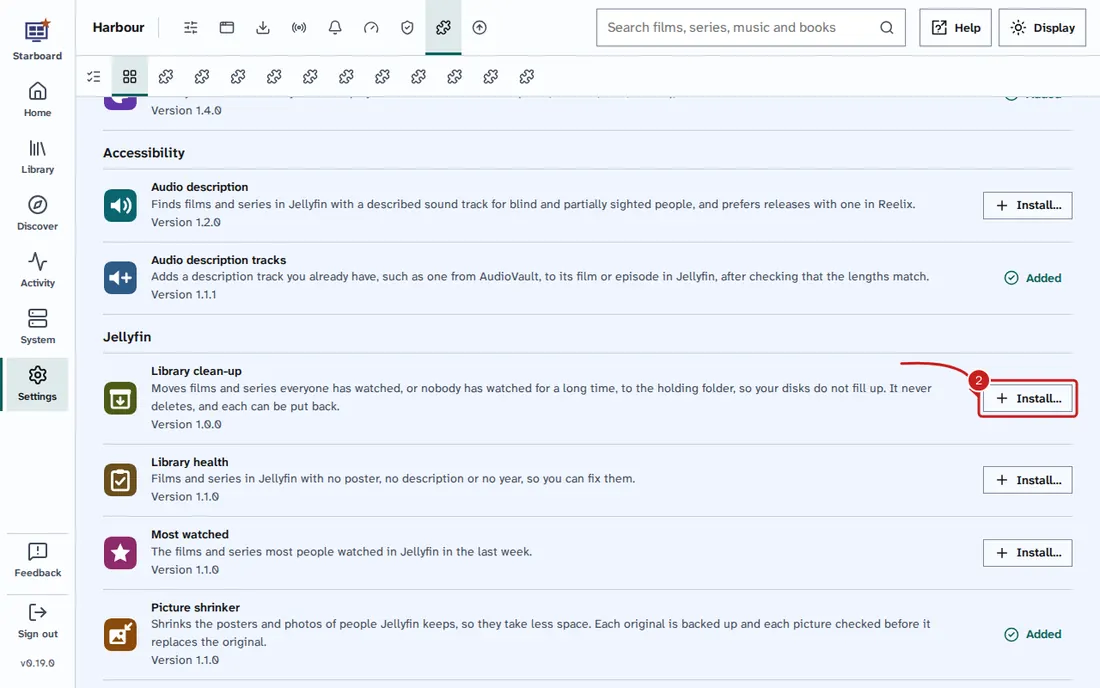
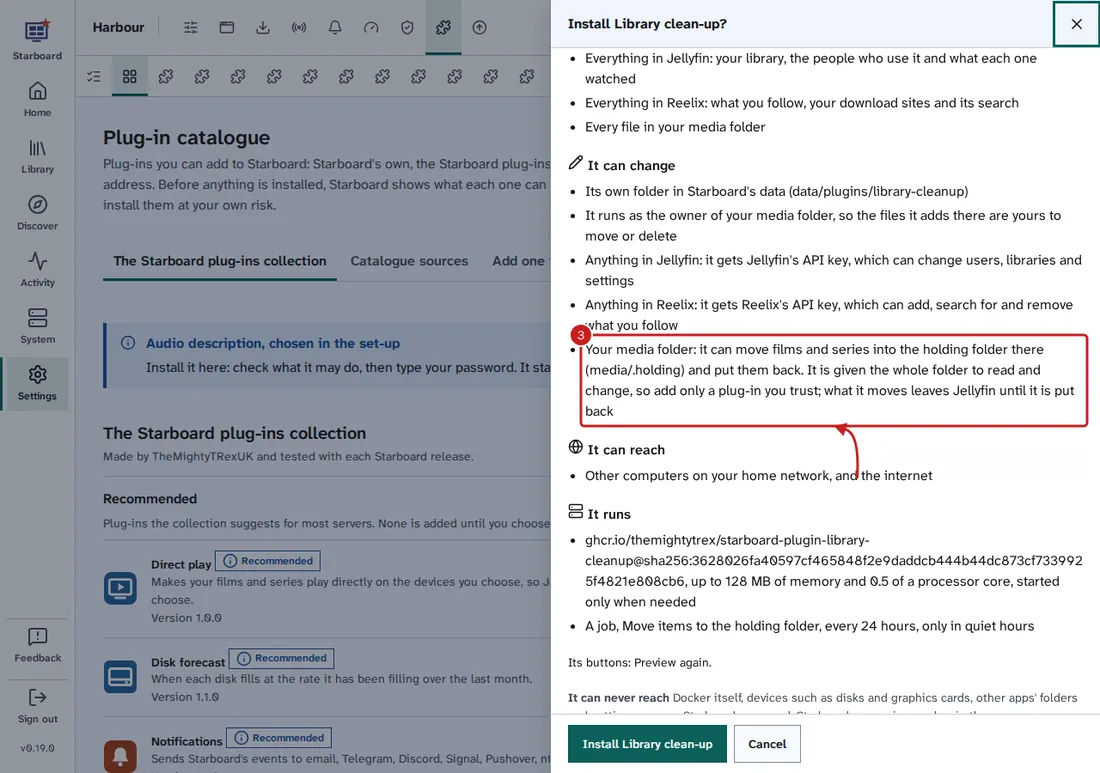
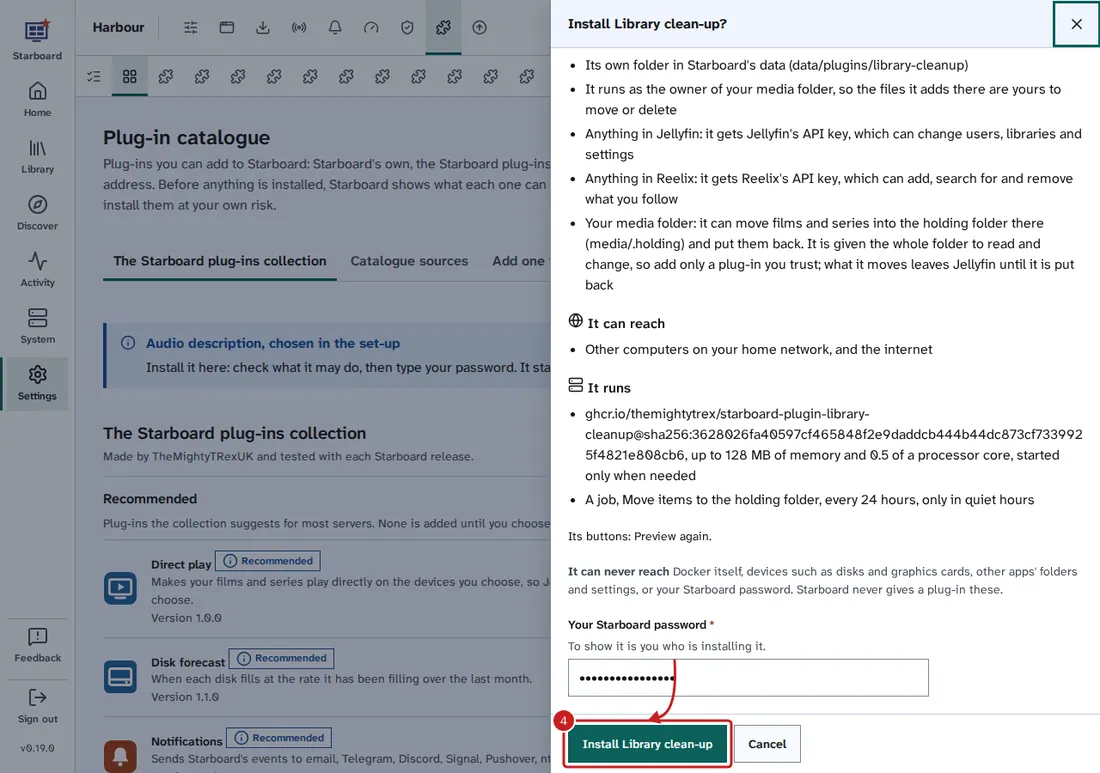
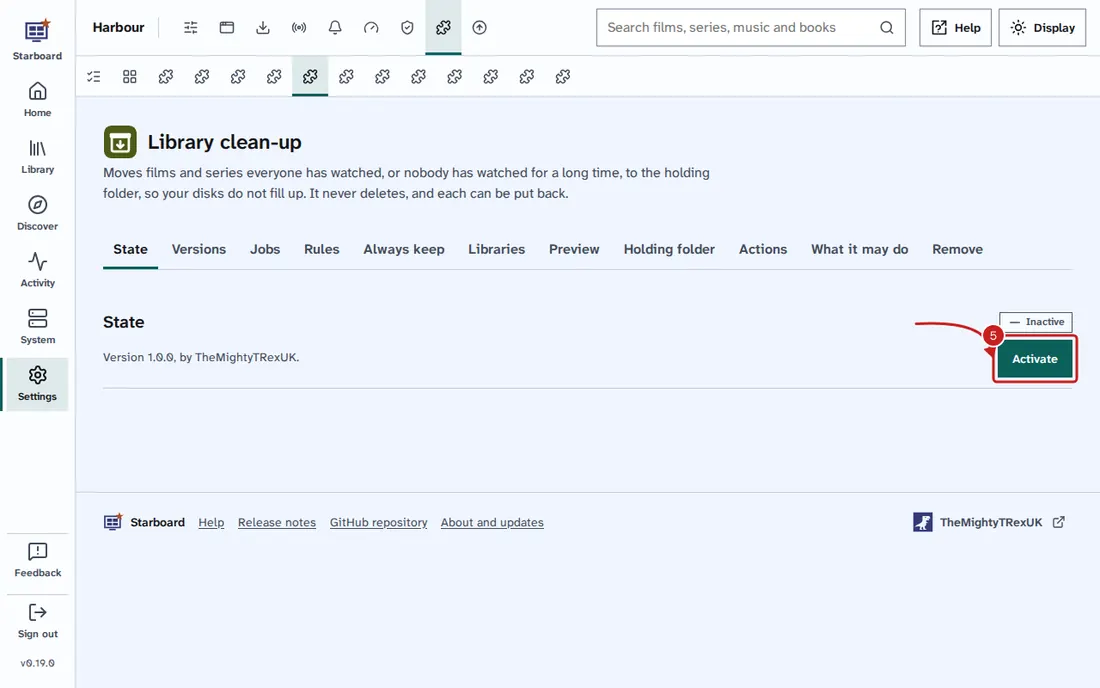
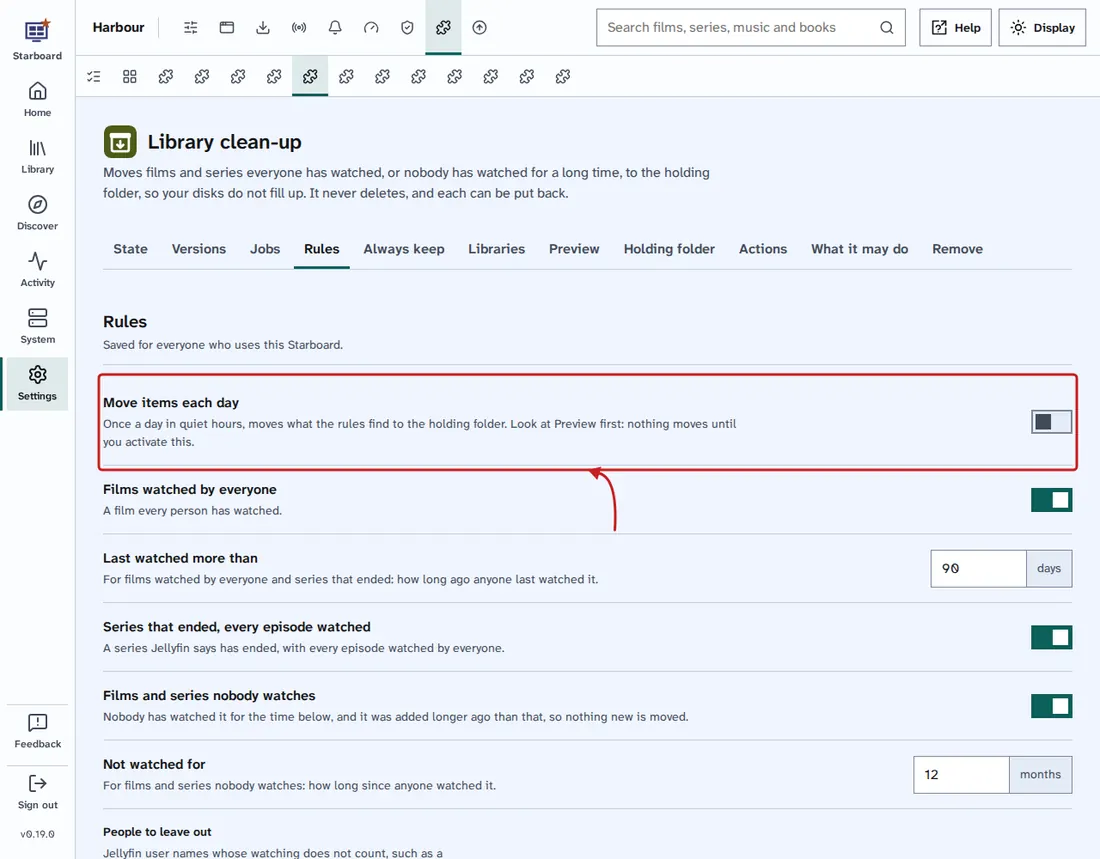
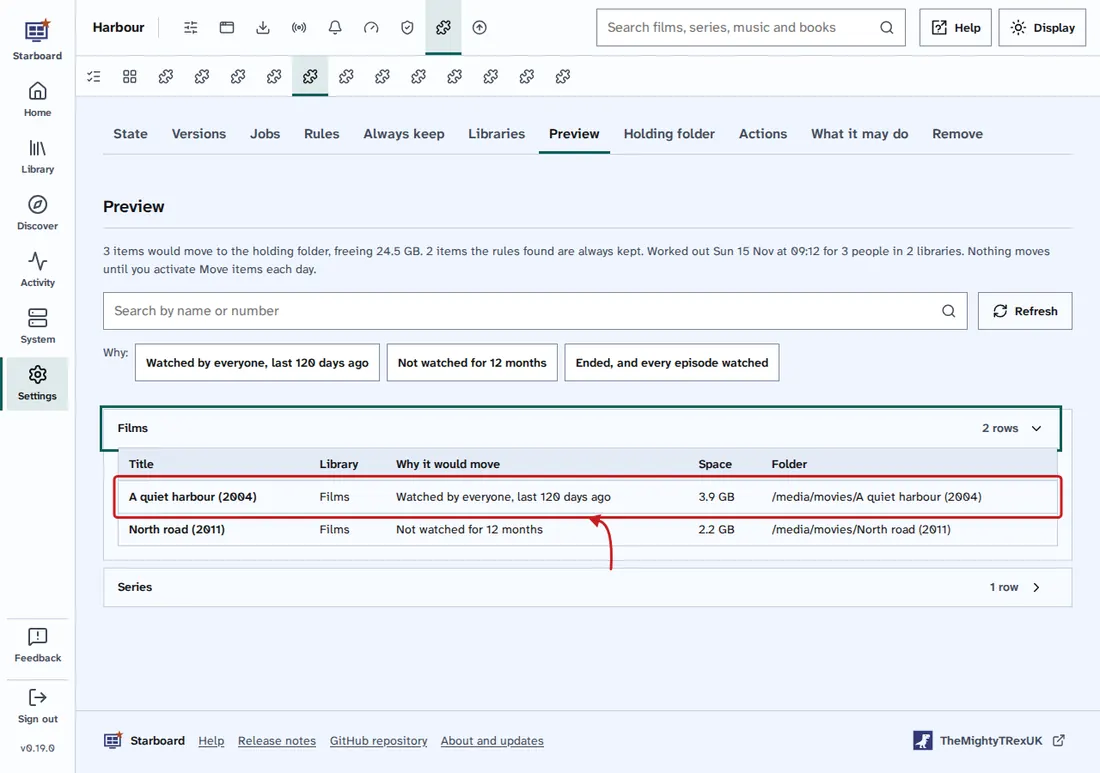
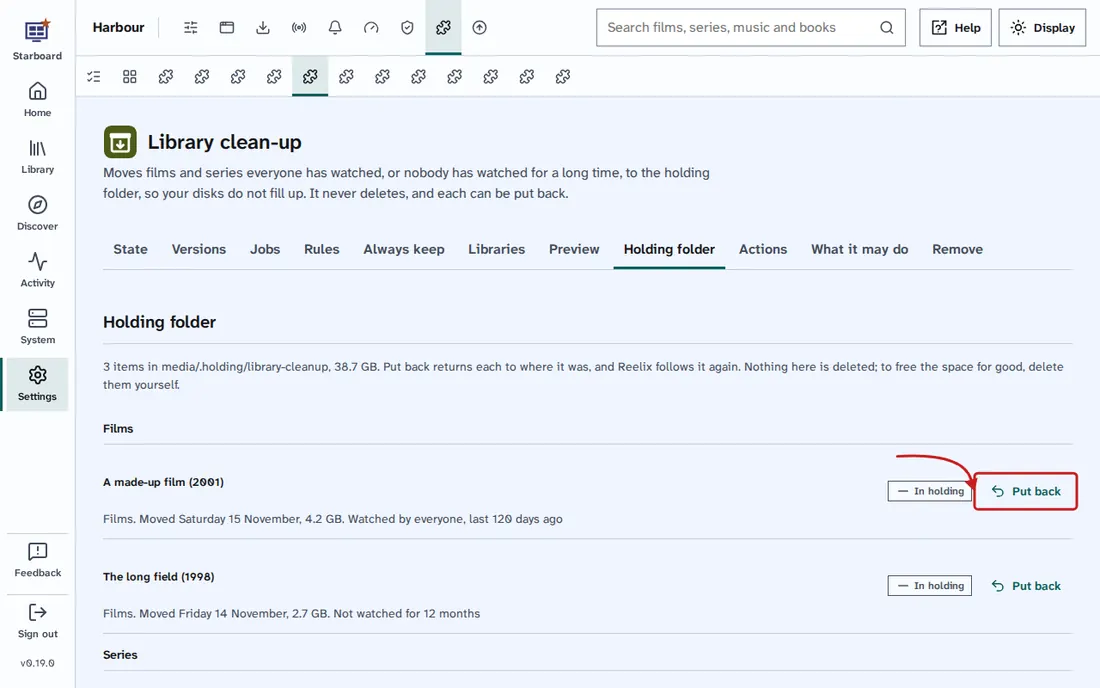
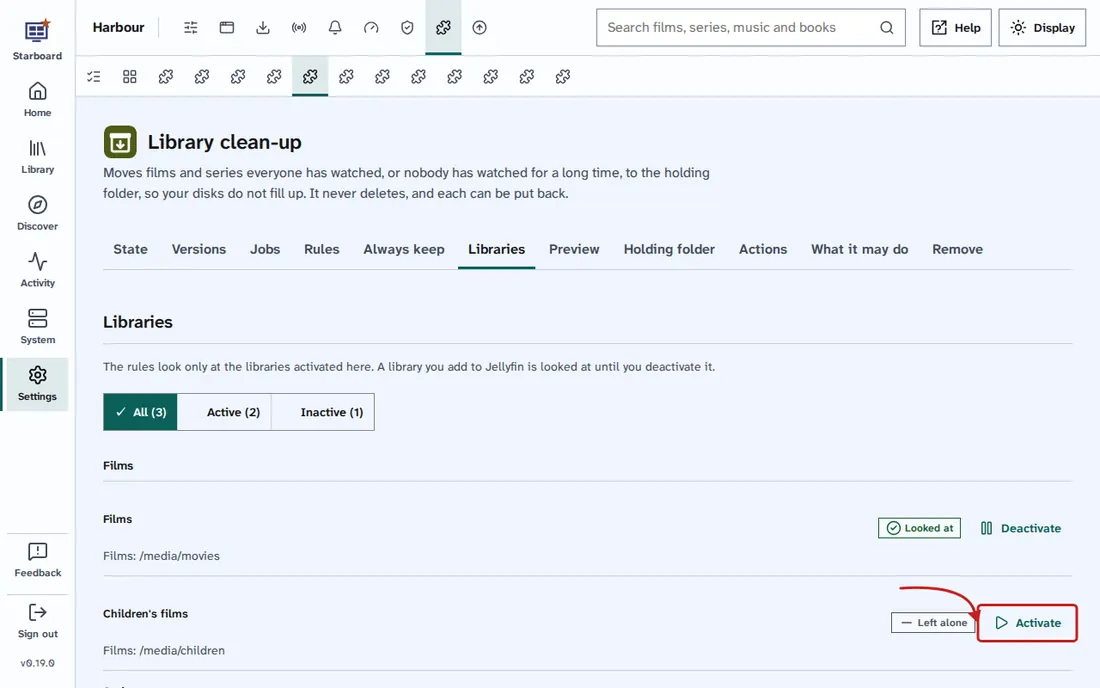
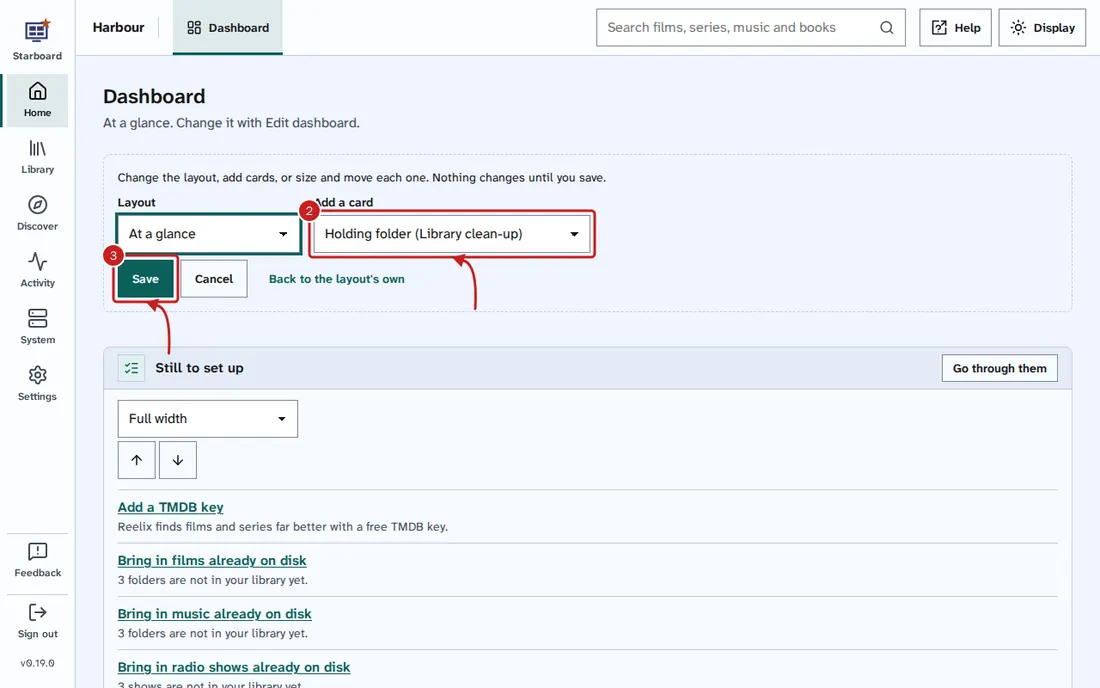
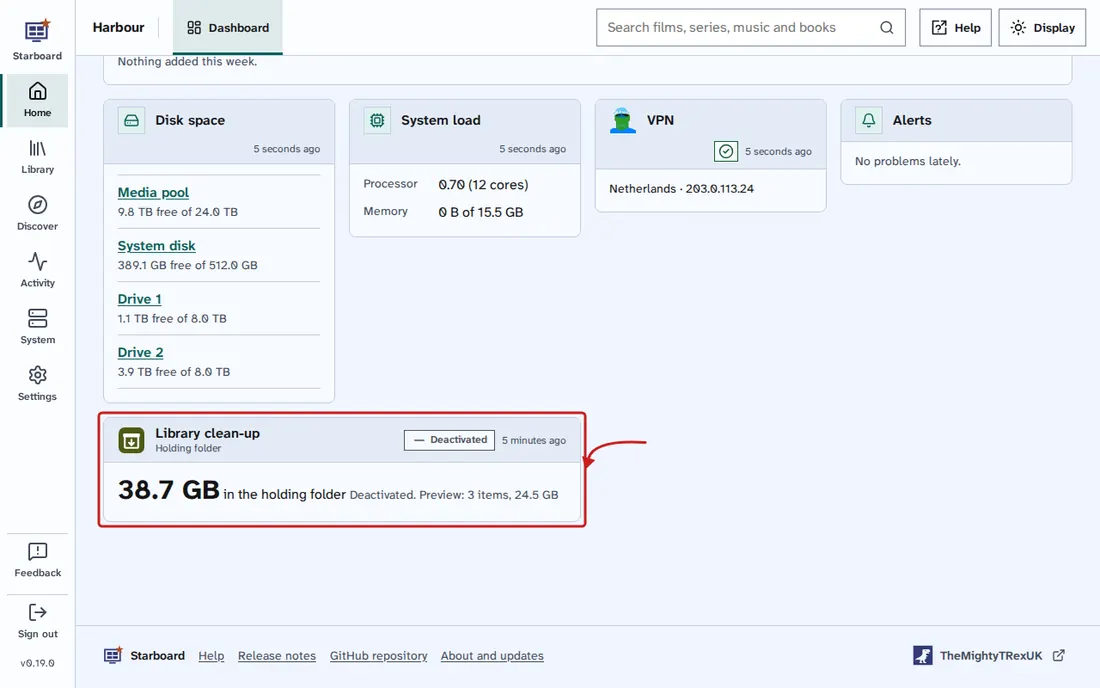
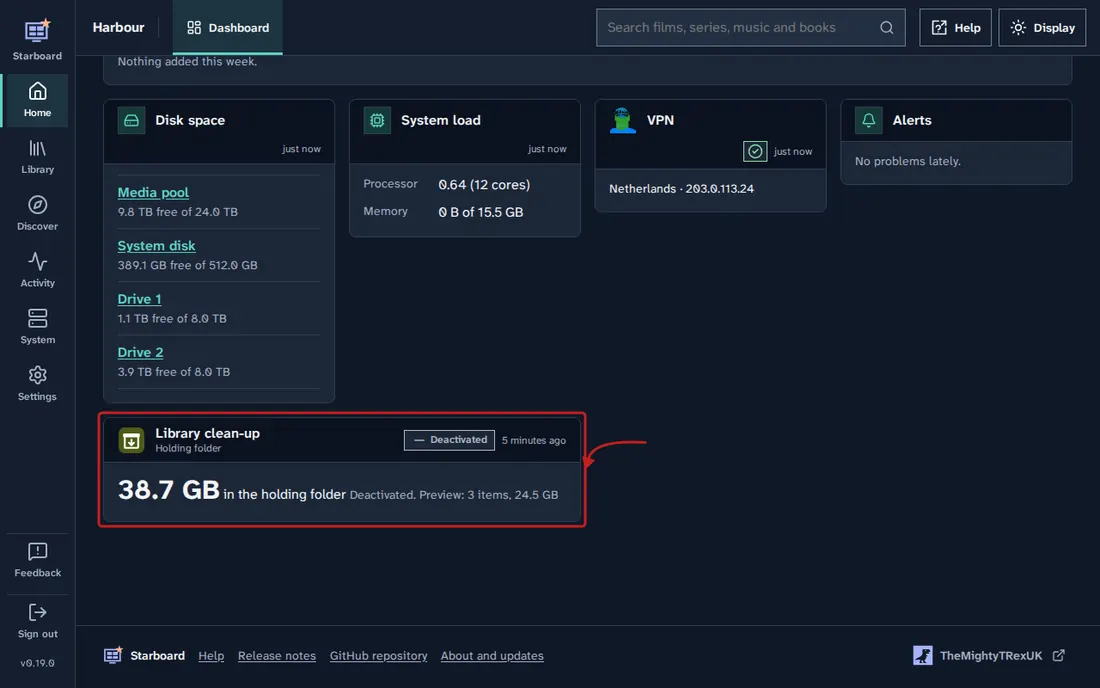
Real screenshots from a test copy of Starboard that holds made-up data only. Select a picture to open it full size.
What it can read and change
Starboard asks you before it gives a plug-in any of these. You can take one away later in Settings, then Plug-ins.
- Reads and changesUse your Jellyfin key
Signs in to Jellyfin as a helper, so it can find, tag or play titles.
jellyfin:key - Reads and changesUse your Reelix key
Talks to Reelix to find, prefer or manage releases.
reelix:key - ChangesMove titles to the holding folder
Moves titles out of your library into a holding folder. It never deletes, and each can be put back.
library:holding - Reads and changesTalk to things on your home network
Connects to apps and devices at home, and to the internet.
network:lan
It can read
- Use your Jellyfin key
- Use your Reelix key
- Talk to things on your home network
It can change
- Use your Jellyfin key
- Use your Reelix key
- Move titles to the holding folder
- Talk to things on your home network
What it needs
- Starboard
- Needs Starboard 0.19 or later. Its manifest asks for plug-in API 1.15 or later, up to but not including 2.0.
- Other apps
- Jellyfin and Reelix, already set up.
- In practice
- Jellyfin added to Starboard first, and the holding folder in your media folder. Reelix is optional: with its key it stops following what moves, so it is not downloaded again, and follows it again on Put back. Without Reelix it still moves. Needs plug-in API 1.14 or later.
- System tags
- jellyfin. These are the names in the manifest that Starboard checks before it adds the plug-in.
- A web page
- No. It shows on the Starboard dashboard.
What it uses
Two kinds of figure appear here, and each row says which. Measured figures were read from a running plug-in. Declared figures are limits written in its manifest. Where nothing is measured, it says so.
| What | Figure | Kind | Note |
|---|---|---|---|
| Memory at rest | Not measured yet | Not measured | |
| Most memory seen | Not measured yet | Not measured | |
| Memory limit it is given | 128 MB | Declared | The most it may use before Docker stops it. |
| Processor at rest | Not measured yet | Not measured | |
| Processor limit | 0.5 of a core | Declared | |
| Image on disk, unpacked | Not measured yet | Not measured | |
| Disk for its own data | Not measured yet | Not measured | Its folder in Starboard's data. |
| Network | Your home network and the internet. | Declared | main: port 8080 |
| Containers | 1 (main) | Declared | |
| Runs | Only when needed, and rests after 15 minutes with nothing to do | Declared | |
| Asks to read or change | 4 things: the list above | Declared |
Nobody has measured this plug-in on a running server yet, so no memory or processor figure is shown. The limits marked Declared are what its manifest allows, not what it uses.
Measured on a test server
Measured on a test server with made-up data, 25 November 2026, Starboard 0.30.0. Machine: Linux x86_64, 12 cores, 16 GB memory. These are not figures from a real server.
| What | Figure |
|---|---|
| Memory use, idle after start | About 13 MB |
| Memory use, after it was used | About 13 MB |
| Processor, averaged over 60 seconds idle | About 0 % of one core |
| Image size, unpacked | About 54 MB |
| Containers | 1 |
Versions and notes
Version 1.0.3
Latest17 November 2026Changed
- Clearer words: Libraries says Checked for each library the rules check, the card says "Next check in quiet hours", and its hints name the setting they mean.
- Logo description: where its logo stands on its own, a screen reader says "Library clean-up logo", the plug-in's name, instead of a description of the symbol.
Version 1.0.2
17 November 2026Fixed
- Jellyfin 12: it sends Jellyfin's key the way Jellyfin 12 asks for it, so Jellyfin no longer refuses its requests where legacy authorisation is off. Older Jellyfin still works.
Version 1.0.1
16 November 2026Changed
- Lighter at rest: it wakes about once a minute while nothing asks it anything, not twice a second.
- Starts faster: its image comes with Python's modules already compiled, so a start takes about a quarter of the processor time.
Version 1.0.0
15 November 2026Added
- Rules: films watched by everyone, last watched more than 90 days ago; series that ended with every episode watched; films and series nobody has watched for 12 months. Each a setting, for the libraries you choose.
- Always kept: favourites, anything someone is part way through, films in a collection, and anything tagged keep.
- Preview lists what would move and the space it frees. Nothing moves until you activate Move items each day.
- Never deletes: it moves each item to media/.holding, keeping its folders, and Put back returns it.
- Reelix and Jellyfin are told: Reelix stops following what moves, so it is not downloaded again, and follows it again when it is put back.
Help
The plug-in help centre explains what Library clean-up does, how to set it up and what to do when it does not work.
How to install in Starboard
From Starboard
- In Starboard, open Settings, then Plug-ins, then Catalogue.
- Under Catalogue sources, paste
https://themightytrex.github.io/stallboard/catalogue.jsonand select Add catalogue. You do this once. - Find Library clean-up in the Catalogue and select Install. Starboard shows what it asks for, and you choose.
By address
Or give Starboard this plug-in's address: in Settings, then Plug-ins, then Catalogue, paste it under Add one from elsewhere.
https://raw.githubusercontent.com/TheMightyTRex/starboard-plugins/ef67f0c273140fd80637bd3b9c8feb7ed15b648f/library-cleanup/starboard-plugin.json
Who reviewed it
Reviewed by TheMightyTRexUK on 23 November 2026, version 1.0.3. Listed on 23 November 2026. Its manifest was last read on 23 November 2026. What Reviewed means.
Report a problem with this plug-in
Something wrong with Library clean-up itself? Tell its maker. The report goes to the plug-in's own issue page, not to Stallboard.
Report a problem with this plug-in (opens in a new tab)
A problem with Stallboard, such as this page? Use the Send feedback button.
More in Jellyfin
-

Create your own TV channel
Jellyfin
Make your own TV channels in Jellyfin.
- Jellyfin only
Needs Starboard 0.19 or later
About 93 MB of memory at rest
-

Direct play
Jellyfin
Stop Jellyfin converting films while people watch.
- Jellyfin only
Needs Starboard 0.18 or later
About 8.6 MB of memory at rest
-

Library health
Jellyfin
Find films with no poster, no description or no year.
- Jellyfin only
Needs Starboard 0.18 or later
Memory use not measured yet
-

Most watched
Jellyfin
What your household watched most this week.
- Jellyfin only
Needs Starboard 0.18 or later
Memory use not measured yet