Check what is sent, then send it
How-to
Before anything leaves your browser, Snaglist shows the whole report exactly as it will be sent. You can take parts out, then choose how to send it.
Before you begin
- Fill in the form first: Report a problem with one thing on a page, Record a series of steps or Suggest a feature or an improvement.
Steps
- Read the statement at the start of What is sent: no personal information is kept in the report.
- Under Include, untick anything you would rather not send, such as Text on screen or Screen, browser and device. The preview changes at once.
- Read the preview. Anything in the form of an email address, a long number or a key is shown as
[email],[number]or[key]. Check the text on screen shows nothing personal.
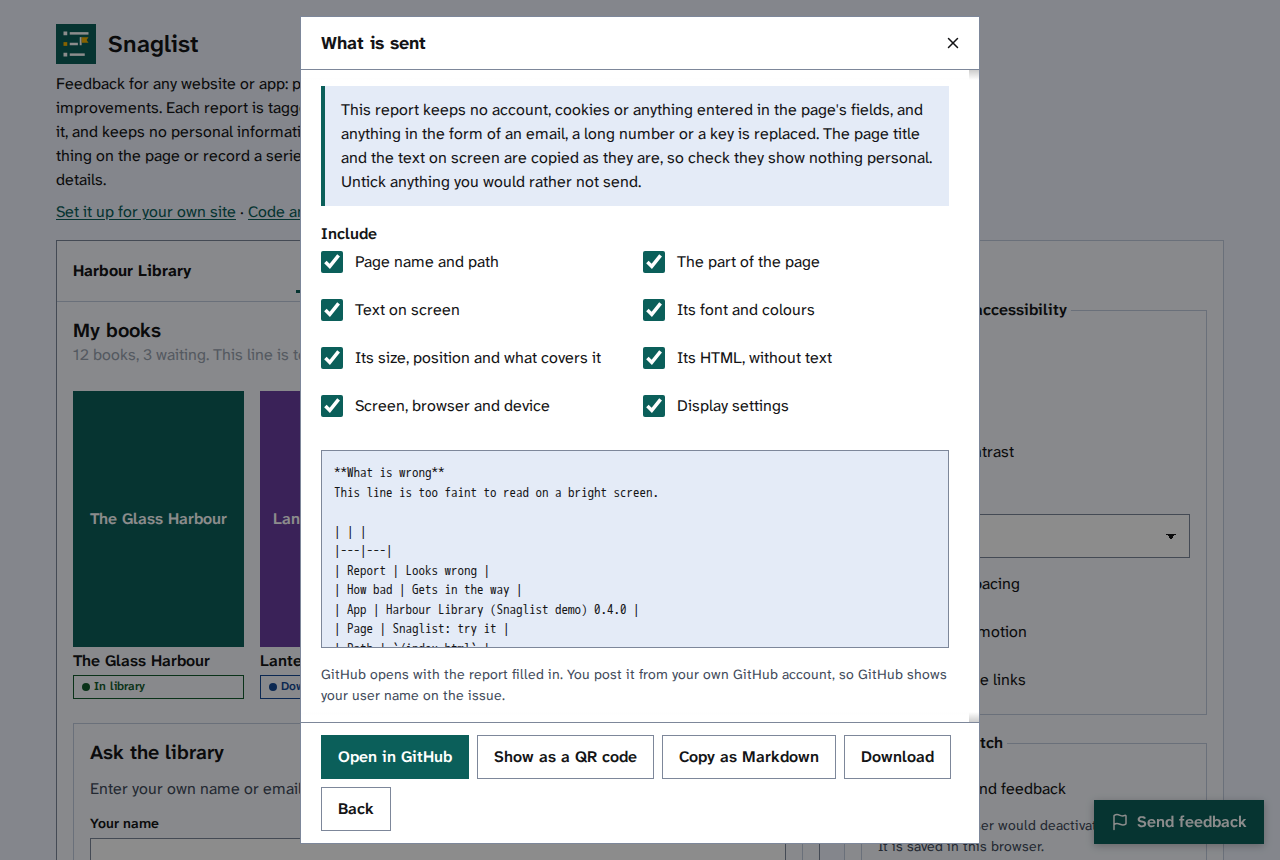
- Choose how to send it. You will find only the ways the site's team has set up: - Open in GitHub opens a new GitHub issue with everything filled in. Read Post a report on GitHub. - Show as a QR code shows the same GitHub issue as a code to scan with your phone, for a computer that is not online. It comes first when this computer looks offline. Read Send a report with a QR code. - Open in email opens your mail app with a new message filled in. Send it as you would any email. - Send posts it straight to the site's own server. A message says when it has arrived. - Copy as Markdown puts the report on your clipboard, to paste anywhere. - Download saves the report as a file.
- To change something first, select Back.
If it does not work
Read If a report does not send.