Report a problem with one thing on a page
How-to
Tell the site's team about something on a page that is broken, confusing, slow or hard to use. You choose the part of the page, say what is wrong, and check the report before it goes.
Before you begin
- The site must have Snaglist active. You will find a 'Send feedback' button on each page. If there is none, read If Send feedback does not appear.
- To show a problem that takes several steps, read Record a series of steps instead. To suggest something, read Suggest a feature or an improvement.
Steps
- Go to the page with the problem and select Send feedback.
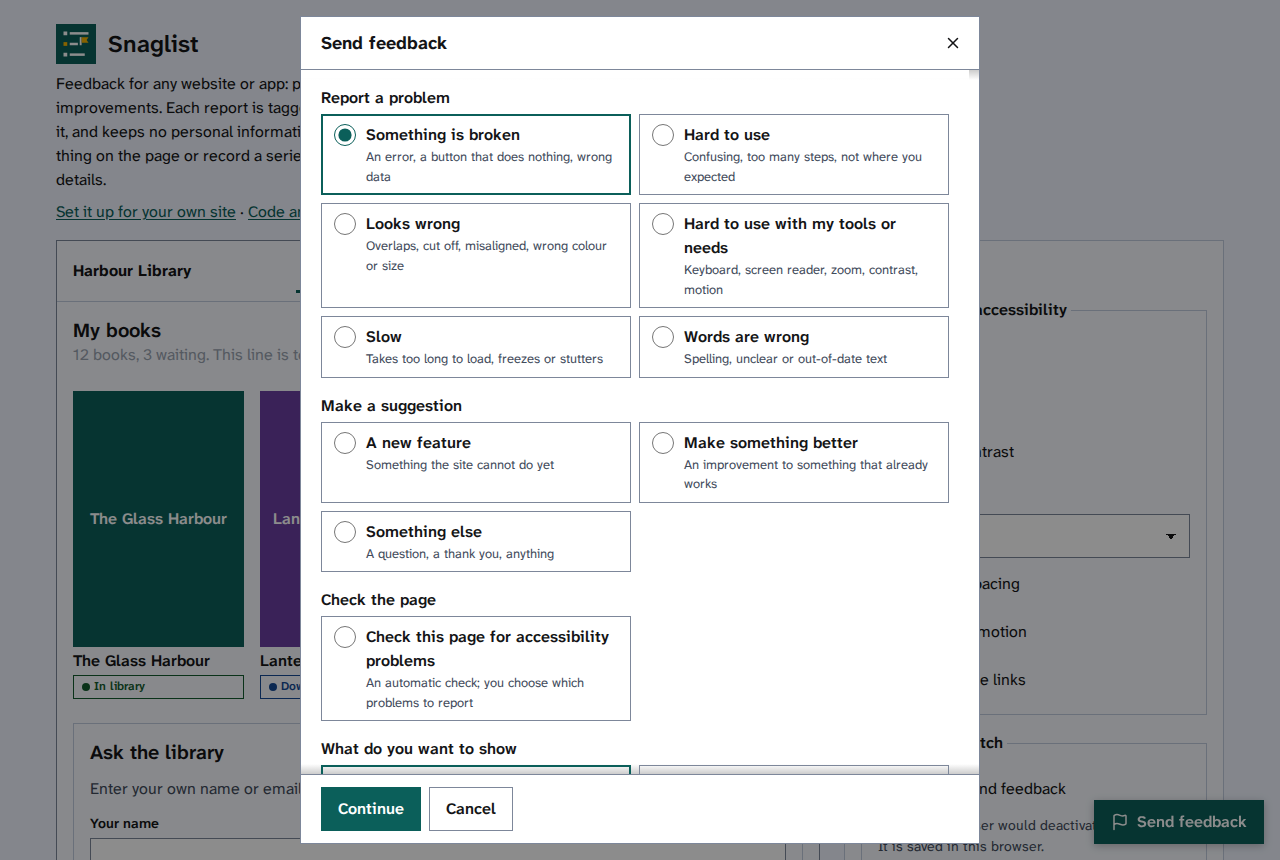
- Under Report a problem, choose the one that fits best, such as Something is broken, Looks wrong or Words are wrong.
- Under What do you want to show, choose One thing on the page, then select Continue.
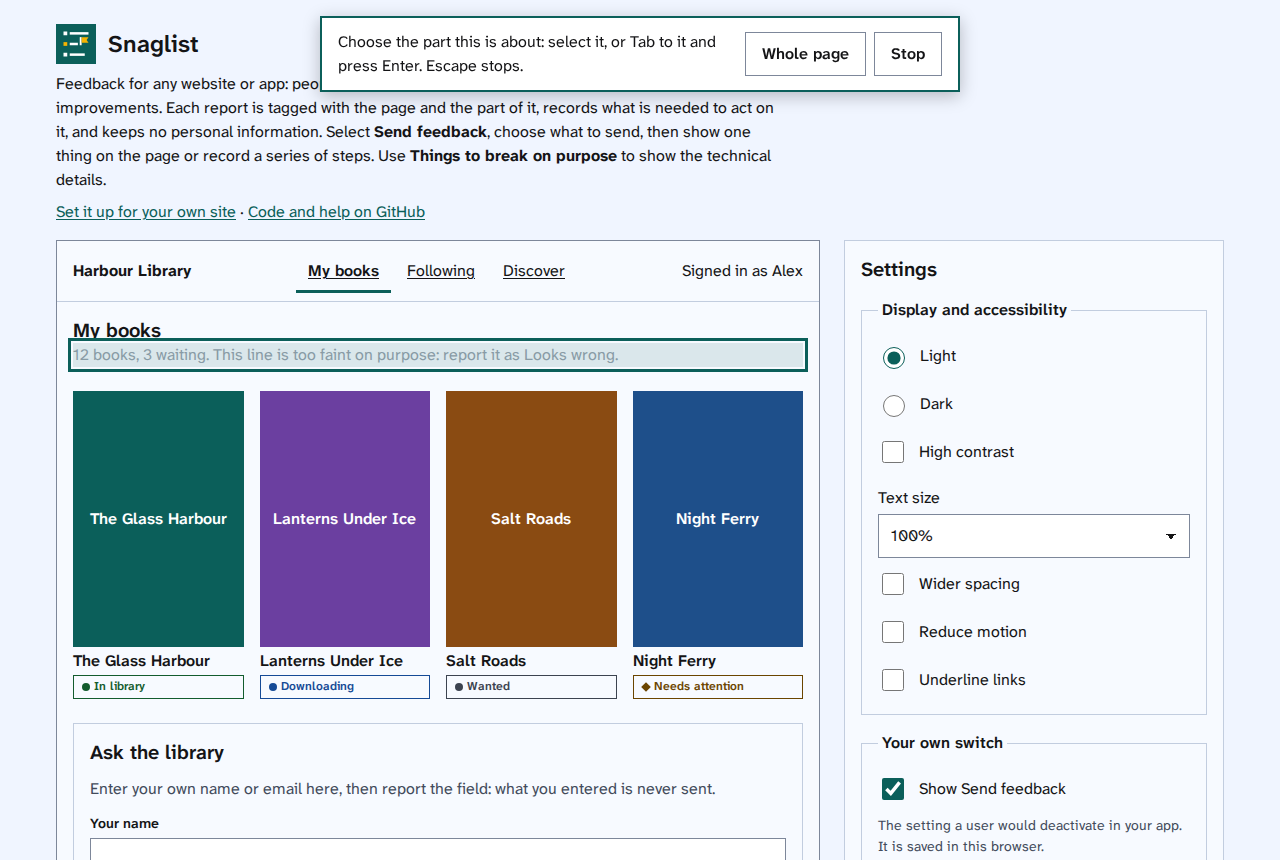
- Choose the part with the problem. A box shows what will be chosen. - With a mouse or touch screen, select the part. - With a keyboard, press Tab until the part is outlined, then press Enter. - For a problem with the page as a whole, select Whole page. To stop, select Stop or press Escape.
- The form opens with what you are sending, where, and the text Snaglist copied from that part. To choose another part, select Choose again.
- Say what is wrong, then choose How bad is it.
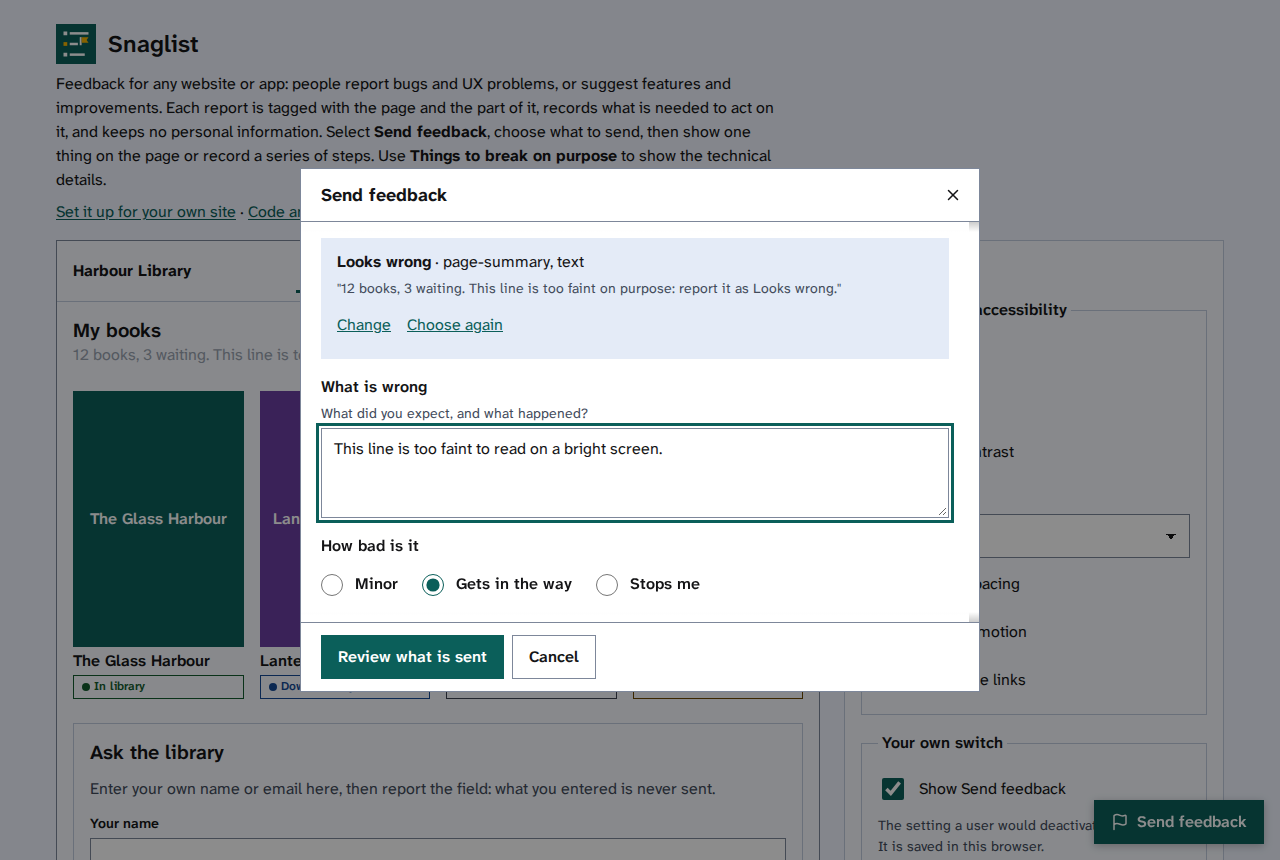
- Select Review what is sent. Read Check what is sent, then send it for the last step.
Things to note
- Nothing you have entered in the page's own fields is ever read, so it is safe to report a form you have filled in.
- Snaglist copies the visible text of the part you chose, and any error or alert messages on the page, because they help the team find the problem. You can take them out before sending.
- One report per problem helps the team fix each one.