Send a report with a QR code
How-to
When the computer you are using is not online, such as one you are setting up, show the report as a QR code and scan it with your phone. The phone opens the same new GitHub issue, filled in, for you to post from there.
Before you begin
- Fill in the form and select Review what is sent: read Check what is sent, then send it.
- The site's team must send reports to GitHub. If there is no Open in GitHub, there is no QR code either.
- You need a phone with a camera that reads QR codes, and a GitHub account to post the issue.
Steps
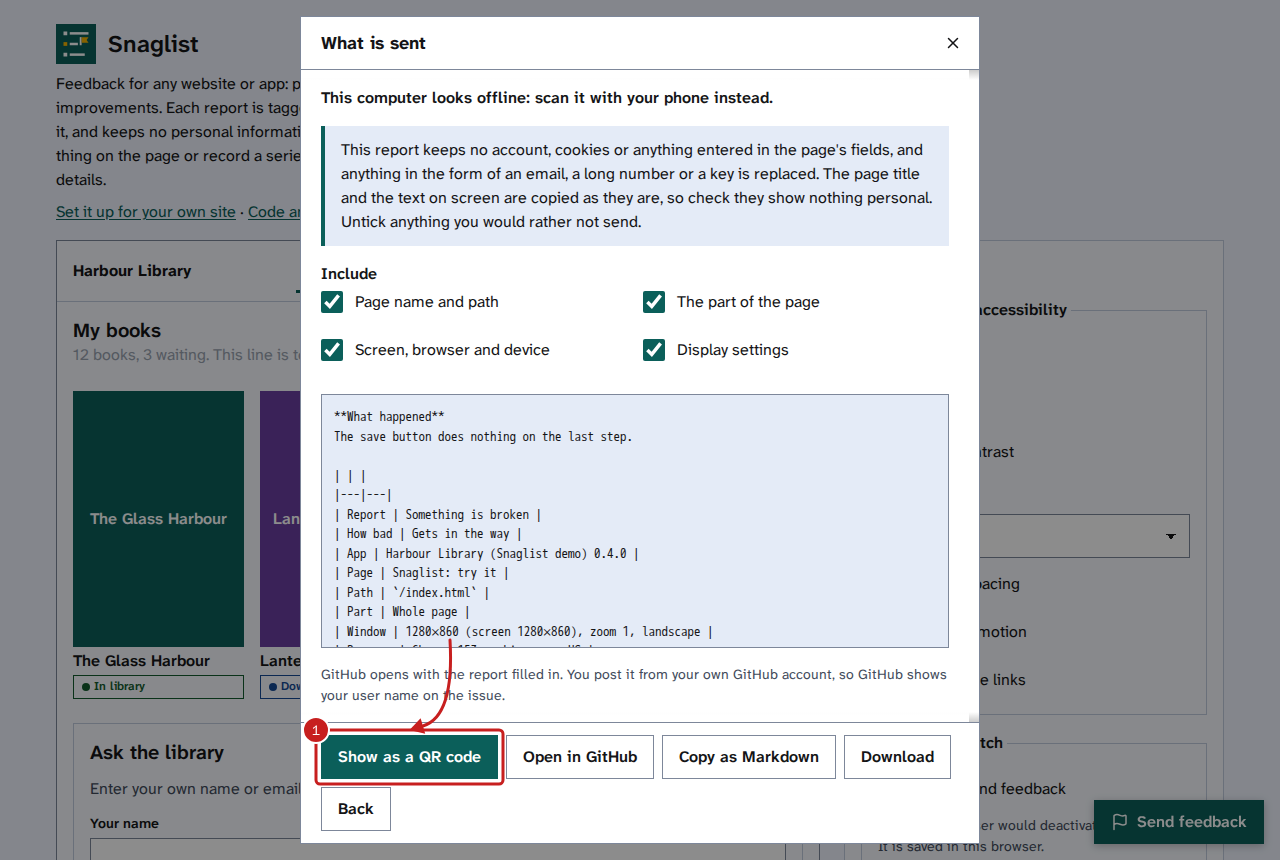
- In What is sent, select Show as a QR code. When this computer looks offline, it is the first choice, with the reason above the privacy statement.
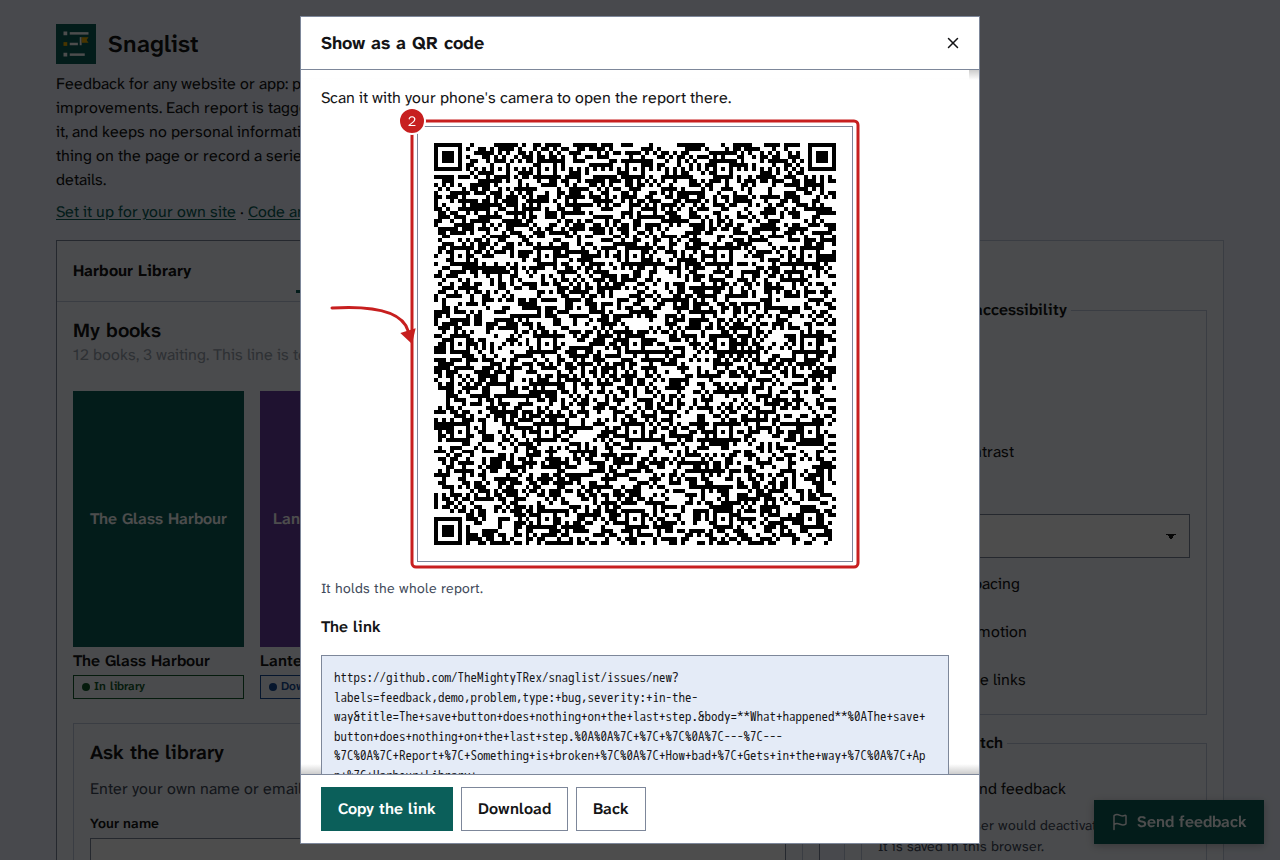
- Point your phone's camera at the code, then open the link it finds. The new issue opens with the title, the report and the labels filled in.
- Read the issue on your phone, then post it.
- On the computer, select Back to return to What is sent, or close the window.
Things to note
- A QR code holds less than a web address can, so a long report goes in shorter. The line under the code says what it holds: the whole report, the report without its technical details, a short report with your words cut to fit, or less. Download, when the site offers it, keeps the whole report, to add to the issue later.
- The code is never the only way. The link is shown as text under it, with Copy the link, and works on any device.
- The code is dark on light in every theme, so phones read it in dark mode too. Screen readers read a description of it, and the link as text.
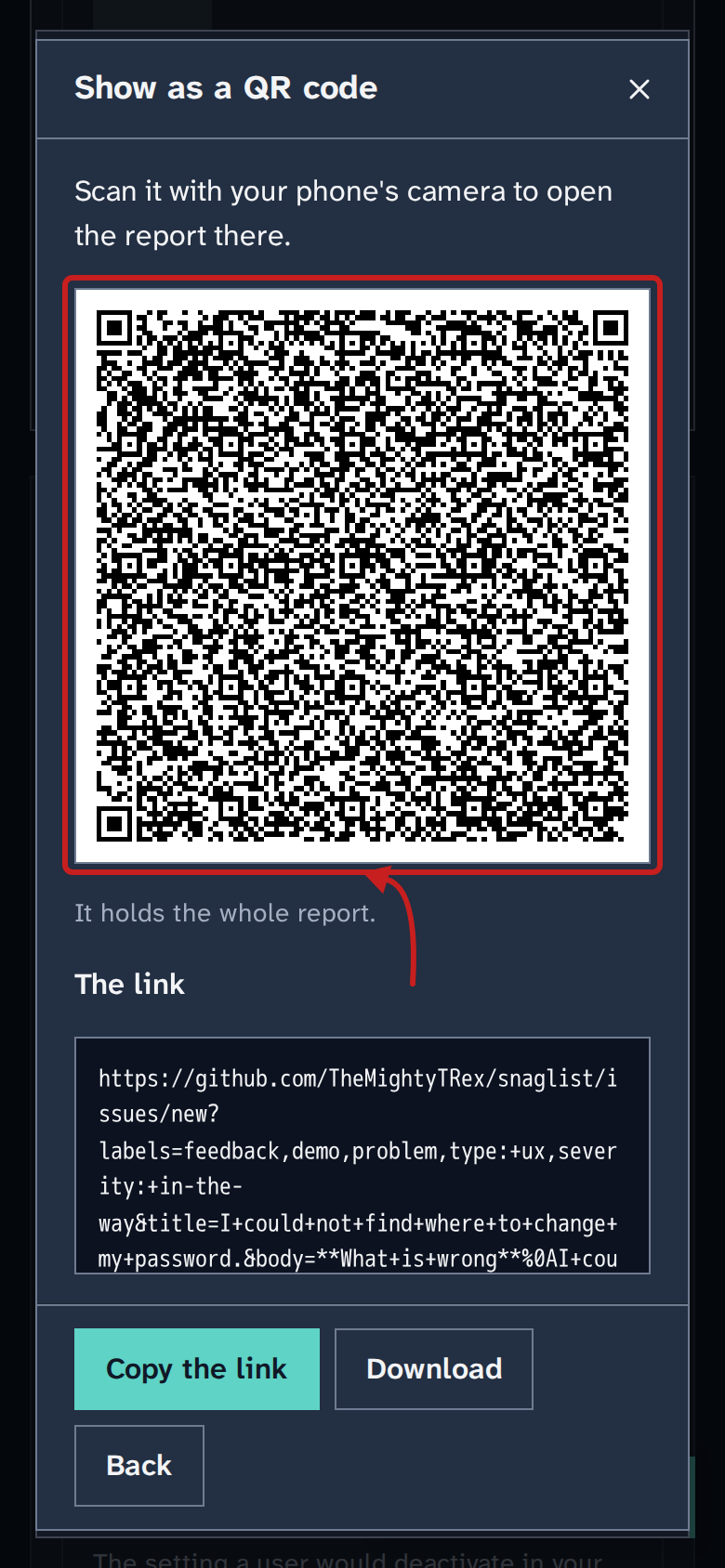
- The code holds only what the preview in What is sent shows, never what you typed into the page.
If it does not work
- The phone does not find the code: make the window larger, turn up the screen brightness, and hold the phone a little further away so the whole code, with its white edge, is in view.
- The phone has no signal either: select Download to keep the whole report, and send it later with Copy as Markdown or Open in GitHub.