Record a series of steps
How-to
When a problem only happens after several steps, record them. Snaglist notes each thing you select, change or send, each page you go to, and any errors along the way, then you describe what went wrong.
Steps
- Go to the page where the steps start and select Send feedback.
- Choose what you are reporting, such as Something is broken.
- Under What do you want to show, choose A series of steps, then select Continue. A recording bar appears.
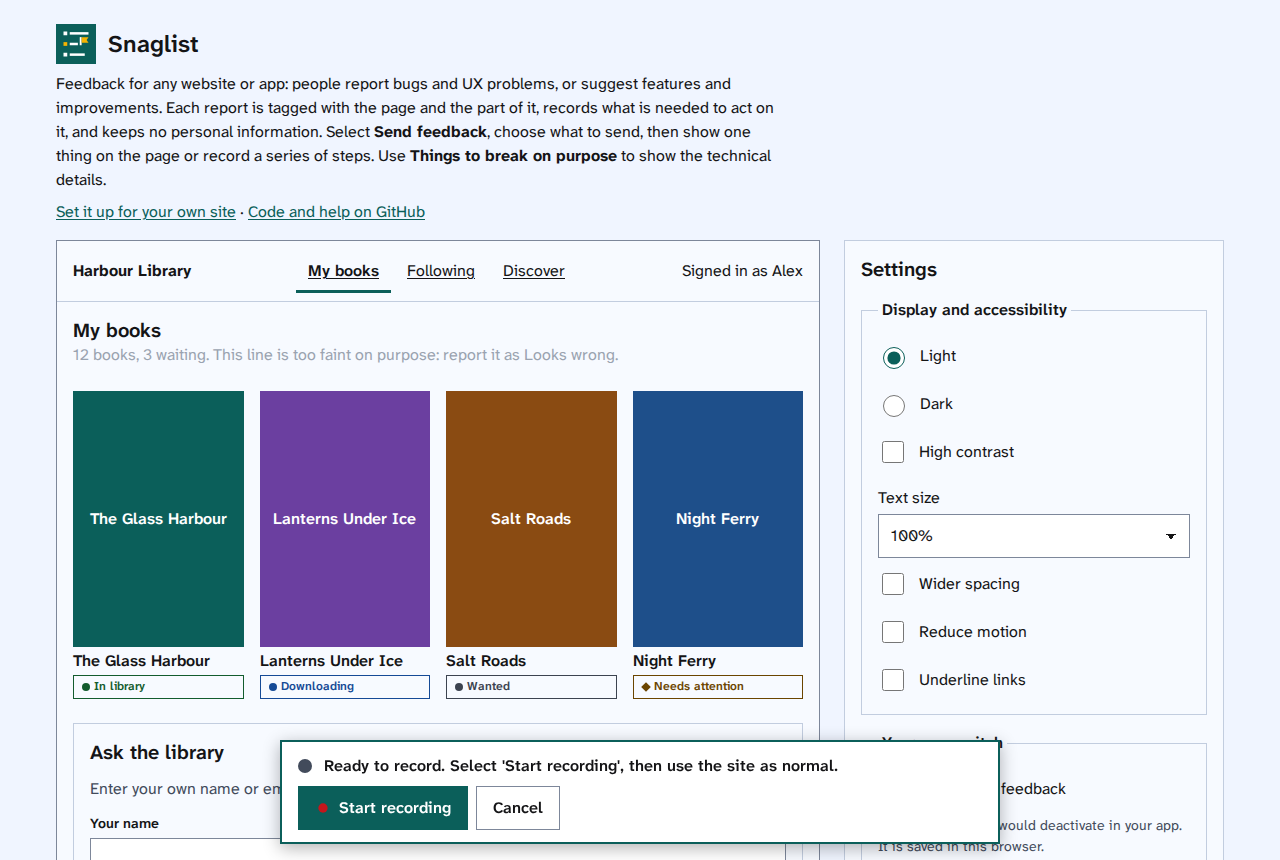
- Select Start recording, then use the site as you normally would. The bar counts the steps and shows the last one. - To stop recording for a moment, select Pause. Select Resume to carry on. - To throw the steps away and begin again, select Start again. - To stop without sending anything, select Cancel.
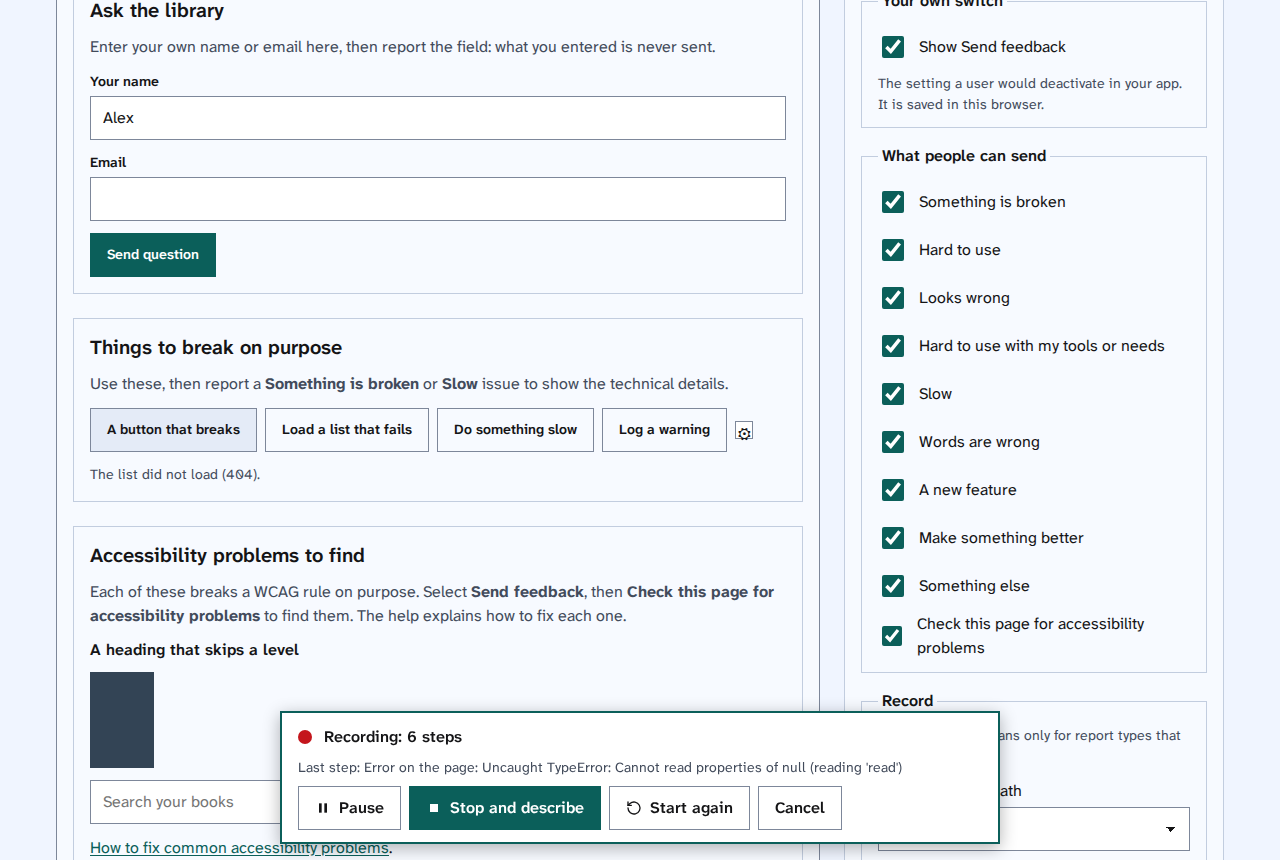
- When the problem has happened, select Stop and describe. The form opens with your recorded steps.
- Select Recorded steps to check them, then say what happened and what you expected, and choose How bad is it.
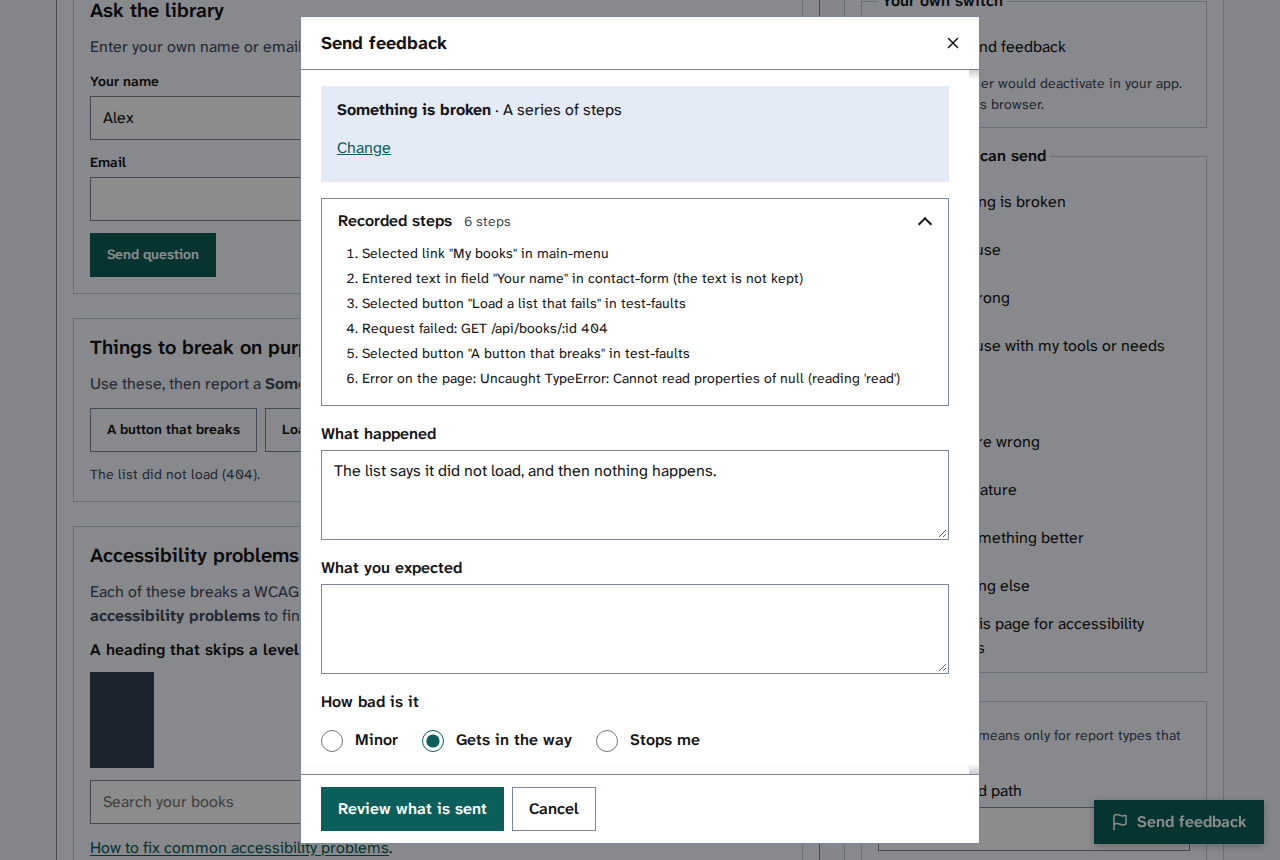
- Select Review what is sent, then read Check what is sent, then send it.
Things to note
- What you enter is never recorded. A step says "Entered text in field Your name", never the text.
- The recording carries on when you go to another page on the same site, in the same browser tab. It stops when you close the tab.
- A recording keeps the last 60 steps.