
Library clean-up: Install
Add Library clean-up from Starboard's Catalogue, where it is listed under Jellyfin. Starboard shows what it may do and tests it before anything is added. Starboard never adds it by itself. At the end, Library clean-up is active, nothing has moved, and its card is ready for your dashboard.
Before you begin
- Starboard 0.19.0 or later, with plug-in API 1.15. Library clean-up 1.0.0 is its first version, so an older Starboard is not offered it: read Updates.
- Jellyfin added to Starboard, in Settings, then Apps. Library clean-up reads what each person watched from it.
- Reelix, so what moves is not downloaded again. Without Reelix it still moves items, but Reelix cannot be told to stop following them.
- Your films and series in Starboard's media folder. The holding folder is made inside it, at
media/.holding/library-cleanup. - Your Starboard password. Adding and removing a plug-in ask for it.
What it may do
Starboard lists these before you add it, each with its risk. Its risk is high.
| Permission | Risk |
|---|---|
Read and change your media folder, to move films and series into the holding folder there and put them back (library:holding) |
High |
Use Jellyfin's API key, kept by Starboard, to read what each person watched, their favourites, Continue watching and collections, and to tell Jellyfin what moved (jellyfin:key) |
High |
Use Reelix's API key, kept by Starboard, to stop following what moves and follow it again on Put back (reelix:key) |
High |
Reach other computers on your home network, where Jellyfin and Reelix answer (network:lan) |
Medium |
What it runs:
- main: reaches your home network. It can use its own folder in Starboard's data (
data/plugins/library-cleanup) and the whole media folder, to read and change, at/media. It runs as the owner of your media folder, so moved folders keep their owner. It rests after 15 minutes with nothing to do, and Starboard wakes it when it is needed.
It is given the whole media folder, so add it only if you trust it. Its code has no call that deletes a file or a folder, and the collection's tests check that.
Like every plug-in, it runs read only, as a user that is not root, with no extra rights. Its image is pinned by digest, so what you approved is what runs.
Memory and processor
- main: 128 MB of memory and 0.5 of a processor core at most.
Measured:
- 22.21 MiB at rest in the smoke test, on 15 November 2026.
- On made-up data (3,000 films and 300 series for 3 people), measured on 15 November 2026: about 14 MB at rest, 31 MB at its busiest while it worked out Preview and moved 200 items, and 28 MB after. 0% of a processor at rest.
Add it
- Go to Settings, then Plug-ins, then Catalogue.
- Under Jellyfin, find Library clean-up and select Install….
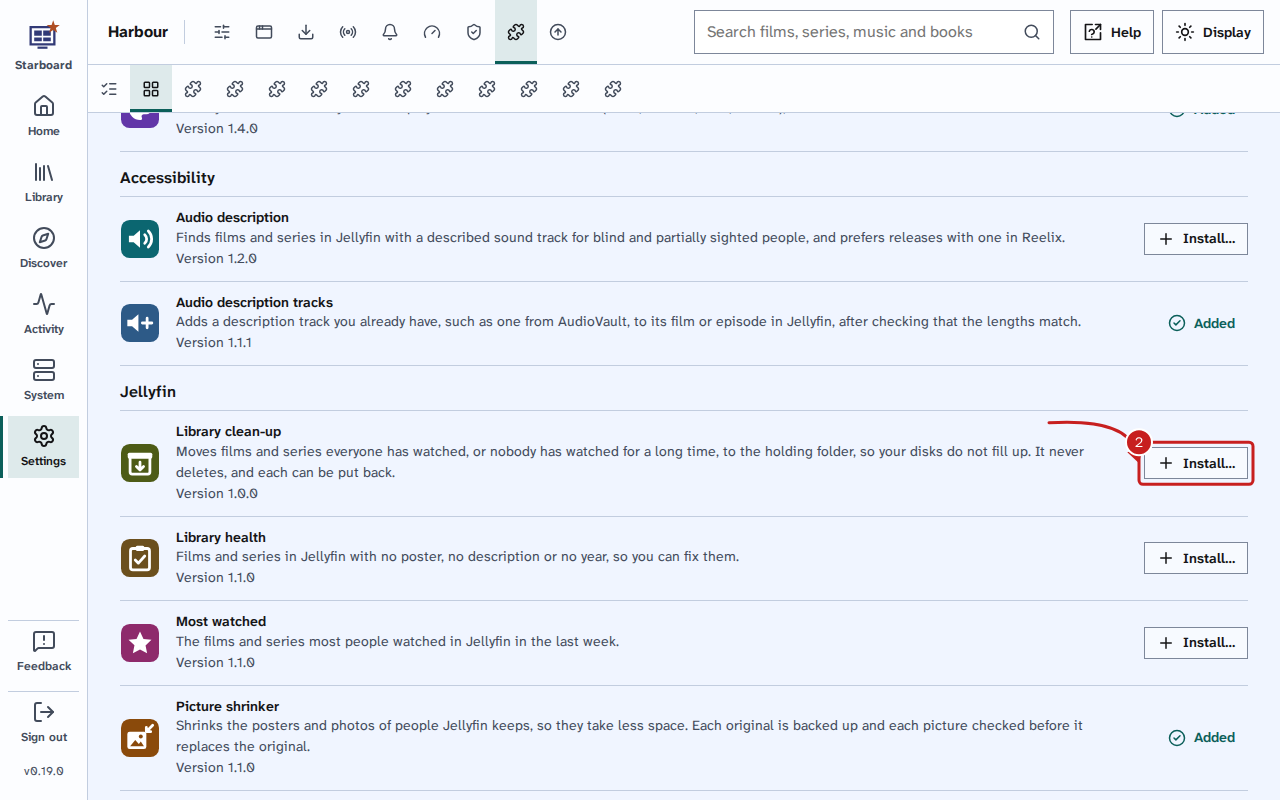
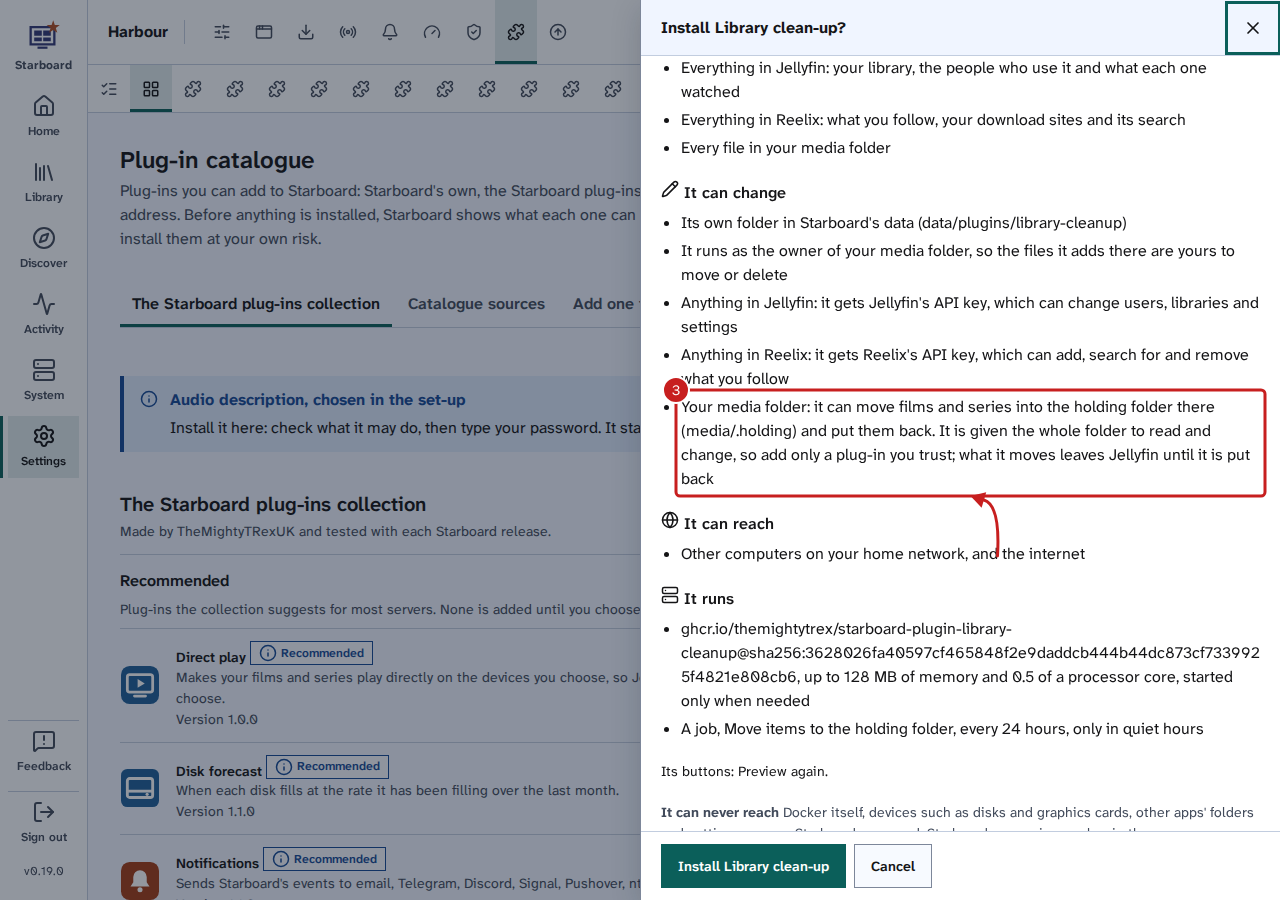
- A slide-out opens with what it can read, change and reach. Read it all. Under It can change, the line about your media folder says what it may do there.
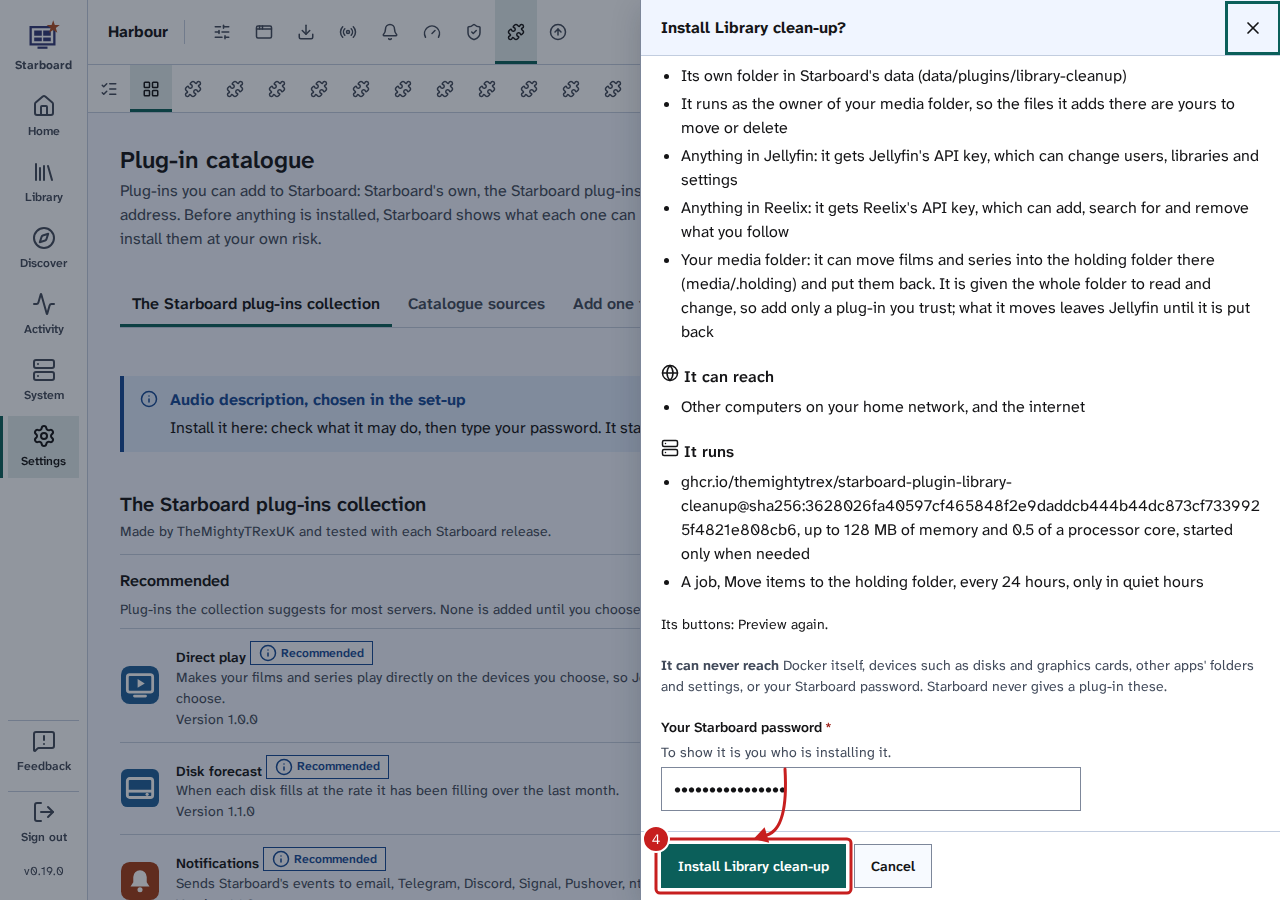
- Enter your Starboard password and select Install Library clean-up. To stop, select Cancel: nothing is installed.
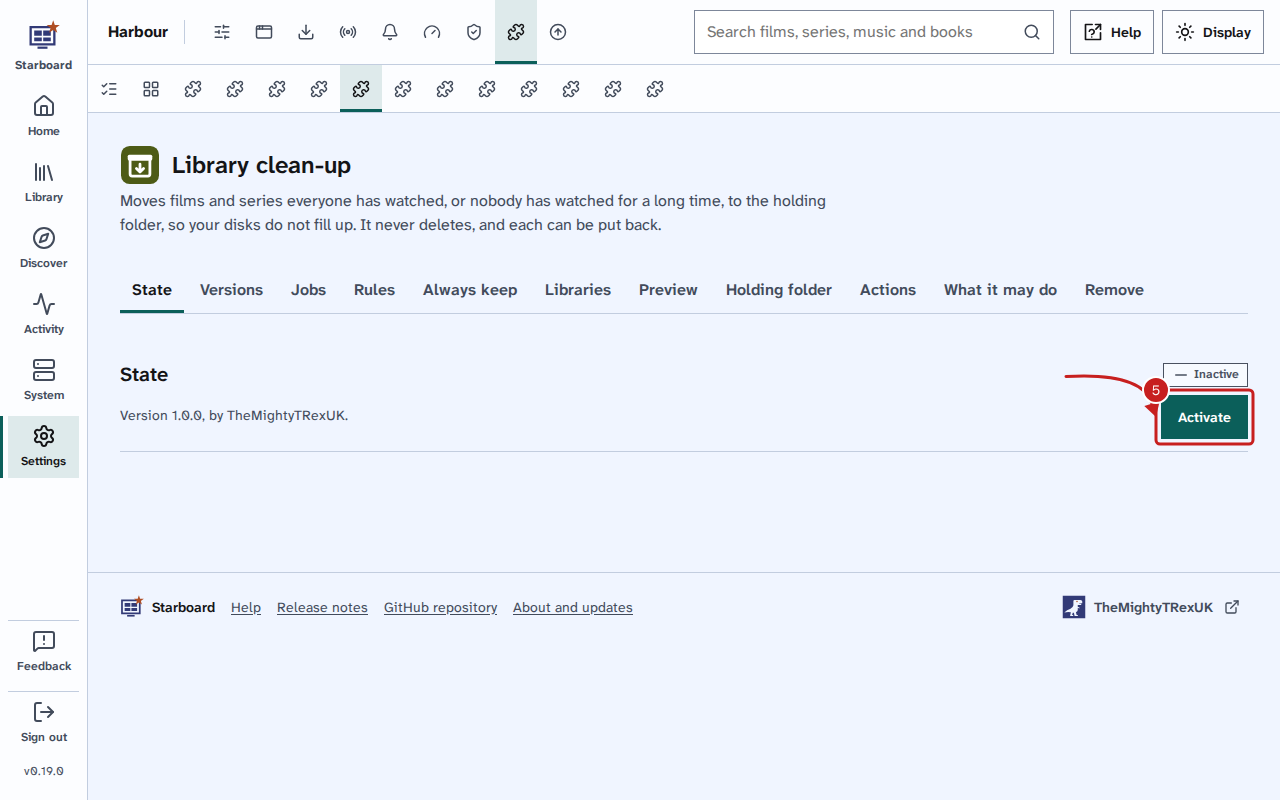
- Library clean-up's own tab opens under Settings, then Plug-ins. Select Activate. Its state changes to Active.
- Check the rules, Libraries and Always keep. If someone never watches, such as a guest account, add their Jellyfin user name to People to leave out. Read Settings.
- Open Preview. It lists what the rules would move now, and the space each frees. Nothing moves from Preview.
- When Preview lists only what you are happy to move, activate Move items each day in Rules.
- Add its card to your dashboard. Read Dashboard card.
To move items straight away, once Move items each day is activated, go to System, then Jobs, and select Run now beside Move items to the holding folder.
Add it by its address
On the Catalogue page, under Add one from elsewhere, paste this into The plug-in's manifest address, then select What it does and carry on from step 3:
https://raw.githubusercontent.com/TheMightyTRex/starboard-plugins/main/library-cleanup/starboard-plugin.jsonOr run its installer, install.py in its folder, on any computer with Python, and give your Starboard's address.
Remove it
- First, put back anything you want to keep in your library: open Holding folder on its tab and select Put back beside each one.
- Go to Settings, then Plug-ins, then Library clean-up.
- Under Remove, select Remove Library clean-up.
- Choose where its folder goes: Keep it with Starboard's data (in
data/plugins/.removed) or Move it to the holding folder, listed in System, Clean up, where you can put it back or delete it for good. - Enter your Starboard password and select Remove.
Its containers stop and go, and its API key stops working. Nothing is deleted. What it moved stays in media/.holding/library-cleanup. To return a folder after it is removed, move it back to where it was yourself, then choose Follow for it in Starboard's Library so Reelix follows it again.
To stop it for a while instead, deactivate Move items each day, or select Deactivate on its tab: its settings, its folder and what is in the holding folder are kept.
Find out more
This page on GitHub, where the help is written.