On this page
Troubleshooting
Picture shrinker is not shrinking pictures
Picture shrinker runs, or should, but the pictures stay the same size, Shrink pictures shows as failed, or Last runs says some were not shrunk. Follow the chart to find the cause.
The chart in words
Start: The pictures are not shrunk
- Then: Open Scheduled Tasks (Dashboard, then Scheduled Tasks)
- Then: What does Shrink pictures say?
- Failed: 1. Choose a backup option
- It has not run yet: 2. Start a run
- It ran: What does Last runs say?
- Some were not shrunk: 3. Give the backup room
- All were left as they were: 4. Check the sizes and the picture types
- No pictures at all: 5. Check where Jellyfin keeps the pictures
- Then: What does Shrink pictures say?
1 Choose a backup option
Nothing is shrunk until you choose a backup option, after you install Picture shrinker and after the update from version 1.1. There is no default. Until you choose:
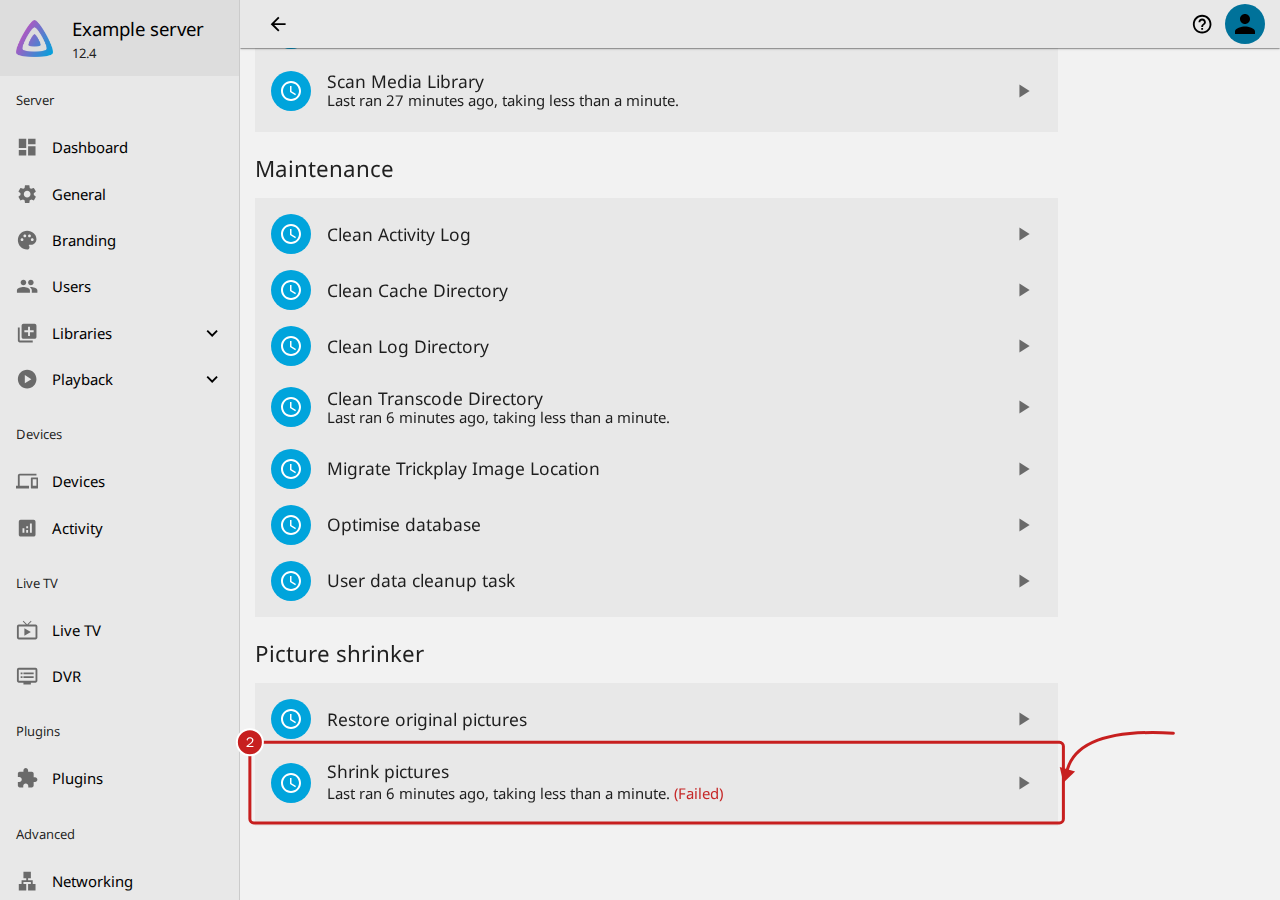
- Shrink pictures ends as failed in Scheduled Tasks, with the reason: "Not shrunk: choose Keep a backup copy or Shrink without a backup, in its settings, first".
- Go to Dashboard, then Scheduled Tasks: Shrink pictures, under Picture shrinker, says (Failed).
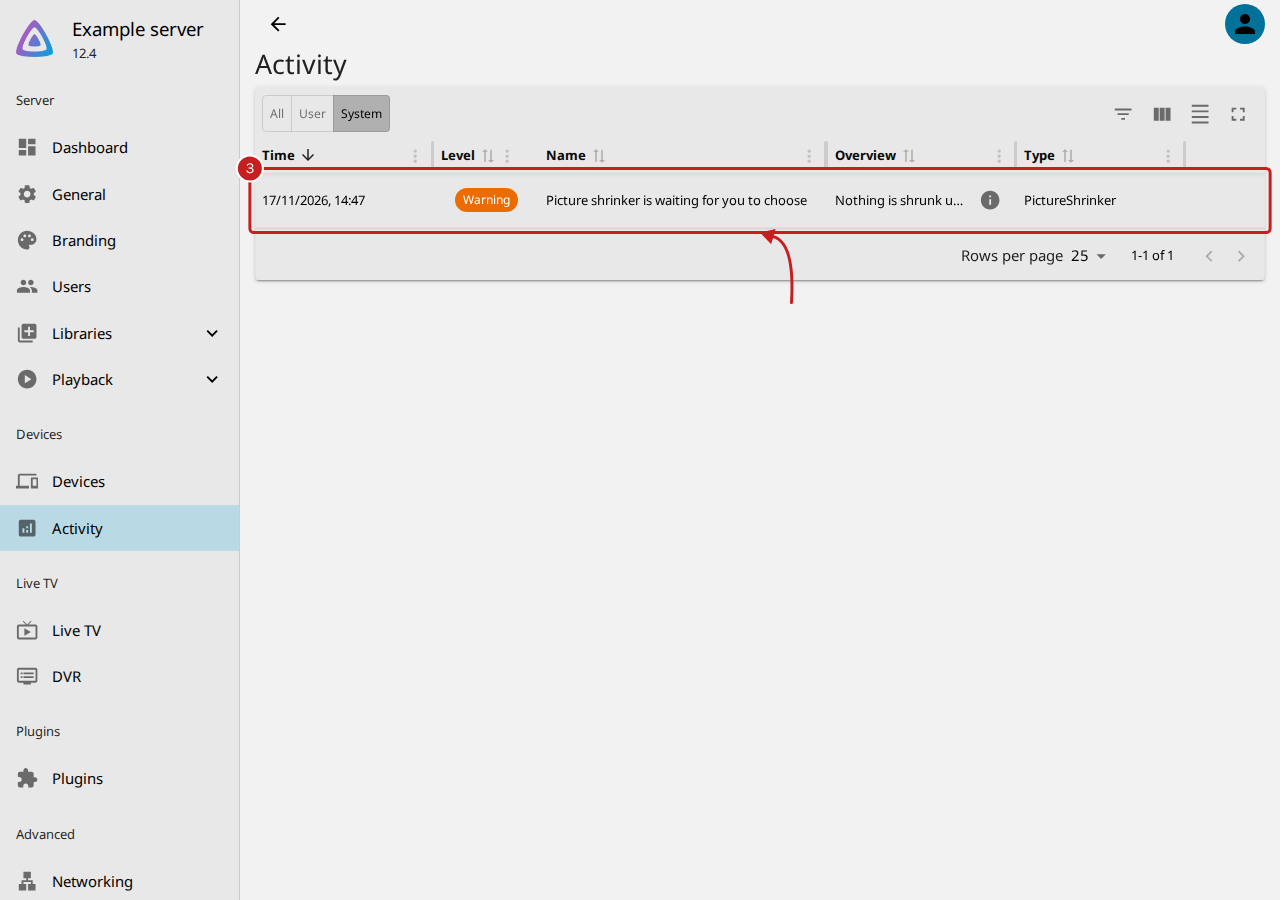
- Go to Dashboard, then Activity, and select System: "Picture shrinker is waiting for you to choose" is listed when Jellyfin starts, and again at most once a day when a run or a new picture is skipped.
- To fix it, follow Install Picture shrinker, steps 11 to 13: under Original pictures, choose Keep a backup copy of each original or Shrink without a backup, then Save.
- Select Shrink now, under Space, to shrink straight away.
2 Start a run
Shrink pictures runs every Sunday at 03:30 until you change it, so it may not have run yet.
- Select Shrink now, under Space on the settings page, to run straight away.
- If it never runs, check its triggers in Scheduled Tasks: a task with no trigger runs only when you start it. Read Choose when Picture shrinker runs.
- With Once a month active, a weekly trigger runs only the first time in each month.
3 Give the backup room
With Keep a backup copy of each original, a picture is not shrunk when its original cannot be copied first:
- "the backup disk has only … free": the backup disk would have less than 100 MB left. Free some space, or choose another Backup folder on a disk with room. The first run needs about as much free space as the pictures take now.
- "the original could not be copied to the backup folder": Jellyfin cannot write to the backup folder. Check that
the folder exists and that the user Jellyfin runs as can write to it, such as the
PUIDof a LinuxServer.io container.
Not shrunk, under Last runs, counts these pictures. Each is left as it was, and the next run tries again. A picture that cannot be read at all, such as a broken file, is counted there too and left alone.
4 Check the sizes and the picture types
Left as they were counts pictures already small enough: they are never made larger, and never written.
- Check the sizes under Sizes: a picture is shrunk only when it is larger than its size.
- Check that Shrink all picture types is active, or that the type is ticked under Picture types.
- A picture already shrunk stays at its size when you raise the size: put the original back first.
5 Check where Jellyfin keeps the pictures
Picture shrinker works only in Jellyfin's metadata folder (/config/metadata in the official Docker image,
/config/data/metadata in the LinuxServer.io image).
- Pictures saved beside your media files are left alone. In a library's settings, Save artwork into media folders keeps them there.
- A warning under Space, such as "Jellyfin's metadata folder is not there", names the problem. "The backup folder must be a full path" or "cannot be inside the folders of pictures it shrinks" means Backup folder needs another path: read Keep a backup, and put the original pictures back.
- Only
.jpg,.jpeg,.pngand.webppictures are shrunk, never hidden files.
Other things that happen
- The pictures are soft on a large television: choose a larger size or a higher Quality.
- Pictures came back full size: Refresh metadata with Replace existing images downloads new pictures. The next run shrinks them.
- A run stopped part way: a run stops itself after 115 minutes, and the next run carries on.
- Starboard's Picture shrinker says Idle: that is expected while this one is installed. Read Use the plug-ins with Starboard.
Find out more
This page on GitHub, where the help is written.