How-to
Check how much space you saved
Picture shrinker's settings page shows how much space the pictures take now, how much the backup takes, and how much space it has saved, with a list of its last runs. A run sends no notification, so this page is where its results are. This takes 5 steps.
Before you begin
- Picture shrinker is installed and a backup option is chosen. Read Install Picture shrinker.
Steps
- Go to Dashboard, Plugins, Installed, select Picture shrinker, then Settings.
- Under Space, read the three figures. They are measured when the page opens and after each thing you do on it; Measured says when. - Pictures now: the size and number of the pictures of the types it shrinks, in Jellyfin's metadata folder. - Backup of the originals: the size and number of pictures in the backup, and the folder it is in, with Delete backup and the space it frees. - Space saved: the space saved now and how many pictures are shrunk. After Start again, it also says how many pictures are waiting for Jellyfin, replaced by a new one and put back.
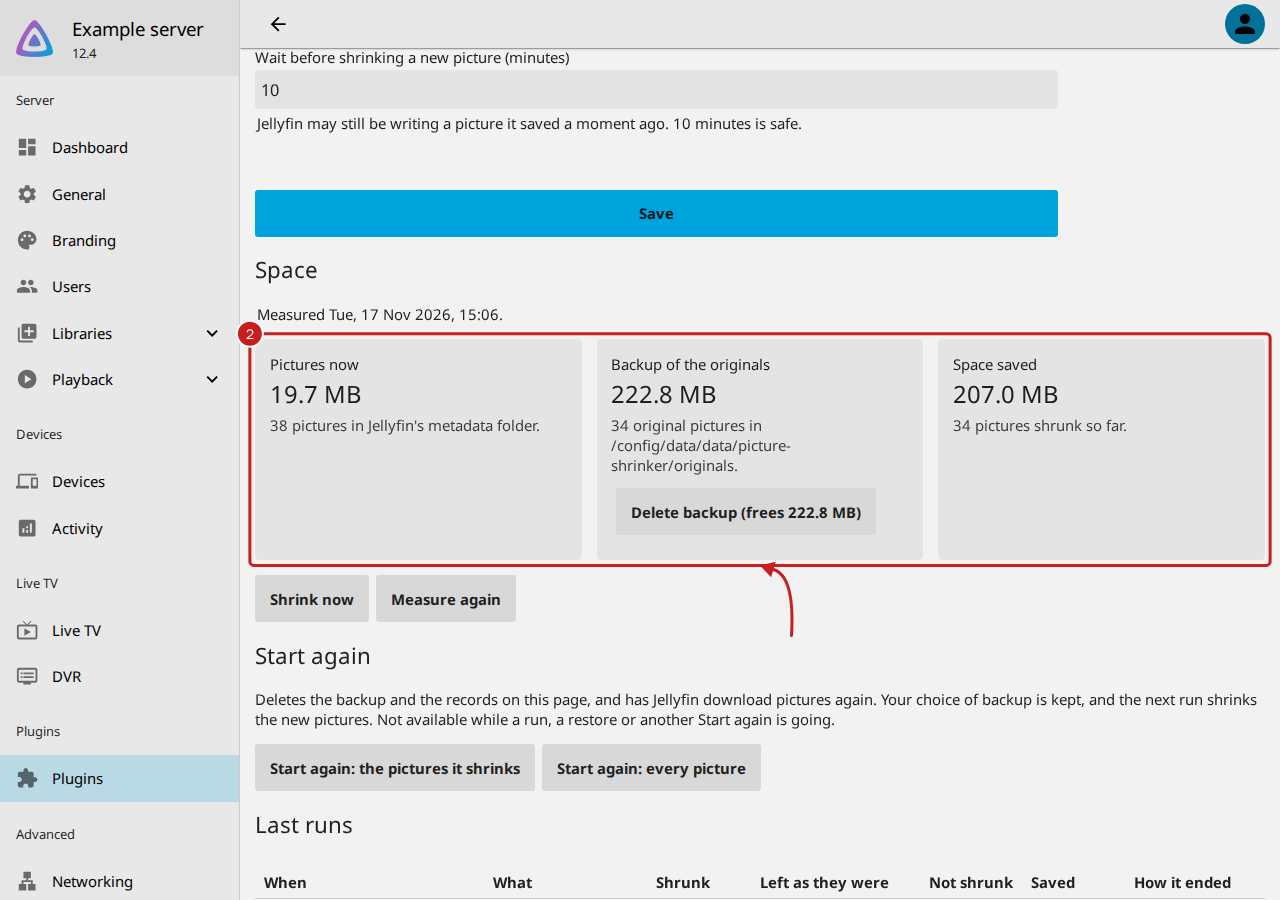
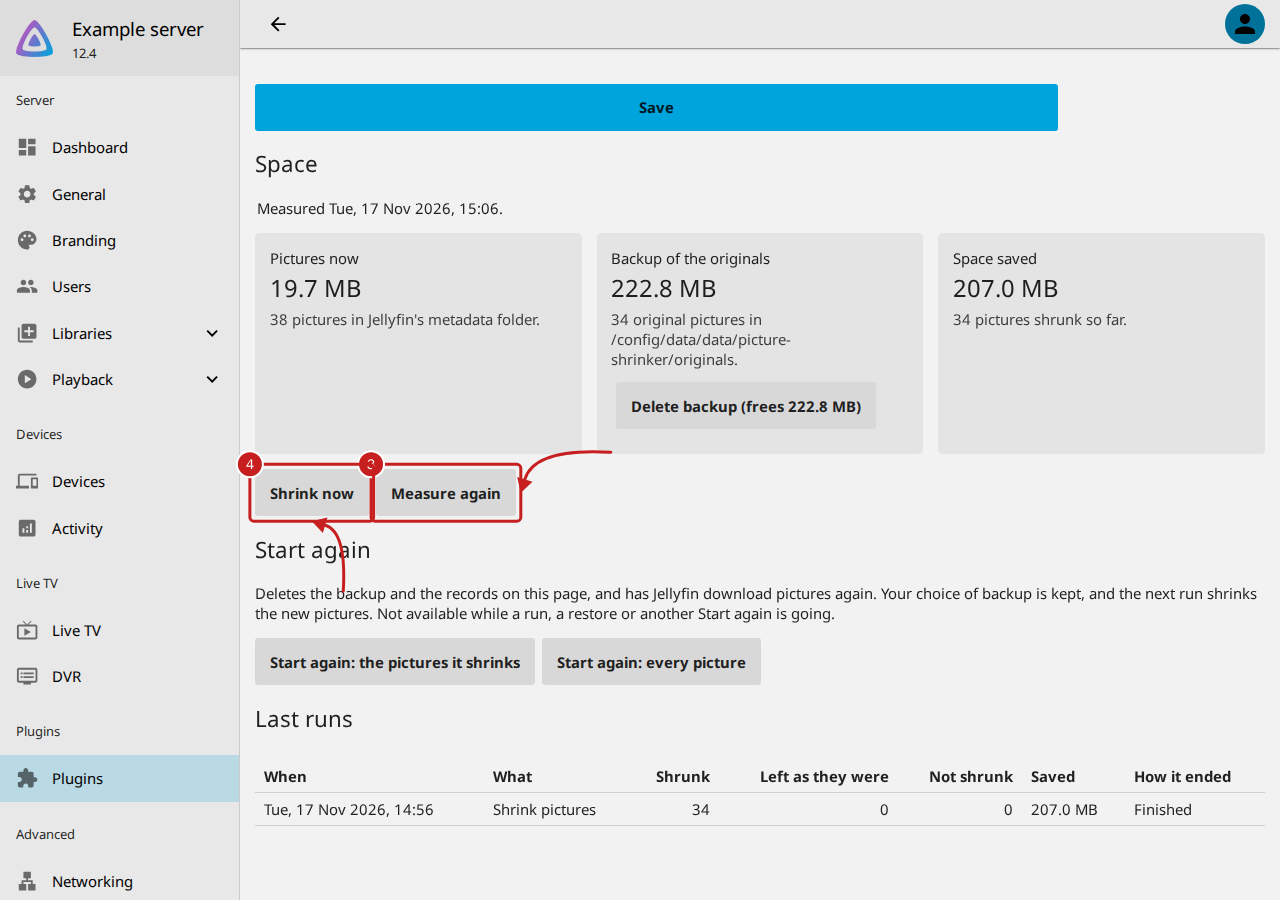
- Select Measure again to measure now, such as while a run is going.
- To shrink straight away, select Shrink now. It runs at the lowest priority; Scheduled Tasks shows how far it has gone.
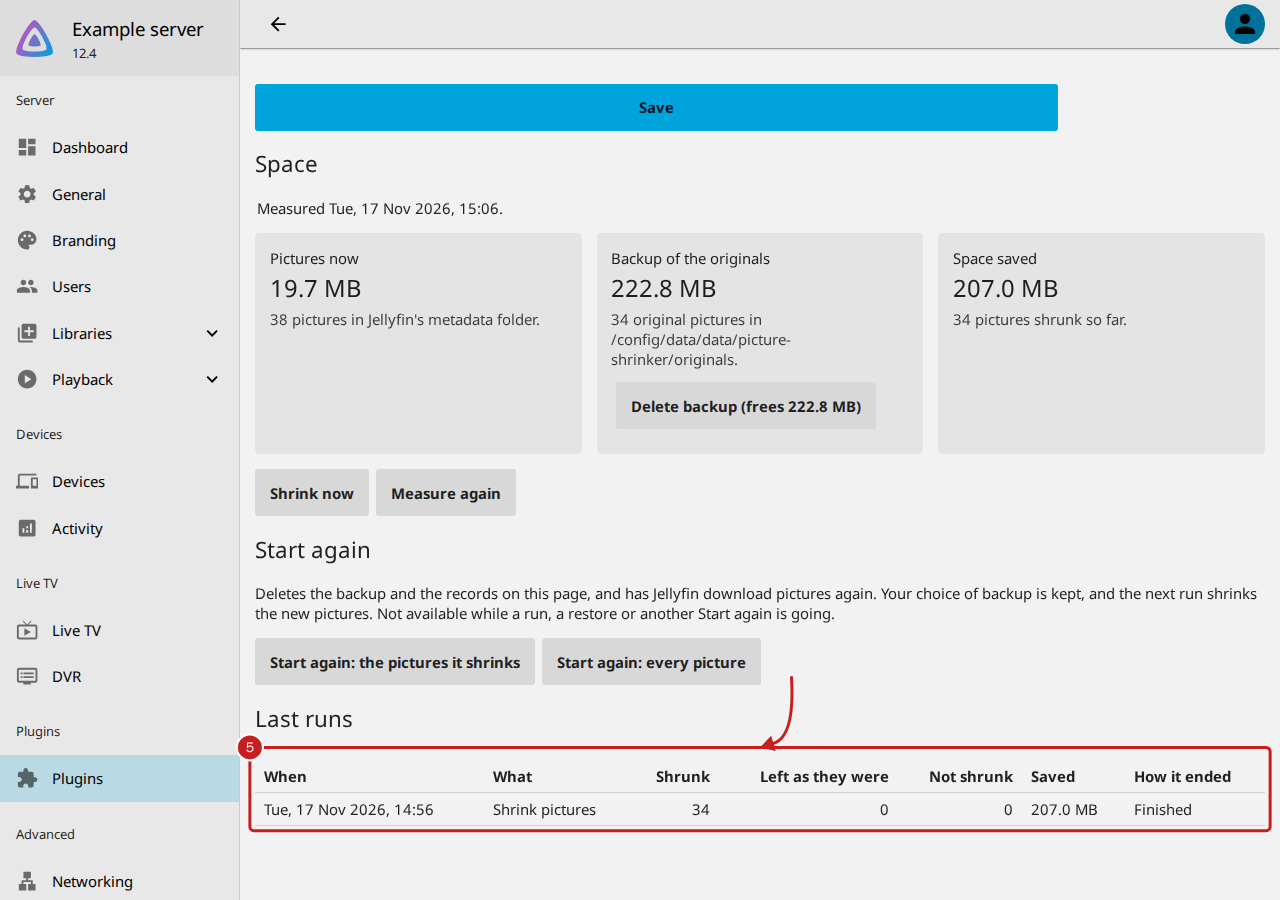
- Under Last runs, read each run: When, What started it, how many were Shrunk, Left as they were and Not shrunk, the space Saved, and How it ended.
What the figures mean
- Left as they were: pictures already small enough. They are only opened to read their size, never written.
- Not shrunk: pictures that could not be read, or whose original could not be copied to the backup. Each is left as it was. Read Picture shrinker is not shrinking pictures.
- How it ended: Finished, or why it stopped, such as "Stopped at its time limit; the next run carries on" after 115 minutes, or "Stopped by you; the next run carries on".
- Pictures put back by Restore original pictures no longer count in Space saved.
- A picture is counted once, however many times it is opened.
Example: what to expect
On a sample of 540 made-up pictures (300 posters at 2,000 by 3,000 pixels and 240 photos at 1,365 by 2,048), the pictures went from 776.3 MB to 17.5 MB, saving 758.8 MB, in 55 seconds. Real libraries vary with the pictures their metadata source gives.
Find out more
This page on GitHub, where the help is written.