On this page
How-to
Choose when Picture shrinker runs
Shrink pictures is a task in Jellyfin's Scheduled Tasks, and it runs every Sunday at 03:30 until you change it. Change its time with Jellyfin's own triggers, and choose on the settings page whether it runs once a month and whether new pictures are shrunk soon after Jellyfin saves them. This takes 11 steps.
Before you begin
- Picture shrinker is installed and a backup option is chosen. Read Install Picture shrinker.
- Choose a quiet time, such as the night. A run works at the lowest priority, so people can watch while it runs, but on a small server it still uses processor time.
Change the time
- Go to Dashboard, then Scheduled Tasks.
- Under Picture shrinker, select Shrink pictures.
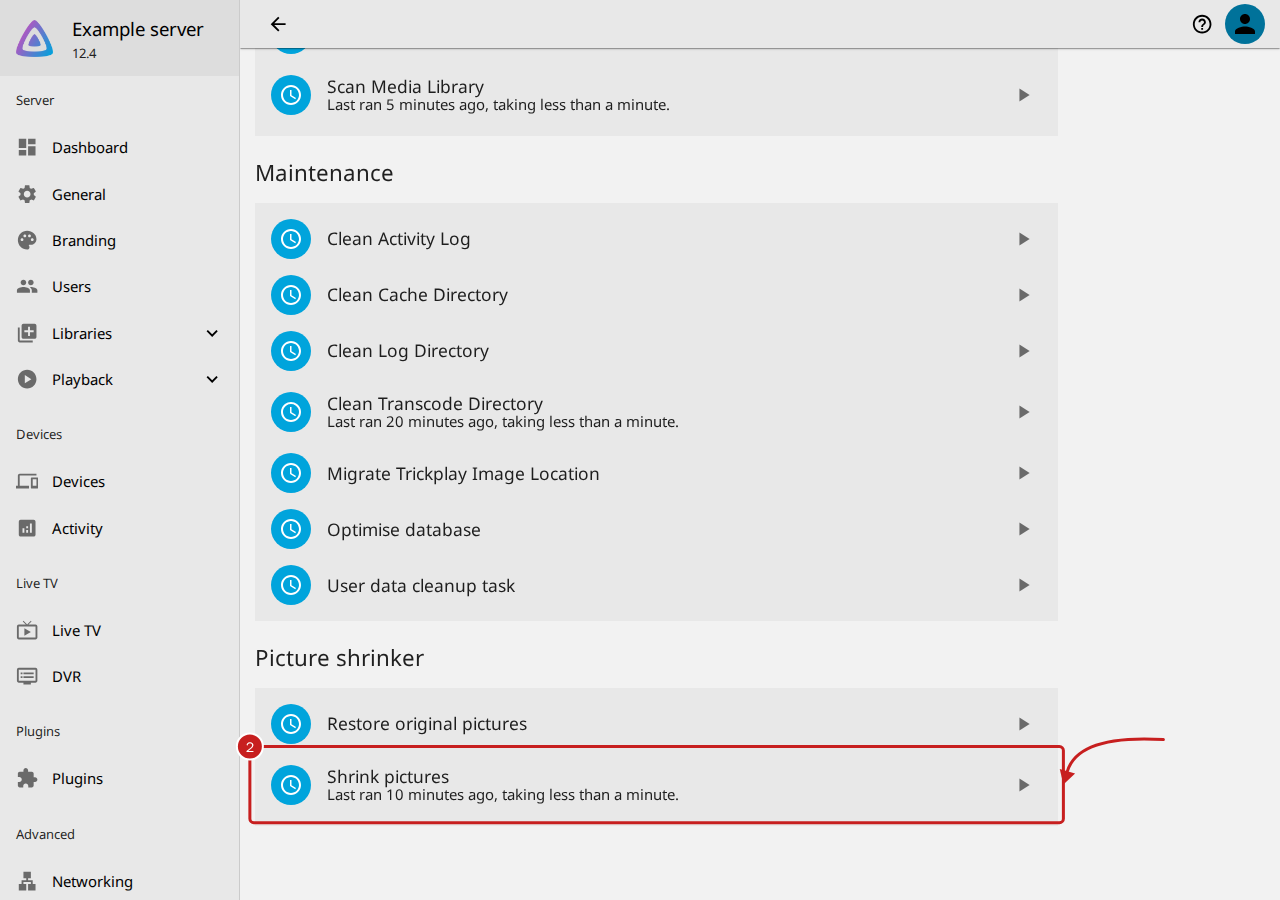
- Select Add Trigger.
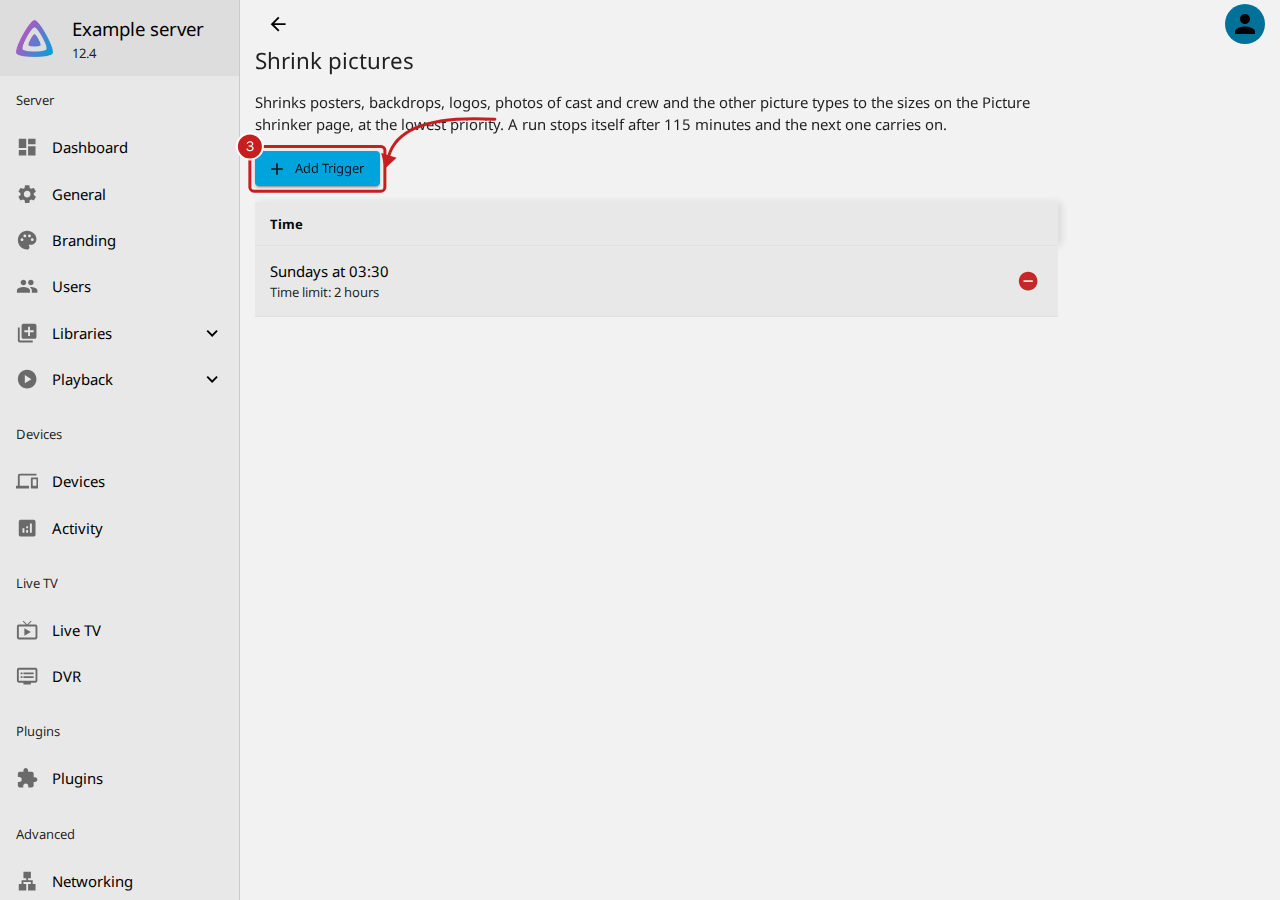
- In Trigger type, choose Daily or Weekly. For Weekly, also choose the day.
- In Time, choose the time to start.
- Select Add.
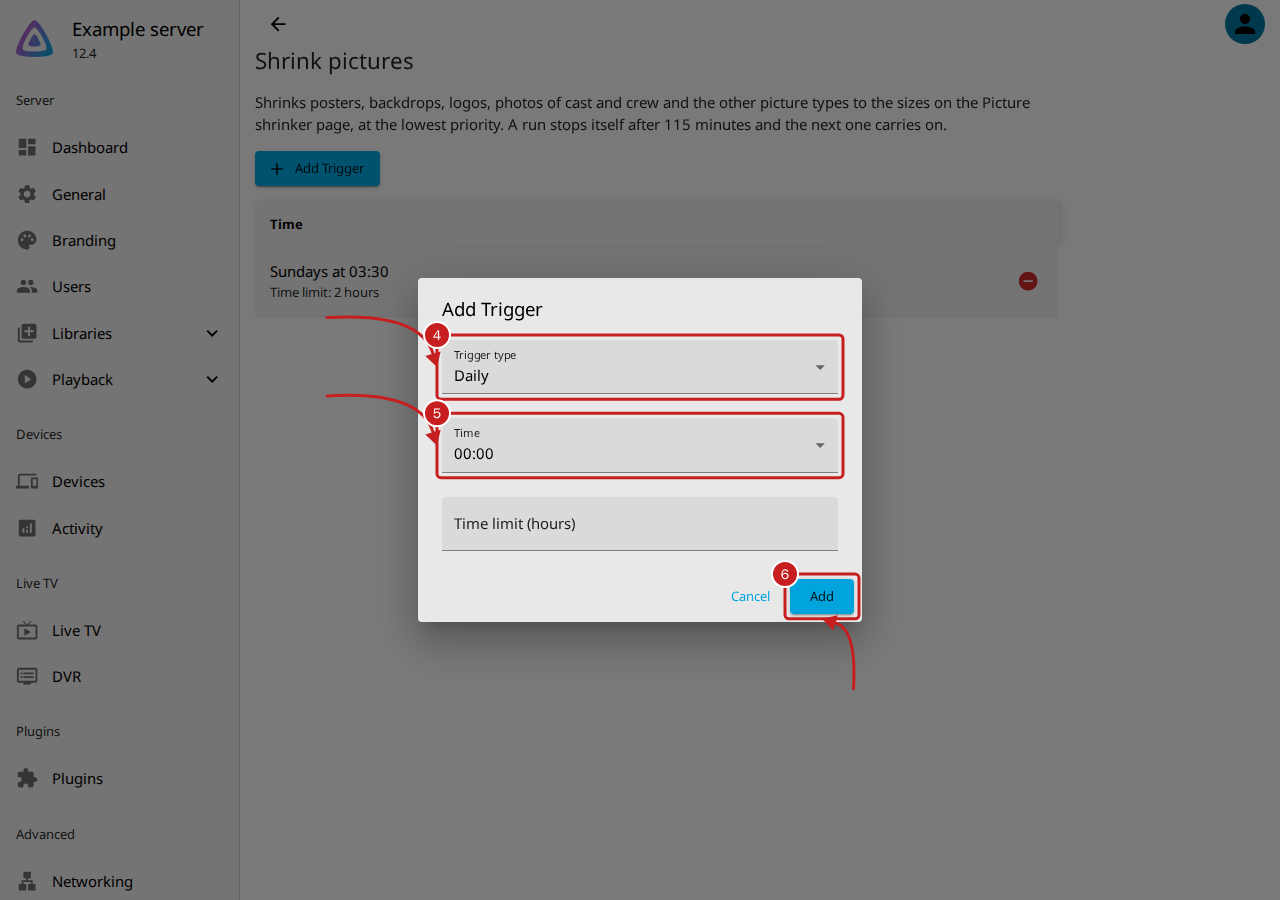
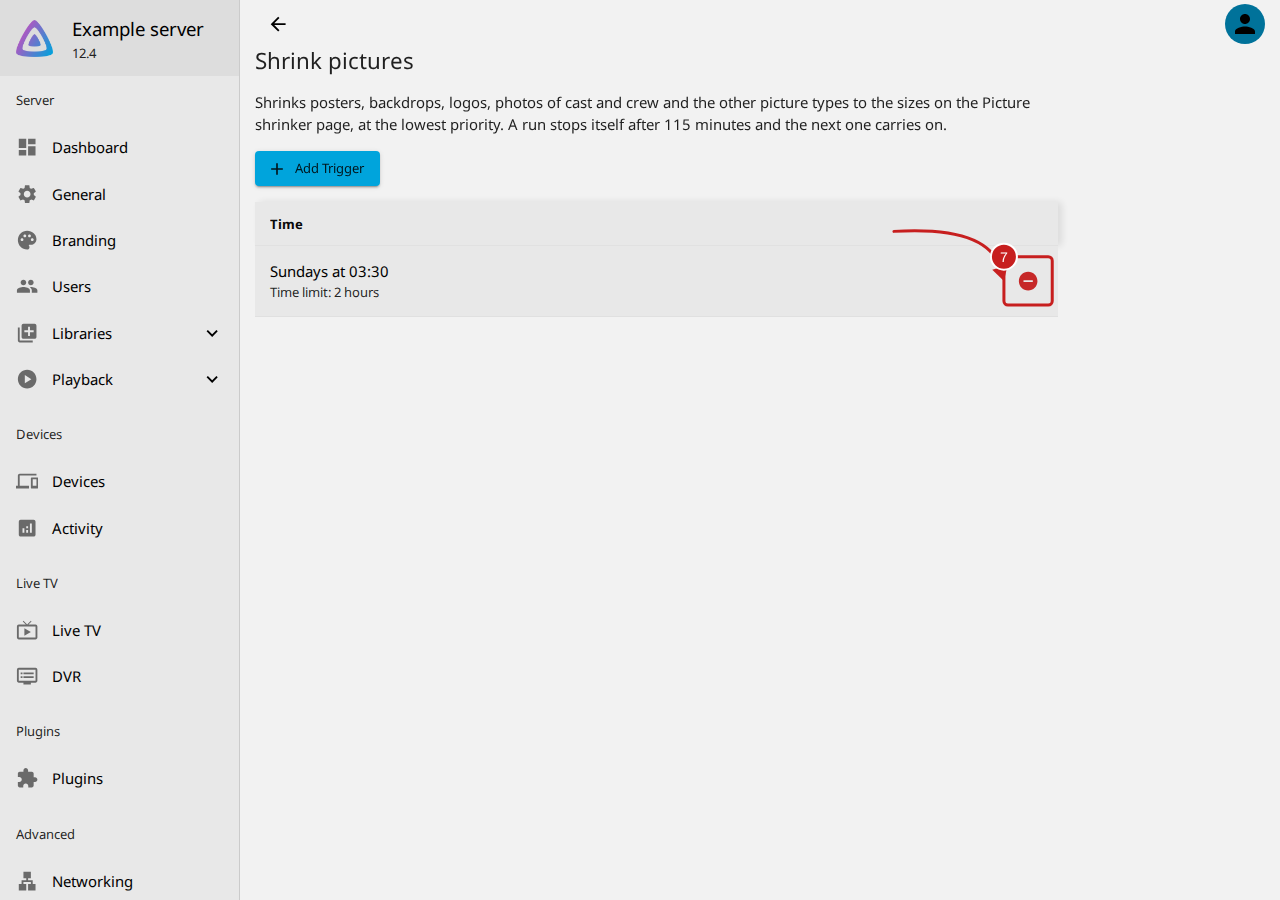
- To remove the old time, select the delete button beside Sundays at 03:30.
Once a month, and new pictures
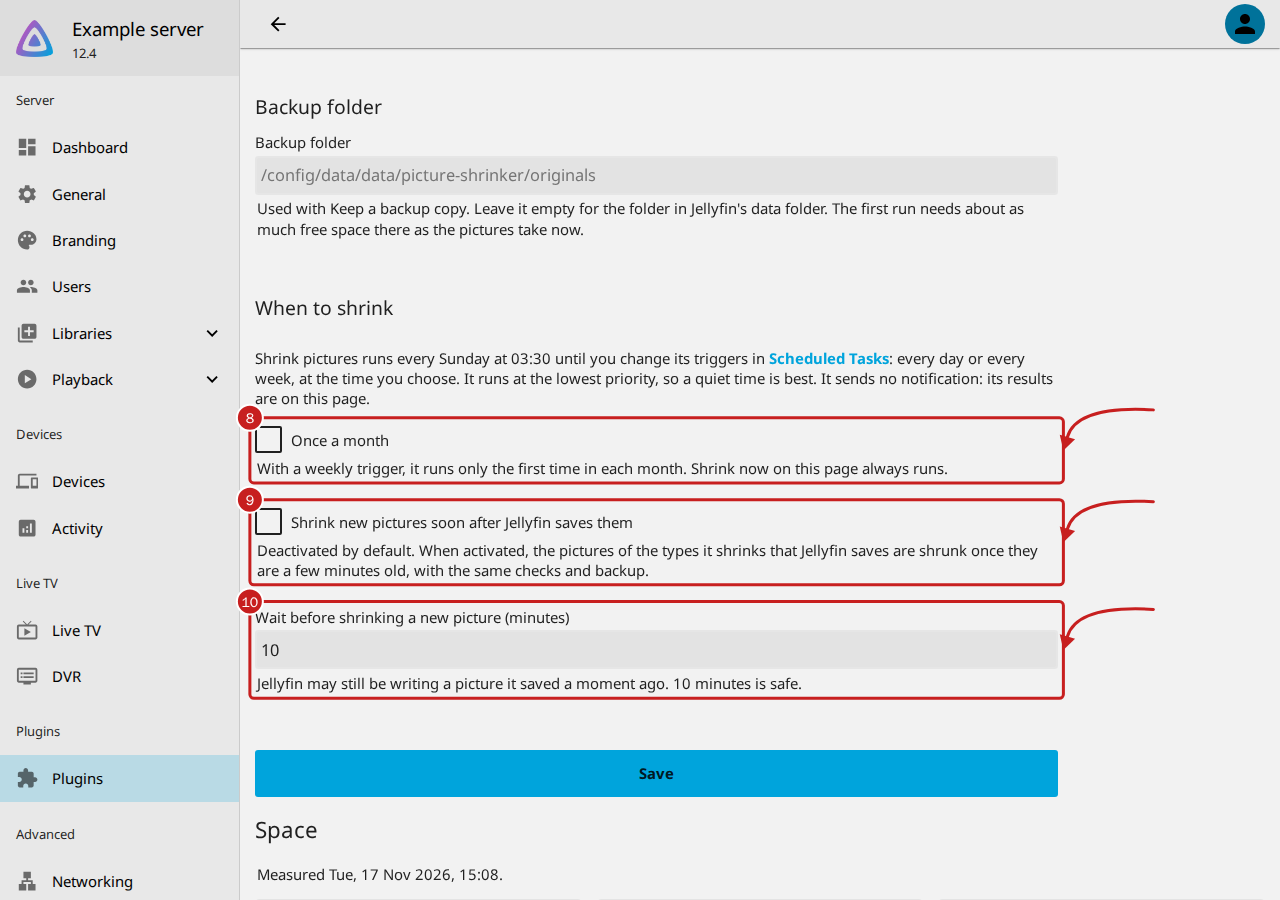
- Go to Dashboard, Plugins, Installed, select Picture shrinker, then Settings. Under When to shrink, activate Once a month to make a weekly trigger run only the first time in each month.
- Activate Shrink new pictures soon after Jellyfin saves them to shrink the pictures Jellyfin saves for new films, series and people, without waiting for the next run. It is inactive by default.
-
In Wait before shrinking a new picture (minutes), enter how long to wait, from 1 to 1,440. Jellyfin may still be writing a picture it saved a moment ago: 10 minutes, the default, is safe.
-
Select Save.
How a run works
- Shrink now, under Space on the settings page, or the run button beside Shrink pictures in Scheduled Tasks, starts a run straight away. Once a month never stops these.
- To stop a run, use the stop button in Scheduled Tasks. It stops after the picture it is on.
- A run stops itself after 115 minutes, and the next run carries on. Pictures already shrunk are only opened to read their size, never written.
- It works at the lowest priority for the processor and the disk, so people can watch while it runs.
- It sends no notification. Its results are the figures on the settings page: read Check how much space you saved. Jellyfin's own Scheduled Tasks keeps its usual history.
- Until you choose a backup option, nothing is shrunk: Shrink pictures ends as failed, with the reason.
Find out more
This page on GitHub, where the help is written.