On this page
How-to
Keep a backup, and put the original pictures back
With Keep a backup copy of each original, Picture shrinker copies each picture to a backup folder before it shrinks it, so you can put every original back with one task. When you are happy with the smaller pictures, Delete backup frees the space. This page has three tasks: choose the backup, put the originals back, and delete the backup.
Before you begin
- Picture shrinker is installed. Read Install Picture shrinker.
- The first run with a backup needs about as much free space as the pictures take now. Pictures now, under Space on the settings page, says how much that is.
Keep a backup
- Go to Dashboard, Plugins, Installed, select Picture shrinker, then Settings.
- Under Original pictures, choose Keep a backup copy of each original.
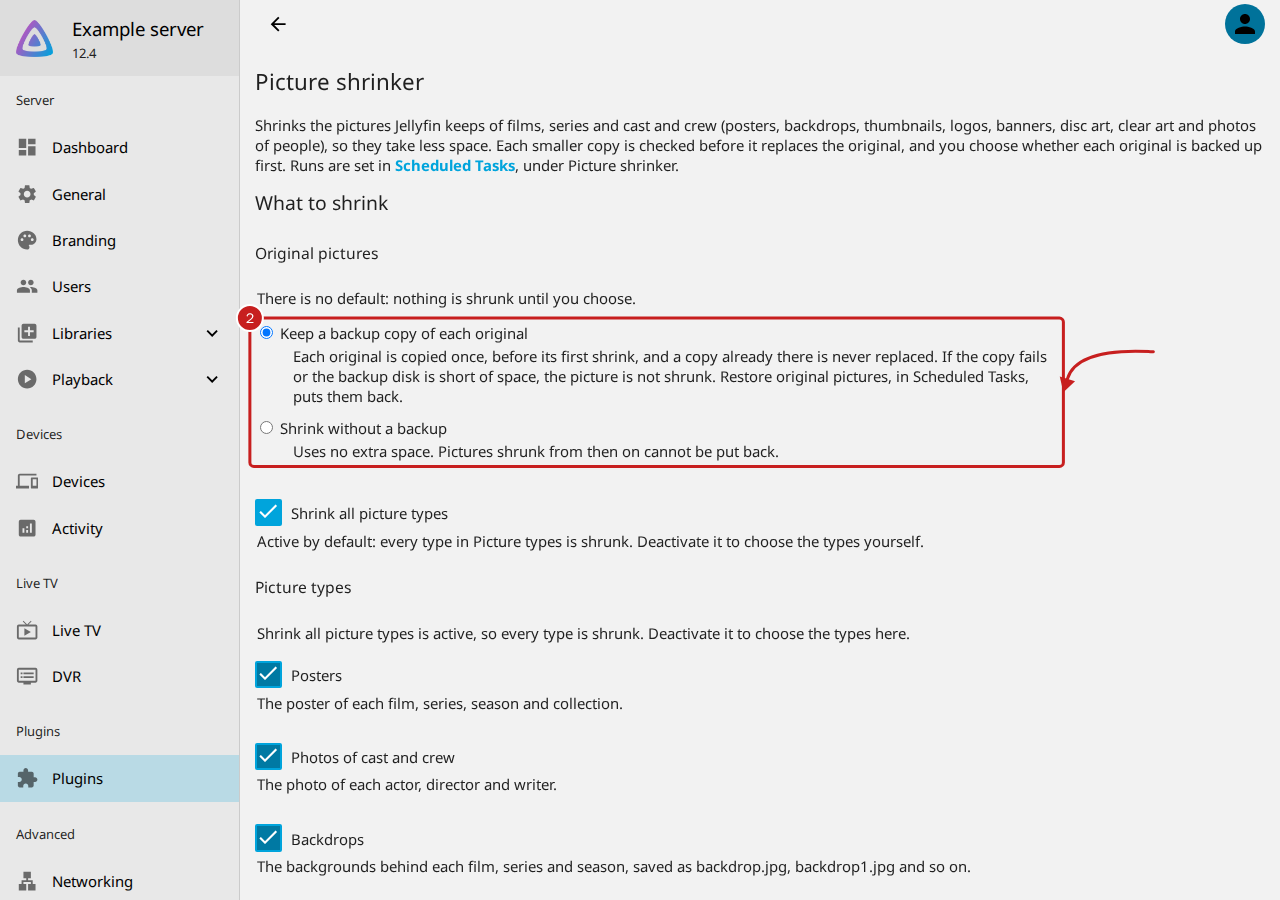
- Optional: in Backup folder, enter a full path for the backup, such as
/backups/pictures. Leave it empty for the folder in Jellyfin's data folder,picture-shrinker/originals. The folder cannot be inside the folders of pictures it shrinks. - Select Save.
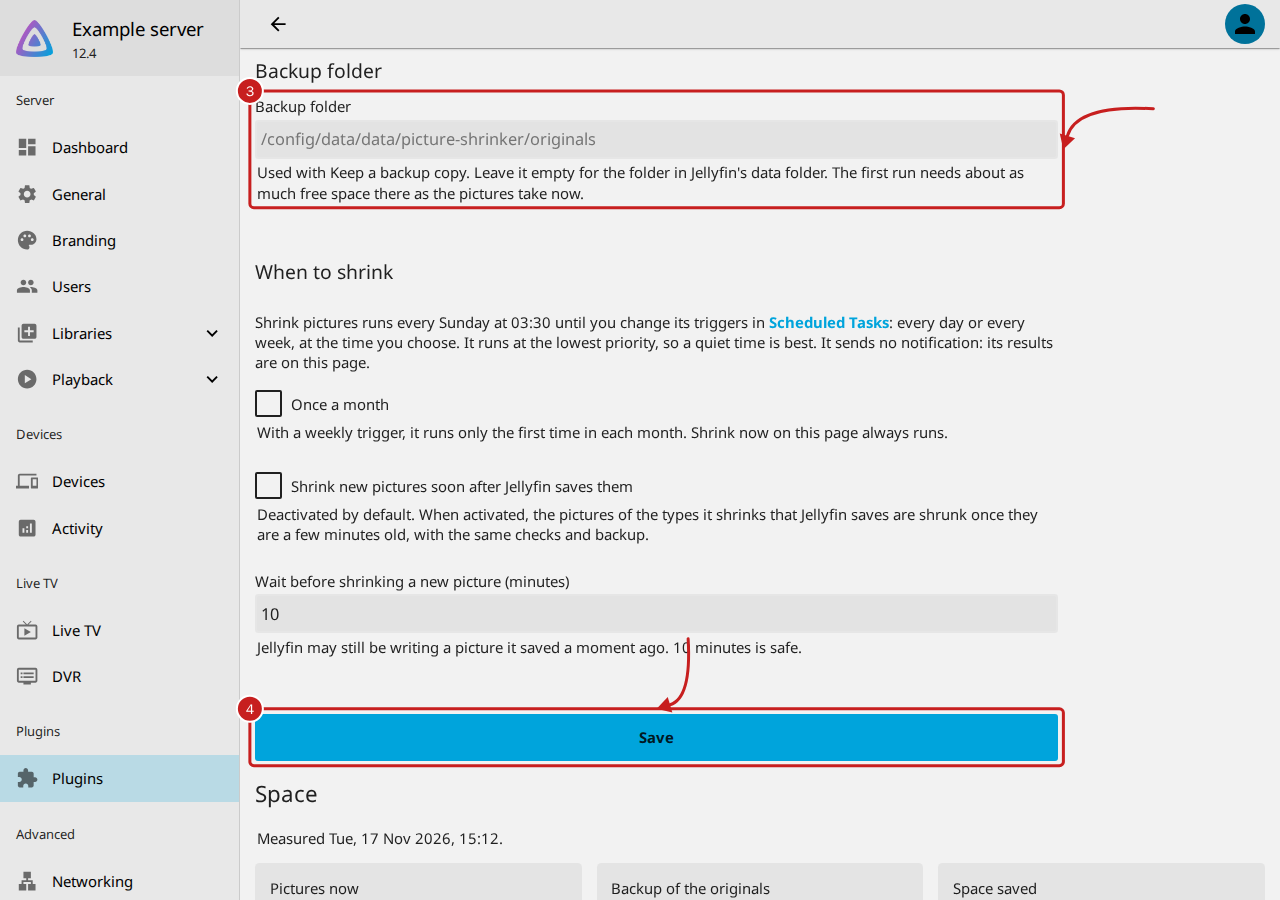
From the next run, each original is copied once, before its first shrink, keeping its place under library or
People. A copy already in the backup is never replaced, so the backup always holds the first original. If the copy
fails, or the backup disk would have less than 100 MB free, the picture is not shrunk and the run says why.
Put the original pictures back
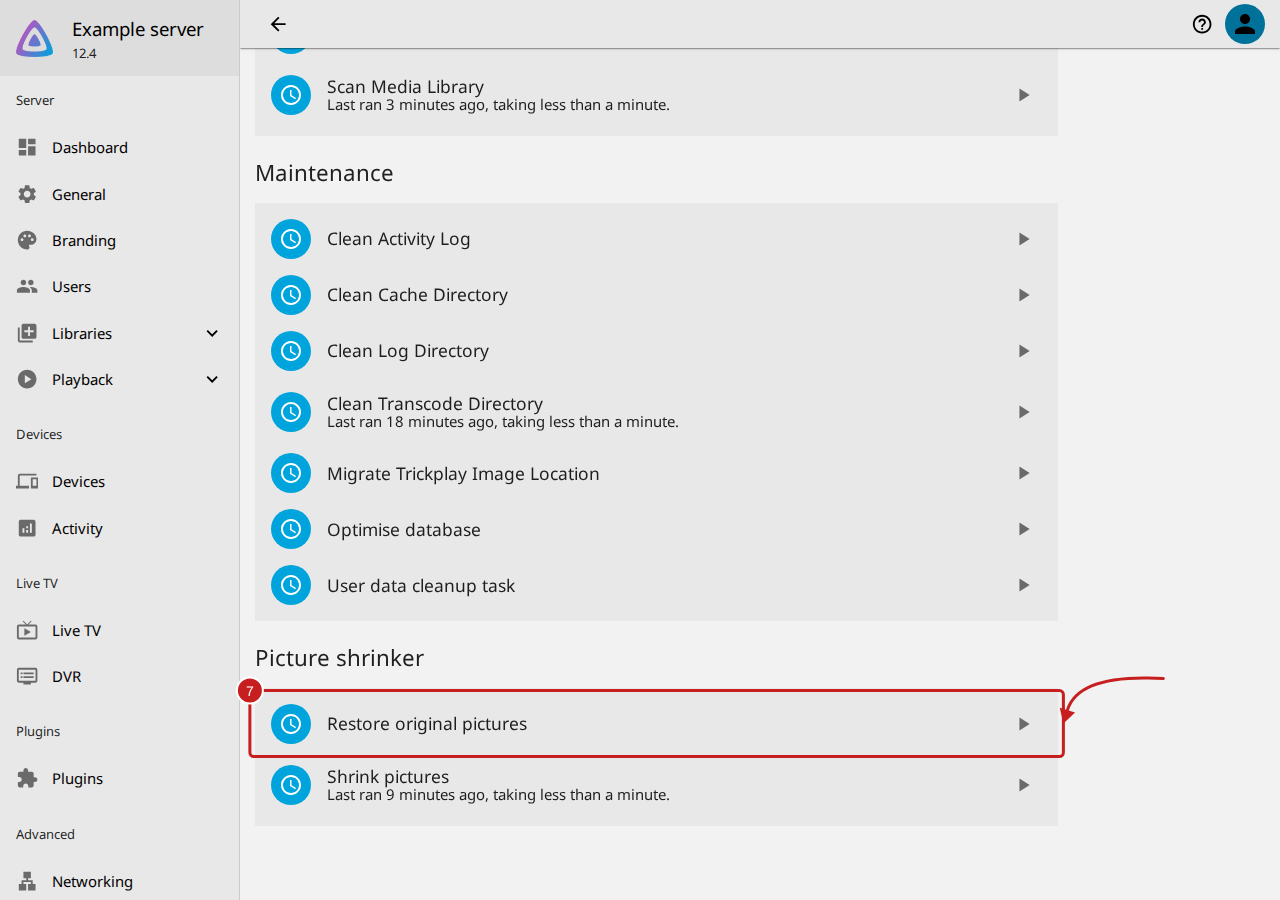
Restore original pictures puts every original from the backup back where it came from, and keeps the backup. Stop the schedule first, or the next run shrinks them again.
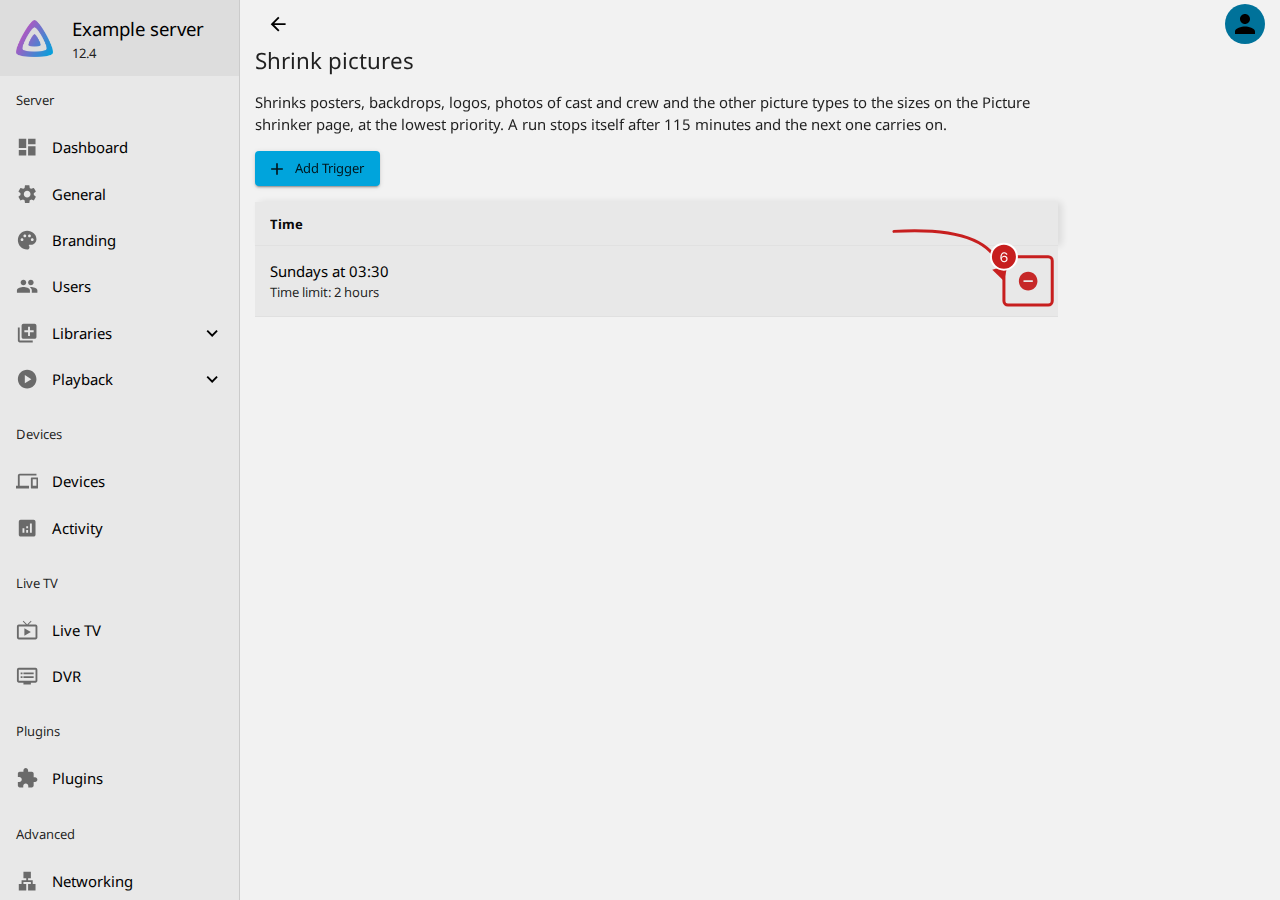
- Go to Dashboard, then Scheduled Tasks, and select Shrink pictures, under Picture shrinker.
- Select the delete button beside each trigger, such as Sundays at 03:30, until none is left.
- Go back to Scheduled Tasks and select the run button beside Restore original pictures. A film or series may show the old picture until its page reloads.
Pictures put back no longer count in Space saved. Also deactivate Shrink new pictures soon after Jellyfin saves them, if it is active: read Choose when Picture shrinker runs.
Delete the backup
Delete the backup when you are happy with the smaller pictures. Warning: this cannot be undone. After it, Restore original pictures can no longer put those pictures back. The shrunk pictures stay.
- On Picture shrinker's settings page, under Space, select Delete backup. The button says how much space it frees, such as Delete backup (frees 222.8 MB).
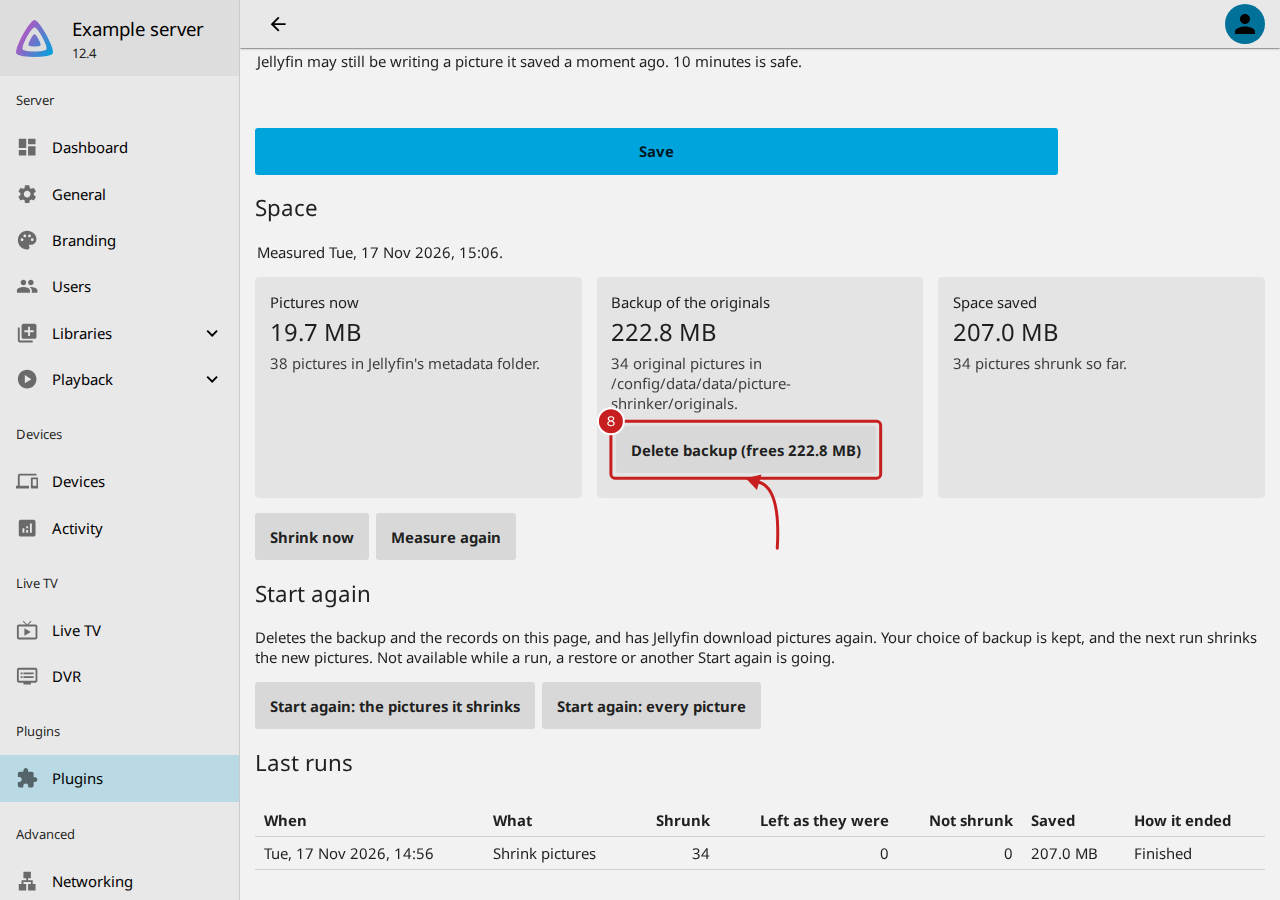
- In Delete the backup?, select Delete backup. To keep it, select Cancel.
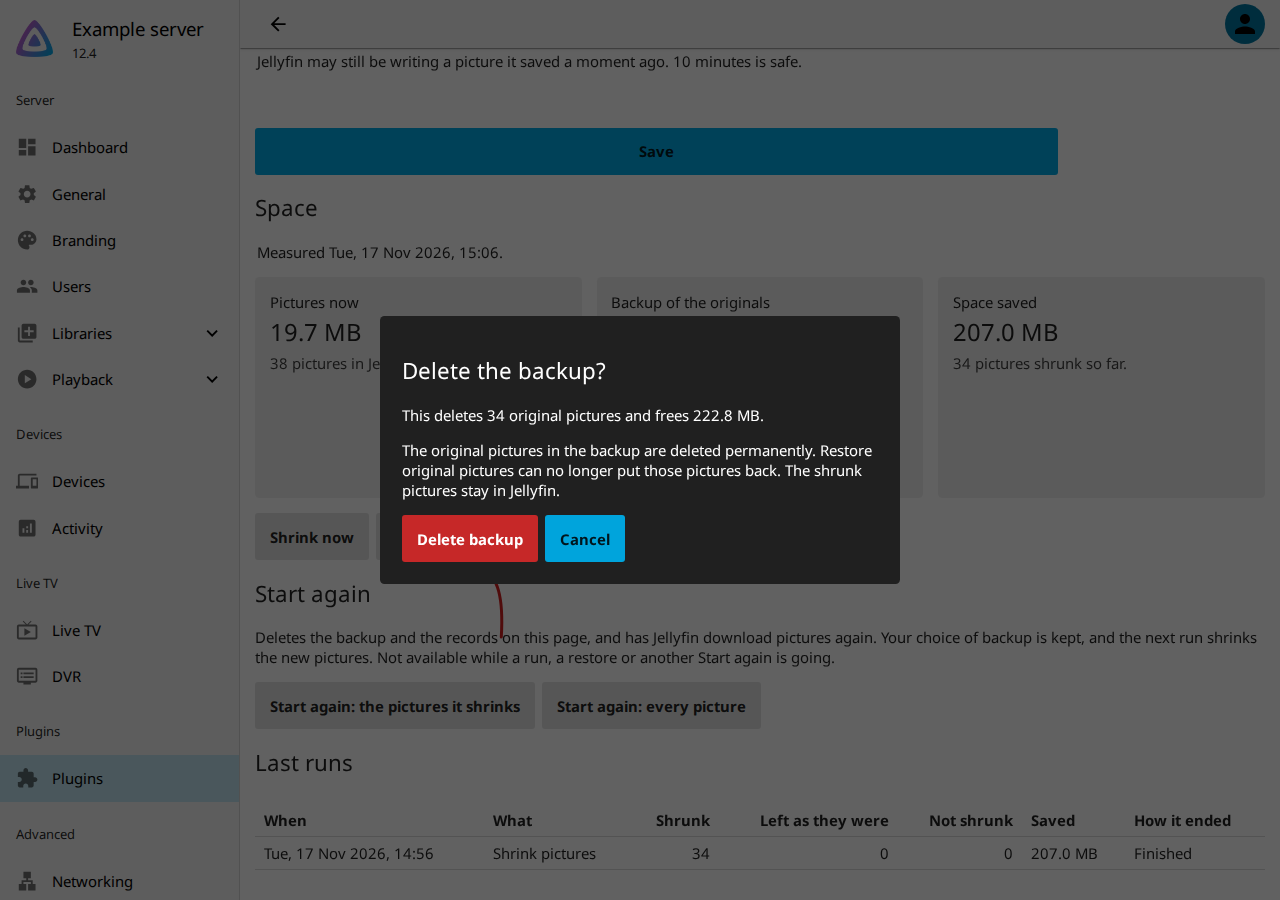
Delete backup removes only the pictures Picture shrinker put in the backup folder, never anything outside it, and it is not available while a run is going.
Things to note
- Shrink without a backup uses no extra space, and pictures shrunk from then on cannot be put back. Jellyfin can download them again from the internet with Refresh metadata or Start again, but pictures you chose or uploaded yourself are lost. A backup you already have is kept until you delete it.
- Refresh metadata with Replace existing images fetches new, full-size pictures. The next run shrinks them, and the backup keeps the first original.
- The backup folder's place:
/config/data/picture-shrinker/originalsin the official Docker image,/config/data/data/picture-shrinker/originalsin the LinuxServer.io image. Backup of the originals, under Space, names the folder it uses.
Find out more
This page on GitHub, where the help is written.