
On this page
Philips Hue: Settings
Philips Hue's settings are on its own tab: go to Settings, then Plug-ins, then Philips Hue. It has seven sections: Bridge, Rooms, Zones, Device types, Scenes, Schedules and When something plays. Every change goes straight to the bridge on your home network, and each says what it did, such as "Ceiling is at 40%".
Bridge
Pairs the plug-in with your Hue bridge. Read Install for the steps.
- Pair with a bridge takes the bridge's address, such as
192.168.1.20. A bridge found on your network is listed under Found on your network, with Activate beside it. - Once paired, the bridge's row says Paired, its address and the day it was paired. Test checks that it answers and says how many lights, rooms and zones it has. Remove, in the row's More menu, forgets the bridge and its key here: its lights, scenes and schedules stay on the bridge.
Rooms, Zones and Device types
The same lights grouped three ways:
- Rooms: the rooms you made in the Hue app. Lights in no room are under Not in a room.
- Zones: the zones you made in the Hue app, such as Downstairs. A light can be in several zones.
- Device types: what each light is: Bulbs, Candle bulbs, Spot lights, Light strips, Lamps, Ceiling lights, Outdoor lights, Smart plugs and Other lights.
Each tab starts with Activate or deactivate in bulk: a switch for Every light in the home, and one for every light in each room, zone or type, with how many are on. Deactivate a switch and every light in it goes off; activate it and they all come on. Then open a room, zone or type by its name: it lists its lights.
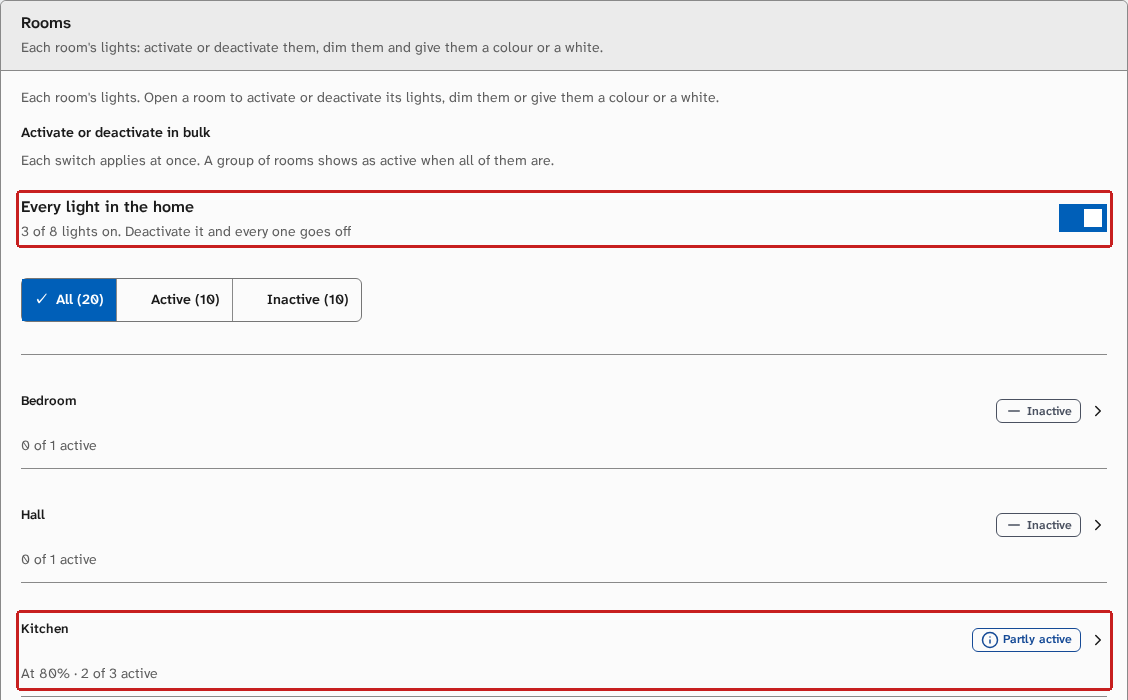
| Row | What it does |
|---|---|
| Every light in the room or zone, or of this type | Brightness for every light in it at once, from Off to 100% |
| Every colour light in the room, or Every white ambiance light | Colour for every light in it that can show one. Says Mixed when they show different colours |
| Each light | Activate or Deactivate, and its Brightness. Its detail says its state in words, such as "On at 80%, warm white", and what it is: Colour, White ambiance, White or Smart plug |
| Each light's colour | Colour: a white or a colour by its name |
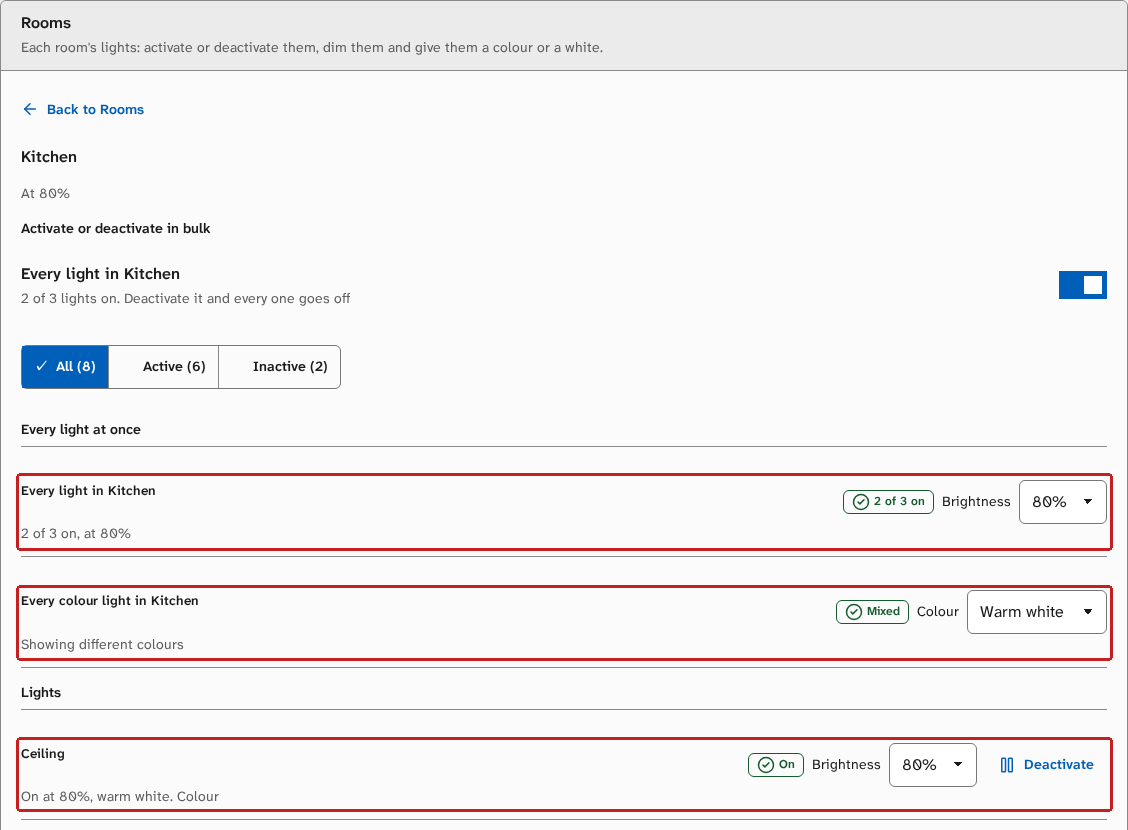
- Brightness is Off, 1%, or 10% to 100% in steps of 10.
- Colour for a colour light: Warm white, Soft white, Neutral white, Cool white, Daylight, Red, Orange, Yellow, Green, Blue, Purple and Pink. A white ambiance light shows the five whites. A white light and a smart plug have no colour.
- Choosing a brightness or a colour also activates the light.
- A light the bridge cannot reach says Not reachable. Its switch is kept, as in the Hue app: the bridge acts on it when it is back.
Scenes
Each room's and zone's scenes, as made in the Hue app. Open a room or zone by its name. Activate shows a scene, and its row says In use; Deactivate turns that room's lights off. The plug-in does not make or change scenes: do that in the Hue app.
Schedules
Timed actions written in words, kept on the bridge, so they run while Starboard or this plug-in rests. Enter one in Add a schedule and select Add a schedule. Each is written as when, at what time, then what:
| Example | What it does |
|---|---|
Every weekday at 07:00, Kitchen to 80% |
Monday to Friday at 7 in the morning, the Kitchen at 80% |
Every Monday, Wednesday and Friday at sunset, Lounge to Relax |
Shows the Lounge's scene Relax at sunset on those days |
Every weekend at 09:00, Bedroom to warm white at 40% |
A white or a colour, with a brightness if you like |
Every day at 23:30, every light off |
Every light in the home off each night |
Once on 24 December at 18:00, Hall on |
Runs once. Tomorrow at 06:30, Porch on does too |
- When:
Every day,Every weekday,Every weekend, days by name (Every Monday and Friday), orOnce ona date,TodayorTomorrow. - Time: hours and minutes, such as
07:00or18:30, or7amand6:30pm, orsunriseorsunset. Sunrise and sunset need a schedule that repeats, and your location set in the Hue app. - What: after the comma, a room, a zone, a light or
every light, thenon,off,to 80%,toa white or a colour, ortothe name of a room's or zone's scene.
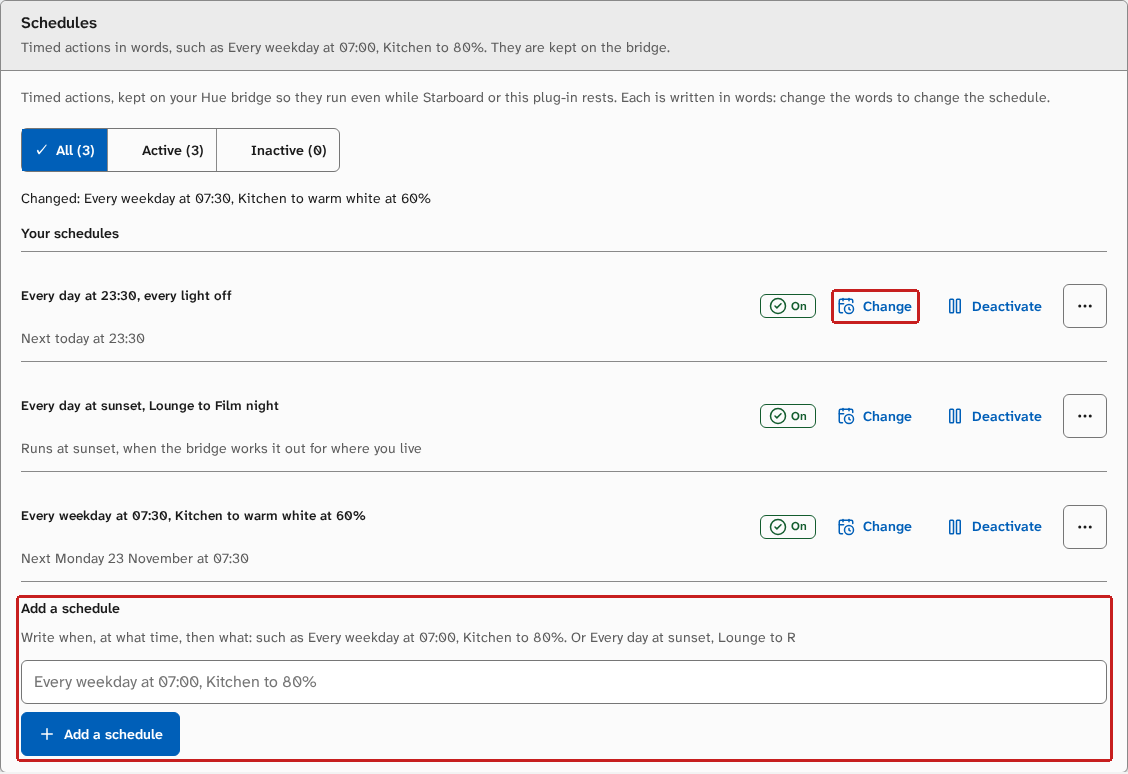
Each row says when it next runs. Change opens the schedule in words, to change it; Deactivate stops it until you activate it again; Remove, in the row's More menu, removes it from the bridge. A schedule that runs once is removed by the bridge after it runs. If the words cannot be read, the box says what to change, such as "Give the time as hours and minutes".
Schedules made in the Hue app or another app are listed under Made in another app, to read only: change them there.
When something plays
Scene when something plays lists each room's and zone's scenes. Activate one, and when someone starts playing something in Jellyfin, the plug-in shows that scene. Only one is chosen at a time; deactivate it to stop. The intro says when it last ran, and for what.
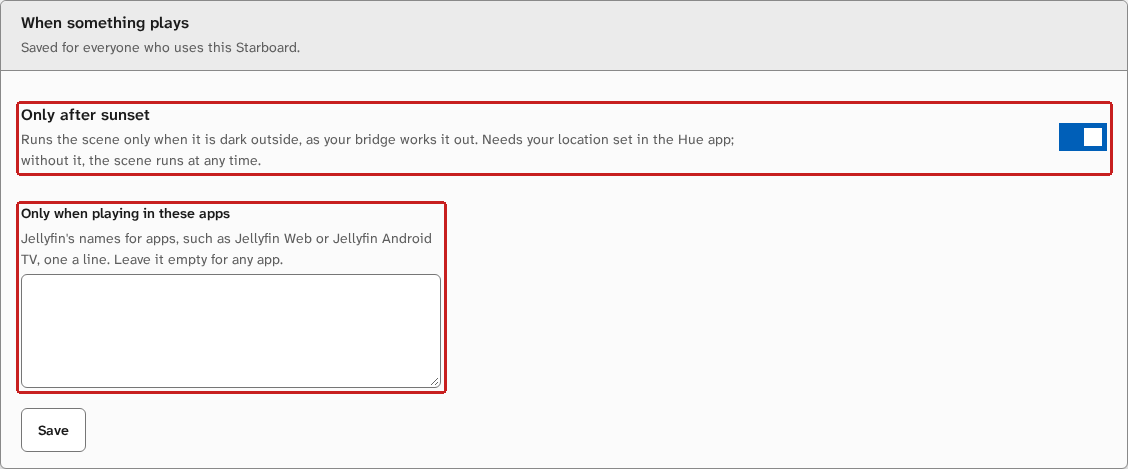
| Setting | What it does | Default |
|---|---|---|
| Only after sunset | Runs the scene only when it is dark outside, as your bridge works it out. Needs your location set in the Hue app; without it, the scene runs at any time | Active |
| Only when playing in these apps | Jellyfin's names for apps, such as Jellyfin Web or Jellyfin Android TV, one a line. Part of a name is enough. Leave it empty for any app | Empty |
Starboard checks what is playing every 5 minutes, so the lights can change up to 5 minutes after something starts.
Things to note
- Local only: everything goes to the bridge on your home network over HTTPS. Nothing goes to the Hue cloud, and Hue's discovery website is never used.
- Rooms, zones and scenes come from the Hue app. Make or rename them there; this plug-in shows them a few seconds later.
- Schedules use the bridge's version 1 schedules, because its newer API has none, and rules on its daylight sensor for sunrise and sunset. In the Hue app, each is named
Starboardand the start of its words. - Settings are kept when you update or deactivate it.
Find out more
This page on GitHub, where the help is written.