On this page
How-to
Use a broadcast pack
A broadcast pack gives the channels in Create your own TV channel your own branding: the logo in the corner of the picture, the logo with its music, idents, bumpers, transitions, the Coming up next card and promos with their music. This page says how to add one to the station or to one channel, replace it, remove it, and try the example pack. To make one, use Make a broadcast pack.
When would you use it
- You want every channel to share one broadcaster's branding, with one logo and set of idents.
- You want one channel, such as a children's channel, to have branding of its own.
- You want to find out what a pack does before you make one.
Before you start
- Create your own TV channel is added in Starboard, with at least one channel. Its pages are in Settings, then Plug-ins, then Create your own TV channel.
- A pack is one zip of up to 60 MB, made from the template. Nothing in a pack is ever run: its pictures and sounds are only read by FFmpeg.
Try the example pack
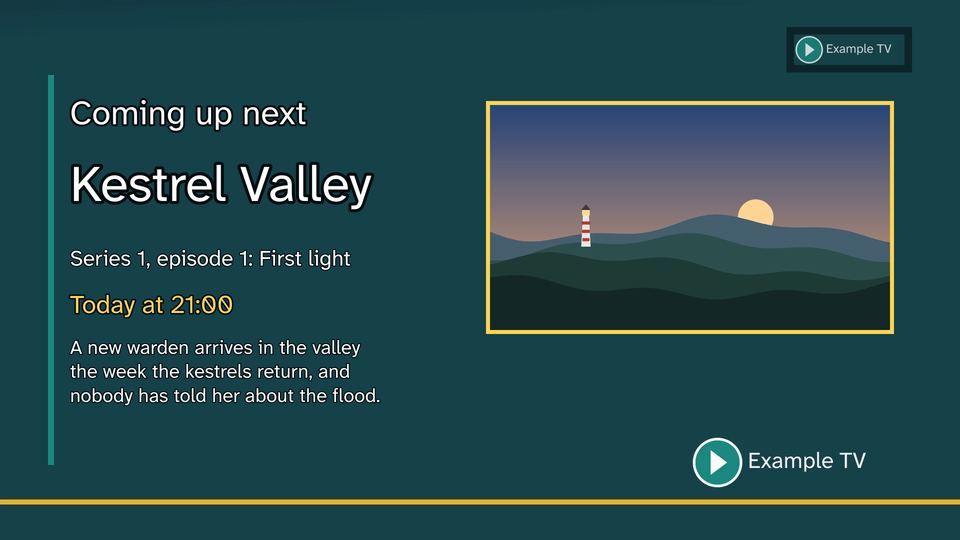
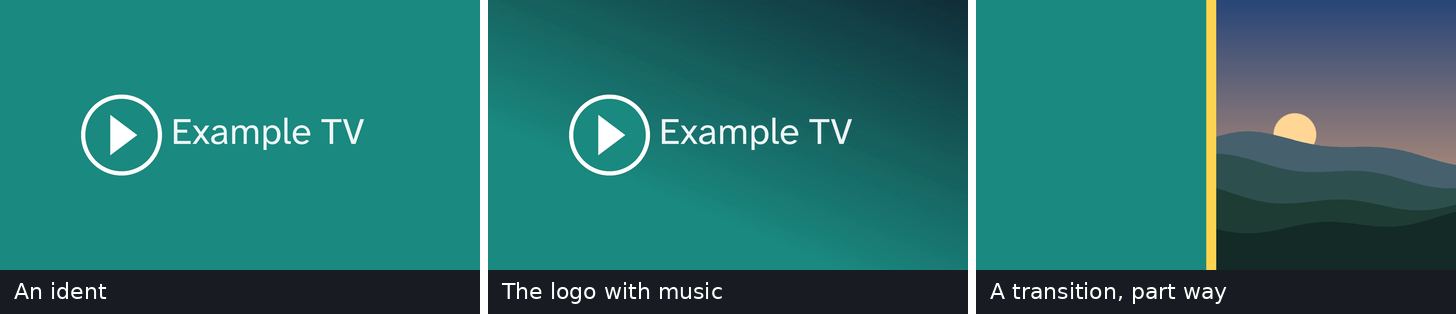
The example pack, Example TV, is a made-up channel drawn in code by the plug-in: a logo, the logo with music, 3 idents, a Coming up next card, a promo with 2 music beds and 3 transitions. It holds nothing of anyone else's.
- Go to Broadcast pack.
- Under The station's pack, activate Try the example pack.
- The first time, it is made at the lowest priority, which takes about 2 minutes while no channel is playing. The row says Being made, then In use.
- Every channel without a pack of its own now uses it. Open a channel and select Preview a frame or Preview a Coming up next card, or watch a channel in Jellyfin's Live TV.

To stop trying it, deactivate Try the example pack. The channels go back to the station's own pack, or to none.
To start your own pack from it, under Downloads, select The example pack, as a zip, unzip it, change its files, and upload it as your own.
Add a pack for every channel
- Go to Broadcast pack.
- Under The station's pack, select Upload a pack, and choose the zip.
- The pack is checked before anything in it is used. When it passes, Station's pack shows its name and its logo, and every channel without a pack of its own uses it at once. Anything to change is listed under The last pack checked.
- When it does not pass, the pack in use stays, and each problem is listed under The last pack checked. What each problem means says how to put each right.
Promos made with the old pack stop showing at once, and are made again with the new one in the next quiet hour, or when you select Make promos now.
Give one channel its own pack
- Go to Channels and open the channel.
- On the On-screen logo and branding card, select Upload its own pack, and choose the zip. It is checked in the same way.
- In Broadcast pack on the same card, choose Its own pack.
The other choices for Broadcast pack on a channel are The station's pack, the one it starts with, and No pack, for a channel with no branding: its own logo or name in the corner, plain Coming up next cards, and plain promos when there is music for promos. Each channel's pack, on the Broadcast pack page, lists which pack each channel uses.
A channel's own logo, added with Add logo on the same card, is used in place of the pack's logo, with the rest of the pack.
Replace a pack
Upload the new zip in the same place: Upload a pack for the station, or Upload its own pack for a channel. The new pack is checked first and takes the old one's place only when it passes, so a pack with a problem never leaves the channels with nothing.
To change one file, such as a new ident, change it in your copy of the pack's folder, zip the folder again and upload it.
Remove a pack
- The station's pack: in Broadcast pack, select Stop using the pack. Channels left at The station's pack then have no pack. One copy is kept in the plug-in's folder until the next is removed.
- A channel's own pack: on the channel's On-screen logo and branding card, select Remove its pack. The channel uses the station's pack.
- For one channel only, without removing it: choose No pack in Broadcast pack on the channel's card.
What changes on the channels
| From the pack | Where it shows |
|---|---|
logo/dog.png |
In the corner of the picture, at the size and in the corner the settings say |
| Idents | One immediately before each programme, in a random order |
| Bumpers | One opens every break, and one closes each break inside a programme |
| The logo with music | Before a programme, when the pack has no idents |
| Transitions | At each cut between a programme and a break |
| The Coming up next background | The Coming up next and Later cards, with the programme's picture and words drawn in |
| The promo background and music | The promos made in quiet hours |
animation in pack.json |
How the cards, straps, logo, clock, label and holding slide words come on and go off, unless the Animation settings choose |
Things to note
- Making the example pack takes up to about 500 MB of memory for about 2 minutes, at the lowest priority. It is made once and kept.
- A pack's files stay in the plug-in's folder, in
packs. Removing the plug-in keeps them with its other files. - Starboard takes uploads of up to 60 MB, so keep the zip under that: use stills for backgrounds, or shorter loops.
Find out more
This page on GitHub, where the help is written.