
On this page
Philips Hue: Install
Add Philips Hue from Starboard's Catalogue, where it is listed under Home. Then pair it with the Hue bridge on your home network by pressing the bridge's link button. It talks only to the bridge: nothing goes to the Hue cloud, and it needs no Hue account.
Before you begin
- Starboard with plug-in API 1.16 or later (Starboard 0.23.0). An older Starboard is not offered it.
- Your Starboard password. Adding and removing a plug-in ask for it.
- A Philips Hue bridge on the same home network as Starboard, with your lights, rooms and zones already set up in the Hue app. The bridge needs its newer API (CLIP v2): a bridge kept up to date in the Hue app has it.
- You can reach the bridge to press the round link button on top of it while you pair.
What it may do
Starboard lists these before you add it, each with its risk.
| Permission | Risk |
|---|---|
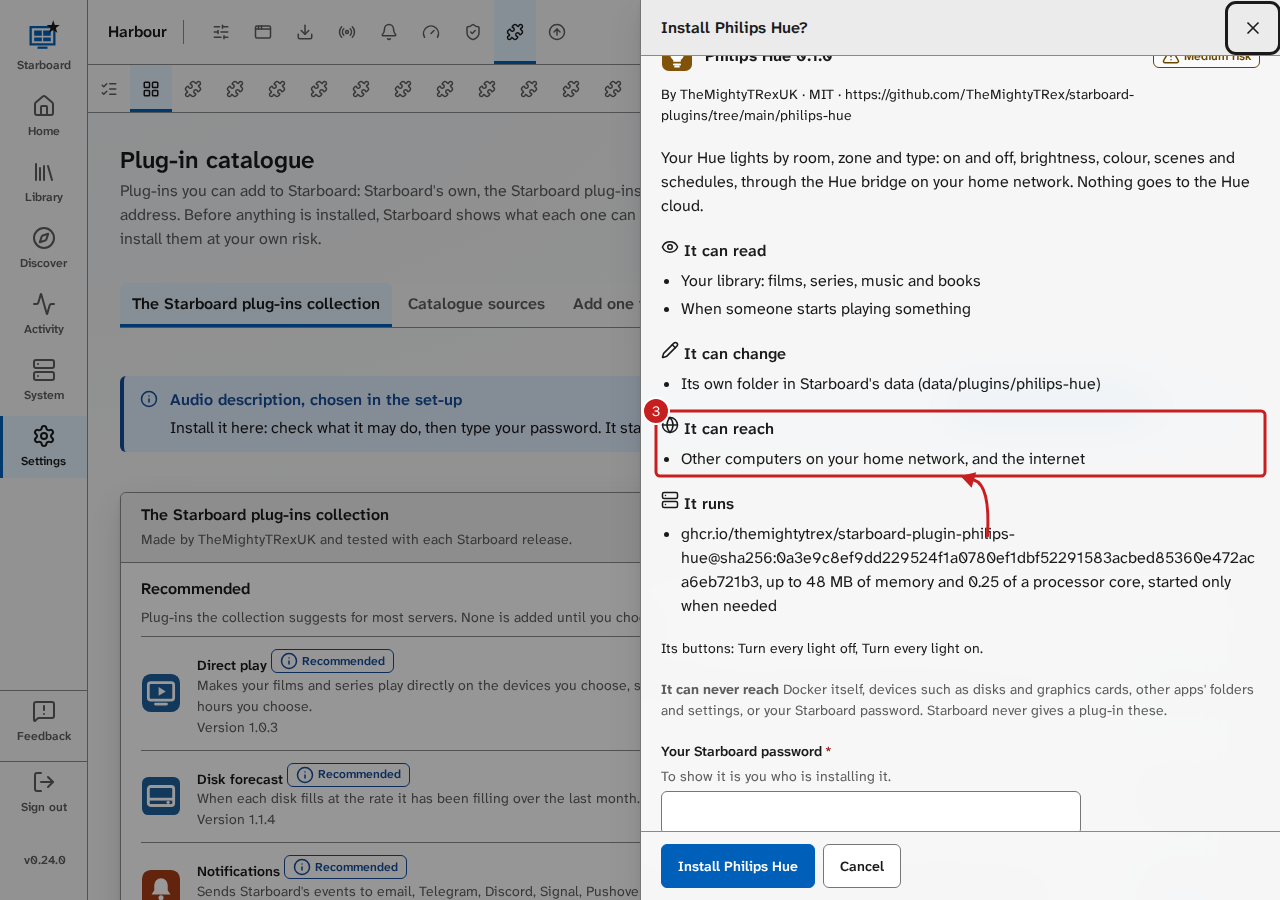
Reach other computers on your home network, and the internet (network:lan) |
Medium |
Your films, series and books (the media folder, read only, and the library) (media:read) |
Medium |
It uses network:lan only to reach the bridge. It asks for media:read only so Starboard sends it the When someone starts playing something event, for When something plays. It reads no files, and it never asks Jellyfin or Reelix anything.
What it runs:
- main: reaches the Hue bridge on your home network over HTTPS. It can use its own folder in Starboard's data (
data/plugins/philips-hue), where it keeps the bridge's address, the key the bridge gave it and the bridge's certificate fingerprint.
Like every plug-in, it runs read only, as a user that is not root, with no extra rights. Its image is pinned by digest once GitHub has built it, so what you approved is what runs.
Memory and processor
- main: 48 MB of memory and a quarter of a processor core at most.
- It rests when nothing asks it anything, and Starboard starts it again when you open its tab, a card asks or something starts playing. It rests again after 15 minutes with nothing to do.
- Measured on 20 November 2026 against a made-up bridge with 8 lights in 4 rooms and 2 zones: 15.4 MB at start, 16.6 MB after 160 page loads, schedules and switches, 0% of a processor at rest, and nothing while it rests.
Add it
- Go to Settings, then Plug-ins, then Catalogue.
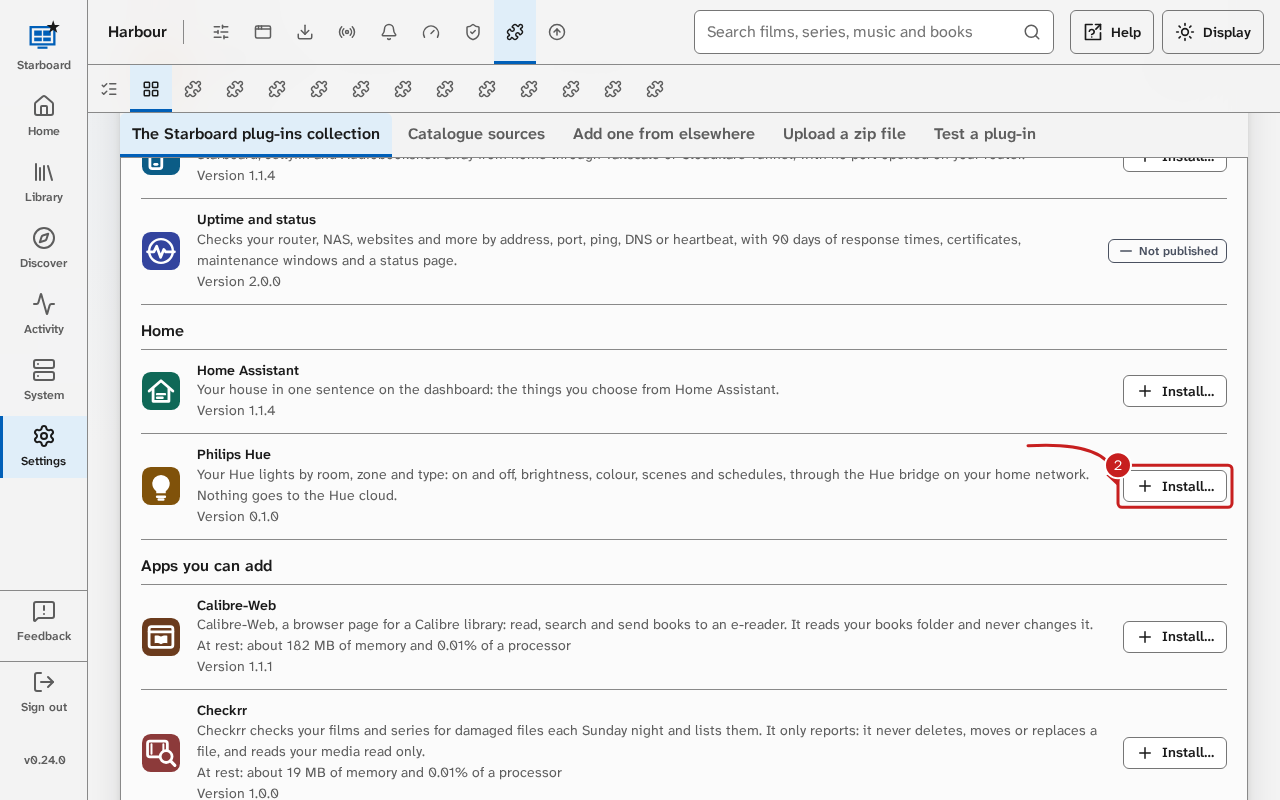
- Under Home, find Philips Hue and select Install….
- A slide-out opens with what it can read, change and reach. Read it all.
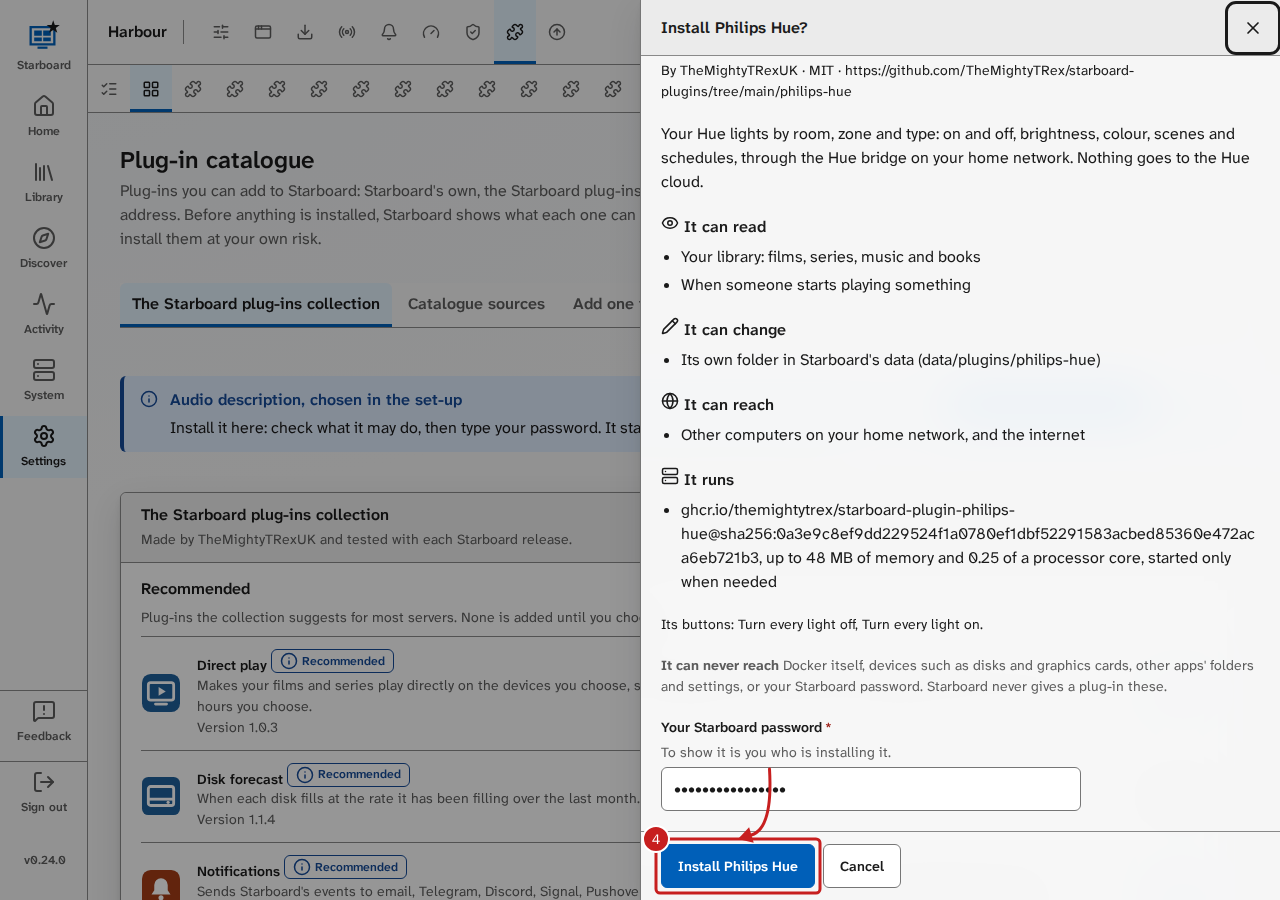
- Enter your Starboard password and select Install Philips Hue. To stop, select Cancel: nothing is installed.
- Philips Hue's own tab opens under Settings, then Plug-ins, and Starboard activates it: its State, in General, says Active.
Add it by its address
On the Catalogue page, under Add one from elsewhere, paste this into The plug-in's manifest address, then select What it does and carry on from step 3:
https://raw.githubusercontent.com/TheMightyTRex/starboard-plugins/main/philips-hue/starboard-plugin.jsonOr run its installer, install.py in its folder, on any computer with Python, and give your Starboard's address.
Pair it with your bridge
- Go to Settings, then Plug-ins, then Philips Hue, then Bridge.
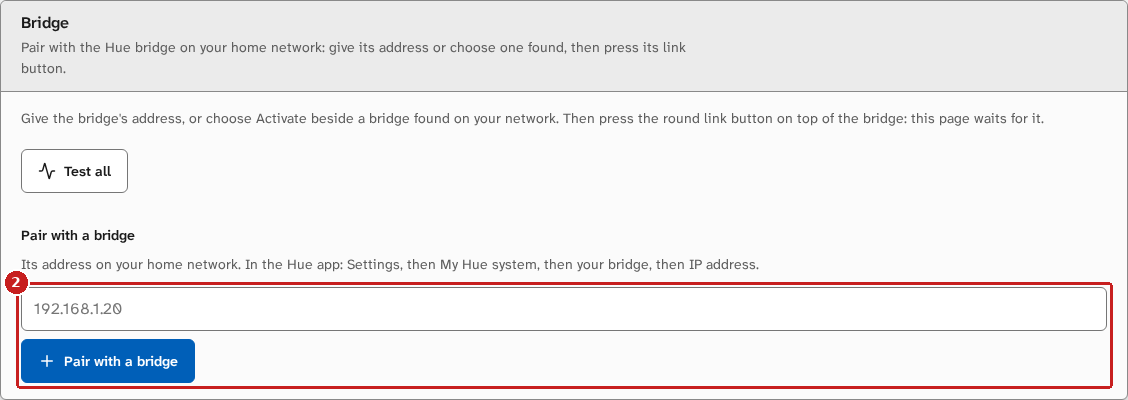
- In Pair with a bridge, enter the bridge's address, such as
192.168.1.20, and select Pair with a bridge. The address is in the Hue app: Settings, then My Hue system, then your bridge, then IP address. A bridge found on your network is listed under Found on your network: select Activate beside it instead.
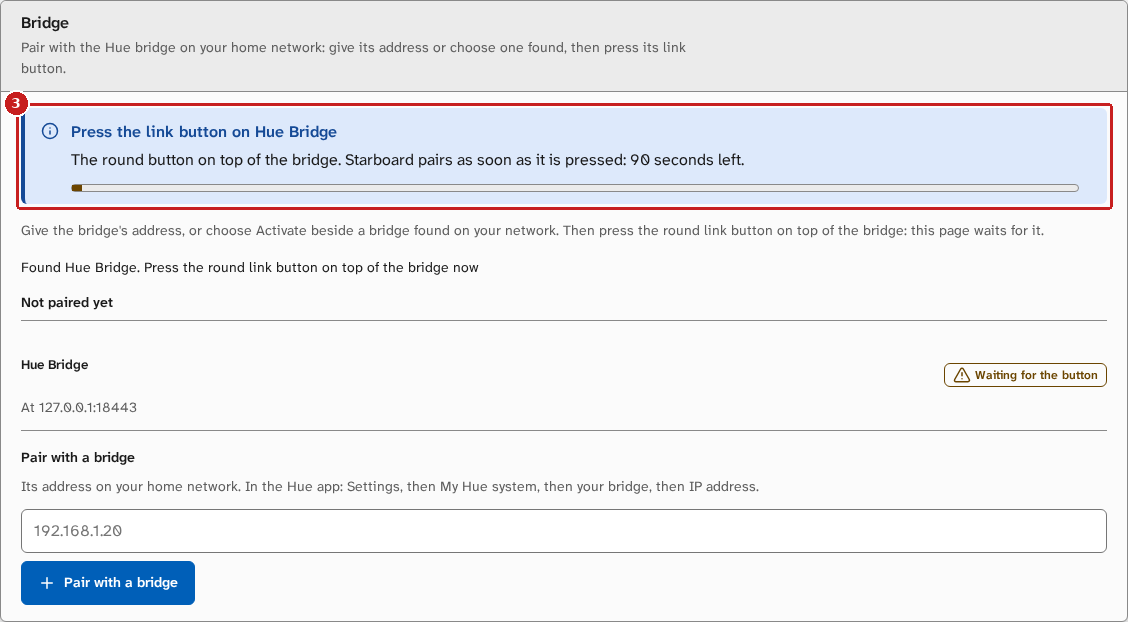
- Press the round link button on top of the bridge. The page says Press the link button on and the bridge's name, with a bar and the seconds left: it waits 90 seconds and pairs as soon as the button is pressed.
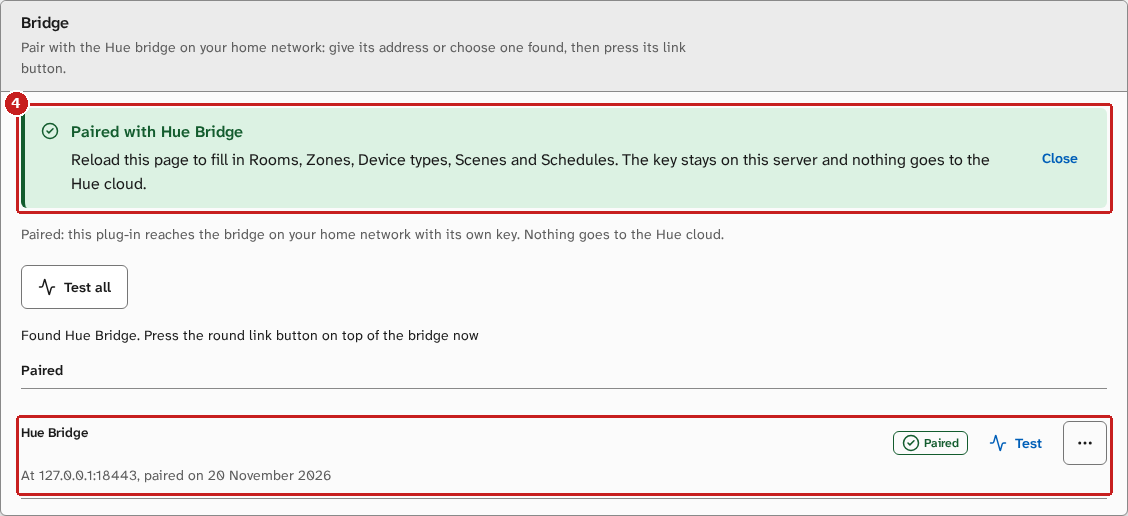
- The page says Paired with and the bridge's name, and the bridge is listed under Paired. Reload the page to fill in Rooms, Zones, Device types, Scenes and Schedules.
If the button was not pressed in time, the page says The link button was not pressed in time: select Activate beside the bridge and press the button again.
Then put its cards on your dashboard. Read Dashboard card.
Remove it
- Go to Settings, then Plug-ins, then Philips Hue.
- Under Remove, select Remove Philips Hue.
- Choose where its folder goes: Keep it with Starboard's data (in
data/plugins/.removed) or Move it to the holding folder, listed in System, Clean up. - Enter your Starboard password and select Remove.
Its container stops and its API key stops working. Nothing is deleted. Your lights, scenes and the schedules it made stay on the bridge and keep running: remove those schedules first on Schedules if you no longer want them. The Hue app lists it among the bridge's connected apps as starboard#philips-hue, where you can remove its key too. To stop it for a while instead, select Deactivate on its tab.
Find out more
This page on GitHub, where the help is written.