
On this page
Philips Hue: Dashboard card
Philips Hue adds 2 cards you can put on your dashboard: Rooms and Lights on. Each starts with a band: its logo and name and a status in words. A footer says when it last changed. Each is asked once a minute while the dashboard is open, never while the browser tab is hidden, and the plug-in reads the bridge on your home network to answer.
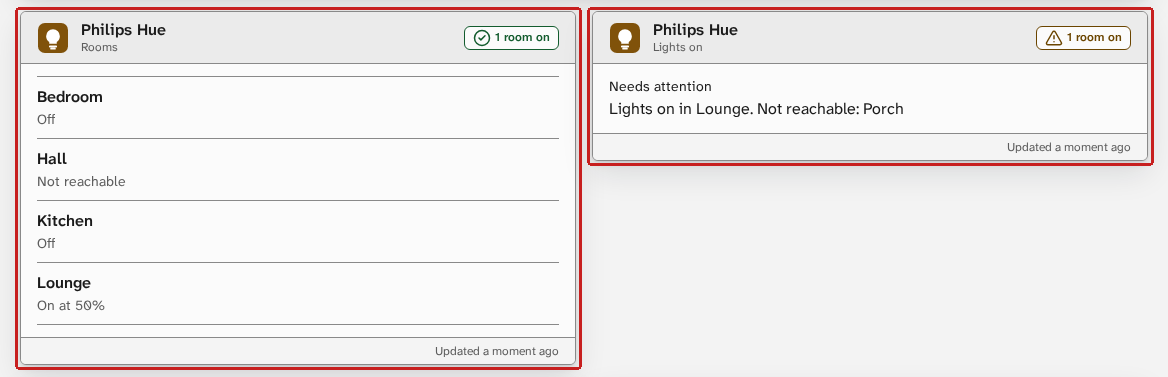
Rooms
A list of your rooms, up to 10, each with its lights in words: Off, On at a brightness, how many of its lights are on when only some are, or Not reachable when the bridge can reach none of them. The band says how many rooms have lights on, or All off.
- Example: Kitchen: On at 80%, 2 of 3 lights
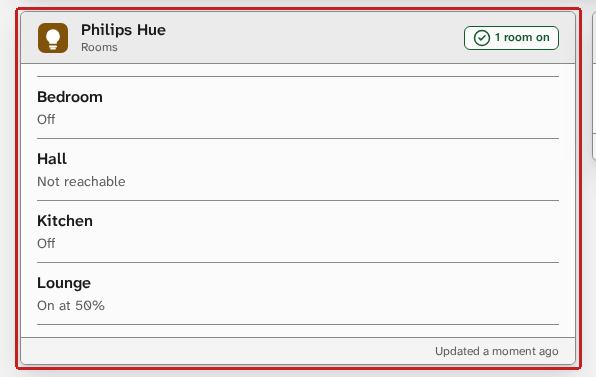
Lights on
One line: the rooms with lights on, or "Every light is off". It also names up to 4 lights the bridge cannot reach.
- Example: Lights on in Kitchen and Lounge
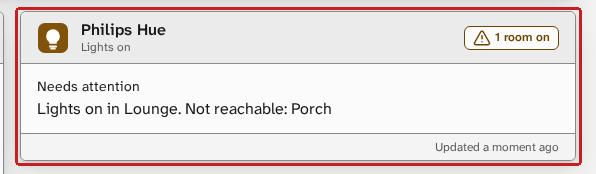
What the status says
| Status | Means |
|---|---|
| OK | Shown as how many rooms are on, such as 2 rooms on, or as All off on Lights on: the bridge answered. On Lights on, every light can be reached too. |
| Idle | Shown as All off on Rooms: every light is off. Also when the bridge has no rooms yet: make them in the Hue app. |
| Warning | On Lights on: at least one light cannot be reached, and the card names it. Its band still says how many rooms are on. |
| Needs setting up | No bridge is paired yet. Pair one on Bridge: read Install. |
| Problem | Shown as Not answering: the bridge did not answer, and the card says why. Read Problems. |
Every light off or on
Plug-in cards cannot hold buttons, so the quick switch is in Actions on the plug-in's tab: Turn every light off and Turn every light on. Each uses the bridge's own group for every light in the home, as the Hue app does.
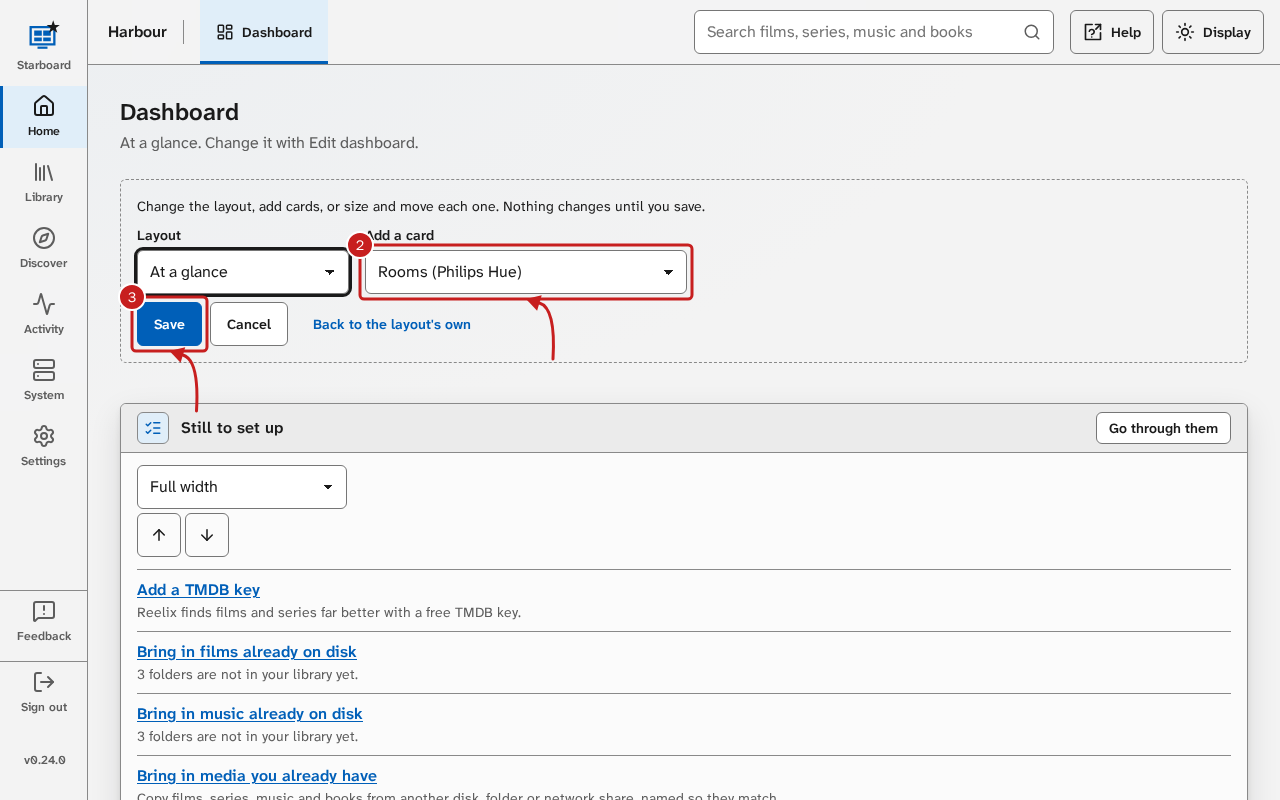
Add it to your dashboard
- Select Edit dashboard.
- In Add a card, choose Rooms or Lights on, each with (Philips Hue) after it.
- Select Save.
Find out more
This page on GitHub, where the help is written.