How-to
Use and change the dashboard
The dashboard is the first page after you sign in. It shows your server at a glance, as cards in one of four layouts. You can choose another layout, add and remove cards, and change each card's size and place.
Before you begin
- Most cards need an app with its API key, such as Jellyfin for Now playing. Read Find an app's API key.
Steps
Change the dashboard
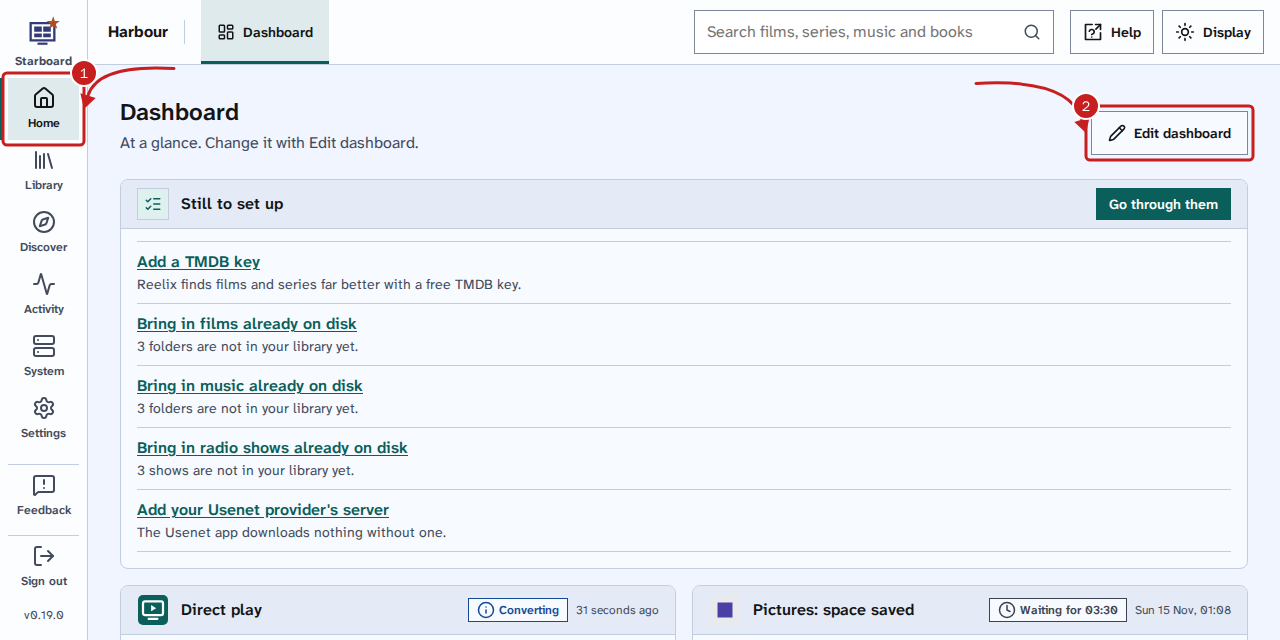
- Go to Home, then Dashboard.
- Select Edit dashboard. Nothing changes until you save.
- Optional: in Layout, choose At a glance, Watch and listen, Downloads and storage or Compact. The cards change to that layout's own.
- Optional: in Add a card, choose a card from Add a card…. It is added at the end, at Half size.
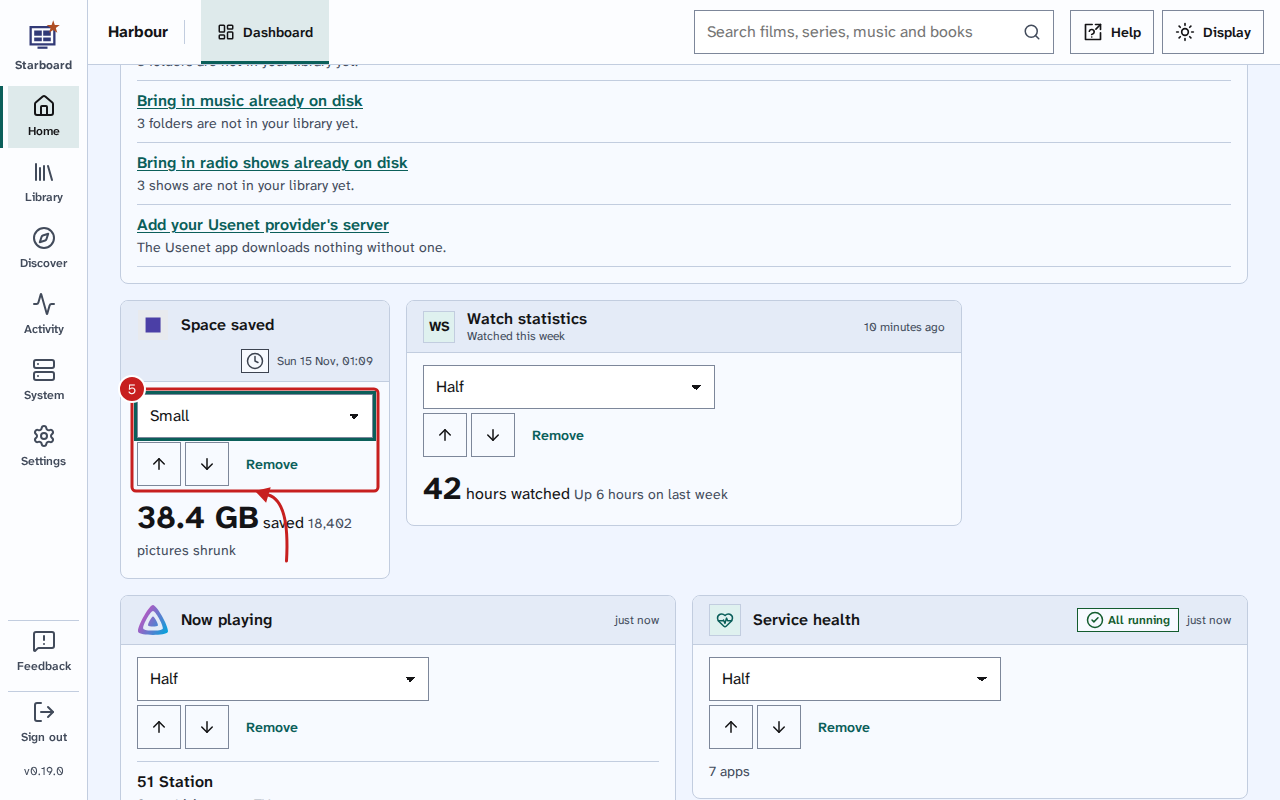
- Optional: change a card with the controls under its band: - Choose its size: Small, Medium, Half, Wide or Full width. Some plug-in cards have a shorter title at a smaller size, such as Space saved for Picture shrinker's Pictures: space saved. - Select the up or down arrow to move it earlier or later. - Select Remove to take it off the dashboard.
- Select Save. Starboard confirms with Dashboard saved.
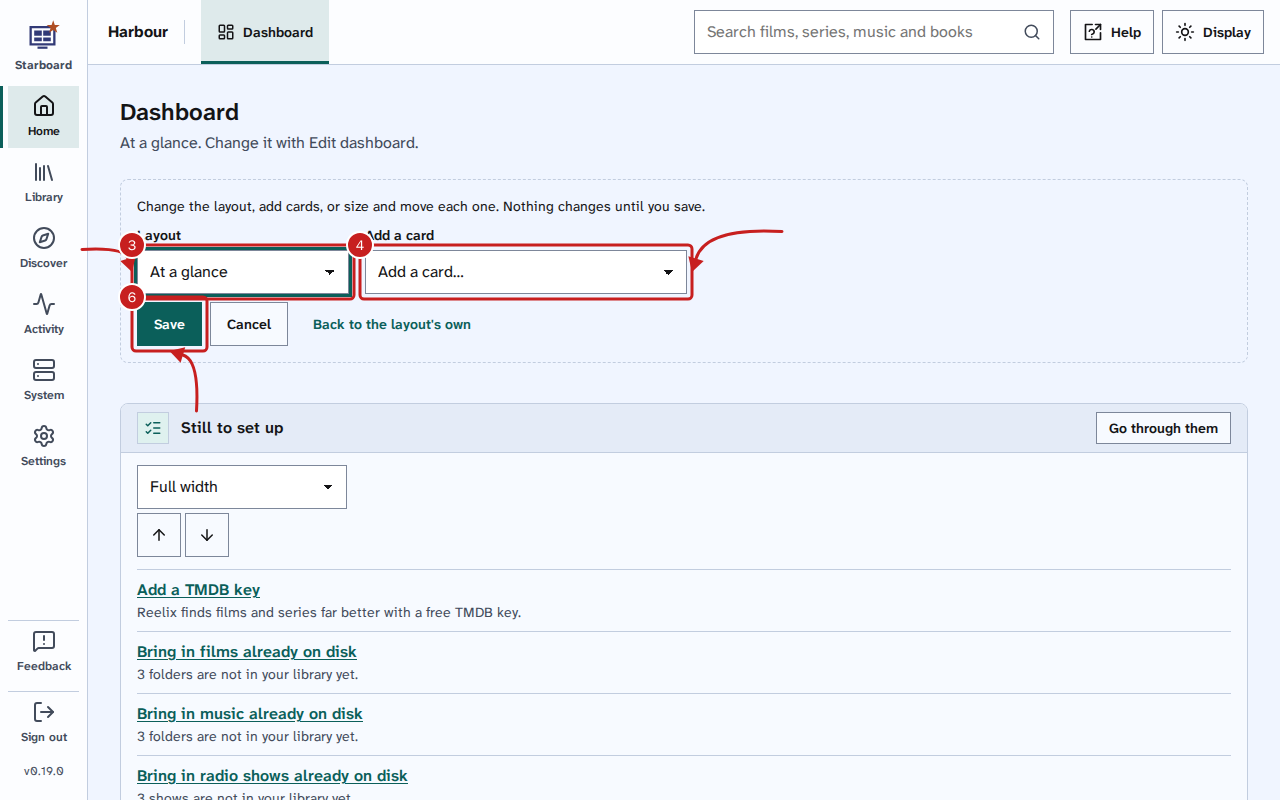
To start again, select Back to the layout's own, then Save. To leave without changing anything, select Cancel.
Add a plug-in's card
Some plug-ins add a card, such as Live TV. The plug-in must be added and active. Read Add a plug-in.
- Select Edit dashboard.
- In Add a card, choose the card. Its name ends with the plug-in's name in brackets, such as Live TV (Live TV).
- Select Save.
The cards
- Still to set up: what is left to set up. Read Finish what is still to set up.
- Now playing: what people are watching in Jellyfin.
- Downloads: the first few downloads, with how far along they are.
- Coming up: what is due in the next days. Read Find out what is coming up.
- Recently added: what came into your library this week.
- Disk space, System load and Transfer speed: free space, processor and memory, and download speeds.
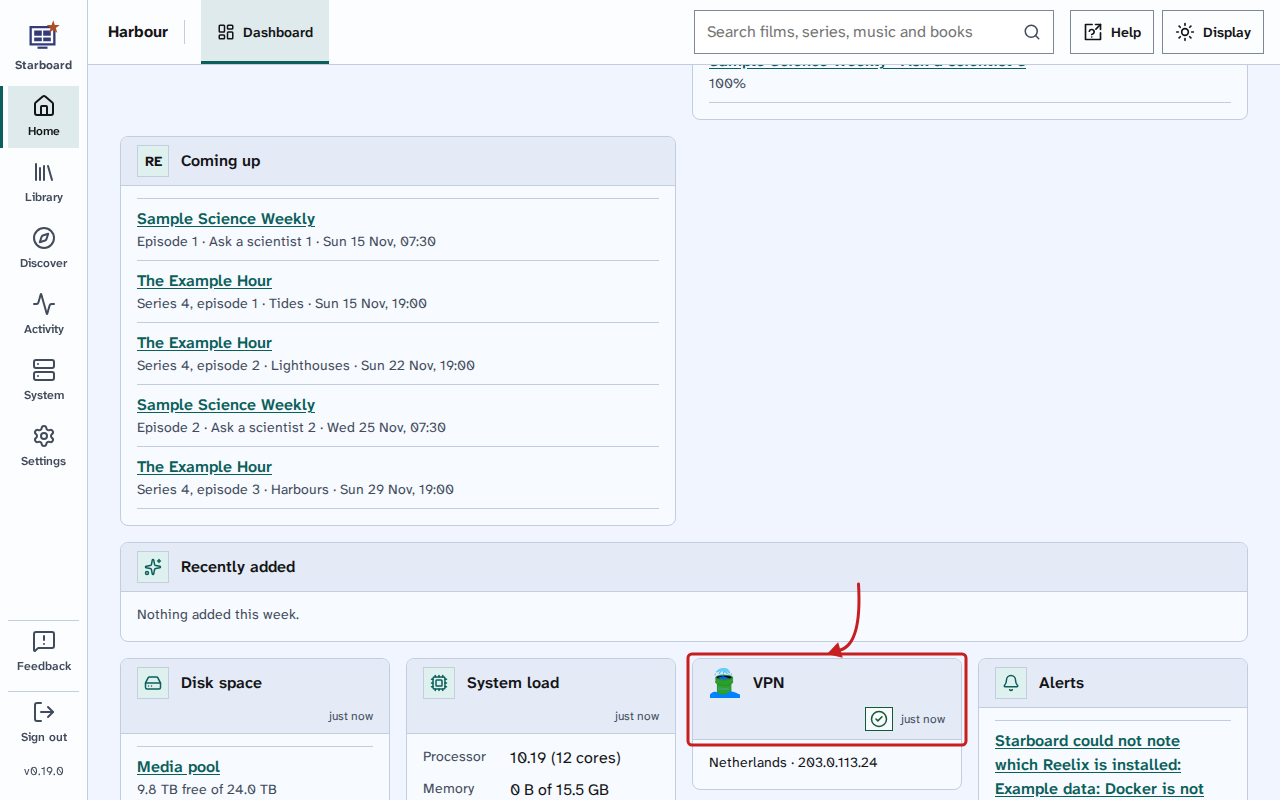
- VPN: whether your VPN is connected, and its country. Without one, it says No VPN, with Add a VPN.
- Service health: how many apps are running, and which are not responding.
- Requests: what is waiting for approval. Read Approve or decline requests.
- Alerts: the last few problems in the logs.
- Quick links: a button for each of your apps.
Each card has a grey band across the top with a logo and the card's name. A card about one app shows that app's logo, such as Jellyfin's on Now playing. A plug-in's card shows the plug-in's logo, or its initials, such as WS for Watch statistics. Starboard's own cards, and cards that combine several apps, show a Starboard icon. At the right of the band, a status and when the card was updated show when the card has something to say, such as Nearly full on Disk space. A small card shows only the status's icon, so the band stays on one line. Still to set up has Go through them at the right of its band.
Things to note
- Your choice is saved to your account, so the dashboard is the same on each device you sign in from.
- Still to set up stays first while anything is left to set up, and cannot be removed. It goes by itself when everything is done.
- Cards update once a minute while the page is in view. A hidden tab asks for nothing.
- A plug-in's card says Its plug-in is not active. when you deactivate the plug-in.
Find out more
This page on GitHub, where the help is written.