On this page
How-to
Set up Starboard in the terminal, with no browser
For a server with no desktop, and no phone or other computer to finish on. The terminal asks the same set-up questions as the browser, in the same order: your password, the apps for your media server and your download hours. It takes about 10 minutes, plus the time to download the apps.
Before you begin
- Starboard downloaded, as in Install Starboard with the installer, up to the step that starts the installer. The Run first script does this for you: choose Here in the terminal on its Welcome step, and go to step 2.
- A VPN is recommended: your VPN provider's details for WireGuard or OpenVPN, from the provider's website.
Steps
- In the Starboard folder, start the installer with
--terminal:
./install.sh --terminal- Answer the installer's questions. On a new install, these are only your home network and Docker access. Read What the installer asks. When Starboard is running, the set-up questions follow in the same terminal.
- Your password: choose one of at least 10 characters and enter it again. Nothing shows as you enter it. You do not need the setup code on the server itself. Then name your dashboard, or press Enter to keep "Starboard".
- How to start: on a new computer, press Enter for New install. Moving from apps you already run, or restoring a backup, is in Other answers.
- Storage: choose where your media goes: this computer's main disk, a separate disk, or a pool of several disks. Press Enter to take the media folder shown. Your disks follows when you chose a pool.
-
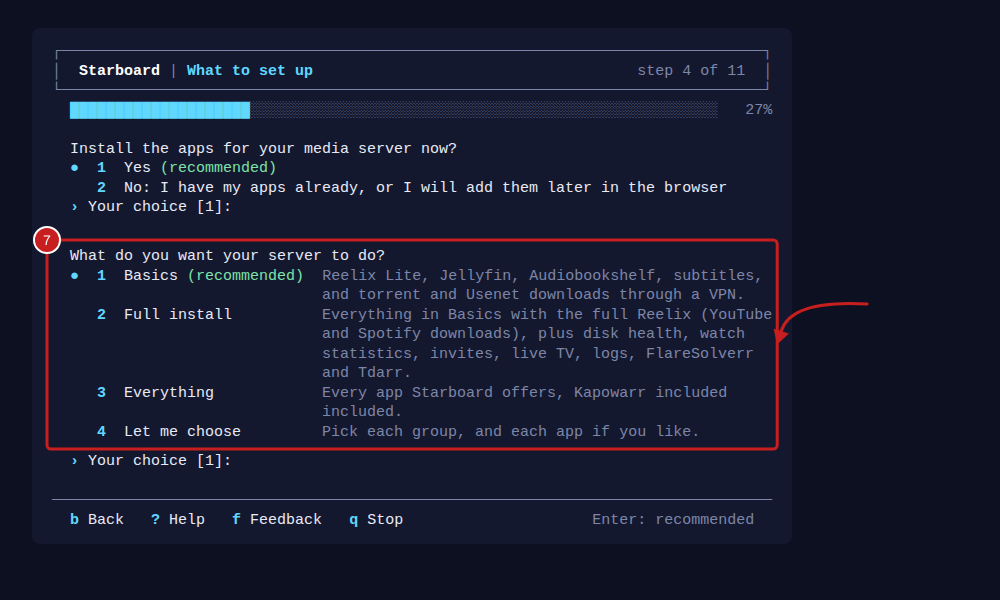
What to set up: press Enter for Basics (recommended): Reelix Lite, Jellyfin, Audiobookshelf, Bazarr, and qBittorrent and NZBGet through a VPN. Press Enter again to install the apps listed. Bigger installs are in Other answers.
-
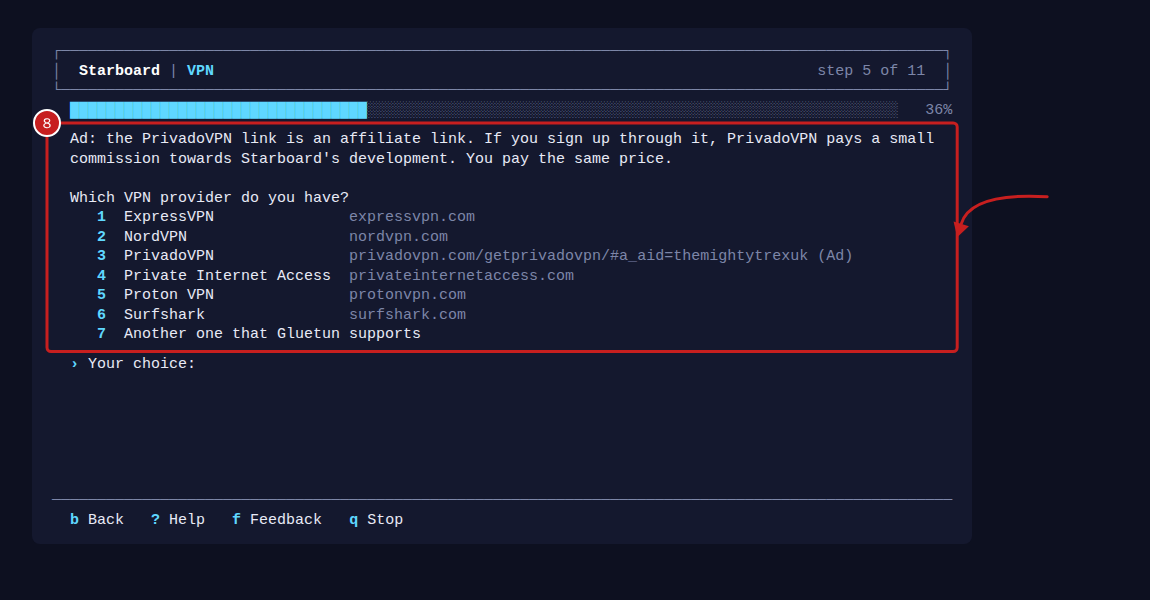
VPN: press Enter for Use my VPN account (recommended). Without a VPN account, choose Continue without a VPN: a warning says what that means, and Enter keeps Cancel. Read Download without a VPN. Then enter the number of your provider. No answer is recommended here. If yours is not listed, choose Another one that Gluetun supports and enter its name as Gluetun's list writes it. Then enter its details. The password or key does not show as you enter it. A link marked (Ad) is an affiliate link, as the note before the list says.
-
Usenet: your Usenet provider's details, or Not now: torrents are enough for now if you have none.
- Sites to search and Films and series, when you have Reelix: the sites Reelix searches, such as
1,4, and a free TMDB key, which you can leave empty. Read Choose the sites Reelix searches. - How much it does: Balanced, Small server or Everything. The recommended one is first. Small server is recommended on a computer with less than 1 GB of memory.
-
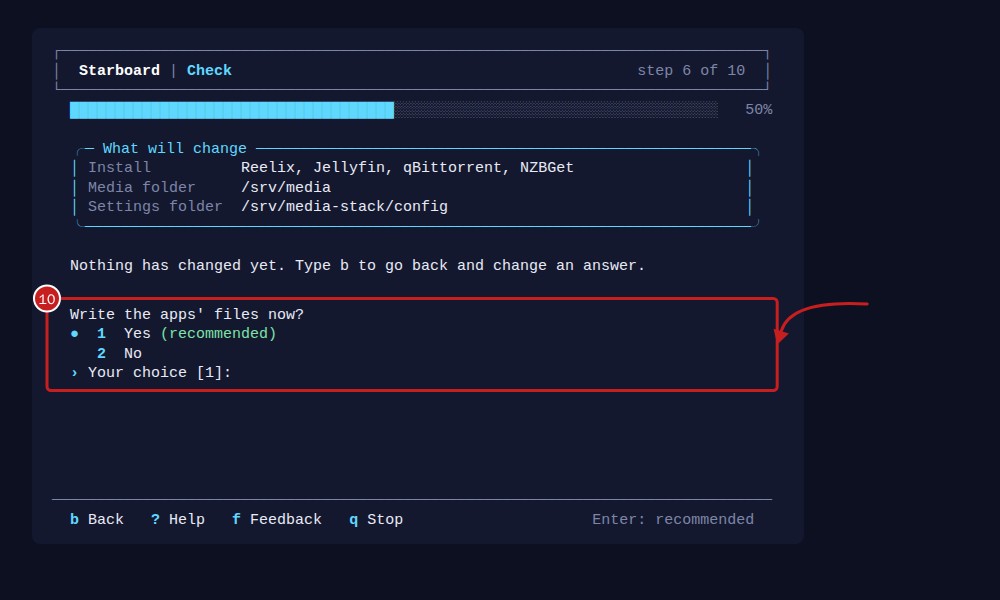
Check: read the list, then press Enter to write the apps' files, and again to start them. Downloading them can take several minutes. Starboard adds each app once it answers.
-
Jellyfin extras, Download hours, and Alerts and disk health: answer each one, or press Enter for the recommended answer.
- Docker access, only when you did not give it to the installer: Starboard needs it to start and update your apps.
- When it finishes, it shows the addresses to open Starboard from any device. It also shows the one installer command for the changes to this computer, such as disk health. The Run first script runs that command for you, and asks for your password if sudo needs it.
How to answer
- Enter a number and press Enter. Press Enter on its own to take the answer in the brackets, the recommended one. A question with no brackets, such as your VPN provider, has no recommended answer.
- If Starboard cannot use an answer, it says why under the question and asks again.
- Enter
bto go back a step. Enter keeps each earlier answer, including a password or key. Once the apps are written, you cannot go back past Check: change them later in System, Apps, Install apps. - Enter
?for help with any question. Help opens in a box over the step. Press Enter to close it. - Enter
fto send feedback from the terminal. - Enter
qto stop. Nothing else changes, and you can finish in a browser later. - The step's heading and progress bar stay at the top of the window, and the keys stay on its last line. Recommended answers are marked with a dot and the word "recommended", so nothing depends on colour.
- If you use software that reads text aloud, such as Orca, start it with
STARBOARD_PLAIN=1 ./install.sh --terminal. It then shows plain lines with no borders or colour. It does the same by itself in a window narrower than 60 characters or shorter than 20 lines.
Other answers
- How to start: Move from apps you already run adds the media apps already on this computer; read Move from Radarr, Sonarr and the others to Reelix. Restore a backup asks where the backup file is, then only what the backup does not hold. Starboard recommends one of these when it finds media apps or a backup on this computer.
- What to set up: Full install, Everything or Let me choose. Read Basics, Full install and Everything for what each has. Full install and Everything then ask Which app downloads from Usenet?: NZBGet (recommended) or SABnzbd.
Send feedback from the terminal
- At any question, enter
f. A box opens over the step. - Choose what it is about, such as Something is broken or A new feature, by its number.
- Answer the one or two questions. Press Enter to skip a question that says so.
- Read the whole report. It says which step you were on, Starboard's version, the system, the window size and the last error, if there was one.
- Choose how to send it:
- Show as a QR code: scan it with your phone's camera. It opens a new issue on Starboard's GitHub page with
the report filled in, to send from your own GitHub account. The whole report is saved in your home folder too.
- Show the link: the address of the same new issue, to open in a browser on any device.
- Save to a file: saves the report and the link in your home folder, in a file whose name starts
starboard-feedback-. - Cancel sends nothing. - Choose Done: back to the set-up to carry on.
When something fails, the terminal shows "Type r to report this problem". Enter r to send the same report with the
error filled in. Enter q at any feedback question to go back to the step.
Things to note
- To run the set-up questions again later, run
python3 -m starboard.terminal_setup --port 8095in the Starboard folder. It asks for your password first. - Starboard checks your answers exactly as the browser does, and saves them in the same place. VPN details are saved
in
data/stack/.env, which only you can read. - A feedback report never holds your set-up answers, password, VPN details or setup code. Email addresses, network
addresses, user names in folder paths and anything that has the form of a key are replaced. Do not enter a password in
your feedback: one on its own could stay in it. If something private is in the report, enter
qand start again. - The QR code is made to fit your window. In a window 80 characters by 24 lines it holds only the report's title; a
larger window, or smaller text, fits more. With
STARBOARD_PLAIN=1, there is no QR code: it shows the link. - The Usenet providers listed for SABnzbd are affiliate links: if you sign up through one, the provider pays a small commission towards Starboard's development, and you pay the same price.
If it does not work
- "Stopped: --terminal needs a terminal to enter answers in": read IN-02.
- "Starboard said: ...": Starboard refused an answer and says why. Enter the answer again.
- "Starboard cannot start apps itself": Starboard has no Docker access. Run the command it shows, or run
./install.shagain and answer yes to Docker access. - "The apps did not all start": read the error number under it, usually IN-33. Show the details shows Docker's own lines. Read An app shows as not responding.
Find out more
This page on GitHub, where the help is written.