On this page
How-to
Organise apps into categories
Categories are the headings apps sit under on the Apps page, such as 'Watch, listen and request'. You can add, rename, reorder and remove them, and choose each app's category. Changes apply at once.
Before you begin
- You have added at least one app. Read Add an app.
Steps
Add, rename or reorder categories
- Go to Settings, then General, then Names and apps.
- Activate More settings at the right of the heading, then select the Categories tab. It lists the categories in the order the Apps page shows them, with how many apps are in each.
- To add one, enter its name in New category, then select Add category.
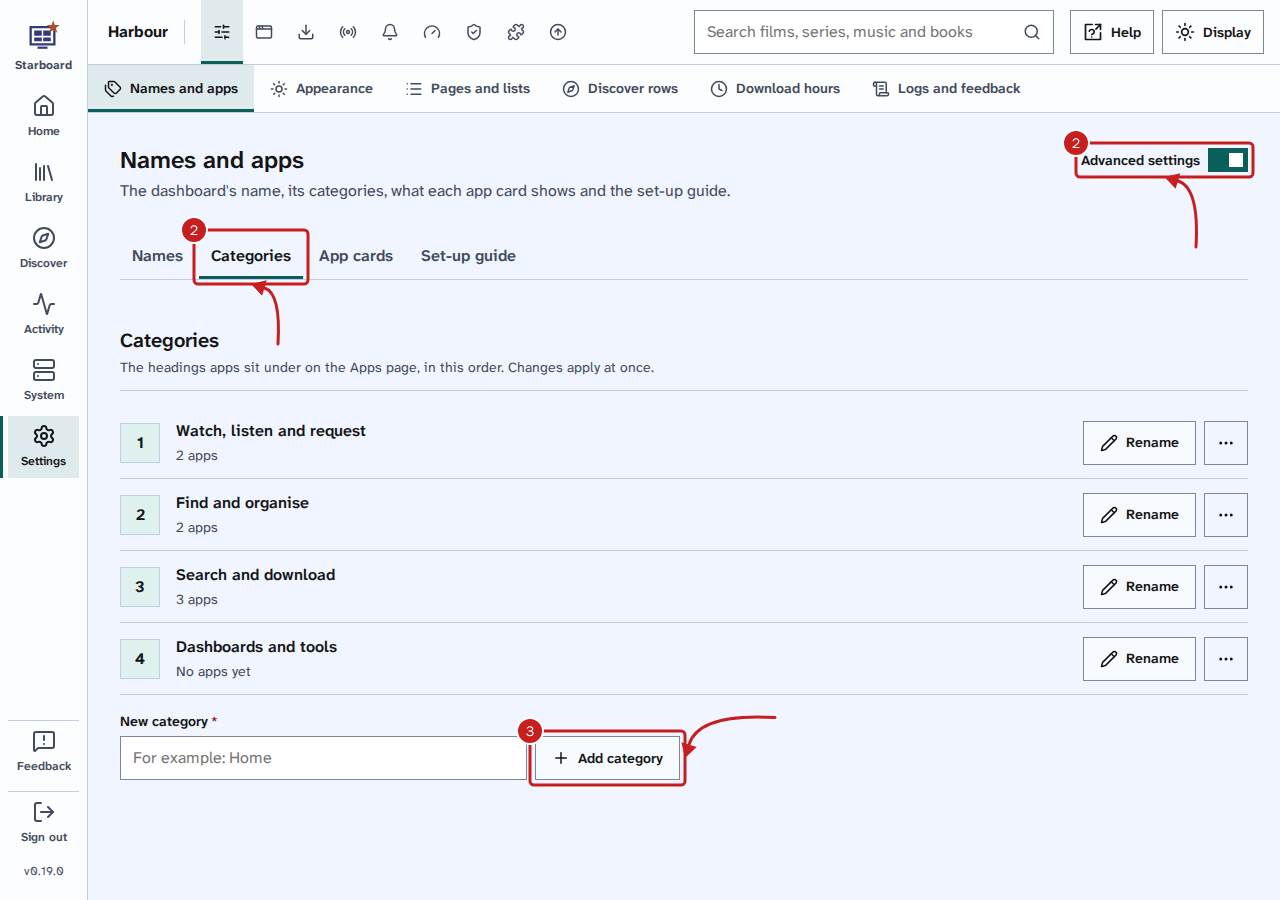
- To rename one, select Rename for it. Enter the New name, then select Rename category. Its apps move with it.
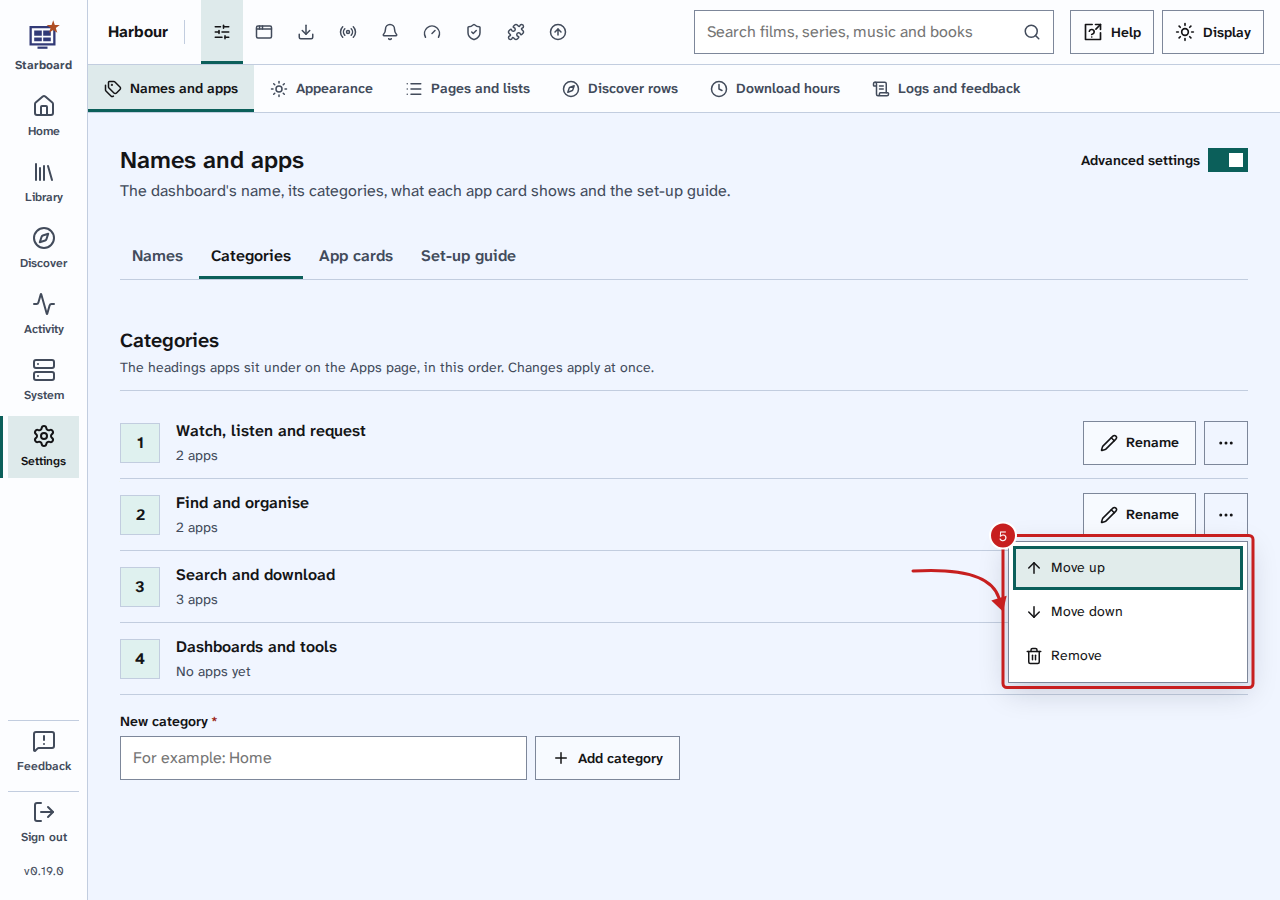
- To change the order, select More actions (three dots) for a category, then Move up or Move down.
Remove a category
- In Categories, select More actions for the category, then Remove.
- If it has apps in it, choose where they go in Move its apps to.
- Select Remove category. The apps themselves are not changed.
Put an app in a category
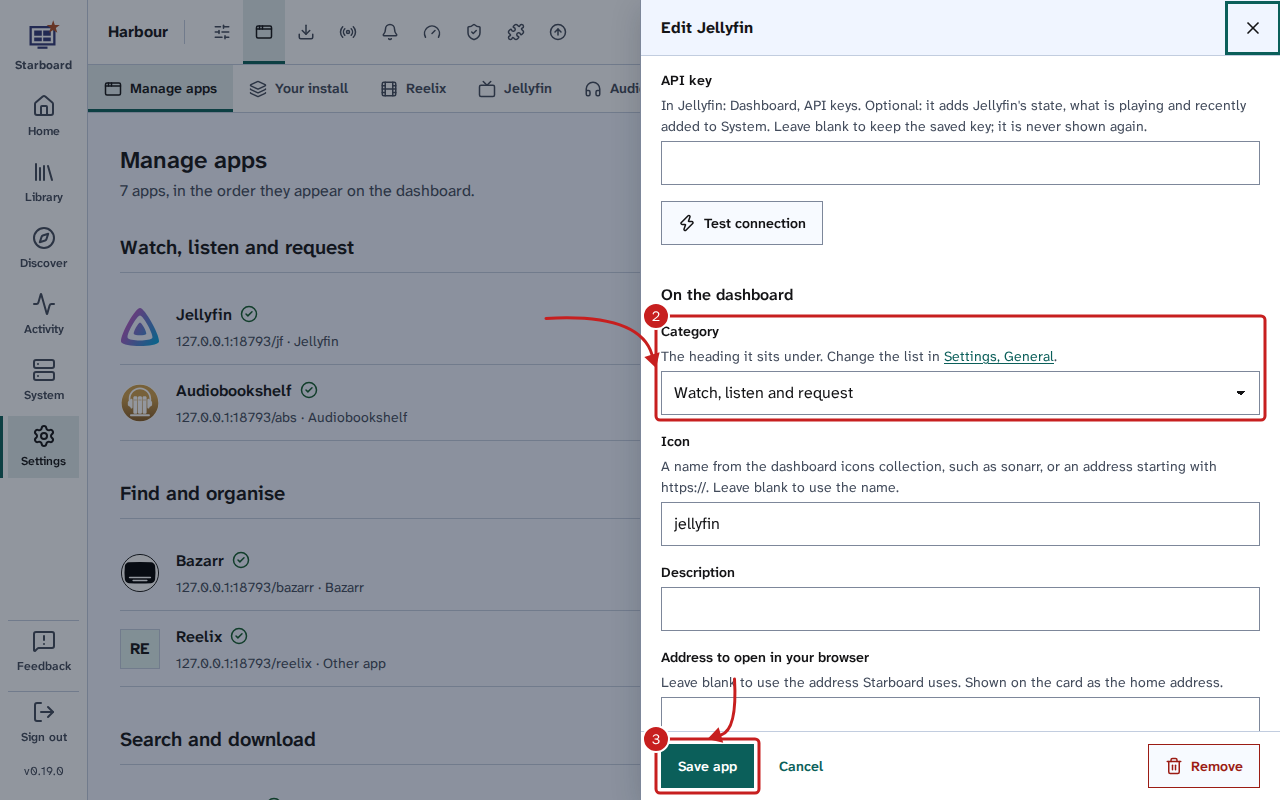
- Go to Settings, then Apps, then Manage apps, and select Edit for the app.
- In Category, choose a category. Choose for me puts well-known apps in their usual category, and shows which one it picked.
- Select Save app, or Save and continue for Sonarr, Radarr, Lidarr and Readarr.
Things to note
- Starboard starts with four categories: 'Watch, listen and request', 'Find and organise', 'Search and download' and 'Dashboards and tools'.
- You can have up to 20 categories, with names of up to 40 characters. The last category cannot be removed.
- Apps with no category are shown under 'Other'. Background services are listed on System, Apps, Other services instead. Read Add a background service.
- After a restore, some apps may be in a category that is not in the list. Starboard then offers Add it to the list or Add them to the list.
- More settings stays as you left it on every Settings page.
Find out more
This page on GitHub, where the help is written.