On this page
How-to
Choose the sites Reelix searches
Reelix finds films, series, books and music by searching sites that list them, then hands the best copy to your download app. Nothing is added unless you add it. Add, test and remove sites in Settings, Apps, Reelix, under Sites to search.
Before you begin
- Reelix is on your dashboard.
- You know Reelix's admin password. If Starboard set Reelix up, it is the same as your Starboard password.
- For a site that needs an account, you have its user name and password, or its API key.
Steps
- Go to Settings, then Apps, then Reelix.
- Select the Sites to search tab, then Show sites to search. Enter your Reelix password, then select Continue.
- Read the list. The chip beside each site says whether it is Working, Failed last time or Not active. The line under its name says how many searches it answered, how many downloads Reelix chose from it, and how long it takes to answer.
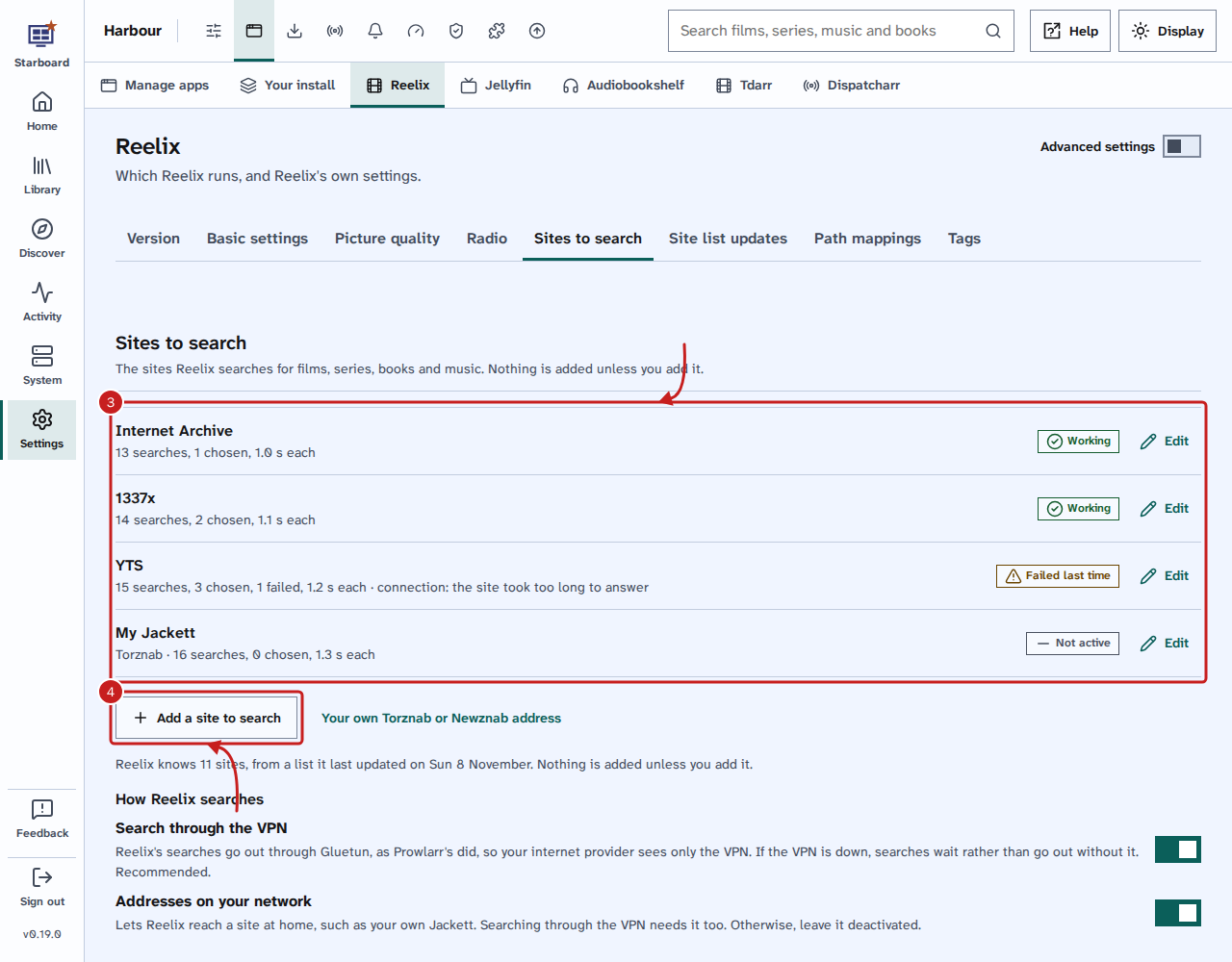
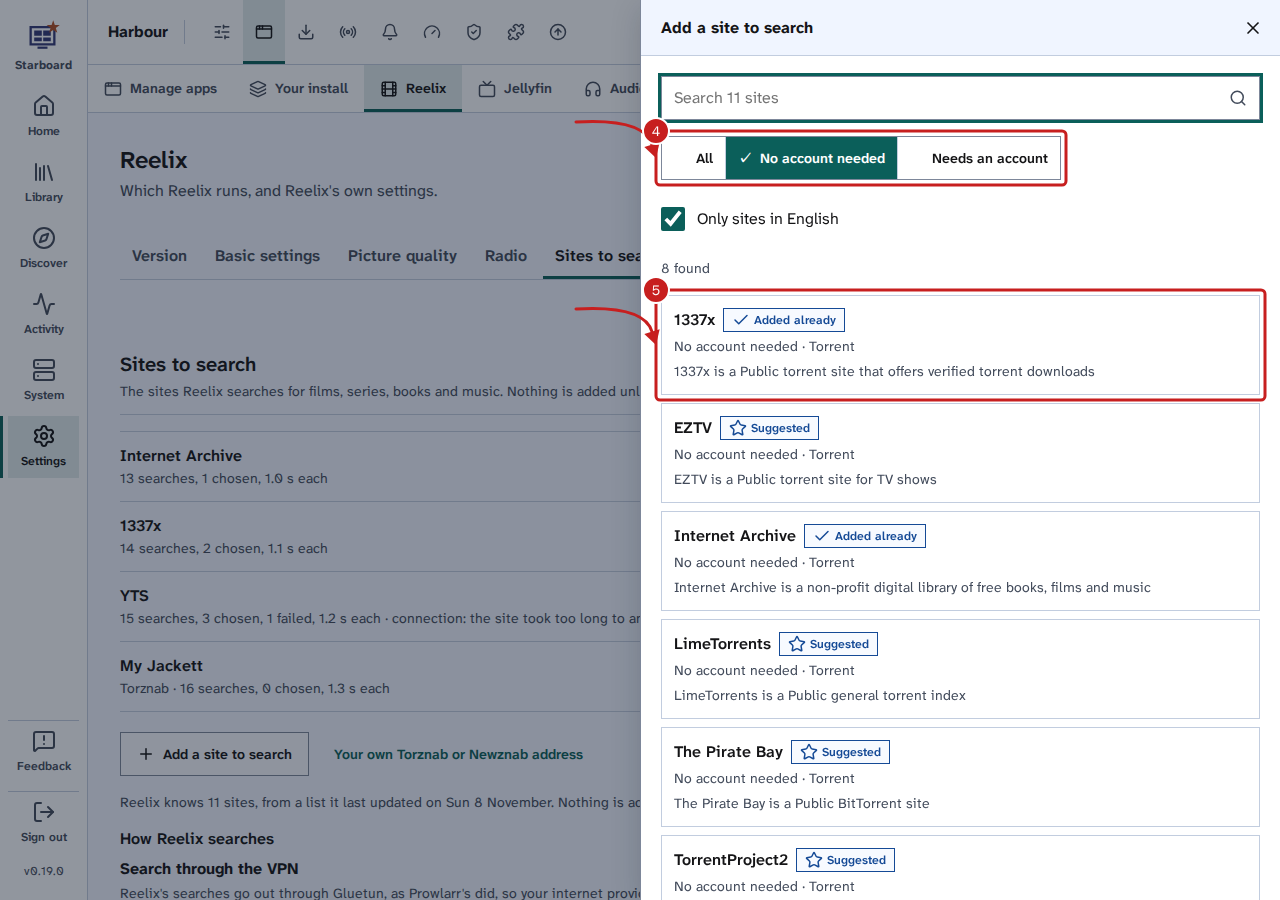
- Select Add a site to search. Enter part of a site's name, or choose No account needed to list only public sites. Only sites in English is ticked to start with. Suggested marks the sites Install apps offers.
- Select a site. Its form opens: select Test, then Save.
- Optional: to add a search site of your own, read Add your own search site. Most people do not need one.
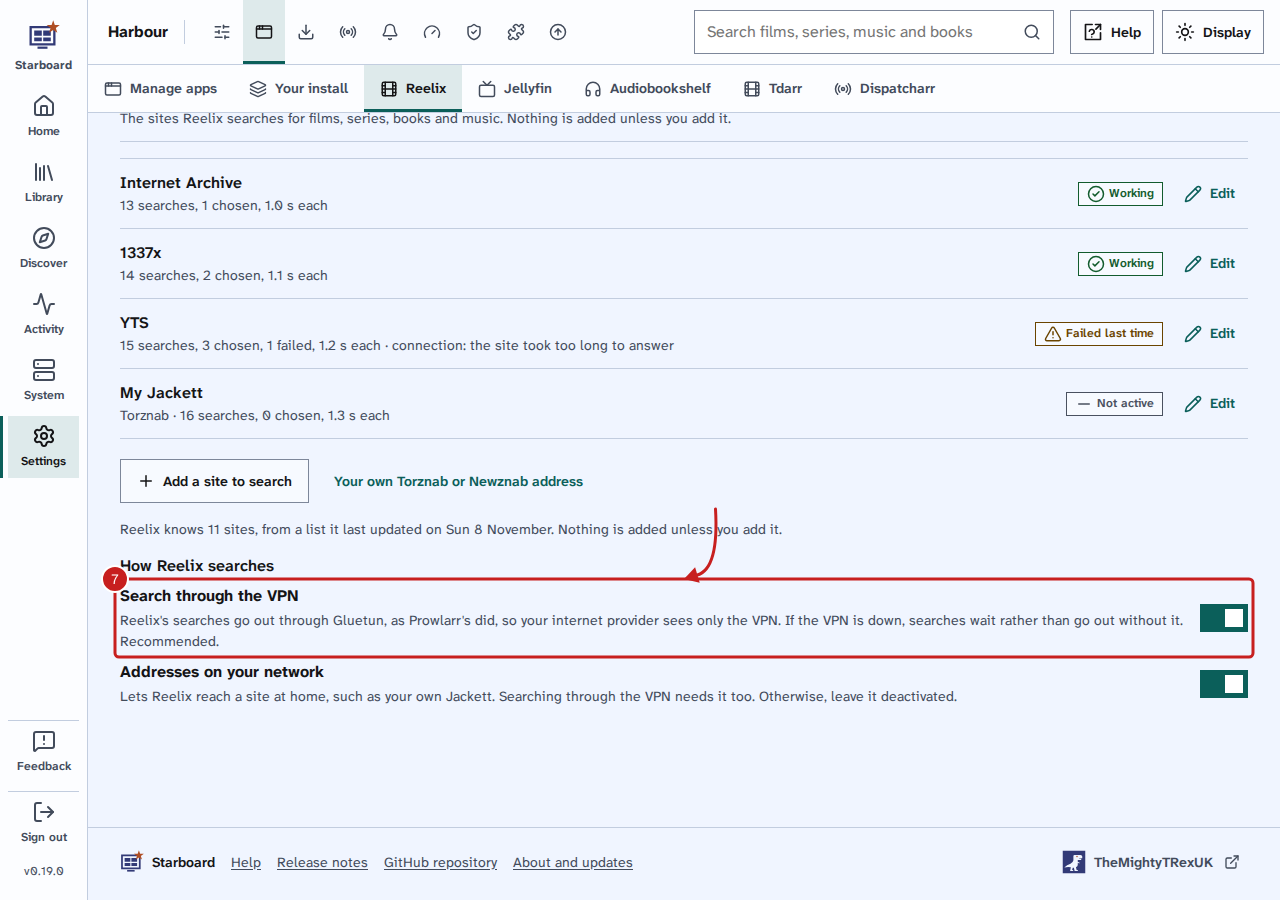
- Under How Reelix searches, keep Search through the VPN active if you have the VPN. It is recommended.
Add your own search site
For your own Jackett or Prowlarr, or a Usenet search site you have an account with:
- On Sites to search, select Add your own Torznab or Newznab address.
- Choose Torznab or Newznab, then enter its address and API key.
Things to note
- Search through the VPN sends only Reelix's searches through Gluetun. Your internet provider can tell only that you use the VPN, which matters because some providers block these sites. If the VPN is down, searches wait rather than go out without it. Starboard activates it when it installs Reelix with the VPN.
- Addresses on your network lets Reelix reach a site at home, such as your own Jackett. Searching through the VPN needs it too. Otherwise, leave it inactive.
- Resting until means the site failed several times, so Reelix waits before it tries again.
- The Sites to search step in Install apps and the terminal set-up offers a short list of public sites and your own address. Nothing is ticked for you.
- Use these sites only for files you have the right to download where you live.
If it does not work
- The test did not pass: the site may be down, or blocked by your internet provider. Activate Search through the VPN, then test again.
- Reelix does not reach addresses on your own network: activate Addresses on your network, then add the site again.
- Needs an account: add the user name and password, or the API key, from your account on that site.
Find out more
This page on GitHub, where the help is written.