On this page
How-to
Follow radio shows and podcasts
Reelix follows radio shows and podcasts for you. It downloads each new episode into the radio folder, and you listen in Audiobookshelf. Starboard shows what is due in Coming up, and episodes downloading in Downloads.
Before you begin
- Reelix and Audiobookshelf are installed. Basics, Full install and Everything install both, with the radio folder. If you chose the apps yourself, choose Radio in Install apps. Read Install apps with Starboard.
- To listen, Audiobookshelf needs a podcast library at the radio folder. Read Listen in Audiobookshelf.
Steps
Find and follow a show
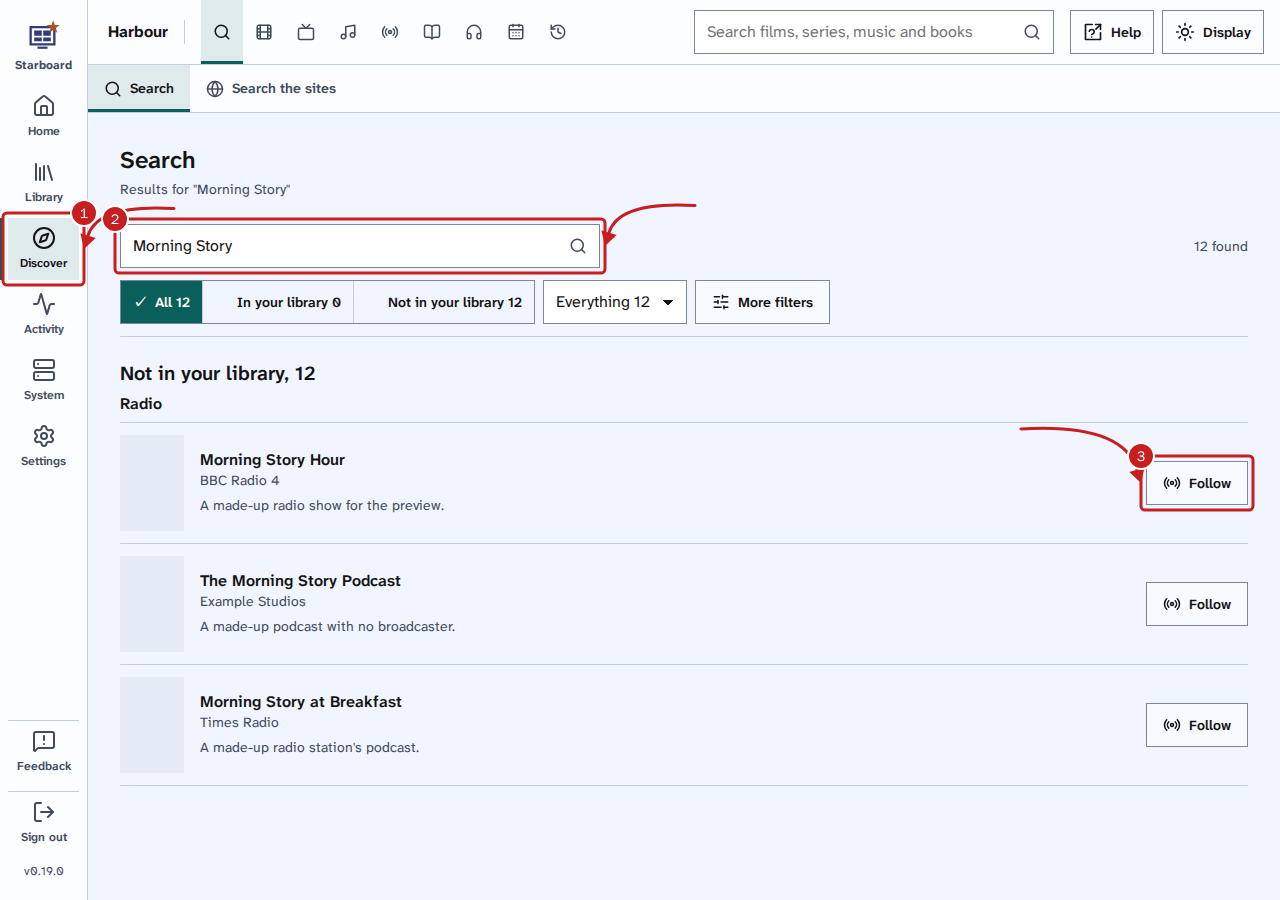
- Select Discover in the side menu. It opens on Search. Or enter the name in the search box at the top of any page.
- Enter the show's name, such as
Morning Story. Your library is searched first, so you can check whether you follow it already. - Under Not in your library, Radio lists the shows Reelix found. Select Follow beside the one you want.
- In Get, choose Every episode, old and new, or New episodes only.
- Select Follow this show. The button beside it changes to Following, and the show appears in Library, Radio within a few minutes. Reelix searches for each episode as it is broadcast.
Listen in Audiobookshelf
When Starboard sets up Audiobookshelf, it adds a Radio podcast library at /media/radio for you. If you set
up Audiobookshelf yourself, do this once. After that, every episode Reelix downloads appears in Audiobookshelf.
- Open Audiobookshelf and sign in as its administrator.
- Go to Settings, then Libraries, and select Add Library.
- Enter a name, such as
Radio, and choose Podcasts as the media type. - Add the folder
/media/radio, then select Create.
Check what is due and what is downloading
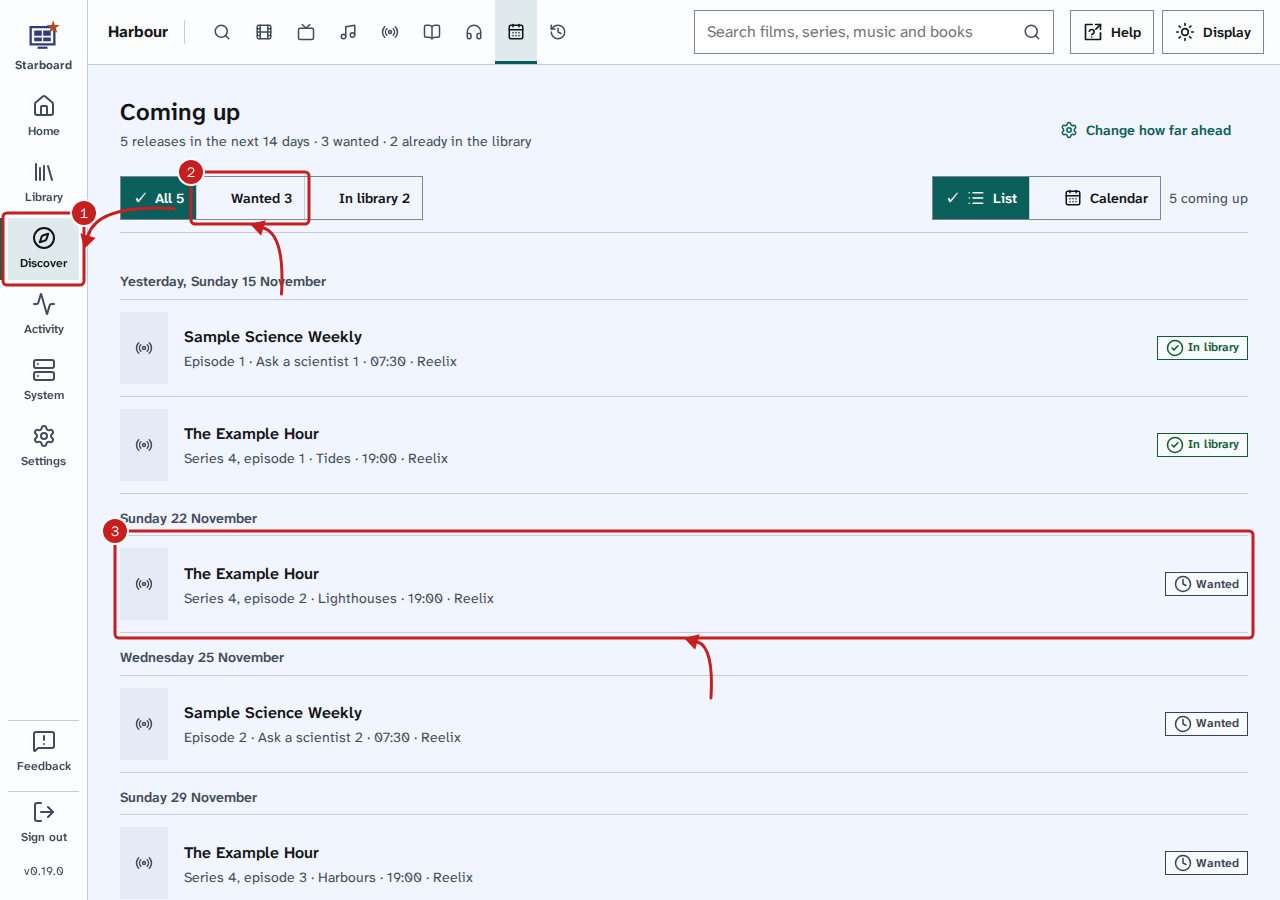
- Go to Discover, then Coming up. Episodes of the shows you follow are listed by the day and time they are broadcast, with a radio icon.
- Optional: to show only the episodes still to come in, select Wanted. In library shows the ones you have already. Select All to show every episode again.
- Select an episode to open its details. Open in Reelix opens the show's page in Reelix, in a new tab.
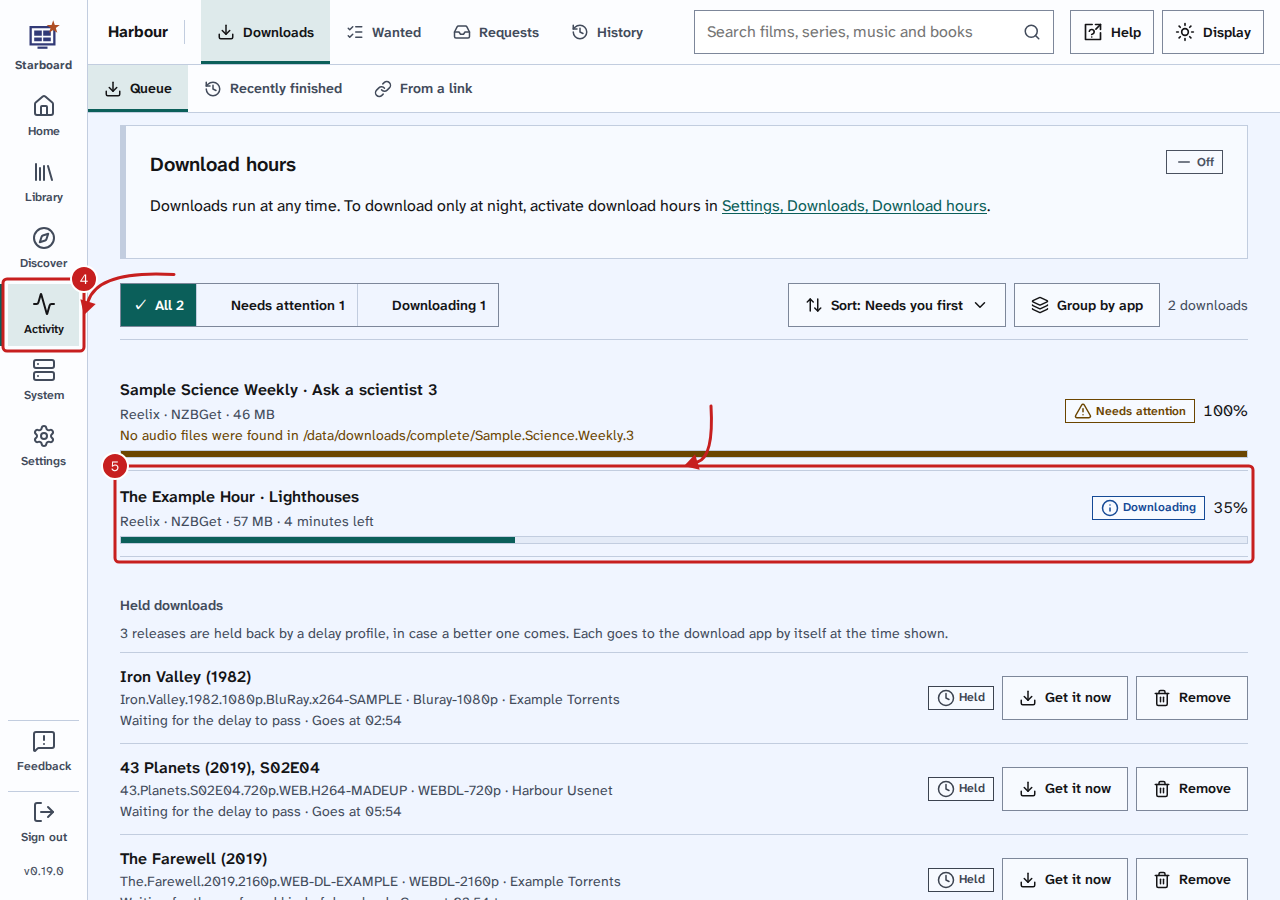
- Go to Activity, then Downloads, then Queue.
- A radio episode shows the show's name and the episode's name, with Reelix as its app. Select it to show its details, find another copy or remove it, as for any download. Read Pause, resume and remove downloads.
Bring in shows you already have
Radio shows already in Audiobookshelf's Radio library can come into your library without downloading them again.
- If Library, then Radio says Reelix does not read Audiobookshelf's Radio library yet, select Connect it. In Settings, Reelix, Radio, select Connect Audiobookshelf's Radio library and type your Reelix password. This is needed once.
- Back on Library, then Radio, select Bring them in.
- Choose what Reelix gets for each show: Every episode (it fills the gaps), New episodes or Only what you have.
- Check each match. A show is ticked only when its match has the same title; check any other match before you tick it. A show no radio source knows says No match found.
- Select Bring in the ticked ones. Reelix matches your files to each show's episodes. Nothing is moved.
Things to note
- Reelix files each episode in
media/radio, inside the data folder. Audiobookshelf reaches the same folder as/media/radio. - Coming up reads the 20 shows Reelix checked most recently. Shows beyond those are still followed and downloaded, but Coming up does not list them.
- Every show you follow is in Library, Radio, with its episodes, newest first. Read Browse your library.
- To change how Reelix follows a show, open it in Library, then Radio. In Following, choose Every episode, New episodes from now on or Not following.
- Coming up and Downloads need the key Starboard made when it set up Reelix. A Reelix you added by hand shows no radio until you add its API key to the Reelix entry in Settings, then Apps, then Manage apps. Read Find an app's API key.
If it does not work
- No Radio under Not in your library: Starboard has no Reelix with its key. Install Reelix in Install apps, or add it in Settings, then Apps, then Manage apps.
- No radio in Coming up: none of the shows you follow has an episode due in that time. Choose a longer time in How far ahead. Read Find out what is coming up.
- Episodes download but are not in Audiobookshelf: check the podcast library's folder is
/media/radio. In Audiobookshelf, select the library, then Scan. - A warning about Reelix: Reelix did not answer. Read An app shows as not responding.
Find out more
This page on GitHub, where the help is written.