How-to
Find out what is coming up
The Coming up page lists the new episodes, films, albums, books and radio episodes your apps expect, from yesterday to as far ahead as you choose. You can show them as a list by day or on a month calendar.
Before you begin
- Reelix is in Starboard; the default install has it. On an existing set-up, at least one of Sonarr, Radarr, Lidarr or Readarr will do. Read Add an app. Radio comes from the shows you follow in Reelix. Read Follow radio shows and podcasts.
Steps
Check what is coming up
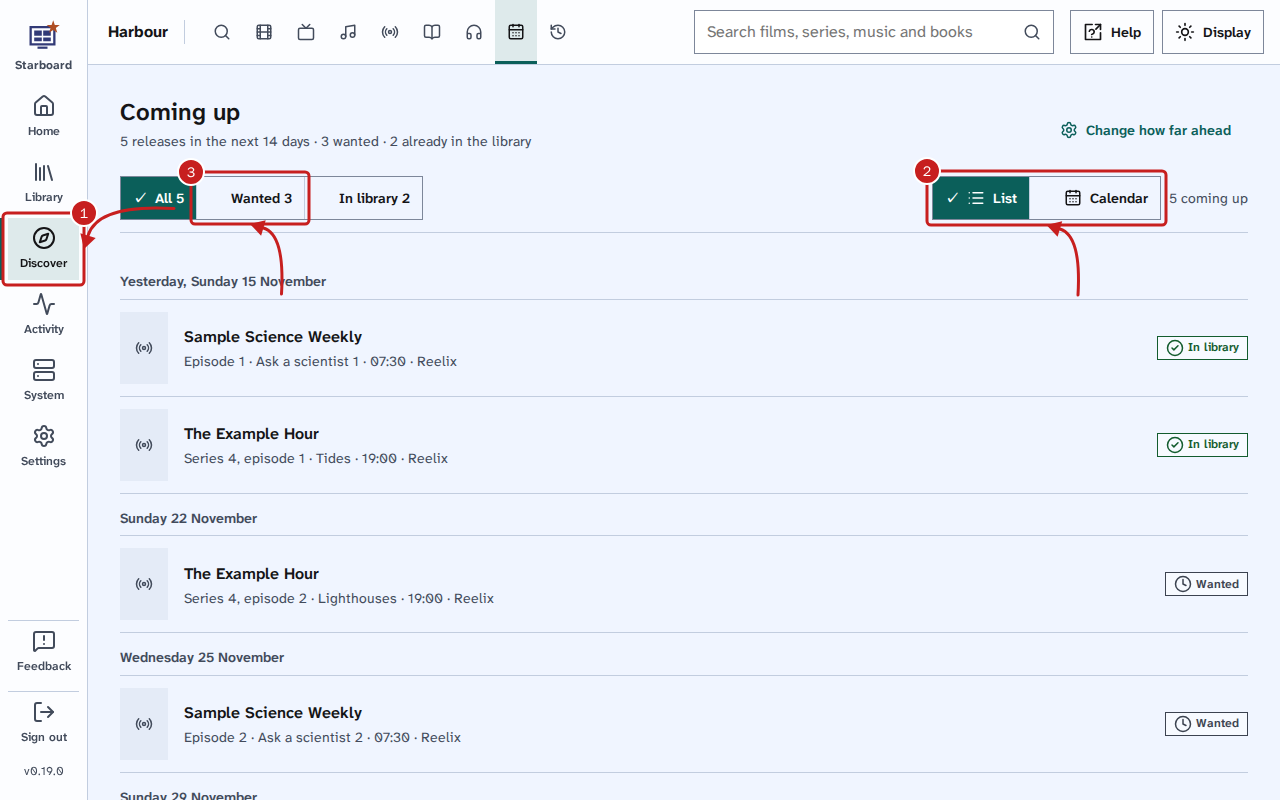
- Go to Discover, then Coming up. The page says how many releases are due, how many are wanted and how many are already in the library.
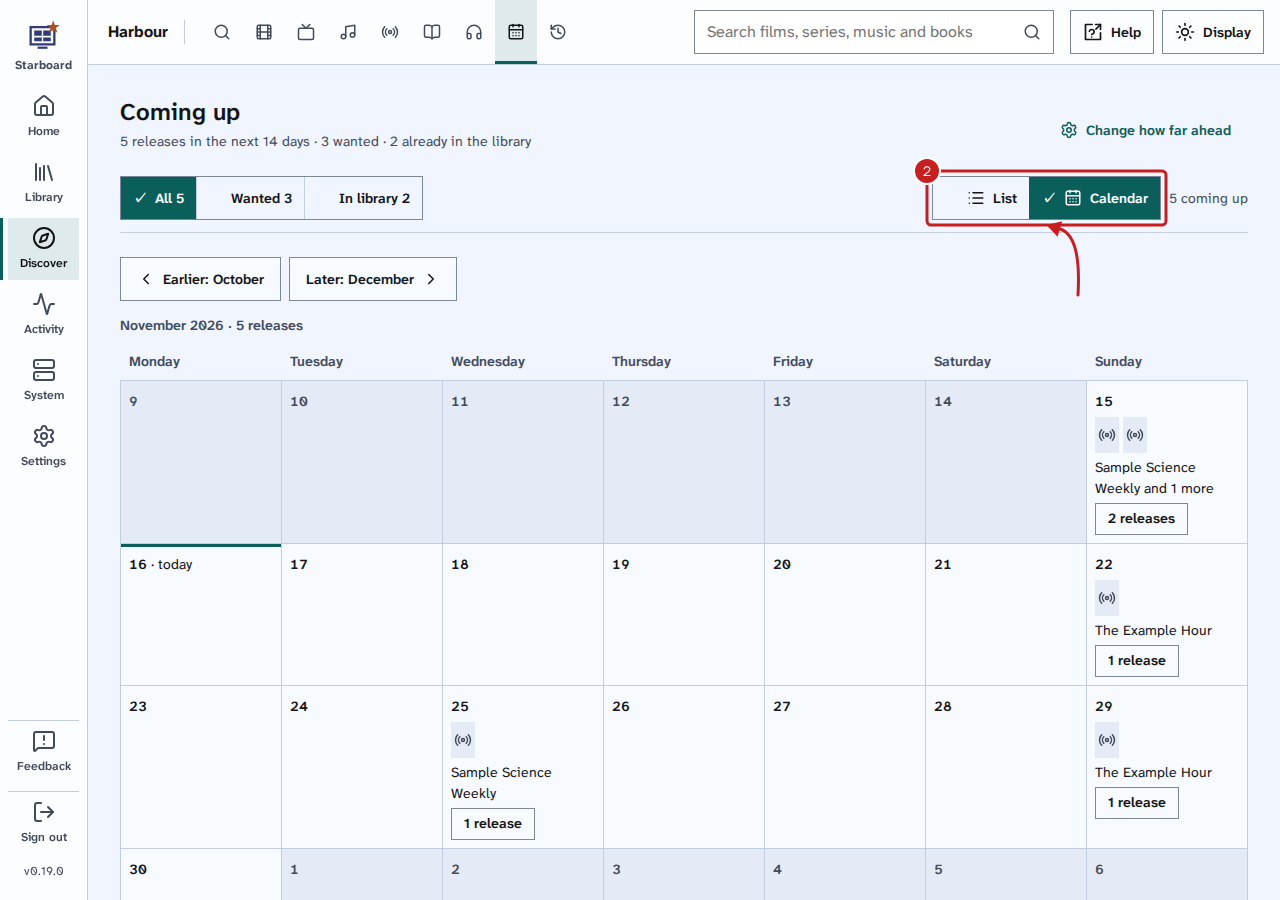
- Choose List to show releases day by day, or Calendar to show them on a month.
- Optional: select Wanted to show only what you do not have yet, or In library to show only what you have. Select All to show everything again.
- Optional: when releases come from more than one app, a button for each app shows. Select an app's name, such as Sonarr, to show that app only. Select it again to show every app. With Reelix alone, there are no app buttons.
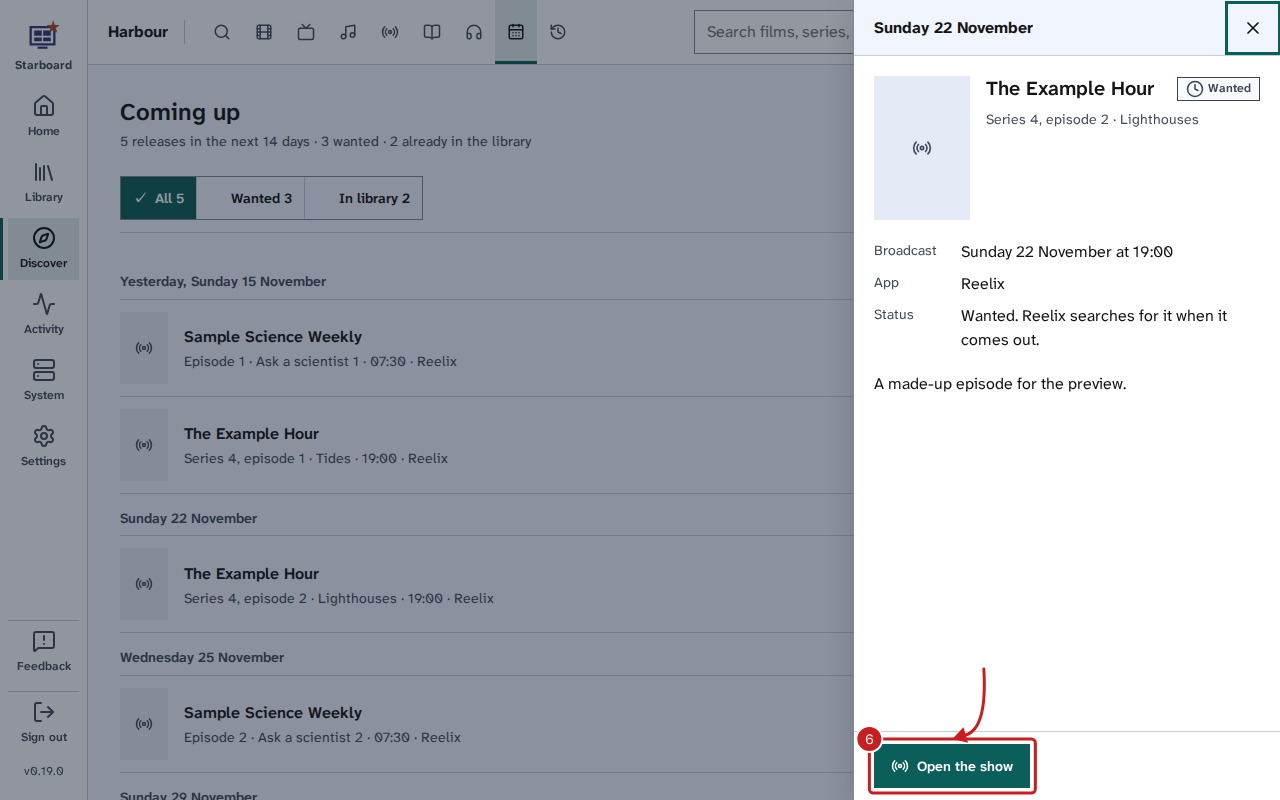
- Select a title to open its details: when it comes out, which app it is in and whether it is wanted.
- Optional: select the button at the foot of the details, such as Open the show, to open it.
In Calendar, select Earlier or Later and the month's name to move by a month, and Back to now to return.
Change how far ahead it shows
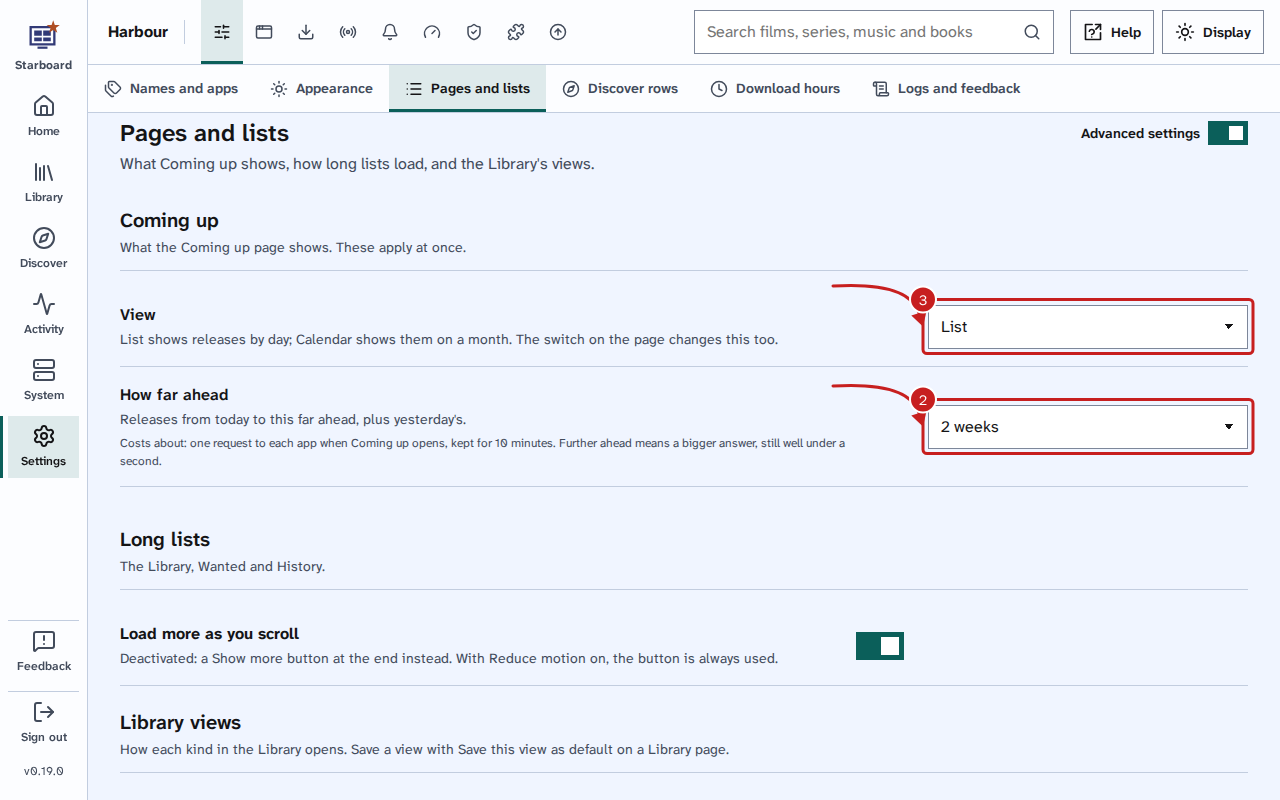
- On the Coming up page, select Change how far ahead. This opens Settings, then General, then Pages and lists. The Coming up section shows when More settings is active: activate it if the section is not there.
- In How far ahead, choose 1 week, 2 weeks, 30 days, 60 days or 90 days. The change applies at once.
- Optional: in View, choose whether the page opens as List or Calendar.
Show or hide posters
- Go to Settings, then Performance, and activate More settings.
- Select the Background work tab, then activate or deactivate Posters on Coming up and the Library. When it is inactive, each release shows its app's icon instead.
Things to note
- Coming up shows 2 weeks ahead until you change it.
- Choosing List or Calendar on the page also saves it as the view the page opens with.
- Starboard fetches posters from your own apps and keeps copies for a week. Your browser loads them from Starboard, so no image site receives them.
- The Small server preset deactivates posters. Read Make Starboard use less of your server.
- To get something wanted now, use Activity, then Wanted. Read Find and get what is missing.
- A wanted item that has already come out says the app has not found it yet. An item still to come says the app searches for it when it comes out.
If it does not work
- Nothing is due: your apps have nothing due in that time. Choose a longer time in How far ahead.
- Nothing matches these filters: select the filter you chose again to clear it.
- A warning about one app: that app did not answer, so its releases are missing. Read An app shows as not responding.
- The view changed here but was not saved: the page shows your choice, but Starboard could not save it. Choose it again.
Find out more
This page on GitHub, where the help is written.