On this page
How-to
Update a plug-in and roll it back
When a plug-in has a newer version, update it from its own page. Starboard shows what is new and how the update is kept safe before anything changes, keeps the version you had, and goes back to it by itself if the new one does not work. You can roll back to the version you had at any time.
Before you begin
- The plug-in is added. Read Add a plug-in if it is not.
- You know your Starboard password. Updating and rolling back ask for it.
- Starboard reads the catalogues at most once a day. To check again now, open Settings, then Plug-ins, then Catalogue.
Update a plug-in
- Go to Settings, then Plug-ins. A plug-in with a newer version has an Update chip in Manage.
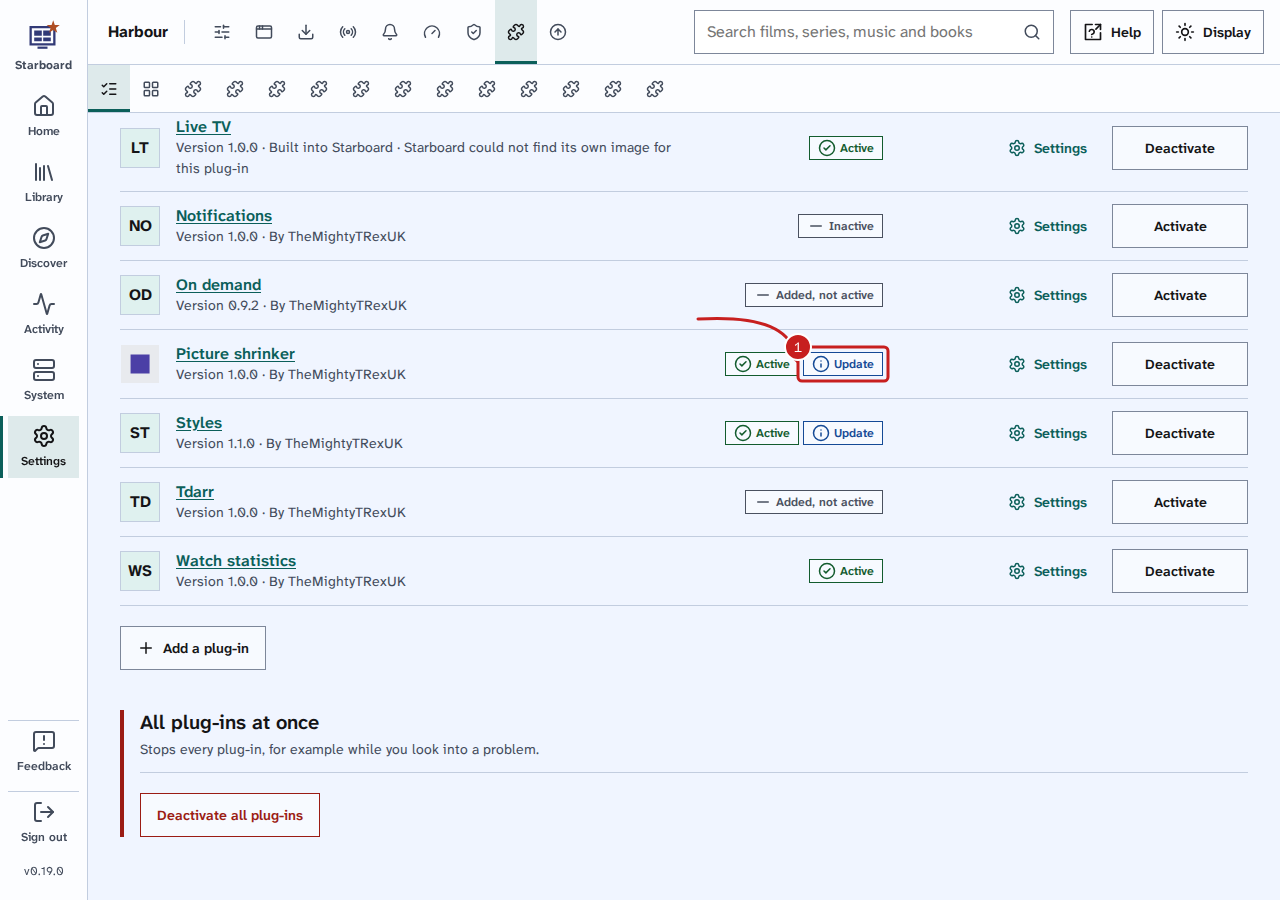
- Select the plug-in's name to open its page.
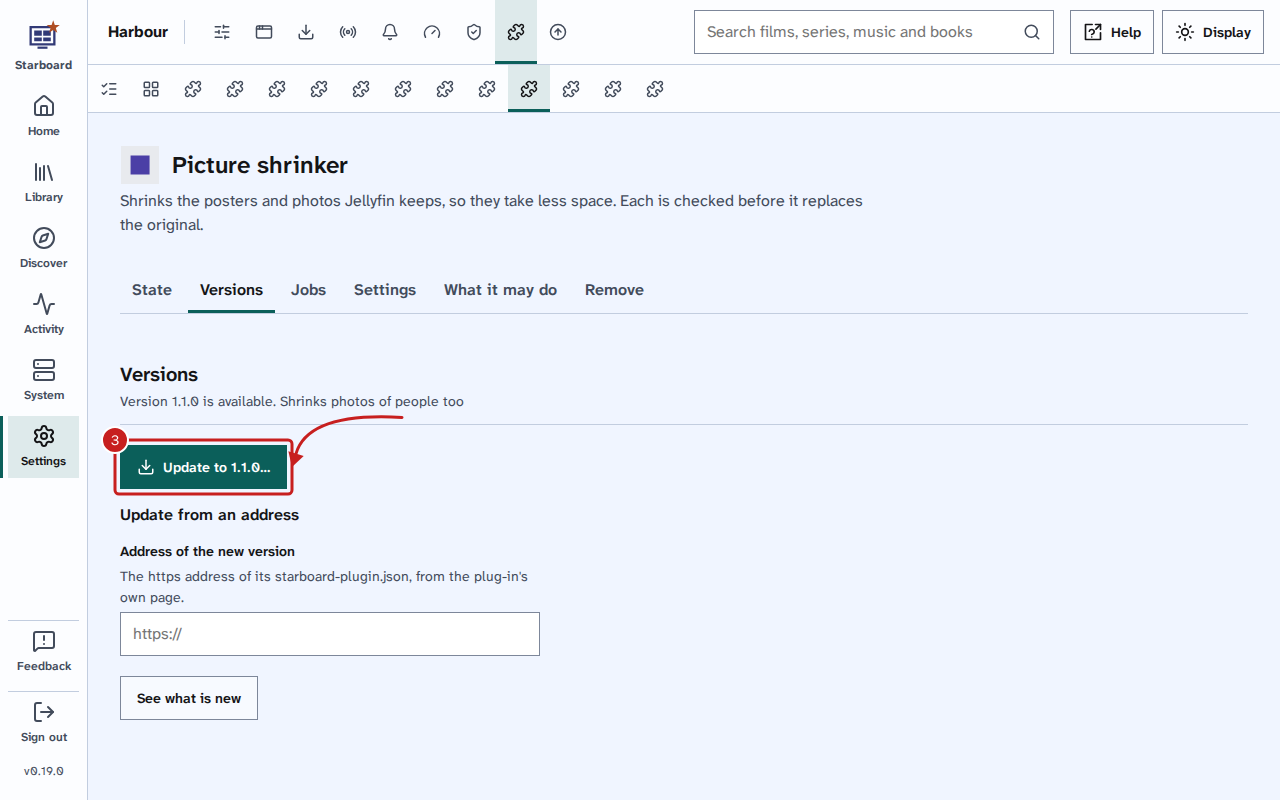
- Select the Versions tab, then Update to and the new version, such as Update to 1.1.0….
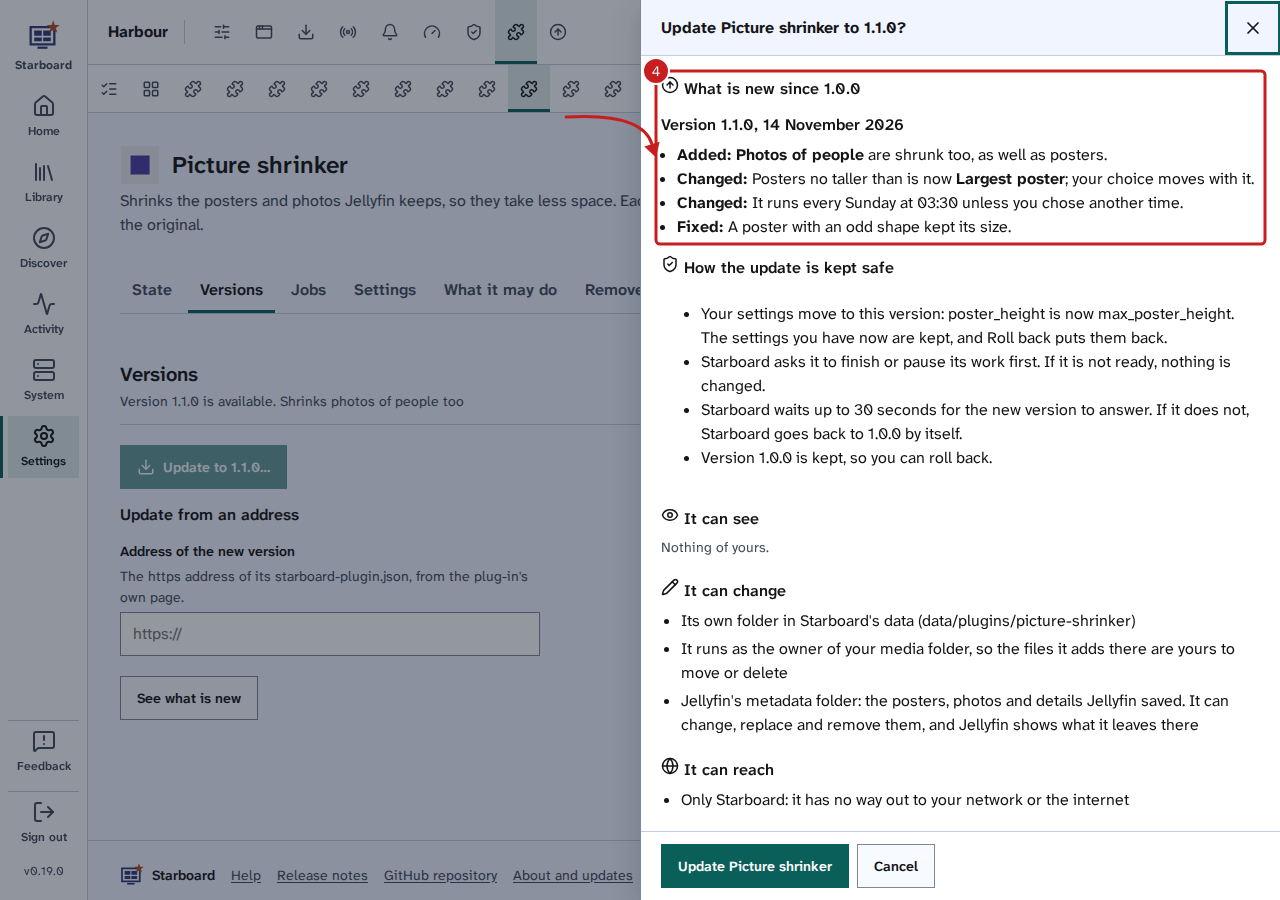
- A slide-out opens with the same warning as when you added it. Anything the new version may do that the one you have may not is marked New. Read the rest: - What is new since your version: each version's changes, under Added, Changed, Fixed and other headings. - How the update is kept safe: which of your settings move to the new version, whether Starboard asks the plug-in to finish its work first, and how long Starboard waits for the new version to answer.
- To go ahead, enter your Starboard password and select Update and the plug-in's name. To stop, select Cancel: nothing changes.
- A dialog shows each step with its state: Asking it to get ready, Moving its settings, Installing the new version, Waiting for it to answer and Asking it to tidy up. A step the plug-in does not need is left out. It takes a few seconds, or up to a few minutes for a large plug-in.
- When it ends, the dialog says is updated and the plug-in's name. Select Done.
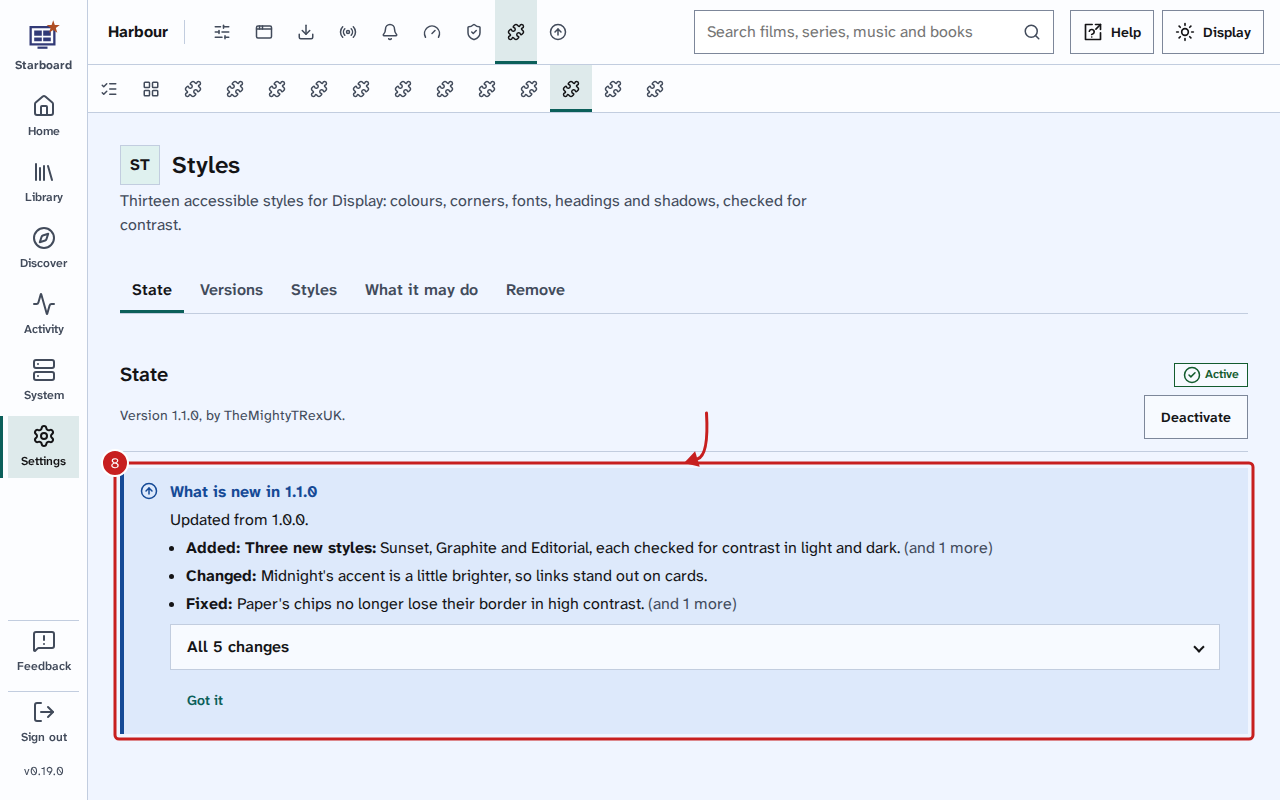
- The plug-in's State shows What is new and the new version. Select Got it when you have read it: it is then hidden on every device.
Closing the dialog does not stop the update. The page says it is still running, with Show progress.
Roll back to the version you had
- On the plug-in's page, select Roll back to and the version you had, such as Roll back to 1.0.0. It is in Versions, and on State when the plug-in stopped working soon after an update.
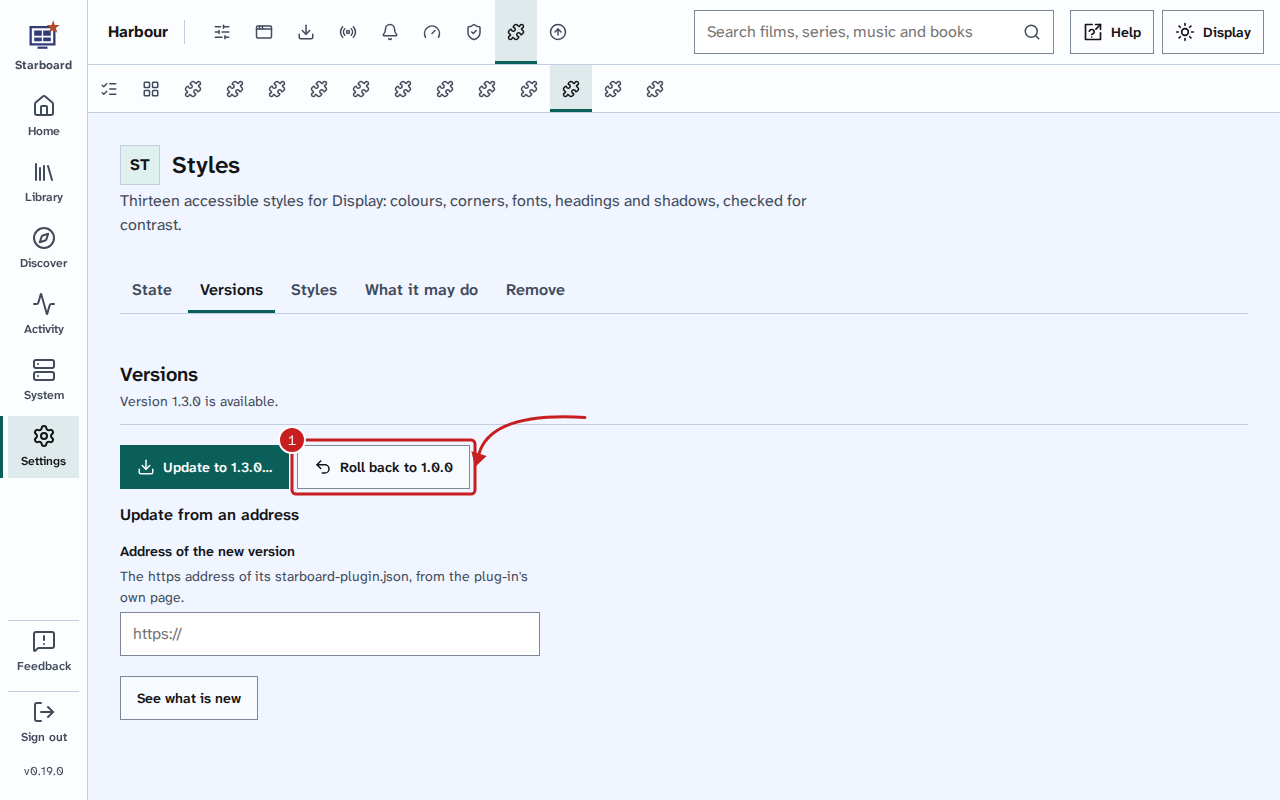
- Enter your Starboard password and select Roll back.
- A dialog shows each step. When it ends, it says is back on and the version. Select Done.
Rolling back needs no download. Your settings go back to how they were before the update. The newer version is kept, so Update brings it back when you are ready.
Update a plug-in from an address or a zip file
For a plug-in that is not in a catalogue, such as one from its maker's own page:
- On the plug-in's page, in Versions, go to Update from an address.
- Paste the address of the new version's
starboard-plugin.jsoninto Address of the new version. - Select What is new. The same slide-out opens: go on from step 4 of Update a plug-in.
A plug-in you added from a zip file has Update from a zip file there instead: choose the new version's zip, then select What is new. Read Add a plug-in from a zip file.
Things to note
- If the new version does not work: when it does not start, or does not answer within the time its maker set, Starboard goes back to the version you had by itself, with your settings as they were. The dialog says went back to and why, the plug-in's State says so, and you get an alert if alerts are active. Nothing is lost: the plug-in carries on as before.
- If the plug-in is not ready: a plug-in can ask Starboard to wait, for example while it is half way through a job. Nothing changes, and the dialog says why. Try again later.
- Your settings: when a setting is renamed or removed in the new version, its maker says how it moves, and the slide-out lists it before you update. A setting you never changed may take the new version's default.
- Only one earlier version is kept. Updating again replaces it with the version you are on now.
- Inactive plug-ins are updated straight away, with no steps: the new version starts when you activate it.
- Plug-ins built into Starboard, such as Live TV, update with Starboard. Read Update Starboard.
- One update runs at a time, for Starboard, its apps and its plug-ins. To install every waiting update in one go, read Install all updates at once.
- System, Logs lists each update and roll back, and how it ended.
If it does not work
- "An update is already running": wait for it to finish, then try again.
- "No newer version is known": open Settings, then Plug-ins, then Catalogue, so Starboard reads the catalogues again, then open the plug-in's page again.
- "The file changed since the catalogue listed it": the catalogue and the file do not match, so Starboard did not use it. Try again tomorrow, or tell the plug-in's maker, at its support address.
- The plug-in says Not answering after an update: select Roll back to and the version you had, then tell the plug-in's maker.
Find out more
This page on GitHub, where the help is written.