On this page
Reference
Run first and installer error numbers
When the Run first script or Starboard's installer (./install.sh) stops, it shows an error number, such as
Error RF-11 or Error IN-21, with a link to this page. RF numbers come from the
Run first script, IN numbers from the installer and the terminal set-up. When the installer stops
inside the Run first script, the script ends on the installer's number, so there is only one number.
Find the number on this page for what it means and how to put it right. Then run the script again: it carries on
from what is missing. If you ask for help or report a problem, give the error number. The message also says where
the log is: a file called run-first.log in a starboard-run-first folder in /tmp.
The chart in words
Start: The script or the installer stopped with an error number
- Then: Which number did it give?
- RF-01 to RF-07: 1. Before it starts
- RF-10 to RF-20: 2. Installing what is missing
- RF-30 or RF-31: 3. Downloading Starboard
- RF-40 or RF-50: 4. Starting the apps
- IN and a number: 5. Starboard's installer
What an error says
- When the script or the installer stops, its last lines say why, then give the error number and the address of its help on this page.
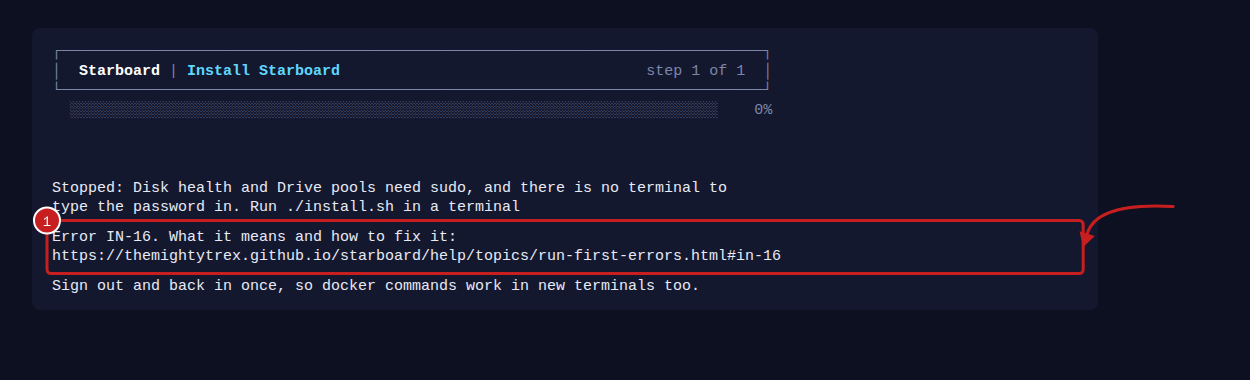
- In accessible mode, the same lines come as plain text: the error number, then the address on a line of its own.
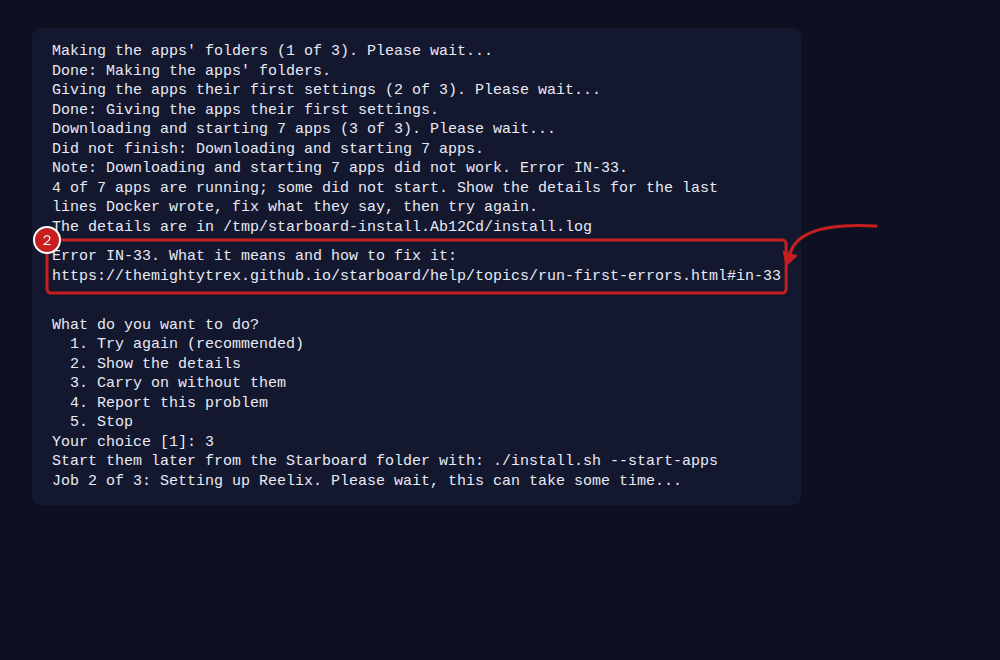
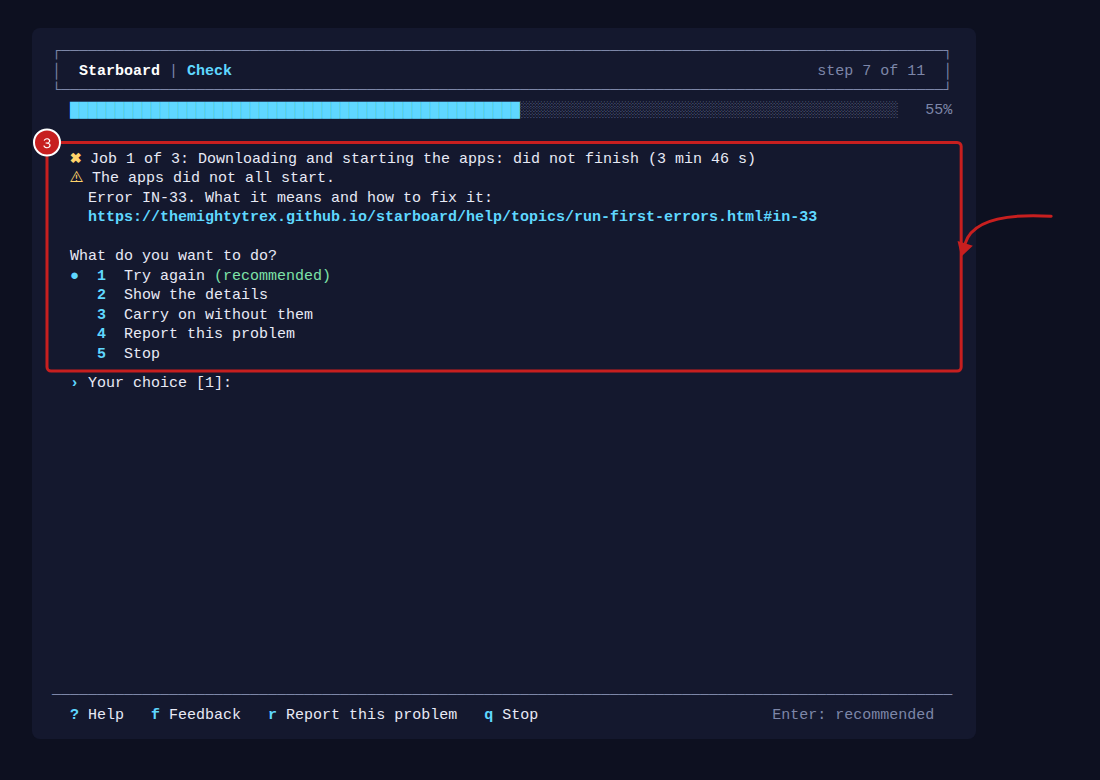
- When one job does not finish, such as starting the apps, the next line says what went wrong, with the error number and the address of its help. Then it asks what to do. Try again is recommended. Show the details shows the last lines of the job's log. Report this problem helps you send a report. Read Send feedback from the terminal.
1 Before it starts
RF-01
An option the script does not know. The command has a word after bash that the script does not use, often a
spelling mistake. Run it with no options, or with one of --browser, --terminal, --plain, --yes, --dir or
--check. Run it with --help for what each does.
RF-02
No terminal to enter answers in. The script was started somewhere it cannot ask questions, such as from another
program or a scheduled job. Run it in a terminal window, or add --yes to accept every safe answer without being
asked.
RF-03
Run as root or with sudo. Run it as your normal user, without sudo in front. It asks for your password
itself when it needs to install something.
RF-04
No temporary folder. The script could not make a folder in /tmp. Usually the disk is full: free some
space, then run it again.
RF-05
A version of Linux the script does not know. It knows Debian, Ubuntu, Linux Mint, Fedora and Raspberry Pi OS. Install Docker by hand with Install Docker, then run the script again.
RF-06
A 32-bit system. Starboard and most of its apps need a 64-bit system. On a Raspberry Pi, install Raspberry Pi OS (64-bit) with Raspberry Pi Imager, then run the script again. Nothing was installed.
RF-07
Not enough free space. A first install needs at least 10 GB free in your home folder, for Docker, Starboard and the apps. Free some space, or use a bigger disk, then run the script again. Nothing was installed.
2 Installing what is missing
These happen while the script installs Docker and the other things Starboard needs. Each time, the script offers Try again, Show the details or Stop.
RF-10
curl is installed as a snap. The snap version of curl is sandboxed and cannot save Docker's installer where the script needs it. Choose Stop, then install the usual curl and run the script again:
sudo apt install curlRF-11
No internet. This computer could not reach the internet to download something. Check the network cable or Wi-Fi, then choose Try again.
RF-12
Another program is still installing updates. This often happens soon after Linux is installed, when it updates itself. The script waits for the updates by itself, with a progress bar called Waiting for Linux to finish installing its updates. The bar shows what is installing, how many are done and how much is downloaded. When the updates finish, the script carries on. If updates start part-way through an install, it waits and tries again by itself.
You get this error only when the updates take more than 45 minutes. Wait until they finish, or restart the computer, then choose Try again.
RF-13
A software source has a signing key Linux no longer accepts. The list of software could not be updated. Choose Show the details for the name of the source. Install that source's new key, or deactivate the source, then choose Try again.
RF-14
The disk is full. Free some space, then choose Try again.
RF-15
This version of Linux does not offer something the script installs. Update Linux to its newest version, or install Docker by hand with Install Docker.
RF-16
Your user is not allowed to install software. Run the script as the user you made when installing Linux, or
ask the person who manages this computer to add you to the sudo group. On Debian, this happens when a root
password was set while installing: read RF-18.
RF-17
sudo did not accept the password. Enter the password you use to sign in to this computer. On most systems, nothing shows as you enter it. Then choose Try again.
RF-18
Your user cannot use sudo yet. On Debian this happens when a root password was set while installing. Type
su - and the root password, then apt install sudo (if it is missing) and usermod -aG sudo followed by your
user name, then exit. Sign out and back in, and run the script again. Nothing was installed.
RF-19
Something else went wrong. Choose Try again. If it happens again, choose Show the details, and give the last lines when you ask for help.
RF-20
Still missing after installing. The jobs finished, but Docker, or your permission to use it, is still not in place. Run the script again. If it stops here again, restart the computer, then run it once more.
3 Downloading Starboard
RF-30
A folder called starboard is in the way. A starboard folder is already in your home folder, and it is not a
Starboard download. Move or rename it, or choose another folder with --dir, then run the script again.
RF-31
The Starboard folder cannot be opened. It was downloaded but cannot be entered, usually because its permissions were changed. Move it aside, then run the script again to download a fresh copy.
4 Installing Starboard and starting the apps
RF-40
Starboard's installer stopped without giving an error number. It stopped suddenly, for example because the computer ran out of memory or the connection to it closed. The lines before the error number are the last it wrote. Run the script again: it carries on from what is missing. If RF-40 comes back, choose Report this problem, or read the log and report a problem, with those lines.
If those lines say sg: command not found, your copy of the script is an old one. Run the script again: the
current one works without sg.
If you stop the installer yourself, with q or Ctrl+C, that is not an error and there is no number.
RF-50
The apps did not start. The set-up in the browser asked this window to download and start your apps, and that did not finish. The line before the error number says why. Most often this computer could not reach the internet, or the disk is full. Put that right, then select Try again in the browser.
5 Starboard's installer
The installer is ./install.sh, in the Starboard folder. The Run first script starts it for you. You can also run it
yourself to change what Starboard can access.
IN-01
An option the installer does not know. Run ./install.sh --help for the options, then run it again.
IN-02
--terminal needs a terminal to enter answers in. Run it in a terminal window, or leave out --terminal and finish in a
browser.
IN-03
The port is not a number from 1 to 65535. Give --port a number such as 8095.
IN-04
Run as root. Run it as your normal user, without sudo in front.
IN-05
git is not installed. Install git (sudo apt install git), then run it again. The Run first script does this
for you.
IN-06
Not in a Starboard download. Run ./install.sh from the folder git downloaded Starboard into, usually
~/starboard, so ./update.sh can update it later.
IN-07
Docker could not be installed. The installer adds Docker by itself when it is missing, and this error means that did not work: there was no terminal to ask for your password, the password was not given, or the download or install failed. Run the installer again in a terminal, or install Docker by hand with Install Docker.
IN-08
Docker Compose could not be installed. The installer adds it by itself when Docker is there without it, and this error means that did not work. Run the installer again, or install the Docker Compose plugin by hand with Install Docker.
IN-09
Python 3.10 or newer is missing. Only --native needs it. Install Python 3.10 or newer, or leave out
--native to run Starboard with Docker.
IN-10
--native needs systemd. This computer does not use systemd. Leave out --native to run Starboard with Docker.
IN-11
No Docker socket. You said yes to app updates, but Docker's socket is not at /var/run/docker.sock. Start
Docker (sudo systemctl start docker), or answer No to app updates.
IN-12
The Live TV folder does not exist. Make the folder Jellyfin reads its Live TV files from, or enter another.
IN-13
You cannot write in the Live TV folder. Give your user that folder, for example
sudo chown -R $USER /srv/jellyfin/config/iptv, then run the installer again.
IN-14
A character Starboard cannot use. A folder's name or path has one of | & \ " ' $ or a backtick. Rename the
folder, or move Starboard to a folder without them.
IN-15
A folder to show is written wrongly or does not exist. Write each one as Name=/path, such as
Media=/mnt/media, with no commas, and check the folder exists.
IN-16
sudo did not accept the password, or there is nowhere to enter it. Disk health and Disk pools need sudo. Run
./install.sh in a terminal and enter the password you use to sign in to this computer.
IN-17
smartmontools did not install. Disk health needs it. Install it yourself (sudo apt install smartmontools),
then run the installer again.
IN-18
Disk health did not set up. Choose Show the details for the reason, put it right, then choose Try again.
IN-19
The pool helper did not install. Choose Show the details for the reason, put it right, then choose Try again.
IN-20
The disk is full. Building Starboard needs space. Free some, then choose Try again.
IN-21
No internet while building. This computer could not download what Starboard is built from. Check the network, then choose Try again.
IN-22
Your user is not allowed to use Docker yet. Sign out and back in, so your new Docker access counts, then run the installer again.
IN-23
Starboard did not build or start. Choose Show the details for the last lines of the build. Most often it is the network or the disk. Put it right, then choose Try again.
IN-24
Starboard did not answer after starting. Read its messages with docker compose logs starboard in the
Starboard folder, or journalctl --user -u starboard with --native. Then read
Starboard does not open.
IN-29
Something else went wrong in a job. Choose Show the details, and give the last lines when you ask for help.
IN-30
The apps' folder is not one Starboard can use. The set-up wrote a folder Starboard does not accept. Run the set-up again and choose another media folder.
IN-31
Starboard could not make the apps' folders. Check the disk is not full and is mounted, then choose Try again.
IN-32
The apps' file has things Starboard did not write. Starboard checks it before starting the apps. If you
changed it yourself, run ./install.sh --start-apps in a terminal and choose to start it anyway. If not, run the
set-up again to write it afresh.
IN-33
Some apps did not start. Choose Show the details for the last lines Docker wrote, put that right, then choose Try again.
When it says the VPN did not connect, the apps that download through it wait on purpose, so nothing is downloaded outside the VPN. Check the VPN's details (the private key and address from your VPN provider) in the set-up's VPN step, then choose Try again.
IN-34
Starboard could not give Jellyfin its Live TV fix. Jellyfin runs FFmpeg through a small file in its settings
folder, jellyfin/ffmpeg-wrap, so some free channels play. Check the disk is not full and the
settings folder is mounted, then choose Try again.
IN-35
The Starboard folder cannot be opened. The installer could not go into its own folder, usually because its permissions were changed. Move the folder aside and run the Run first script again to download a fresh copy.
IN-36
No temporary folder. The installer keeps its log in a temporary folder in /tmp, and could not make one. The
disk is usually full: free some space (df -h /tmp shows how much is left), then run it again.
IN-37
The terminal set-up stopped on a problem. The line before the number says what it was, often that Starboard is
not answering on its port. Check Starboard is running (docker ps lists starboard), then run the set-up again
with python3 -m starboard.terminal_setup in the Starboard folder, or finish in a browser.
IN-38
The terminal set-up stopped on a fault of its own. Python wrote what went wrong before the number. Run the
set-up again with python3 -m starboard.terminal_setup in the Starboard folder, or finish in a browser, and
choose Report this problem with those lines so it can be fixed.
IN-39
The time zone or keyboard could not be set. The set-up asked the installer to set this computer's time zone or
keyboard layout (--timezone or --keyboard), and timedatectl or localectl refused. Check the name, such as
Europe/London or gb, then run ./install.sh --timezone Europe/London --keyboard gb again with your own.
Find out more
This page on GitHub, where the help is written.