How-to
Pause, resume and remove downloads
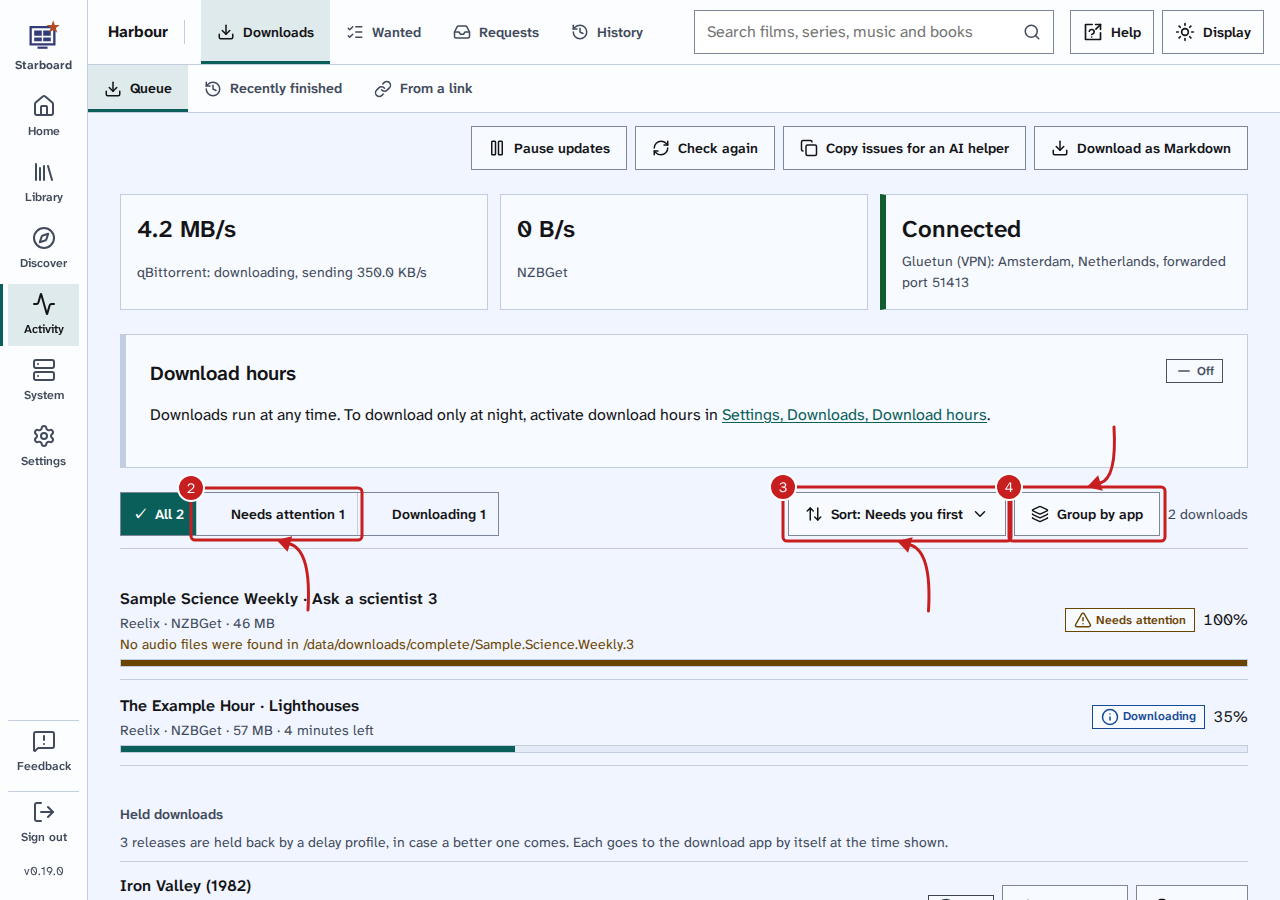
Activity, then Downloads shows the queues of all your apps in one list. From it you can pause and resume all downloads, remove one download, or ask an app to find a different copy.
Before you begin
- Reelix and qBittorrent, or on an existing set-up apps such as Sonarr and Radarr, are in Starboard with their API keys. Read Add an app.
- To pause and resume all downloads, download hours must be active. Read Download only at certain hours.
Steps
Check what is downloading
- Go to Activity, then Downloads, then Queue. Each download shows its name, its app, its size and the time left. Its state, such as Downloading, Waiting or Needs attention, is a chip before how far it has got.
- Optional: to show only one state, select its filter, such as Needs attention. Select it again to show everything.
- Optional: select Sort to change the order: Needs you first, Time left, Name or Queue order.
- Optional: select Group by app to show one list for each app.
Remove a download
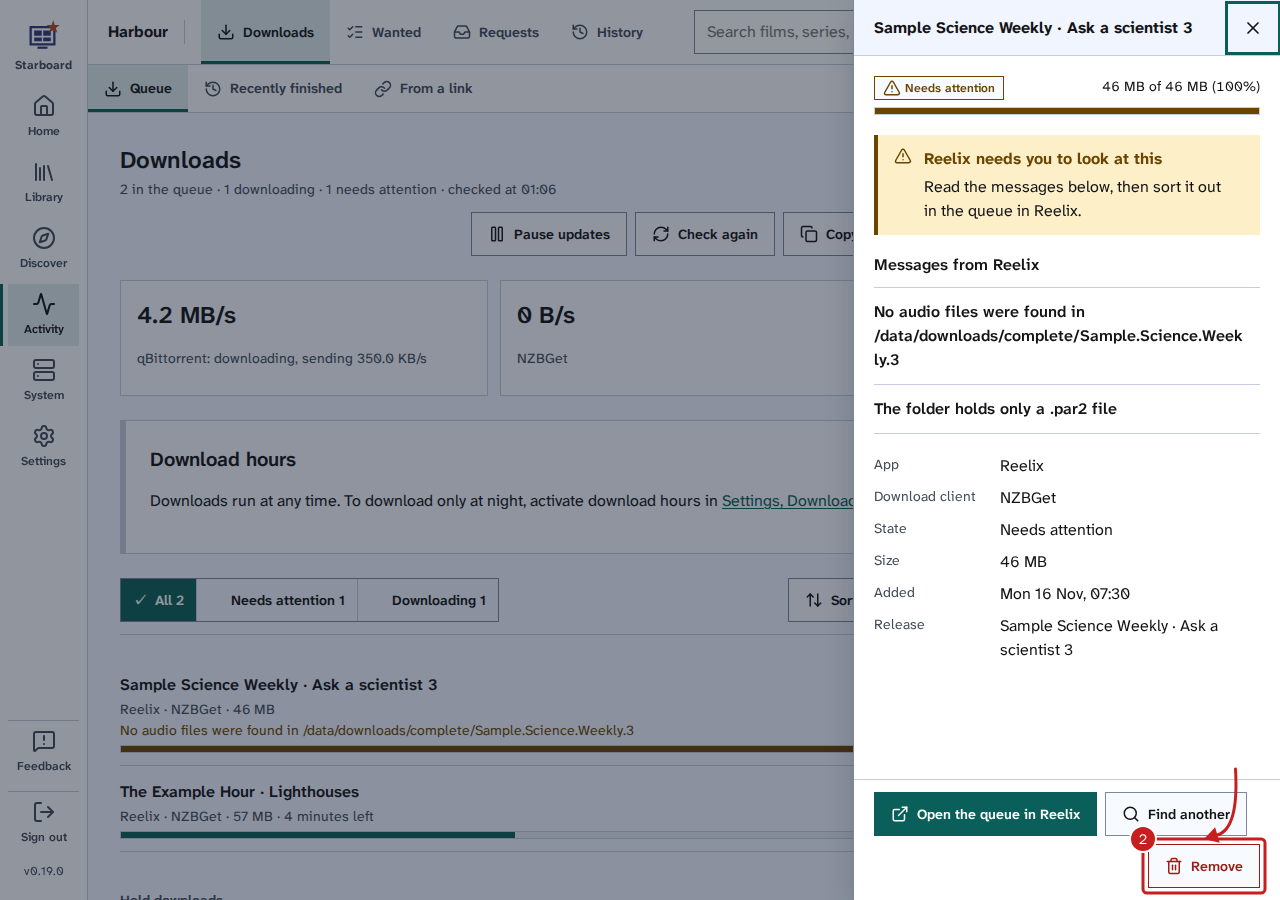
- Select the download's name. A side panel opens with its details and any messages from the app.
- Select Remove. Starboard asks Remove this download?
- Optional: tick Block this release so the app never downloads this copy again.
- Select Remove download. The app removes it from the queue and from the download app, with what it has downloaded so far.
Find another copy of a download
Use this when a download is stuck or the wrong one.
- Select the download's name.
- Select Find another. Starboard asks Block this release and find another?
- Select Block and search. The app removes this copy, never downloads it again and searches for another now.
Get a held download now, or remove it
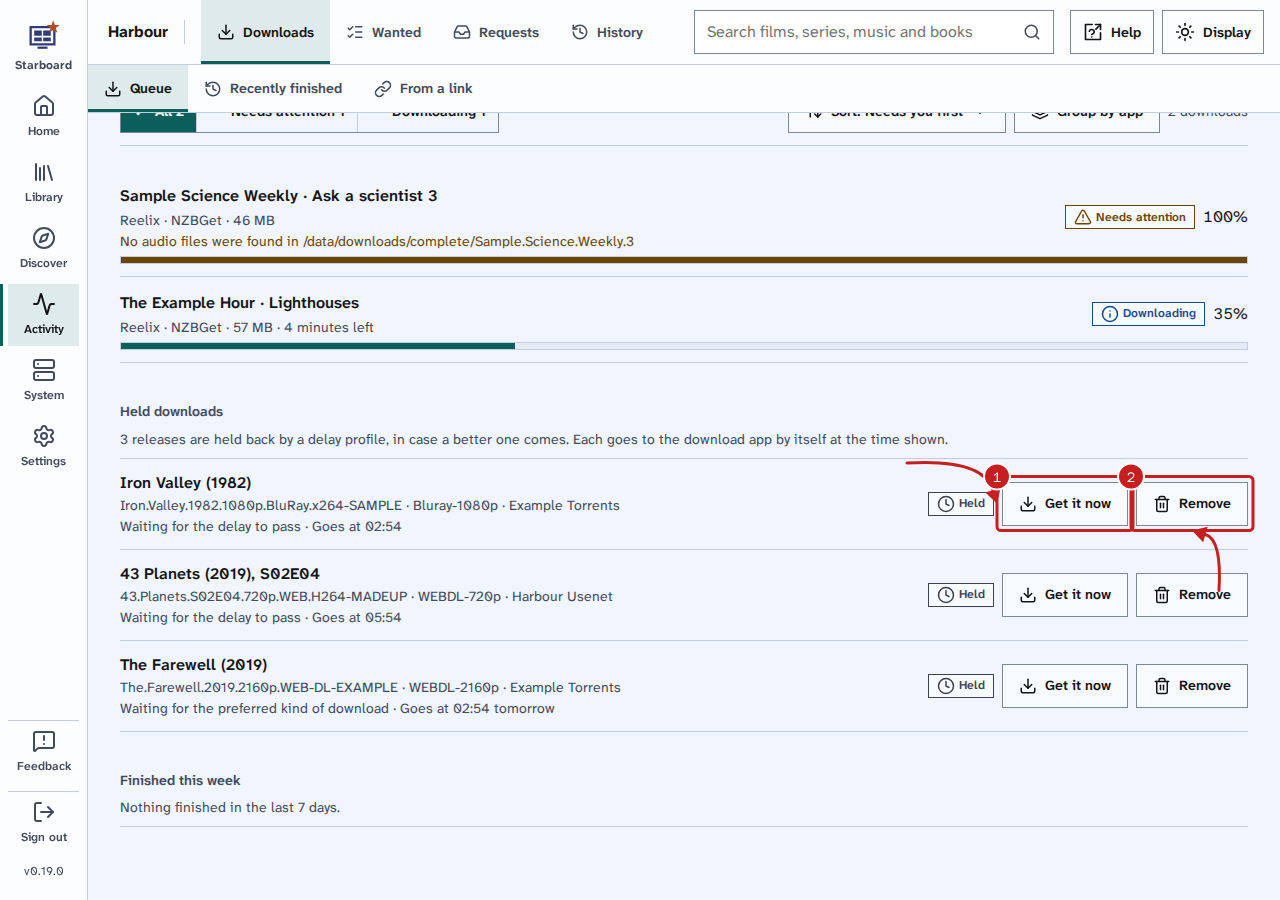
Reelix can hold a release back for a while, in case a better one comes. This is a delay profile. Held releases show under Held downloads on the Queue page, with Held, why each waits, such as Waiting for the delay to pass, and when it goes to the download app by itself.
- To send one to the download app straight away, select Get it now beside it.
- To drop one, select Remove, then Remove again. Nothing is downloaded, and Reelix may find it again at its next search.
Fix a Reelix download that will not import
A Reelix download can finish but not move into your library. It then shows Needs attention or Failed.
- Select the download's name and read the messages from Reelix.
- Select Try the import again, then Try again. Reelix checks the finished files again.
- Or select Ignore, then Ignore again. Reelix stops warning about it and leaves the files in the download app's folder. Nothing is deleted.
Pause or resume all downloads
While download hours are active, the Download hours panel on the Queue page has these buttons:
- Resume downloads now: starts downloads outside your hours, until the next time they would pause.
- Pause downloads until and a time: stops downloads until your hours start again.
- Follow the hours: goes back to your hours after you paused or resumed by hand.
Download from a YouTube or Spotify link
This needs the full version of Reelix. Read Switch between the two versions of Reelix.
- Go to Activity, then Downloads, then From a link.
- In Link, paste a link from youtube.com, youtu.be or open.spotify.com.
- In What to keep, choose Sound only (music, podcasts) or Video.
- Optional: select Show what it holds to list what the link has.
- Select Download. If Starboard asks, enter Reelix's admin password.
Downloads from links lists each one, newest first, with Cancel or Try again.
Things to note
- The page updates itself while it is open. Select Pause updates to stop that while you read, and select it again to carry on. Check again asks the apps straight away. To change how often it updates, go to Settings, then Performance, activate More settings, and change Downloads page updates.
- Open the queue in and the app's name opens the app's own queue in a new tab, for anything Starboard cannot do.
- The tiles show each download app's speed. With a VPN (Gluetun), a tile shows whether it is connected. Without one, Downloading without a VPN appears on the Downloads page, with Add a VPN. Select Hide for 90 days to hide it. Read Download without a VPN.
- Finished this week on the Queue page lists what your apps imported in the last 7 days. Recently finished in the menu does not list anything yet.
- Pausing all downloads pauses qBittorrent, NZBGet, SABnzbd and Soulseek. Seeding is left alone.
If it does not work
- Needs attention: open the download and read Messages from the app. Then use Find another, or sort it out in the app's own queue.
- Not done and a message: the app refused the action. Check the app is running and try again.
- Download hours says Off, with no buttons: activate download hours first. Read Download only at certain hours.
- The VPN tile says Not connected: downloads may stop. Check Gluetun on the Apps page.
- This needs the full version of Reelix on From a link: switch to the full version in Settings, then Apps, then Your install.
Find out more
This page on GitHub, where the help is written.