How-to
Download only at certain hours
Starboard can pause your download apps outside the hours you choose, for example to keep your internet free during the day. It pauses qBittorrent, NZBGet, SABnzbd and Soulseek. You can still resume or pause them by hand.
Before you begin
- Your download apps are in Starboard with their API keys. Read Add an app and Find an app's API key.
- qBittorrent must be version 5.2 or later, because older versions have no API key.
Steps
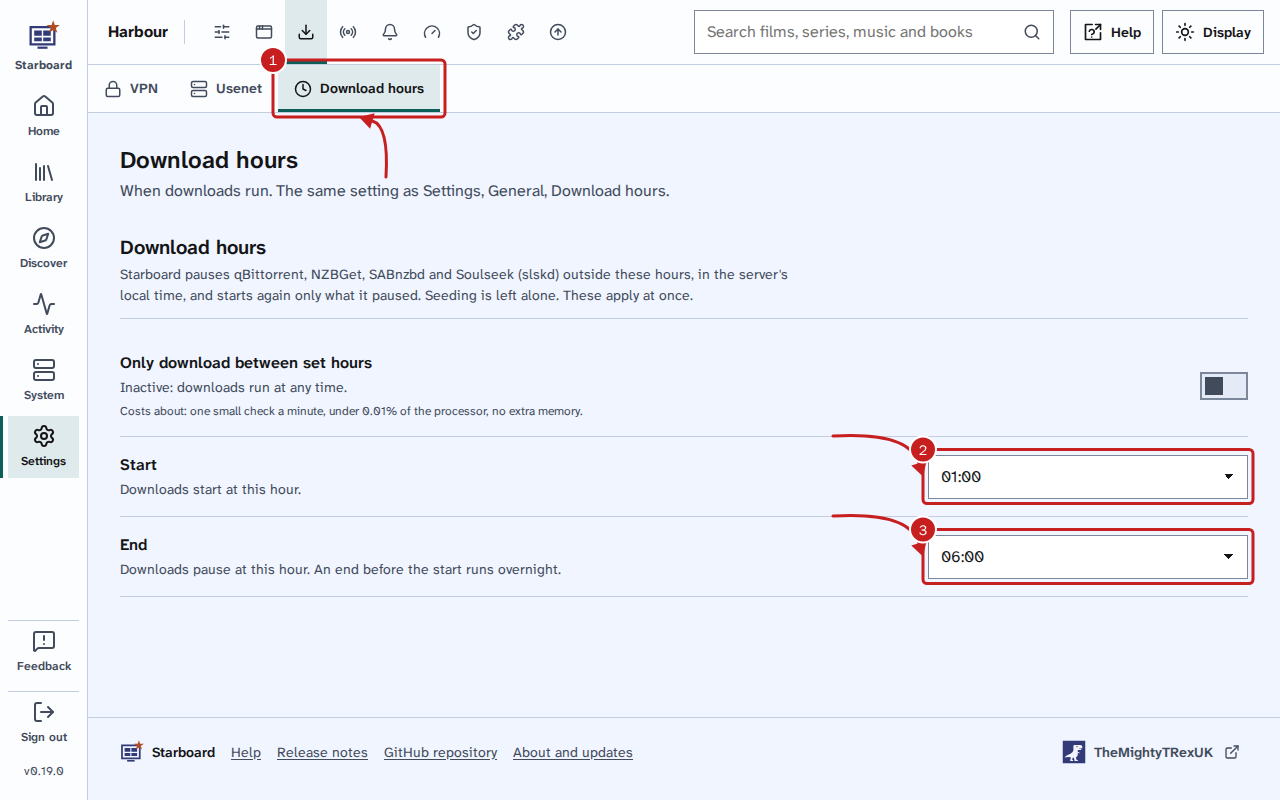
- Go to Settings, then Downloads, then Download hours. If it says No download apps yet, add a download app with its API key first.
- In Start, choose the hour downloads start, such as 01:00.
- In End, choose the hour downloads pause, such as 07:00.
- Activate Only download between set hours. Starboard says Saved at and the time beside it.
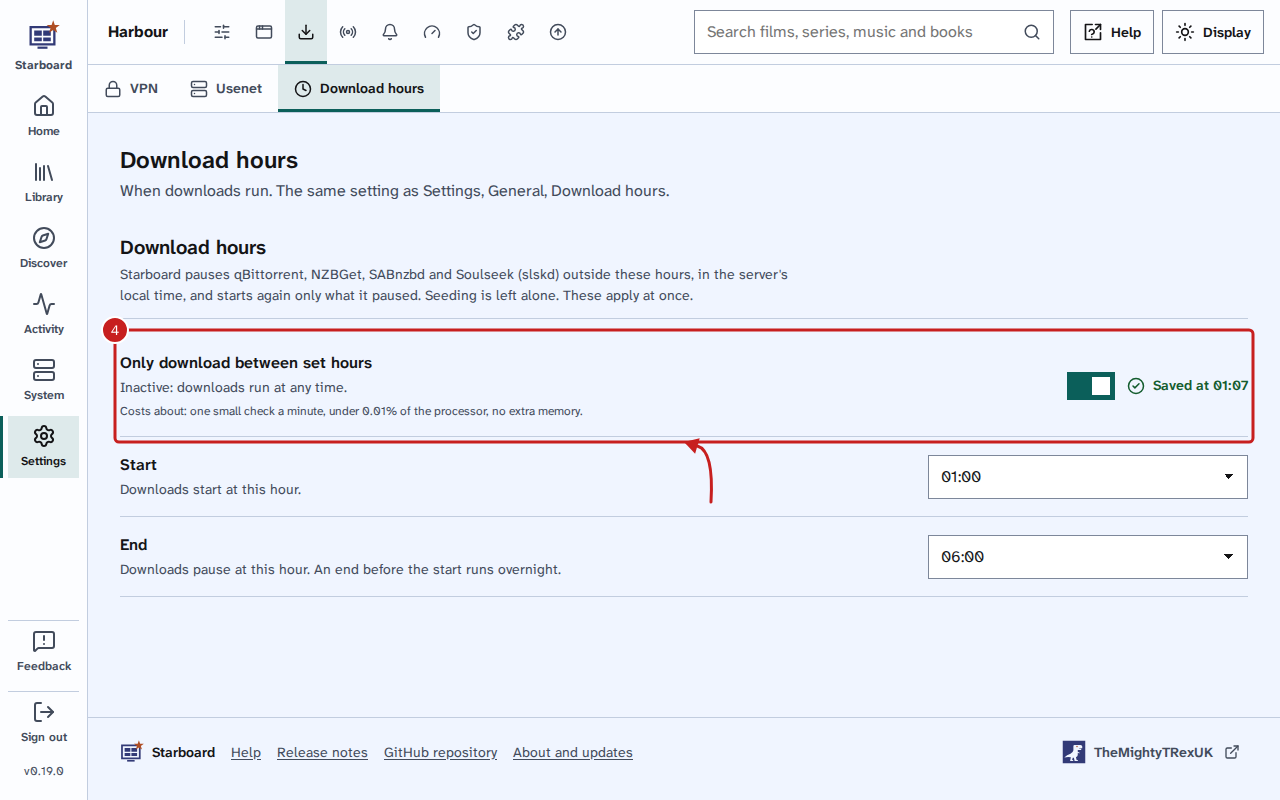
Each change applies at once. There is no save button. Outside the hours, Starboard pauses qBittorrent, NZBGet, SABnzbd and Soulseek (slskd).
Settings, then General, then Download hours is the same setting in a second place: a change in one shows in the other. Settings, then Downloads also holds your VPN and your Usenet provider's server. Read Choose a Usenet provider and add it.
Resume or pause by hand
- Go to Activity, then Downloads, then Queue.
- In Download hours, select Resume downloads now, or Pause downloads until a time.
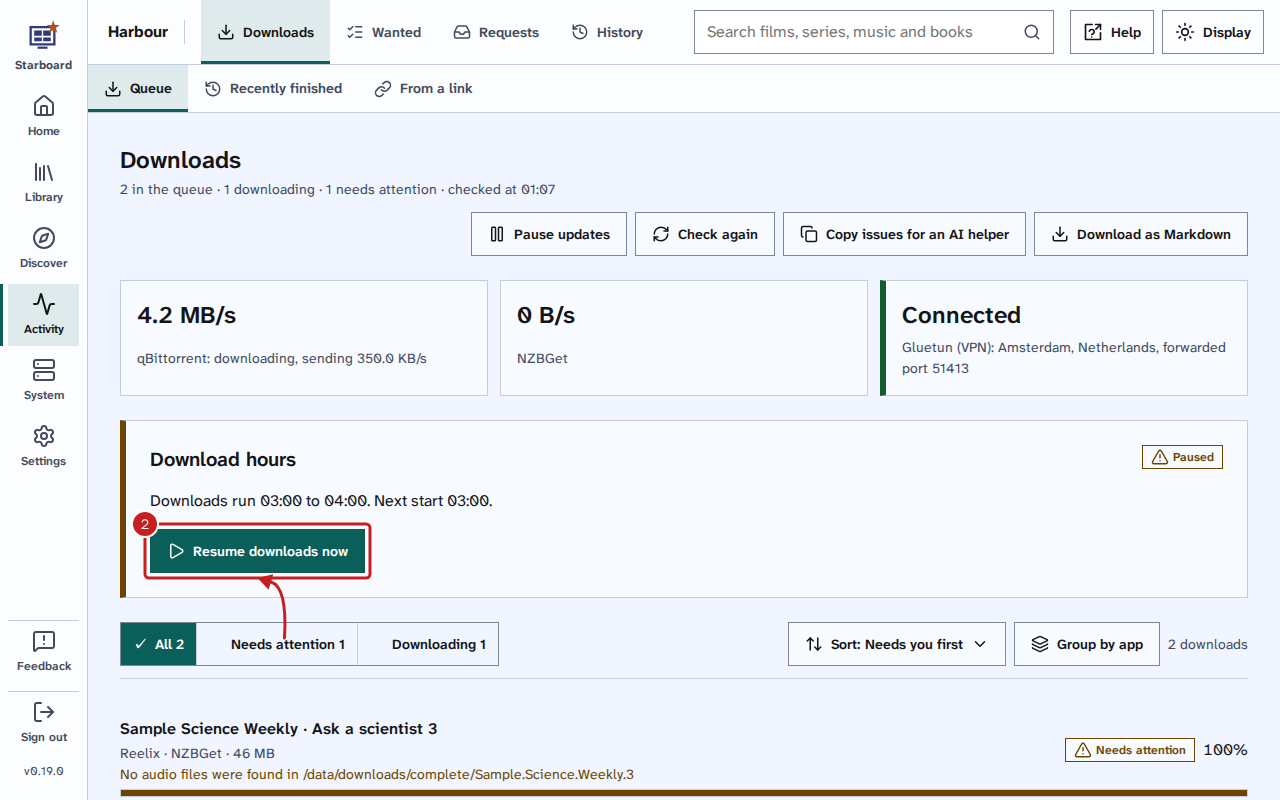
- To go back to your hours, select Follow the hours. Otherwise Starboard goes back to them at the next start or end time.
Get one item outside the hours
While download hours pause downloads, Activity, then Wanted shows Download now beside each item. Starboard downloads that one item and keeps everything else paused. Read Find and get what is missing.
Things to note
- An end time before the start time runs overnight. For example, 23:00 to 07:00 downloads through the night.
- The hours use the server's own time. With the ready-made image, the
TZline incompose.image.yamlsets the time zone, such asTZ=Europe/London. - Starboard starts again only what it paused. Anything you paused yourself stays paused. Seeding is left alone.
- Soulseek is paused by disconnecting it from the Soulseek network until the hours start.
- Starboard checks every minute while download hours are active. To check less often, go to Settings, then Performance, activate More settings, and change Download hours check. Read Make Starboard use less of your server.
If it does not work
- No qBittorrent, NZBGet or SABnzbd with an API key is set up yet: add the app's API key. Read Change or remove an app.
- qBittorrent has no API key: update qBittorrent to version 5.2 or later.
- Downloads pause at the wrong hour: the server's time zone may be wrong. With the ready-made image, check
the
TZline incompose.image.yaml. Then, in the folder with that file, run this command to start Starboard again with the new setting:
docker compose -f compose.image.yaml up -dFind out more
This page on GitHub, where the help is written.