Reference
What is in each Settings page
Each page under Settings in the side menu, what it holds, and the article that explains it. Use it to find where a setting lives.
Find your way
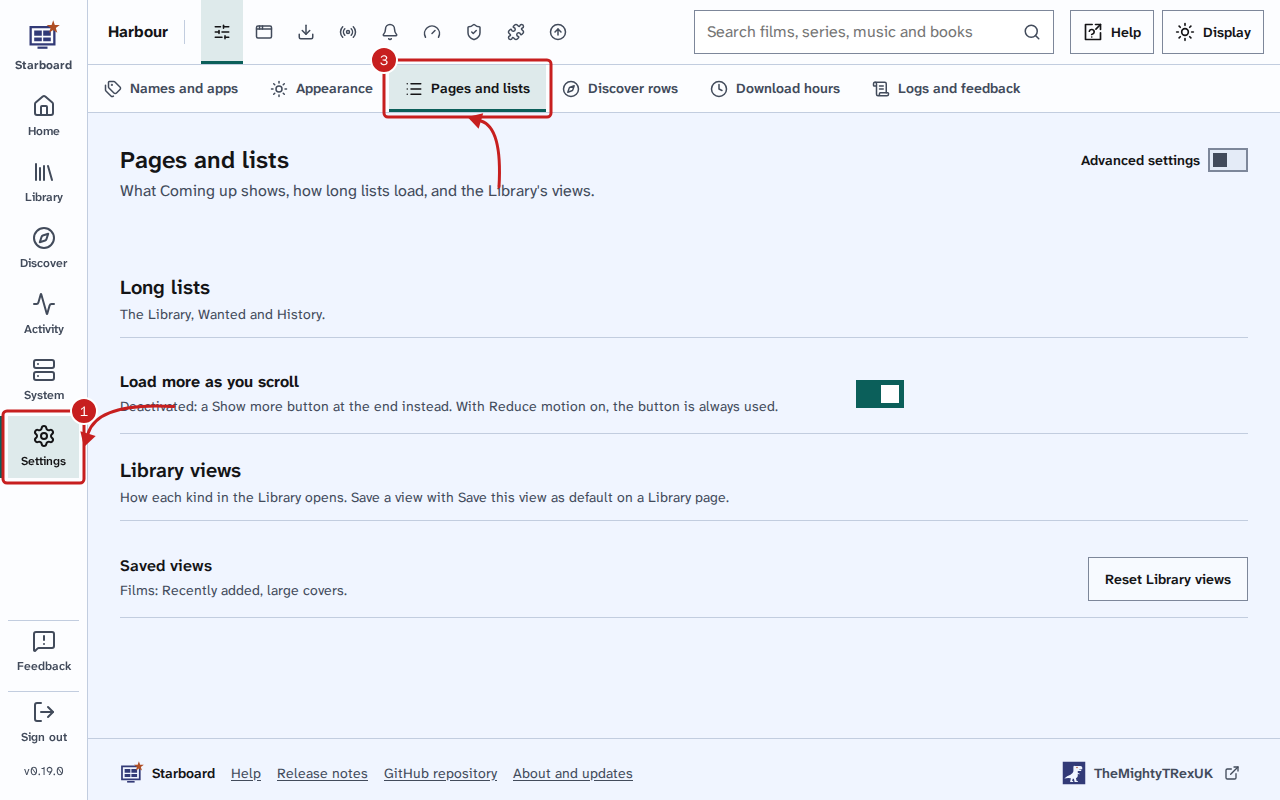
- Select Settings in the side menu. Sign out is in the side menu too, under Feedback.
- In the row of icons at the top, select an area: General, Apps, Downloads, Radio, Alerts, Performance, Security, Plug-ins or Updates. Each icon's name shows when you point at it or move to it with the keyboard.
- In the row under it, select a page, such as Pages and lists under General.
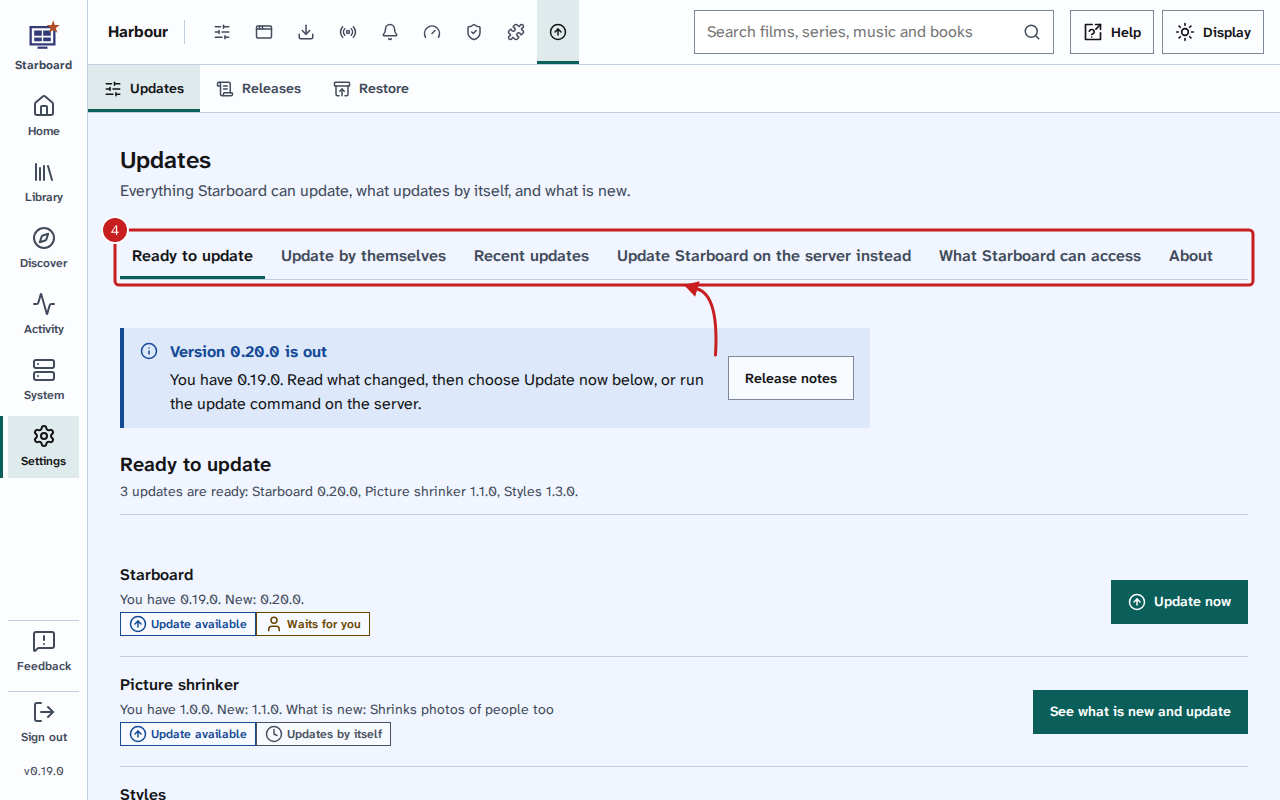
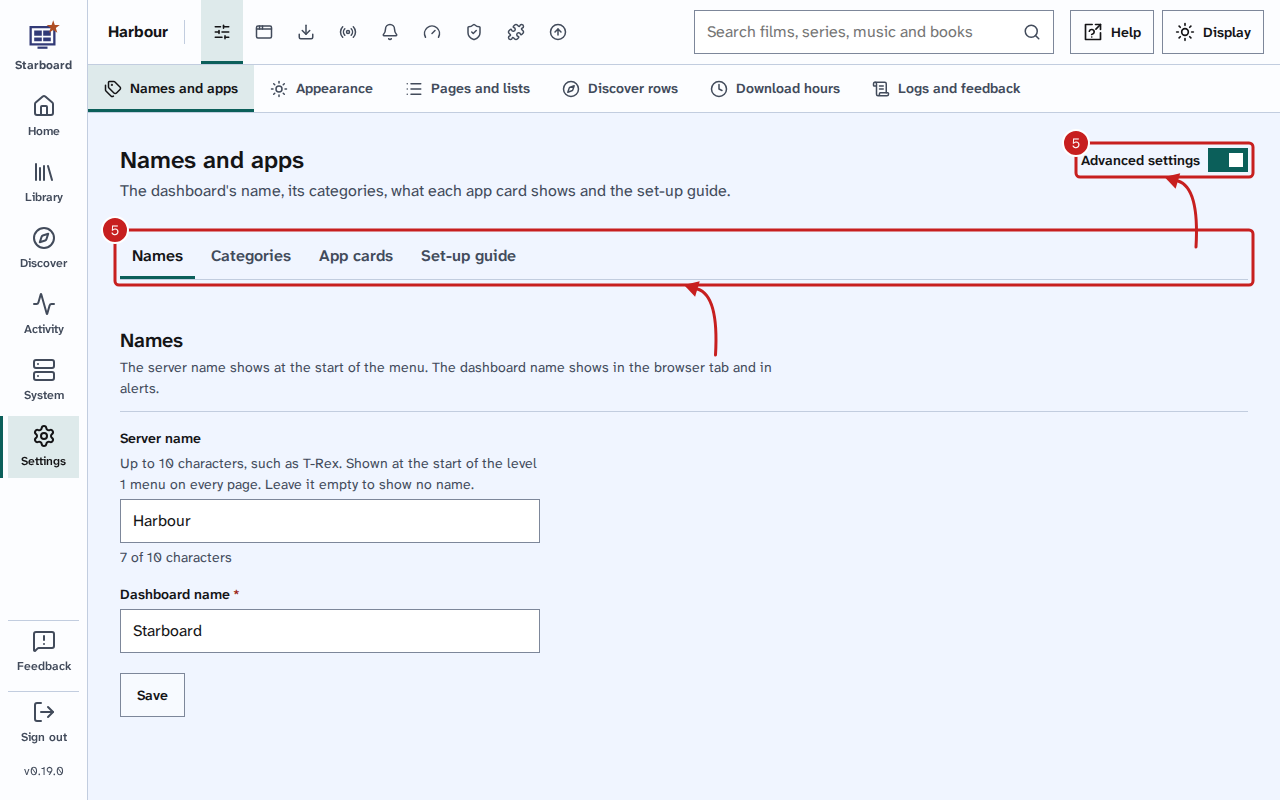
- On a page with four sections or more, a tab for each section shows under the heading. Select a tab to show that section.
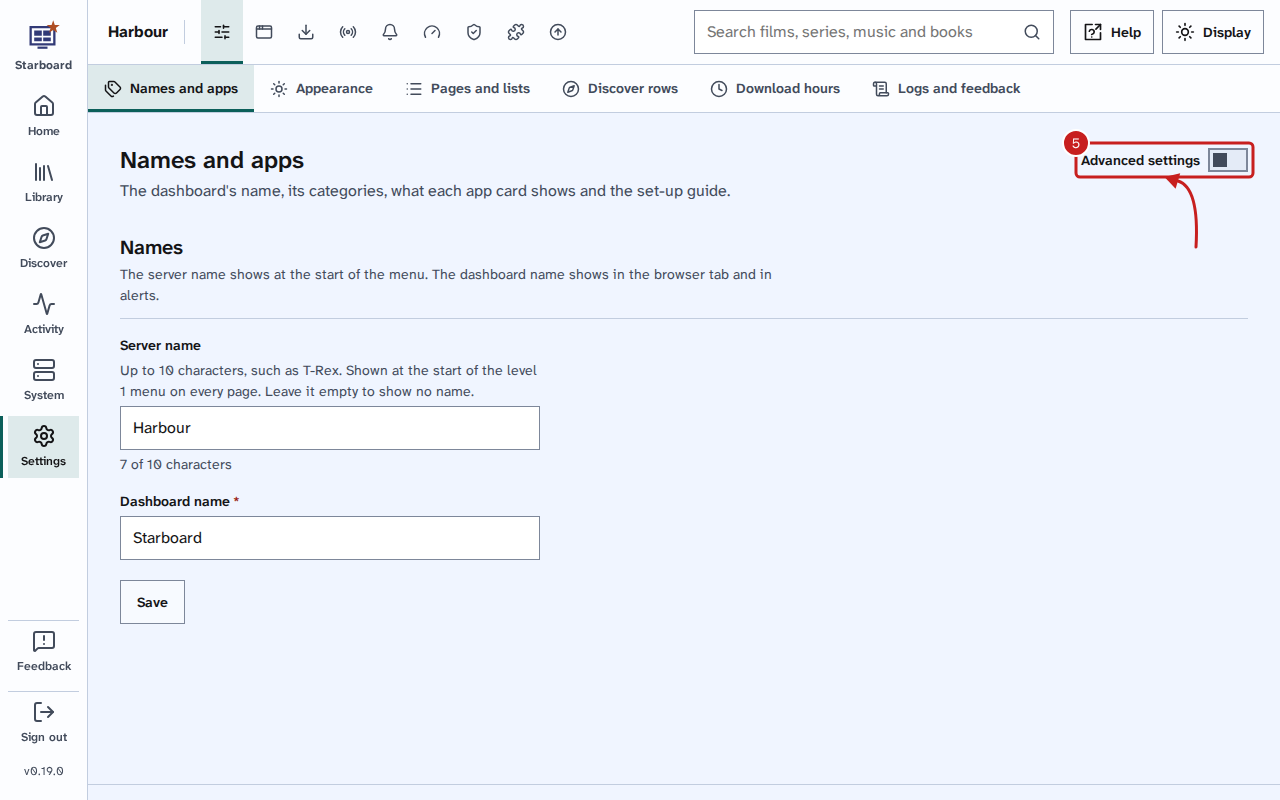
- Each page opens on its basic settings. To show the rest, activate the small More settings switch at the right of the heading. More sections and tabs appear. Your choice is saved for every Settings page.
General
- Names and apps: the server and dashboard names. With More settings: categories, what app cards show and the set-up guide. Read Organise apps into categories.
- Appearance: Starboard's own style and its colours, the default design and the accessibility choices for this browser. Read Choose a design for the Apps page.
- Pages and lists: long lists and Library views. With More settings: Coming up. Read Find out what is coming up.
- Discover rows: which rows each Discover page shows.
- Download hours: when downloads run. Read Download only at certain hours.
- Logs and feedback: logs and Send feedback. Read Send feedback about a page.
- Backup and restore: full backups of Starboard and every app's settings, the backup schedule, copies off this computer and restoring a backup. Read Back up Starboard's settings. Updates, Restore also restores a backup.
Apps
- Manage apps: the apps on the Apps page, in order, with their addresses and API keys. Read Add an app and Change or remove an app.
- Your install: what Starboard installed, a bigger or smaller install, the Usenet app and which Reelix. Read Change your install and Switch between the two versions of Reelix.
- Reelix: Reelix's version, its sites to search, download apps, media servers and its own settings. Read Change Reelix's settings in Starboard.
- Jellyfin: a link to the Live TV plug-in's settings. With More settings: watch history from another server and the same defaults for every user. Read Set up free Live TV in Jellyfin, Import watch history into Jellyfin and Give every Jellyfin user the same defaults.
- Audiobookshelf: with More settings, where everyone is in each audiobook, copied from another server. Read Copy listening progress into Audiobookshelf.
- Tdarr and Dispatcharr: connect each one, when it is in your install. Read Set up free Live TV in Jellyfin for Dispatcharr.
Everything else
- Downloads: three pages: VPN, Usenet, with your Usenet provider's server and Test the server, and Download hours. Read Choose a Usenet provider and add it, Download without a VPN and Download only at certain hours.
- Radio: Sources, Add a show from a link, Your podcast library and Station logos. Read Follow radio shows and podcasts.
- Alerts: where alerts go. With More settings: what to alert on, a weekly summary and watching. Read Activate alerts and Get a weekly summary.
- Performance: Preset, for how much Starboard does, and Pictures. With More settings: each part of the background work, and how often pages update. Read Make Starboard use less of your server.
- Security: four pages: Who can open the dashboard, Password, API keys and Sign out everywhere. Read Choose who can open Starboard, Change your password, Make an API key and use Starboard's API and Sign out everywhere.
- Plug-ins: Manage, Catalogue and a page for each plug-in you added. Read Add a plug-in.
- Updates: Updates has Ready to update, Update by themselves, Recent updates and What Starboard can access. Releases lists what changed in each version. Restore puts back saved settings or an earlier version. Read Update Starboard, Change what Starboard can access and Go back to an earlier version.
Find out more
This page on GitHub, where the help is written.