On this page
How-to
Install apps with Starboard
Install apps sets up a media server for you. It picks the apps for what you want, writes their set-up files, starts them and sets most of them up. It takes about 15 minutes, and the first downloads take longer.
The steps use the default install, Basics: Starboard and Reelix Lite with the apps they need. Bigger installs and other choices are in Other installs and choices.
Before you begin
- Docker is installed on the server. Read Install Docker, and What Docker is if it is new to you.
- You have a folder or disk with room for your media, such as
/srv/media. - An account with a VPN (virtual private network) provider is recommended. The default install sends downloads through it, to keep them private. You can continue without one: read Download without a VPN.
- Optional: Docker access lets Starboard start the apps itself. Without it, you run one command. Read Change what Starboard can access.
- If you are not sure what each app does, read The apps Starboard works with.
Steps
- Go to System, then Apps, then Install apps. If your server is set up already, the page lists what is installed: select Run the set-up again, or Add beside an app under 'You can add'.
- On Start here, read how the apps work together, then select Begin.
- On What to set up, under What to install, keep Basics (recommended): Reelix Lite, Jellyfin, Audiobookshelf, Bazarr for subtitles, and qBittorrent and NZBGet through a VPN. About 1 GB of memory. You can choose a bigger install now or later: read Other installs and choices.
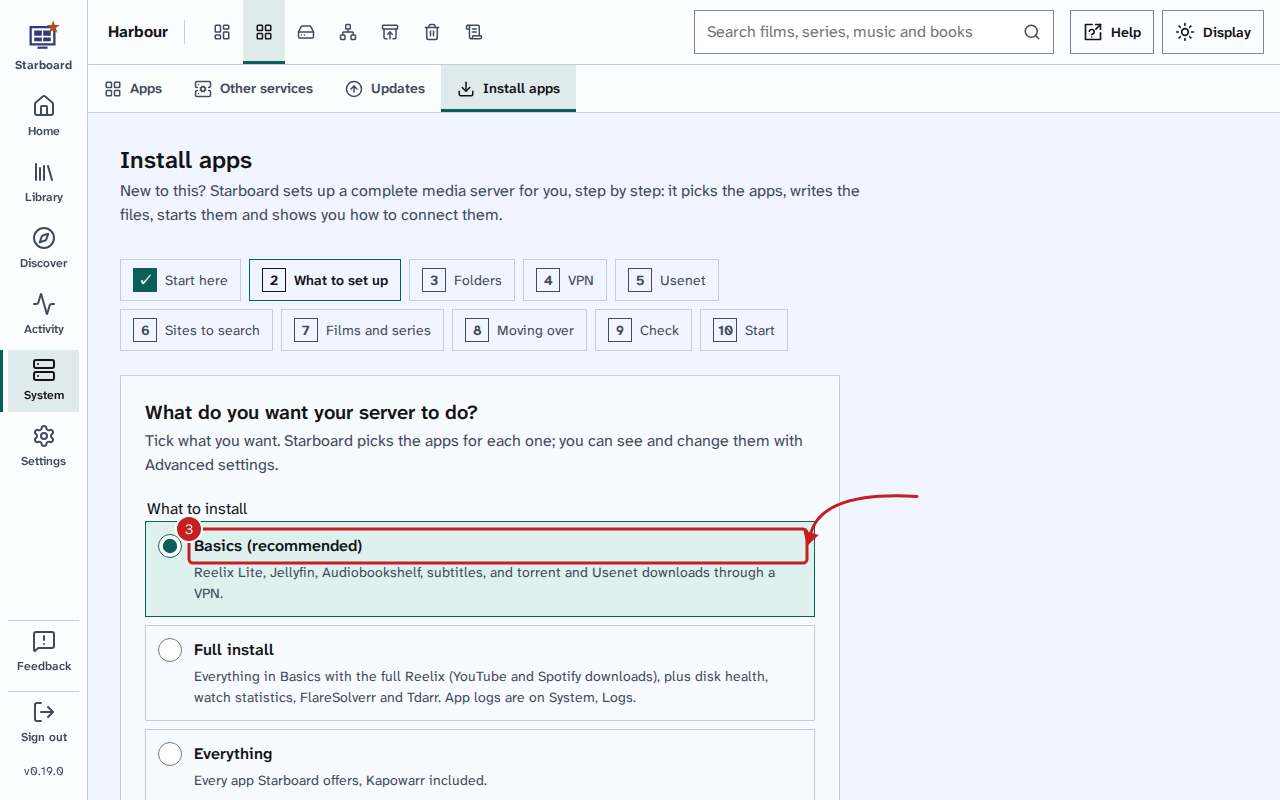
- Under Which Reelix?, keep the one the install chose. Select Continue.
- On Folders, enter your Media folder, such as
/srv/media. If your other apps already use a media folder, Starboard offers it. Select Continue. - If your install has a VPN, the VPN step asks how your downloads should connect. Keep Use my VPN account (recommended). It then asks for your VPN provider. Each provider's link opens its site in a new tab. If yours is not listed, choose Another one that Gluetun supports and enter its name as Gluetun's list writes it. Choose WireGuard or OpenVPN, enter the details from the provider's site, then select Continue.
The PrivadoVPN link is an affiliate link, marked Ad. If you sign up through it, PrivadoVPN pays a small commission towards Starboard's development, and you pay the same price.
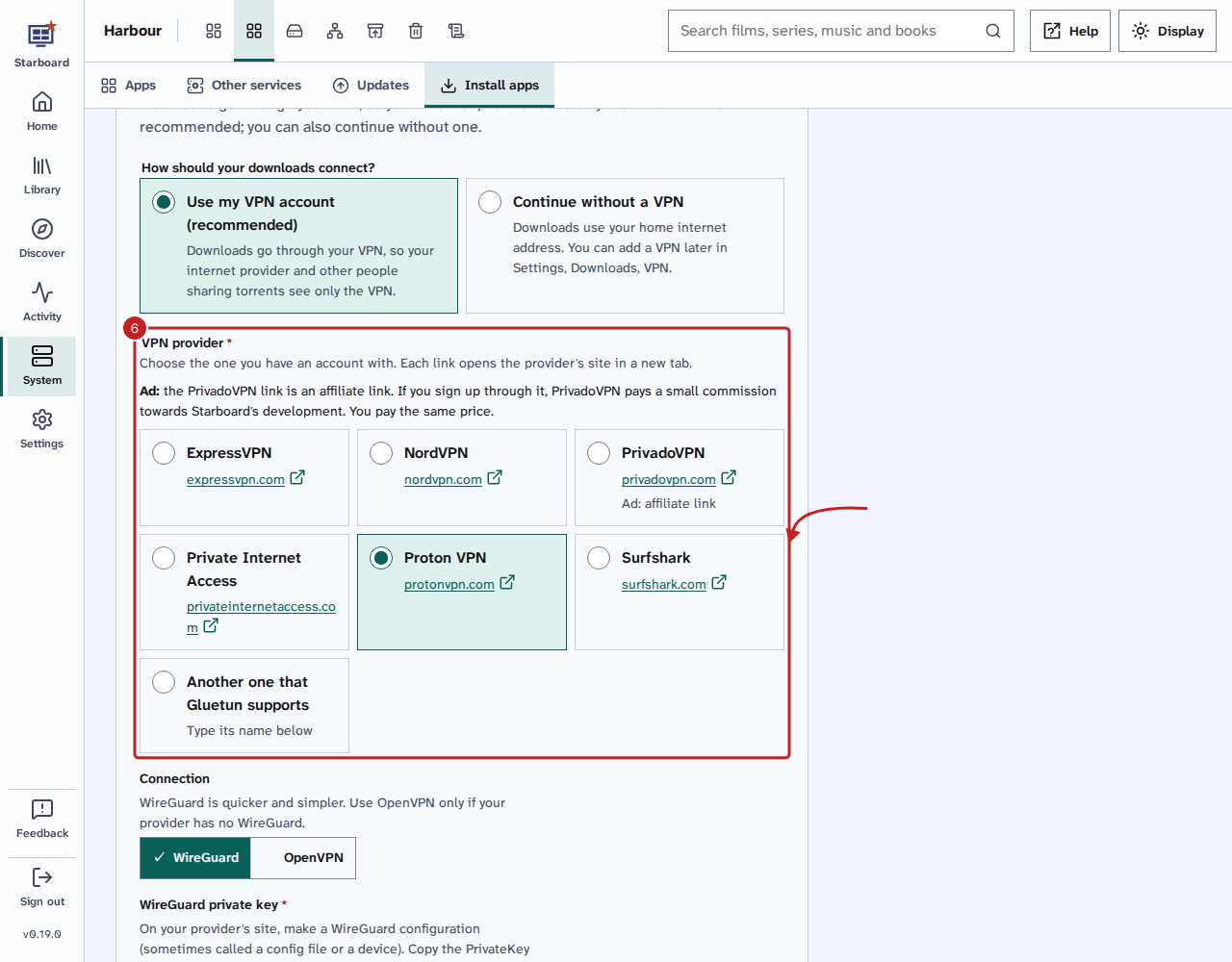
Without a VPN account, choose Continue without a VPN, then Continue. A warning says what that means. Select I understand, continue without a VPN to go on without Gluetun, or Cancel to go back. Read Download without a VPN.
- If your install downloads from Usenet, the Usenet step asks 'Do you have a Usenet provider?'. Choose Yes, I have one to enter its server and select Test the server. Choose No, show me some providers for a list, or Not now: torrents are enough for now. Read Choose a Usenet provider and add it. Select Continue.
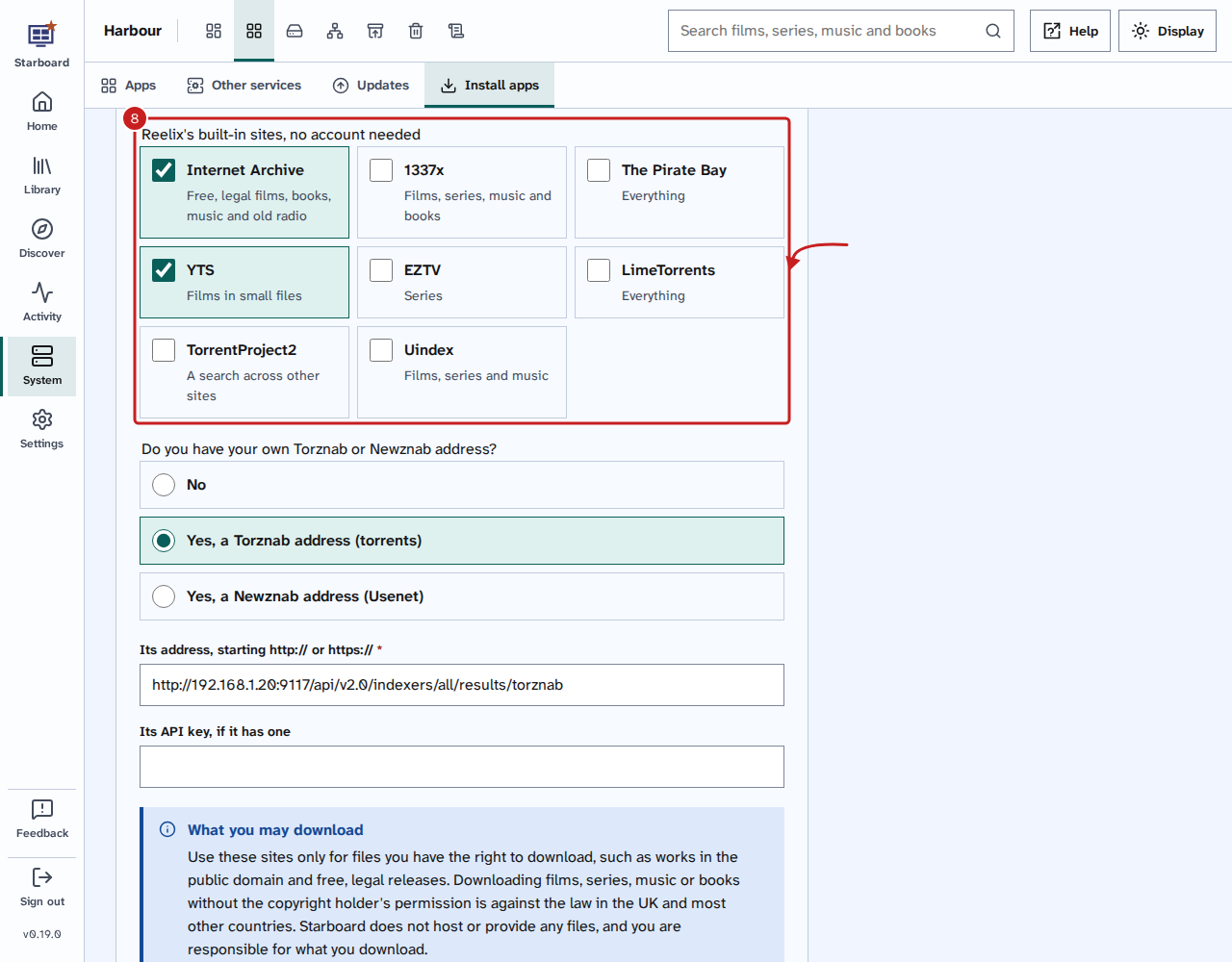
- On Sites to search, tick the sites Reelix should search. Nothing is ticked for you, and none needs an account. To add your own Torznab or Newznab address, choose it and enter its address and API key. Read Choose the sites Reelix searches. Select Continue.
- On Films and series, paste your TMDB key and select Test the key, or leave it empty to add it later. Choose the Language of releases. Select Continue.
- Only on a computer that already runs media apps: the Moving over step asks what to bring across later. Tick what you want, then select Continue.
-
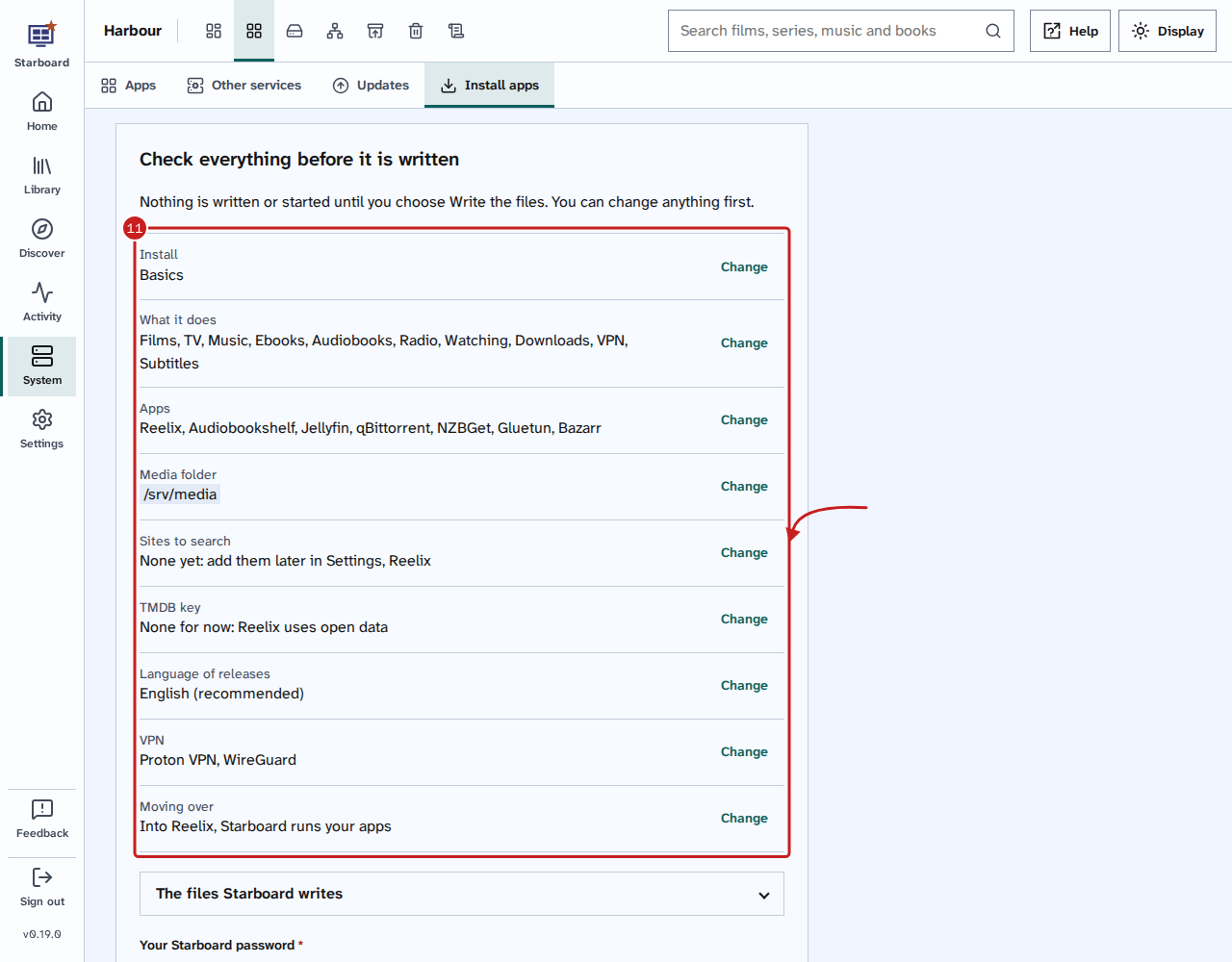
On Check, read the table of your answers. Select Change beside anything you want to change. When it is right, enter Your Starboard password and select Write the files.
-
On Start, select Start the apps. Starboard downloads and starts each app, and counts them, such as "5 of 7 installed". This can take several minutes the first time.
- When Starboard shows The apps are running, it adds each app to Starboard as it answers. If Add the ticked apps to Starboard appears, select it.
- Follow Connect your apps, in this order for anything left to do, then select Go to Apps.
Starboard sets up Reelix, Jellyfin, Audiobookshelf, Jellystat, qBittorrent, Bazarr and Gluetun for you. Reelix gets your library folders, download apps, sites and TMDB key. Anything Starboard cannot do is listed under 'Still to set up': read Finish what is still to set up.
If Starboard has no Docker access
Without Docker access, the Run first window starts the apps for Starboard. Keep it open until Starboard shows The apps are running.
If you closed that window, Starboard shows Run one command. Select Copy the command, then paste it into a terminal on the server:
cd ~/starboard && ./install.sh --start-appsIf Starboard is in another folder, use that folder instead of ~/starboard. If the terminal says your user is not
allowed to use Docker yet, sign out of the server and back in, then paste it again.
Then go back to Starboard and select Find the new apps. Continue from step 13.
Other installs and choices
The default install is complete on its own. These are for when you want more, or want to choose for yourself.
- Full install: everything in Basics with the full Reelix (YouTube and Spotify downloads), plus disk health, Jellystat, FlareSolverr and Tdarr. About 2 GB of memory. Under Usenet app, keep NZBGet or choose SABnzbd.
- Everything: every app Starboard offers. About 2.9 GB. The same Usenet choice.
- Choose myself: tick each group, and with More settings each app and folder. Changing a group makes it your own choice. An app also brings what it needs: Jellystat brings Jellyfin, and Reelix brings a download app.
- Add-ons: Wizarr, Dispatcharr and Dozzle can be ticked with any install, or added later with Add under 'You can add'.
- Which Reelix?: Reelix, or Reelix with YouTube and Spotify downloads. Read Switch between the two versions of Reelix.
- Several disks: on Folders, select Join several disks into one to make a pool. Starboard gives you commands to run on the server first. Nothing on the disks is erased.
Read Basics, Full install and Everything to compare the installs, and Change your install to change it later.
Things to note
- Nothing is written until you select Write the files, and nothing starts until you select Start the apps or run the command.
- Starboard writes two files into
data/stack:compose.yamllists the apps, and.envholds your settings and VPN details. Older copies are kept. - Starboard makes
movies,tv,booksanddownloadsfolders, and others you need, inside your media folder. - If a port is already in use, the app uses the next free one, and the Check step says so.
- Starboard only starts apps from its own list, and only with folders it has checked.
- NZBGet signs in as
starboard, with a password Starboard makes up (NZBGET_PASSindata/stack/.env). - Reelix replaces Radarr, Sonarr, Lidarr, Bookshelf, Prowlarr and Seerr for new installs. A server that already runs them keeps them: read Move from Radarr, Sonarr and the others to Reelix.
- Starboard keeps searching for new apps for 30 minutes, even if you carry on with the set-up or it restarts.
- To change the install later, read Change your install.
- Media you already have, on this computer, another disk or a network share, can be copied in as you set up, or later: read Bring in media you already have.
If it does not work
- Nothing to download with: tick Downloads too, or select Continue again to go on without it.
- Enter the full path of a folder, starting with /: enter the whole path, such as
/srv/media. - Something did not start: select Show the details, change what they say, then select Try again.
- You do not have a VPN account yet: choose Continue without a VPN on the VPN step, and add one later. Read Download without a VPN.
- Gluetun shows as unhealthy, and the download apps do not open: the VPN details are not right, and the download apps wait for the VPN. Go to Settings, then Downloads, and check the provider, the key and the address (ending in /32) under 'VPN'.
- An app is missing from your apps after 30 minutes: it had not answered by then. Read Search for apps already on your server.
- Jellystat keeps restarting, and its log says "no pg_hba.conf entry": its database did not finish setting
up. Stop Jellystat and jellystat-db, and move the
jellystat-dbfolder from the apps' settings folder to a holding folder. Then start the apps again: the database sets itself up afresh. - Reelix stops at once, and its log says "disk I/O error" (code 5386): its settings folder is on a pool made
with mergerfs, which Reelix's database cannot use. Put the apps' settings folder on a single disk, such as
/srv/config, and keep only the media on the pool.
Find out more
This page on GitHub, where the help is written.