How-to
Add a plug-in from a zip file
Add a private plug-in, such as On demand, from the zip file its maker gives you. Starboard checks the zip, shows what the plug-in may do and builds its container on your server. At the end, the plug-in is installed and ready to activate.
Before you begin
- You have the plug-in's zip file on the computer you use Starboard from, such as
starboard-on-demand-0.9.2.zipfrom the Releases page of the plug-in's repository. Only use a zip from someone you trust. - You know your Starboard password. Installing asks for it.
- Starboard has access to Docker, which builds the plug-in's container. Read Change what Starboard can access.
Steps
- Go to Settings, then Plug-ins, then Catalogue.
- Under Upload a zip file, choose the zip in The plug-in's zip file, then select Check the zip. Starboard checks the zip before it shows anything. It says how many files it holds, and the image the build starts from when the plug-in builds its own container.
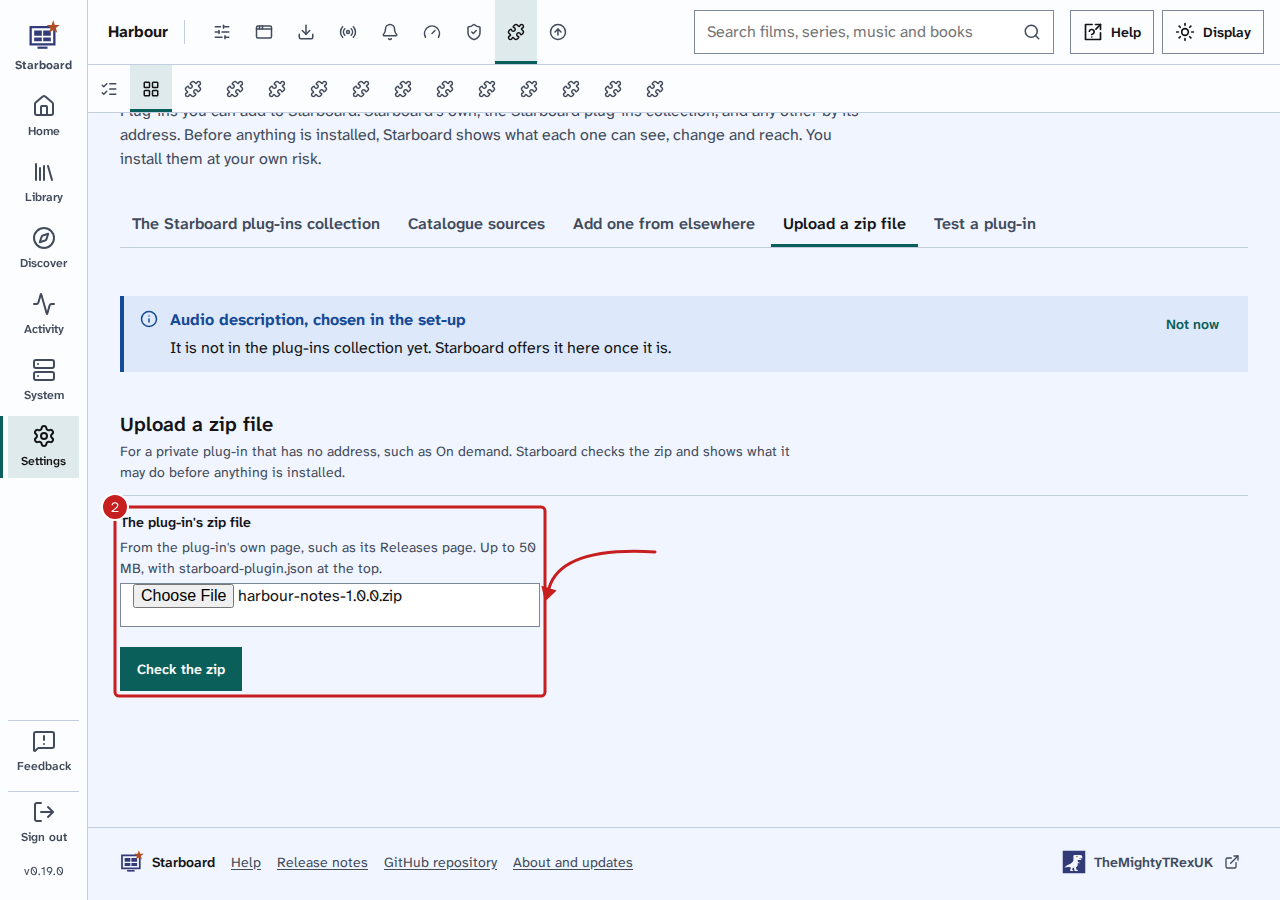
- Read What it may do and the Test results. When the test finds an error, the plug-in cannot be installed: its maker needs to fix it. Ready to add means it passed.
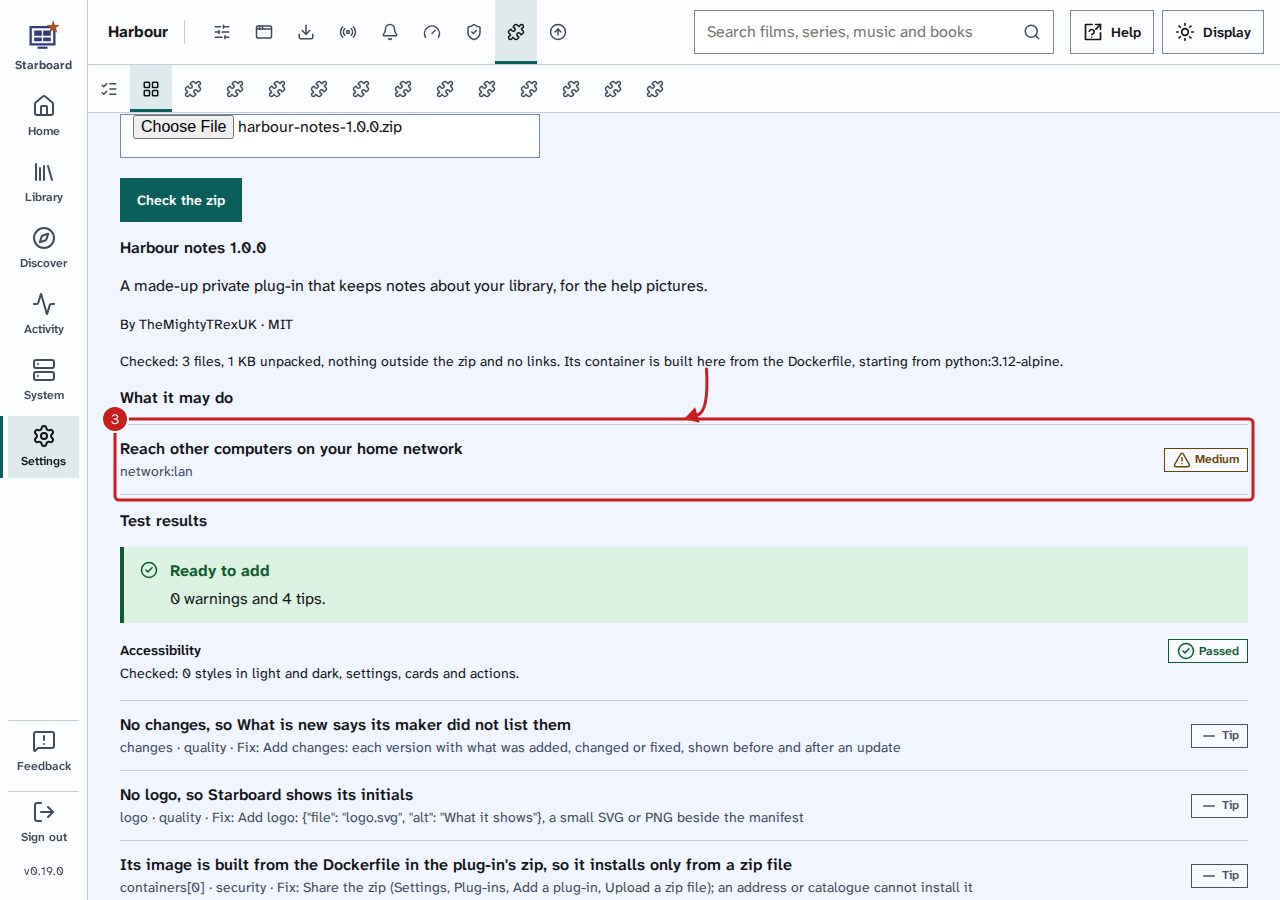
- Select Install and the plug-in's name, such as Install Harbour notes…. A slide-out lists what it can read, what it can change, what it can reach and what it runs, including the build. Read it all.
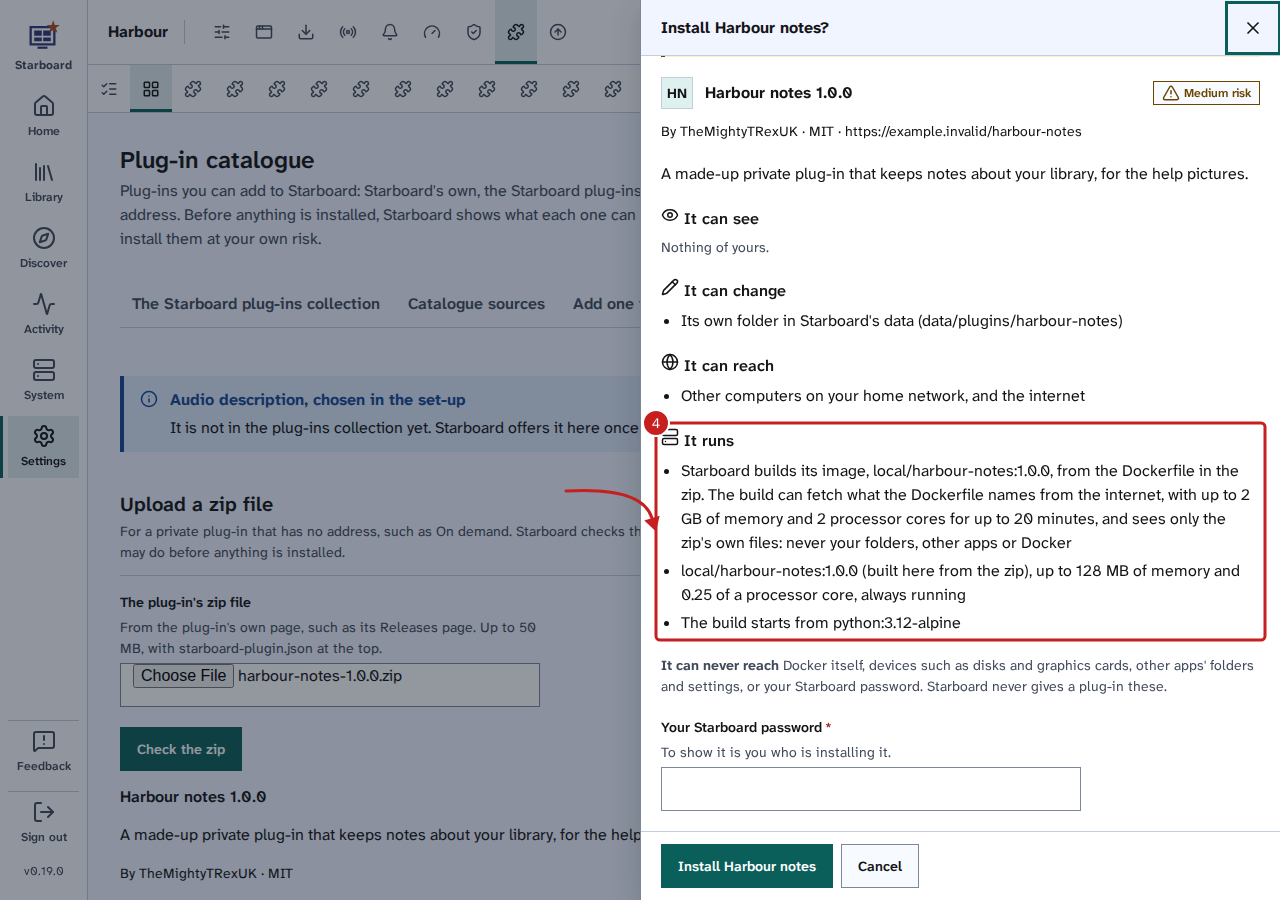 5. To go ahead, enter your Starboard password and select Install and the plug-in's name. To stop, select
Cancel: nothing is installed.
6. A window shows each step: Checking the zip, Building its container from the zip and Installing. The
build can take a few minutes the first time, while it fetches what the plug-in needs.
7. When it finishes, the plug-in's own page opens. Select Activate.
Update it from a newer zip
- Go to the plug-in's own page, under Settings, then Plug-ins.
- Select the Versions tab. In Update from a zip file, choose the new version's zip in The new version's zip file, then select What is new.
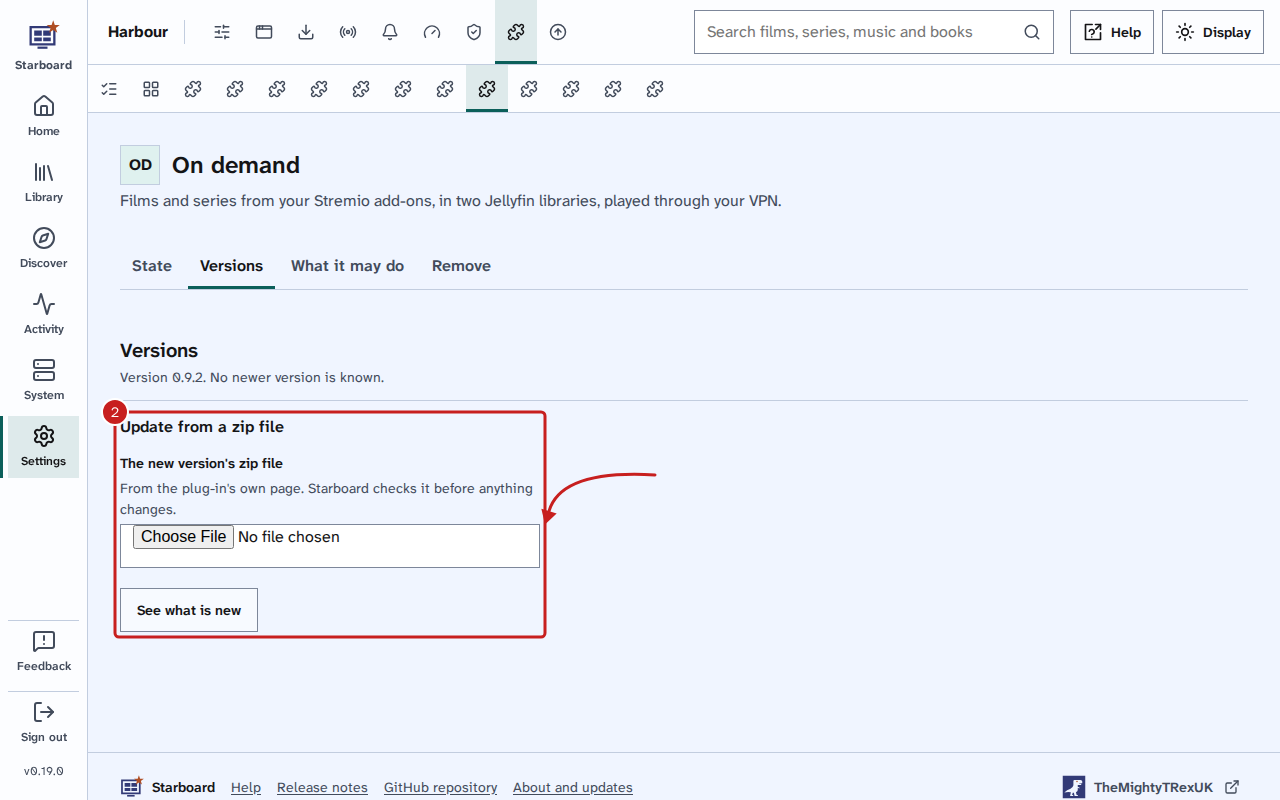
- Read what is new and anything the new version asks for, enter your Starboard password, then select Update and its name.
- A window shows each step, starting with the build. If the new version does not start or answer, Starboard goes back to the version before by itself.
To go back later, select Roll back to and the version before, under Versions. Nothing is downloaded: the version before is still on your server. Read Update a plug-in and roll it back.
Things to note
- What Starboard checks in the zip: up to 50 MB, unpacking to at most 200 MB in at most 2,000 files;
starboard-plugin.jsonat the top; no links, no names that point outside the zip, nothing encrypted. - What the build may do: fetch what the plug-in's
Dockerfilenames from the internet, with up to 2 GB of memory and 2 processor cores, for up to 20 minutes. It never reaches your folders, your other apps or Docker itself. Once built, the plug-in runs locked down like any other. - Starboard keeps the zip of the version you have and the one before, beside the plug-in, so it can build the container again if it goes missing.
- A plug-in that builds its own container can only be added from its zip, never from an address or a catalogue.
If it does not work
- "That is not a zip file" or "The zip is damaged": download the zip again from the plug-in's page.
- "starboard-plugin.json must be at the top of the zip": the zip was made from the plug-in's parent folder.
Ask its maker for a zip made with the plug-in's own tool, such as On demand's
tools/make-zip.sh. - "The build failed" with the last lines of the build: often the internet dropped while it fetched what the plug-in needs. Try again. If it fails the same way, send the lines to the plug-in's maker.
- "The build took longer than 20 minutes": the server was too busy. Try again when it is quieter.
- "Another zip is being installed": wait for the first one to finish.
Find out more
- Add a plug-in
- Update a plug-in and roll it back
- What a plug-in can change
- Built from a zip file, for plug-in makers
This page on GitHub, where the help is written.