How-to
Search for and add films, series, music and books
Search checks your library first, so you know straight away whether you already have something. After that, under Not in your library, it lists what Reelix can find, and you add it with one button. Radio shows and podcasts have Follow instead.
Before you begin
- Reelix is in Starboard with its key. Install apps adds it for you. Read Install apps.
- Without Reelix, Search uses Sonarr, Radarr, Lidarr and Readarr instead. Read Without Reelix.
Steps
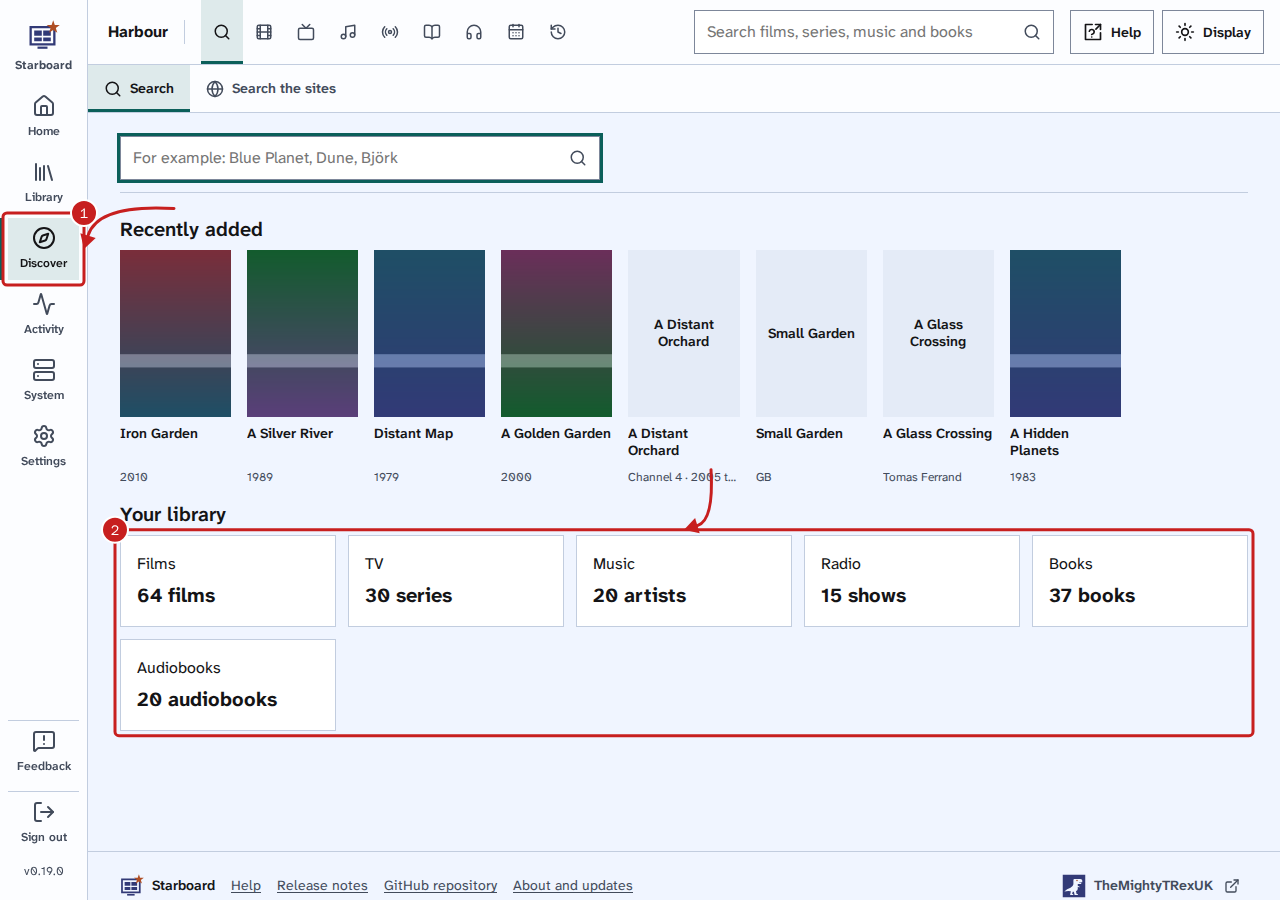
- Select Discover in the side menu. It opens on Search. Or enter a name in the search box at the top of any page. On a phone, use the search box in the menu.
- Before you type, Search shows your library: Recently added, then each kind with how many you have, such as Films and 64 films. Select a kind to open it in the Library.
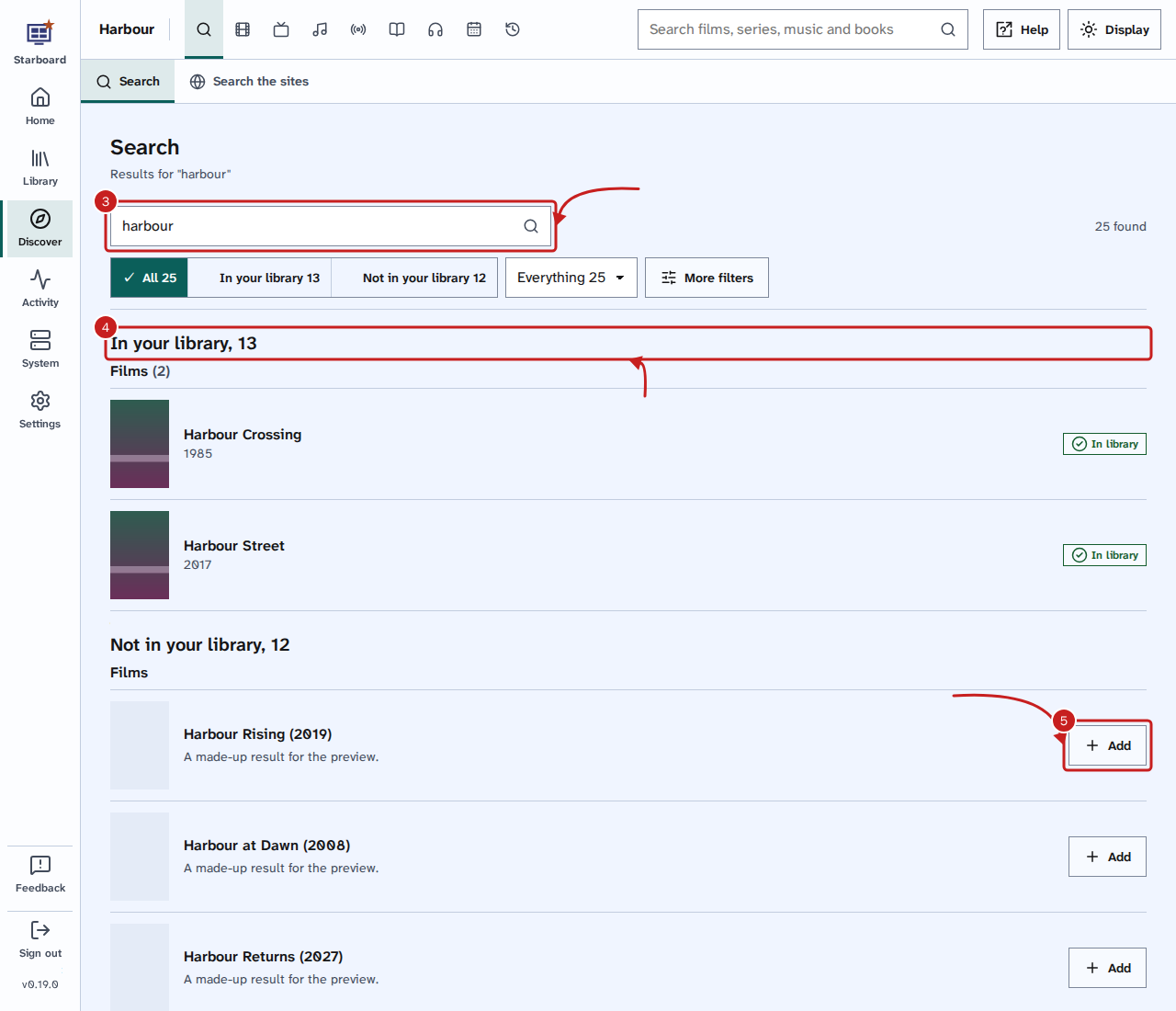
- Enter at least two letters of the name, such as
harbour. Results appear as you enter it. - In your library lists what you already have, by kind, with whether each one is in your library, wanted or not released yet. Select a title to open its page, or the All link, with the count, to list every match in the Library.
- Not in your library lists what Reelix finds that you do not have, by kind. Select Add beside the one you want. For a radio show or podcast, select Follow. Read Follow radio shows and podcasts.
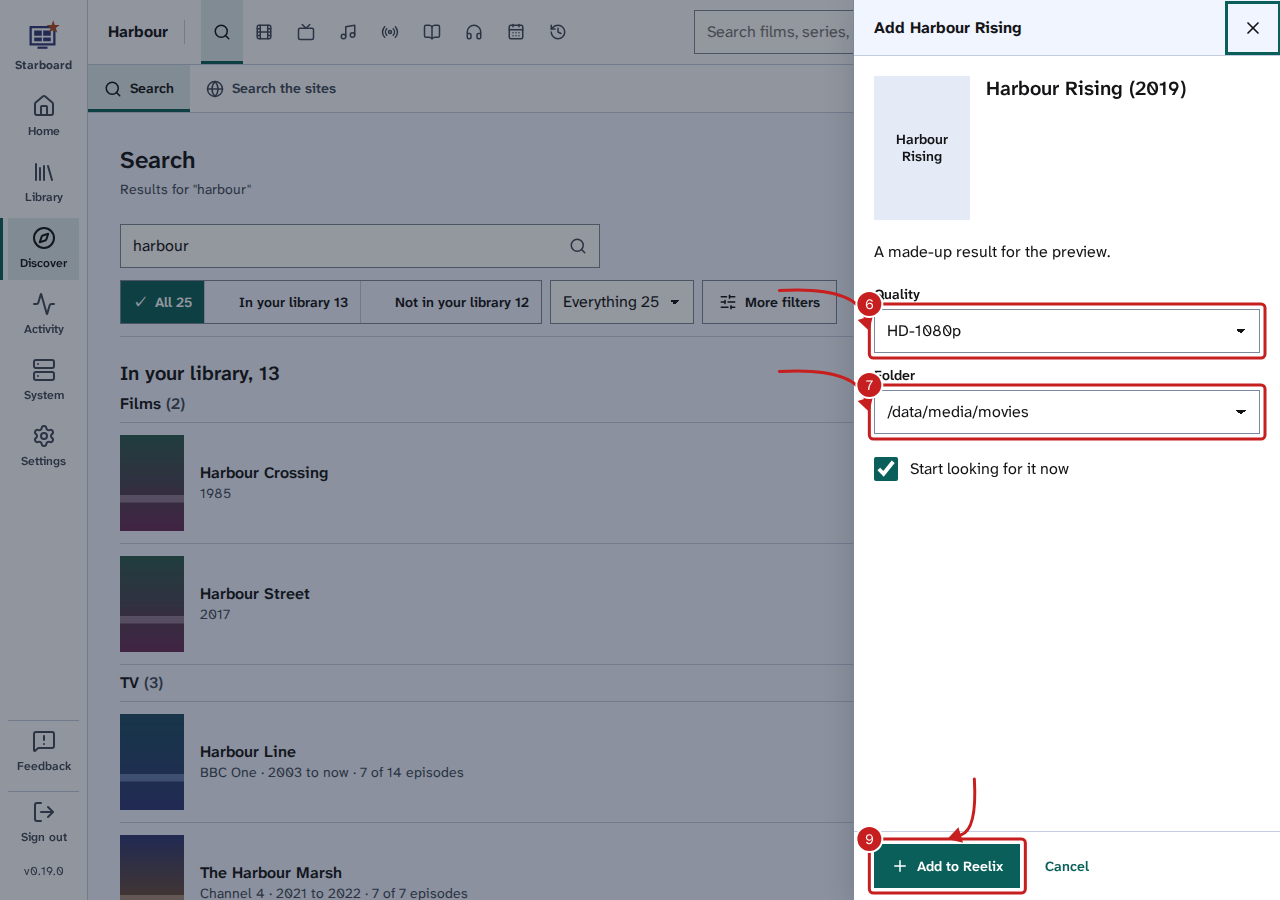
- In the panel, choose the Quality: how good a copy Reelix searches for.
- Choose the Folder it goes in. Each folder shows the free space on its disk. For a book, in Get it as, choose Ebook, Audiobook or both.
- Leave Start searching for it now ticked, so Reelix searches for it straight away. Untick it to add it now and search later.
- Select Add to Reelix. The button beside it changes to Added, and it appears in the Library within a few minutes.
Things to note
- Each search has its own address, such as
http://192.168.1.20:8095/search.html?q=harbour, so you can bookmark or share a search. - Not in your library asks Reelix, which asks sites such as TMDB (The Movie Database) and Open Library. It can take a few seconds. Each kind appears as soon as it is ready.
- Reelix needs a TMDB key to find films and series. Books, music and radio need no key.
- To get what you follow but do not have yet, use Activity, then Wanted. Read Find and get what is missing.
- Covers come through Starboard, so your browser never contacts the image sites.
Without Reelix
When Starboard has no Reelix with a key, Search uses every Sonarr, Radarr, Lidarr and Readarr you have added. Enter the name and select Search. Select Add beside a result, check the Quality profile, Folder and Start searching for it now, then select Add to and the app's name, such as Add to Radarr. A result you already have says In library. Read Add an app.
If it does not work
- Nothing in your library matches: check the spelling, or try fewer words. The Library may still be reading from Reelix: wait a minute and type again.
- Reelix found nothing else: check the spelling, or try fewer words.
- Reelix cannot find films until it has a TMDB key: add a TMDB key to Reelix in Settings, then Apps, then Reelix. Read Change Reelix's settings in Starboard.
- Reelix has no folder for this kind yet: Reelix needs a folder for films, series, books or music before it can add one. Add one in Settings, then Apps, then Reelix. Read Change Reelix's settings in Starboard.
- Some results may be missing (without Reelix): one of your apps did not answer. Select View apps to find out which one. Read An app shows as not responding.
Find out more
This page on GitHub, where the help is written.