How-to
Set up free Live TV in Jellyfin
Live TV gives Jellyfin free TV channels with a TV guide, from Samsung TV Plus, Pluto TV and Free-TV. Channels are numbered the way Sky numbers them. Live TV is a plug-in built into Starboard, so you add it only if you want it.
Before you begin
- Jellyfin is in Manage apps with its API key, so Live TV can add the channels to Jellyfin. Read Find an app's API key.
- The installer gave Starboard a Live TV folder. It asks "Give Starboard a Live TV folder?". To change your answer, read Change what Starboard can access.
- Starboard can run containers (Docker access).
- Starboard is open to your home network, because Jellyfin fetches channel logos and Pluto TV streams from it. Read Choose who can open Starboard.
Steps
Add Live TV
- Go to Settings, then Plug-ins.
- Under Built into Starboard, select Add Live TV.
- Read What it may do, enter Your Starboard password and select Add Live TV. Starboard shows "Live TV added and active".
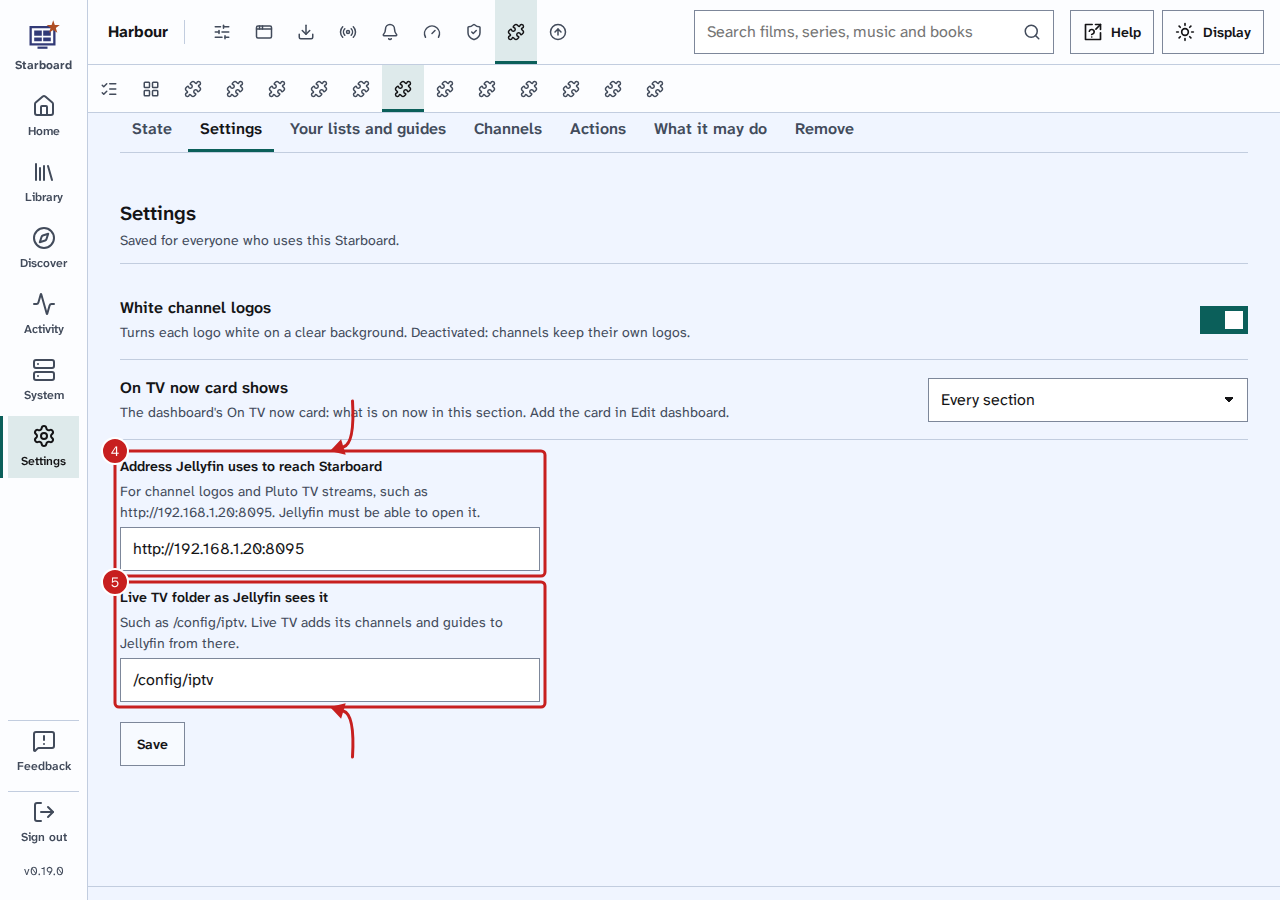
- Live TV's own page opens, under Settings, then Plug-ins. Select its Settings tab and check Address
Jellyfin uses to reach Starboard, such as
http://192.168.1.20:8095. - Check Live TV folder inside Jellyfin, such as
/config/iptv, then select Save.
- Select the Actions tab, then Run Live TV now. The first run tests every channel, so it takes a few minutes.
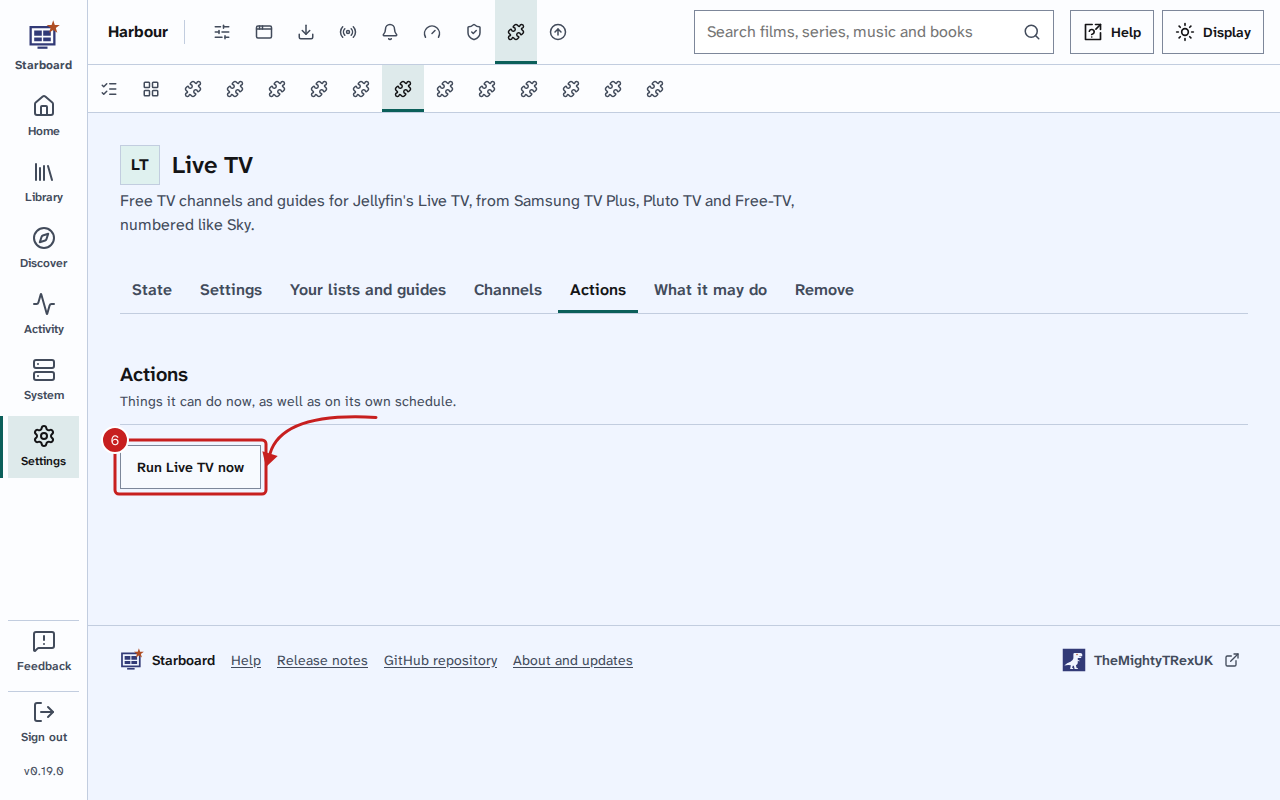
Live TV adds its channel lists and guides to Jellyfin itself, then starts Jellyfin's guide refresh. It reads the folder from Jellyfin's own tuners first, so nothing is added twice.
To follow it on the dashboard, add the Live TV card with Edit dashboard. Read Use and change the dashboard. The card says when Live TV last ran and what it did.
If you used Live TV before Starboard 0.15.0, Starboard moved it into the plug-in by itself, with the same settings. Your channels and guides in Jellyfin did not change.
Add your own lists and guides
Live TV can also take your own channel lists and guides, by address or as a file.
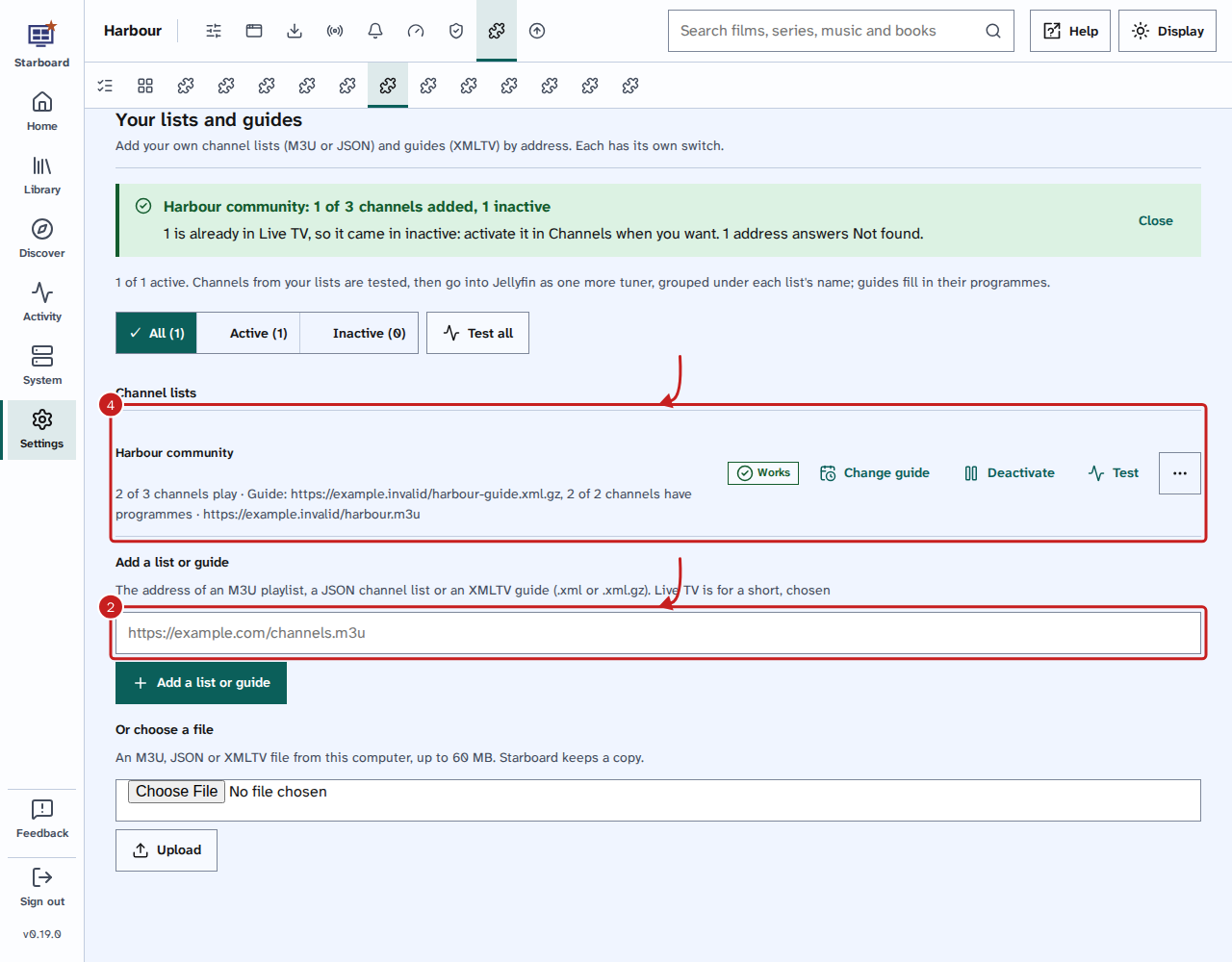
- On Live TV's page, select the Your lists and guides tab.
- Under Add a list or guide, enter the address of an M3U playlist, a JSON channel list or an XMLTV guide
(
.xmlor.xml.gz), then select Add a list or guide. To use a file from your computer instead, choose it under Or choose a file and select Upload. - Starboard tests the channels and says what it added, such as "Harbour community: 1 of 3 channels added, 1 inactive". A channel already in Live TV comes in inactive: activate it in Channels when you want it.
- Each list has its own Deactivate, so an inactive list is not fetched. Change guide gives it a guide, and Test tests it again. Test all tests every list.
Choose the channels
- On Live TV's page, select the Channels tab. Under Activate or deactivate in bulk, each list, Every channel and each region has its own switch. Each switch applies at once.
- Under the search and the List and Region chips, the channels are in folding sections, such as Entertainment, each with how many are active and its own switch. Select a section to open it and switch single channels.
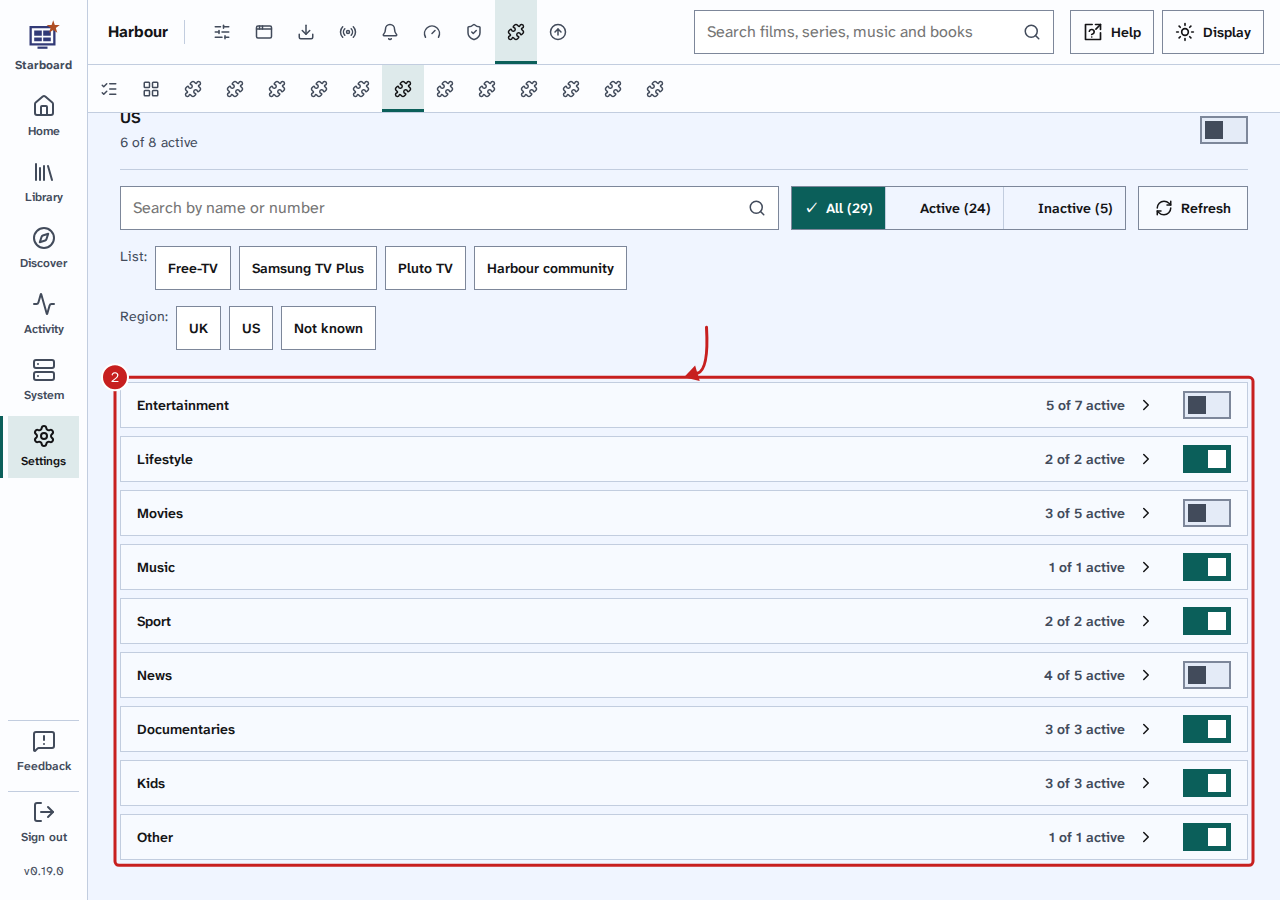
A channel you deactivate stays inactive when the lists are rebuilt.
Add the channels and guides in Jellyfin
Do this only if the Live TV card says Jellyfin did not take the channels.
- Open Jellyfin and go to Dashboard, then Live TV.
- Add a tuner of type M3U for each playlist in the Live TV folder:
channels.m3u,samsung.m3uandpluto.m3u. - Add an XMLTV guide for each guide file in the same folder:
guide.xml,guide-samsung.xmlandguide-pluto.xml. - Let Jellyfin refresh its guide data.
Use the folder's path inside Jellyfin's container. If /srv/jellyfin/config on the server is /config for Jellyfin, the
first playlist is /config/iptv/channels.m3u.
Things to note
- Live TV checks once an hour. It refreshes the guides once a day, and rebuilds a channel list only when its source changes, or once a week to drop channels that stopped playing. Run Live TV now rebuilds every list.
- Only free channels are included. Live TV skips channels that need DRM (digital rights management), adult channels and anything that does not play from your connection.
- Channels are numbered in blocks: 101 Entertainment, 401 Lifestyle, 451 Movies, 501 Music, 601 Sport, 701 News, 801 Documentaries, 1001 Kids and 1101 Other.
- White channel logos turns each logo white on a clear background. Deactivate it to keep each channel's own logo.
- Starboard itself still serves the channel logos and the Pluto TV links to Jellyfin.
- Where the plug-in cannot run, Built into Starboard says why, after "Not here". Live TV then runs inside Starboard, in Settings, Apps, Jellyfin, Live TV, with the same settings and its own Run Live TV now.
- What the plug-in may do and what it runs are listed in The plug-in collection.
- To make Live TV open on the Guide for everyone, read Give every Jellyfin user the same defaults.
If it does not work
- "Not here" next to Live TV: Starboard has no Docker access or no Live TV folder. Run
./install.shagain and say yes to both. Read Change what Starboard can access. - The card says "Last run failed": read the reason next to it. If it names the address, enter it in the Live TV section in Settings, Plug-ins.
- "Jellyfin: add its API key": add the key to Jellyfin in Manage apps, then select Run Live TV now.
- Channels have no logos, or Pluto TV channels do not play: Jellyfin cannot reach Starboard. Read A Live TV channel will not play.
Find out more
This page on GitHub, where the help is written.