On this page
How-to
Download without a VPN
A VPN (virtual private network) is recommended, but you can set up Starboard without one and add it later. This page says what downloading without a VPN means, how to choose it, and how to add a VPN later in Settings.
What it means
- Other people sharing the same torrents can find your home internet address.
- Your internet provider can tell what you download.
- Where downloading something is not allowed, this can lead to warning letters from your internet provider or to legal action.
- Usenet over SSL hides what you download from your internet provider, but your Usenet provider still knows it.
With a VPN, your internet provider and other people sharing torrents can tell only that you use a VPN. Read How Starboard keeps you safe.
Steps
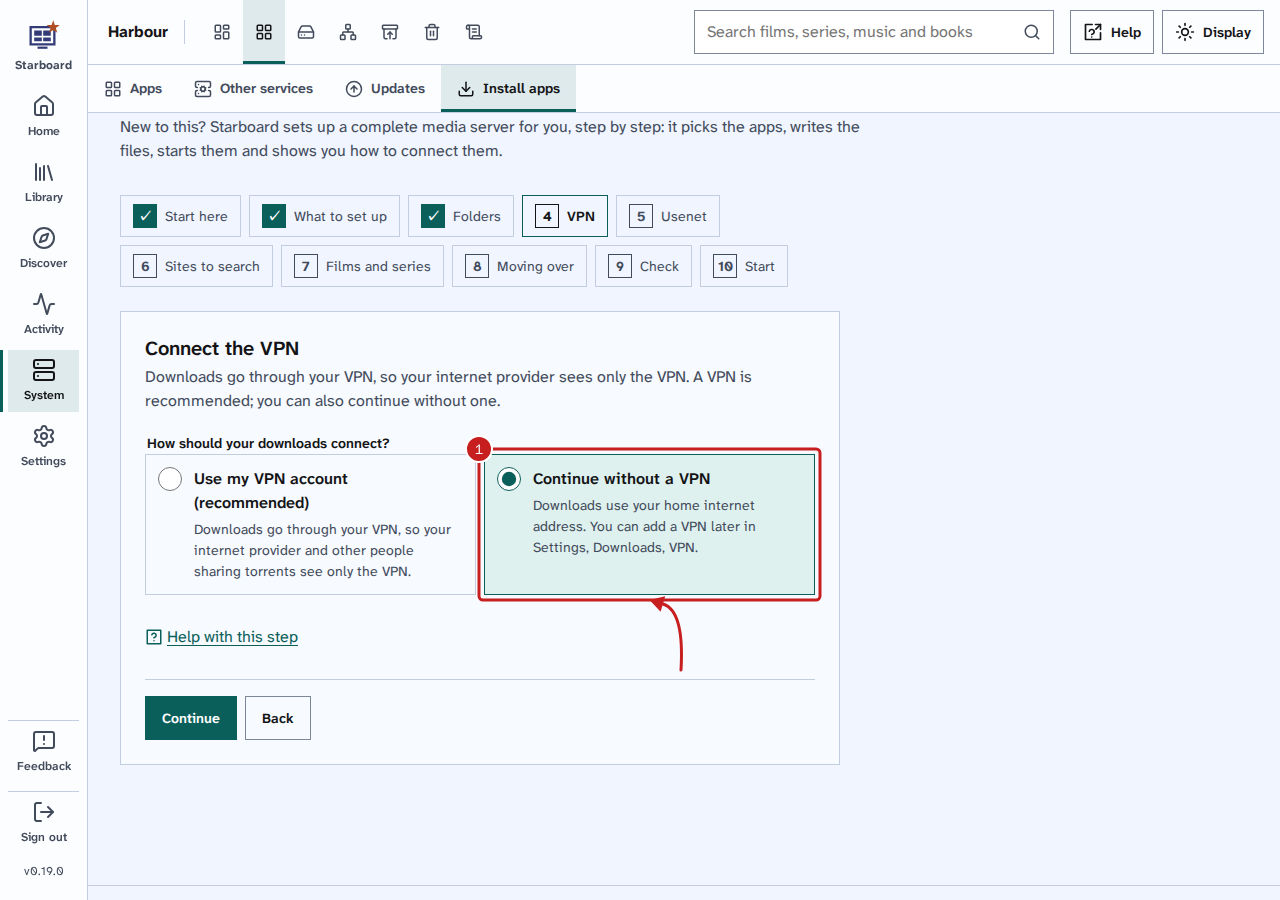
- In the set-up, on the VPN step, under How should your downloads connect?, choose Continue without a VPN, then select Continue.
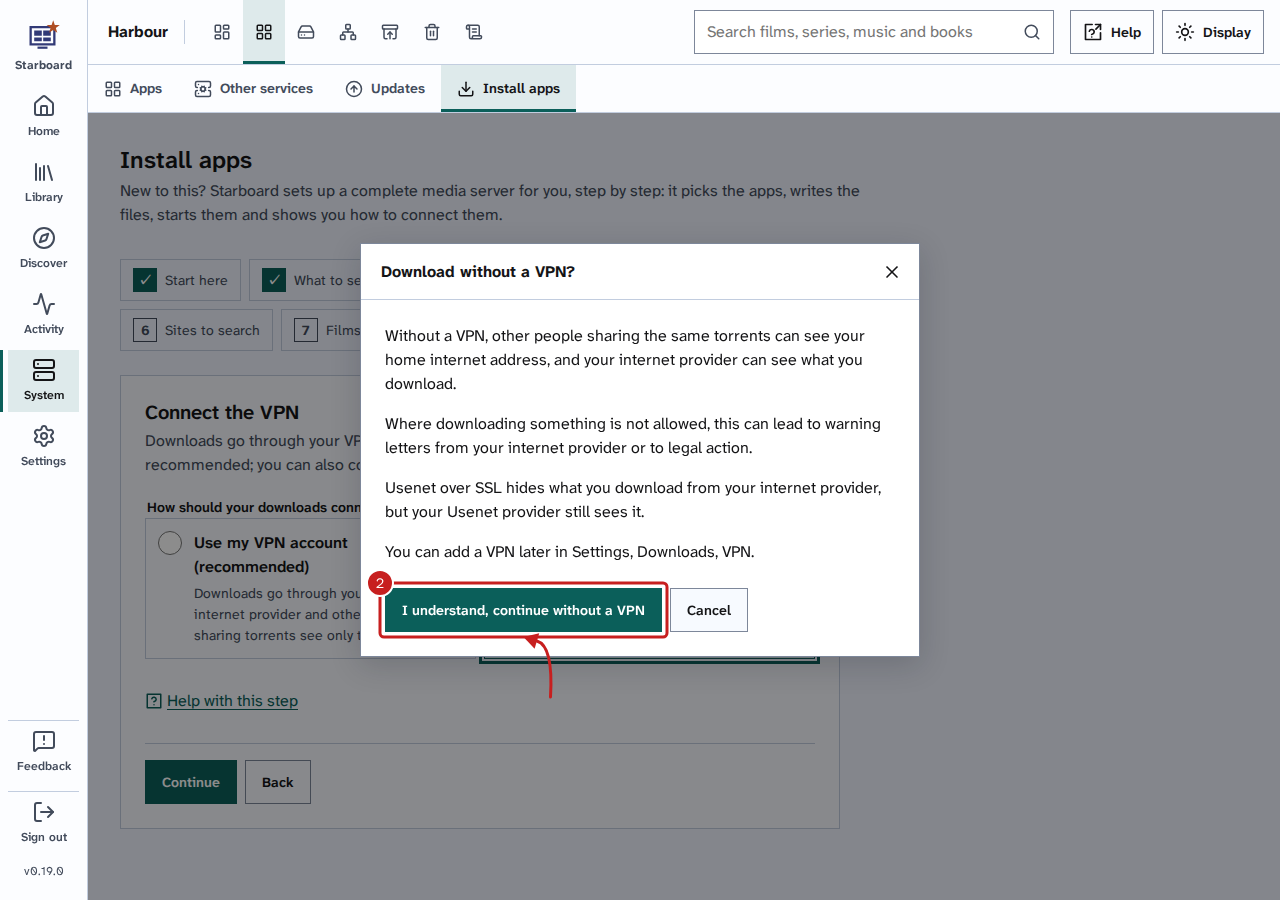
- Read the warning, Download without a VPN?. Select I understand, continue without a VPN to go on, or Cancel to go back and enter your VPN account.
- Carry on with the set-up. On the Check step, VPN says None: downloads use your home internet address, and the apps have no Gluetun.
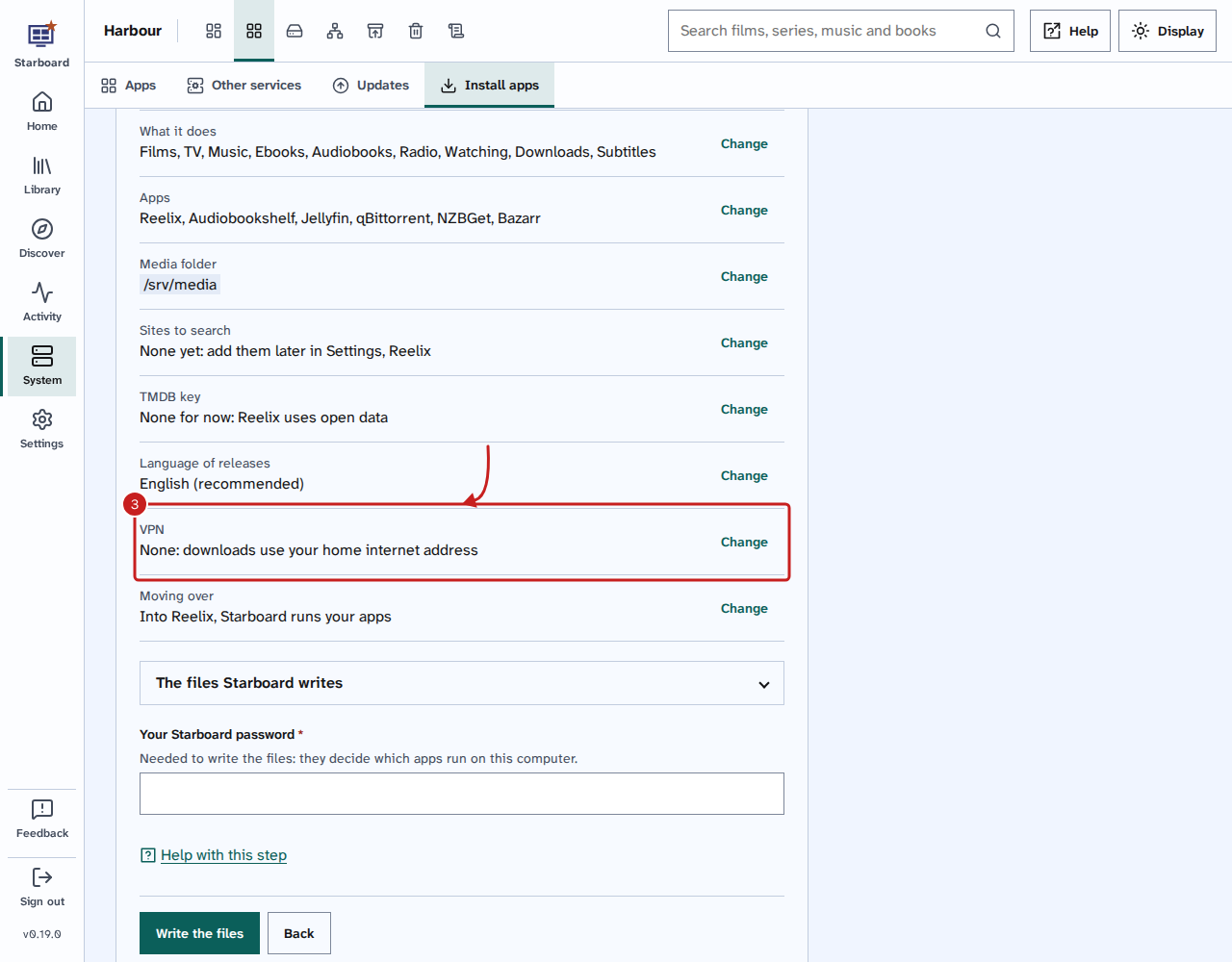
Starboard installs your apps without Gluetun. qBittorrent and NZBGet run on their own, with their own ports, and Reelix connects to them by their names.
In the terminal set-up, the VPN step asks the same question first. Enter 2 for Continue without a VPN. After the warning, press Enter to cancel, or enter 2 for I understand, continue without a VPN.
Add a VPN later
- Go to Settings, then Downloads, then VPN. It shows No VPN.
- Select Add a VPN.
- Choose your VPN provider and the Connection, WireGuard or OpenVPN. Enter the details from your provider's website.
- Enter Your Starboard password, then select Add the VPN.
Starboard installs Gluetun, moves qBittorrent and NZBGet behind it, and points Reelix at them. Reelix's searches go through the VPN too. The download apps restart for a moment.
Remove the VPN
- Go to Settings, then Downloads, then VPN.
- Under Remove the VPN, enter Your Starboard password, then select Remove the VPN.
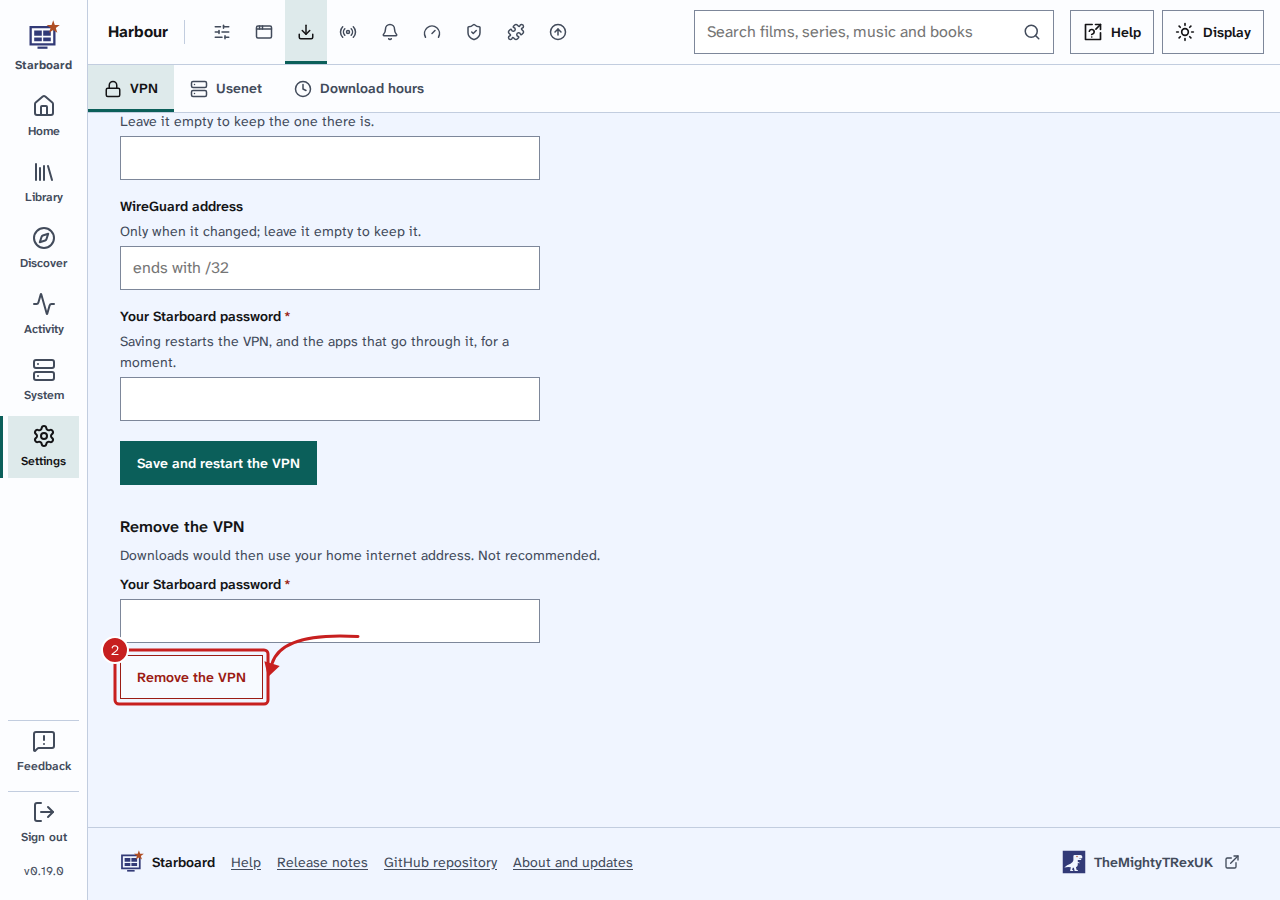
- Read the warning. Select I understand, remove the VPN, or Cancel to keep it.
Starboard removes Gluetun, and qBittorrent and NZBGet run on their own with their own ports.
Things to note
- While you download without a VPN, Activity, then Downloads shows Downloading without a VPN, with Add a VPN. Select Hide for 90 days to hide it. Starboard sends no alerts about it.
- The dashboard's VPN card says No VPN, with Add a VPN.
- Your VPN details go in the
.envfile on the server only, never in Starboard's settings or its logs.
If it does not work
- "Enter the WireGuard private key from your VPN provider" or a similar message: a detail is missing. Copy it from your provider's WireGuard or OpenVPN configuration.
- Gluetun shows as unhealthy after adding the VPN: the details are not right, and the download apps wait for the VPN. Check them in Settings, then Downloads, then VPN.
- Reelix does not reach qBittorrent after the change: go to Settings, then Reelix, then Download apps, and select Repair.
Find out more
This page on GitHub, where the help is written.