On this page
How-to
Browse your library
The Library shows everything Reelix holds: TV, films, music, radio, books and audiobooks. Each kind has a wall of covers with an A to Z list, and each film, series, artist, show or book has its own page with its episodes, albums or reading order.
Before you begin
- Reelix is in Starboard with its key. Install apps adds it for you. Read Install apps.
- To mark titles as watched, Jellyfin is in Starboard with its key.
Steps
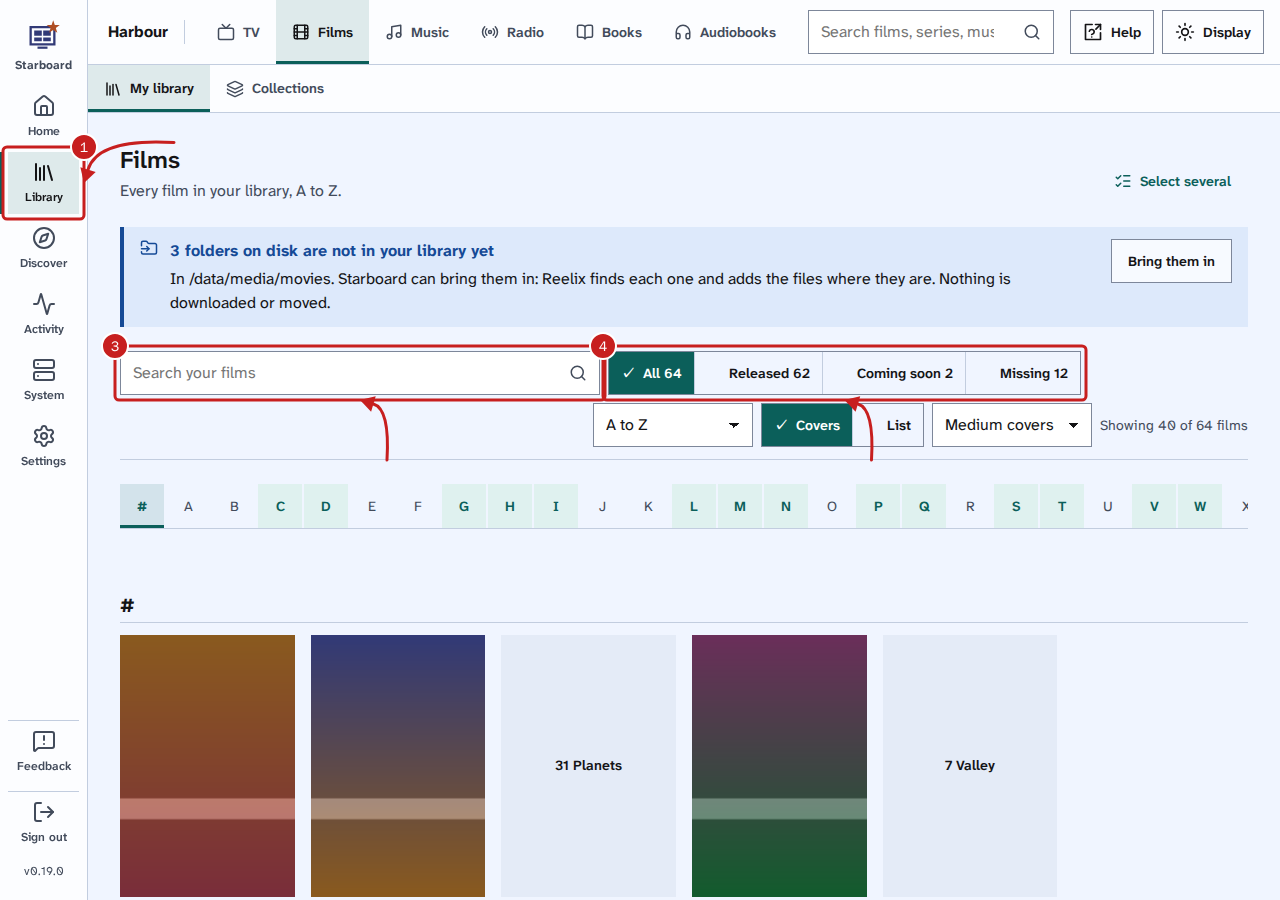
- Select Library in the side menu, or in the menu on a phone.
- Choose a kind in the menu along the top: TV, Films, Music, Radio, Books or Audiobooks. My library shows them all as covers, A to Z.
- Optional: to find one title, type part of its name in Search your films (or series, books and so on). The wall shows only what matches as you enter it.
-
Optional: to show only some, select a filter, such as Not in library or Not released. Each filter says how many it holds. Select it again to show everything.
-
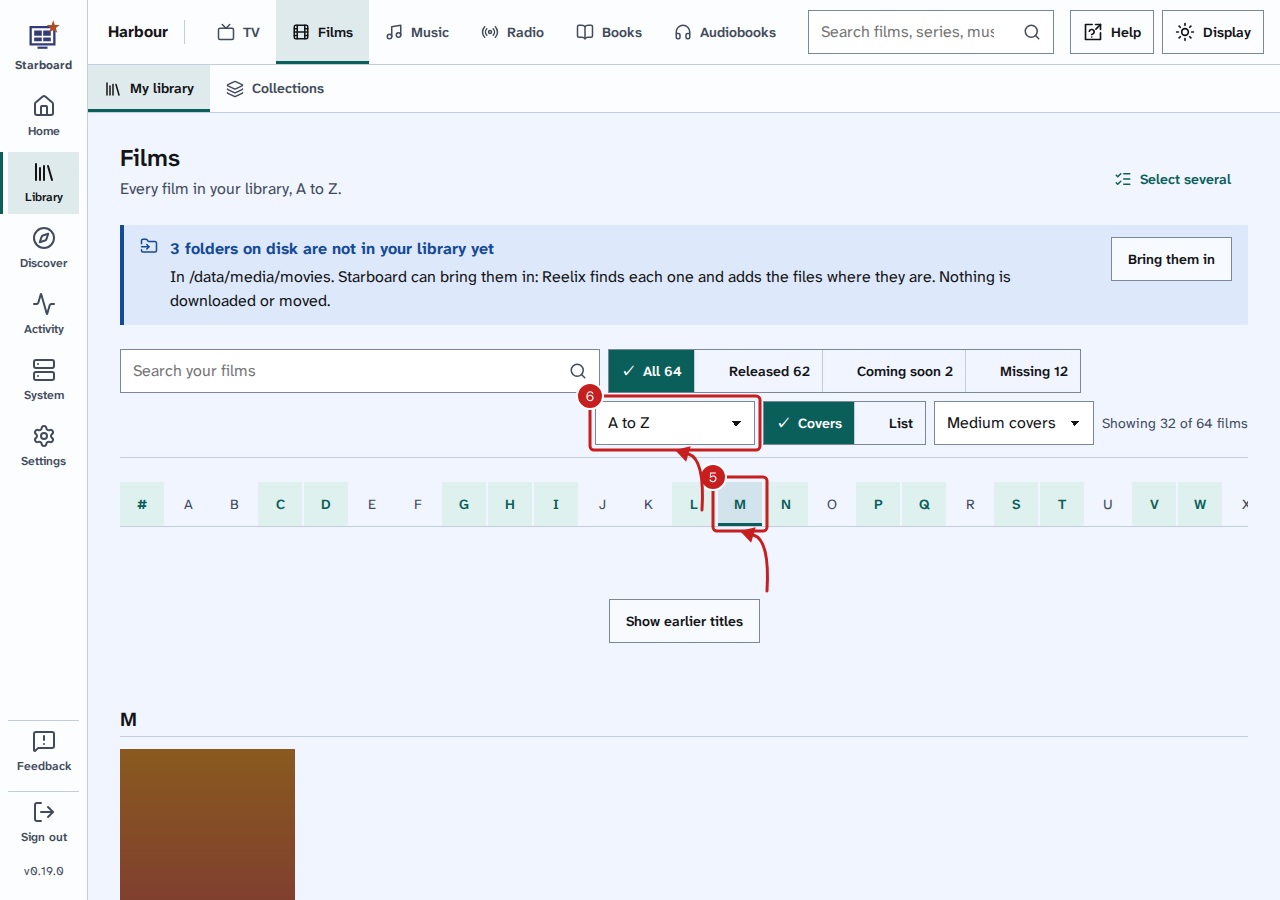
Optional: to jump to a letter, select it in the row of letters, such as M. Letters with nothing under them are greyed out and cannot be selected.
-
Optional: to change the order, choose A to Z, Recently added or Year in the sort list. Choose Covers or List, and Small covers, Medium covers or Large covers.
-
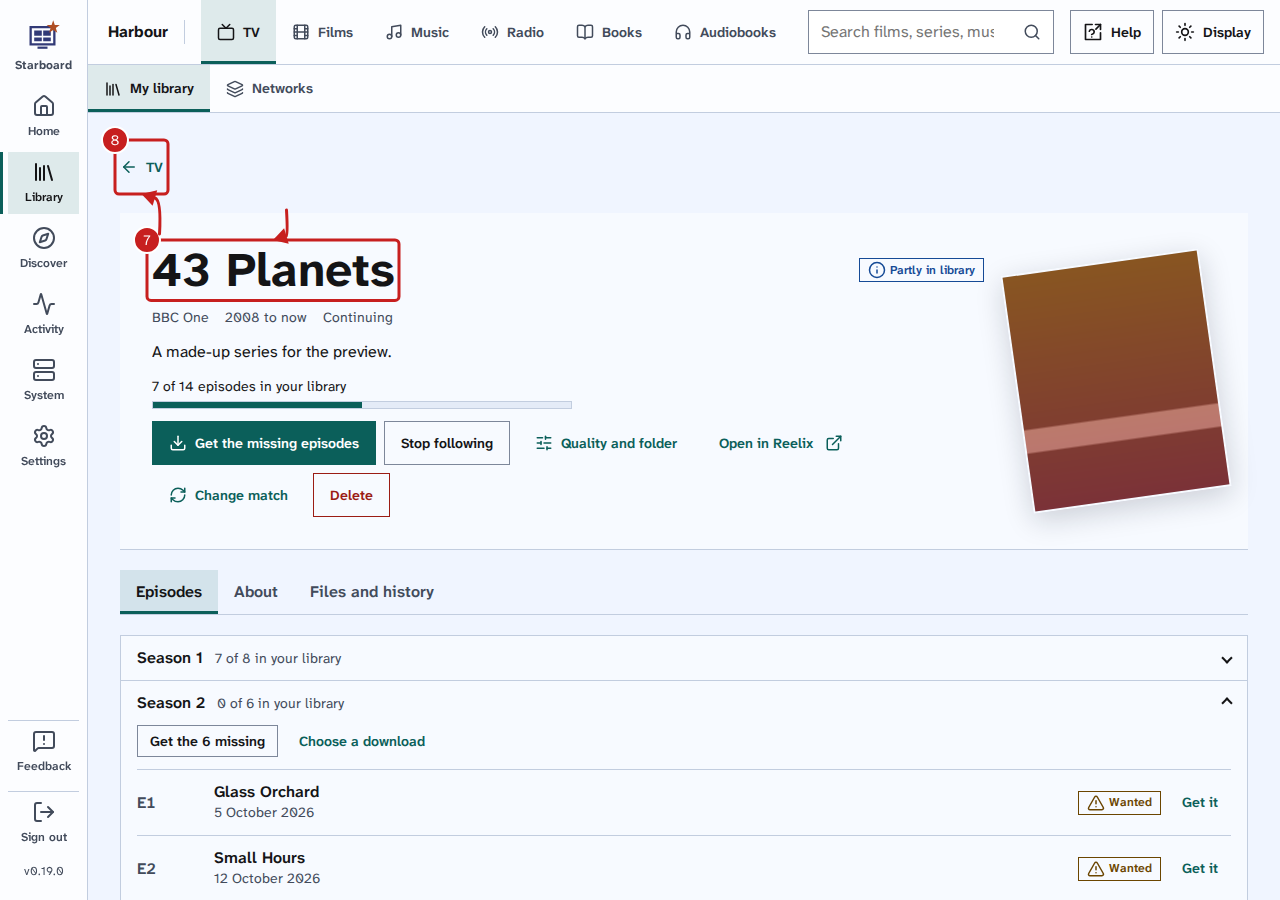
Select a title to open its page. It shows the name, what it is, how much of it you have, and: - Episodes for a series or radio show, with each one's number, date and whether you have it. A series with more than one season shows each season on its own, with how many of its episodes you have. The newest season is open; select another season's name to open it. - Reading order for a book in a series. - Albums for an artist. - Collection for a film in a collection. - About, with the details Reelix knows.
- To go back, select the back link with the kind's name, such as Films.
Get, follow or delete a title
A title's page has buttons for what Reelix can do with it. Each one shows only when it applies.
- Get it, or Get the missing episodes for a series: Reelix searches for it now. A season you do not have all of has Get the number missing.
- Choose a download, for a film you do not have or a season: Reelix lists what its sites have, best first. Select Get this one. A copy Reelix turned down says why, and has Get it anyway.
- Follow or Stop following: whether Reelix keeps searching for new episodes, releases or books.
- Watched or Not watched: from Jellyfin. Select it to change it, for a title, a season or an episode. It shows only when Jellyfin has the title.
- Delete: Reelix stops following the title and takes it out of your library. Tick Delete its files too to remove the files as well.
Keep your favourite view
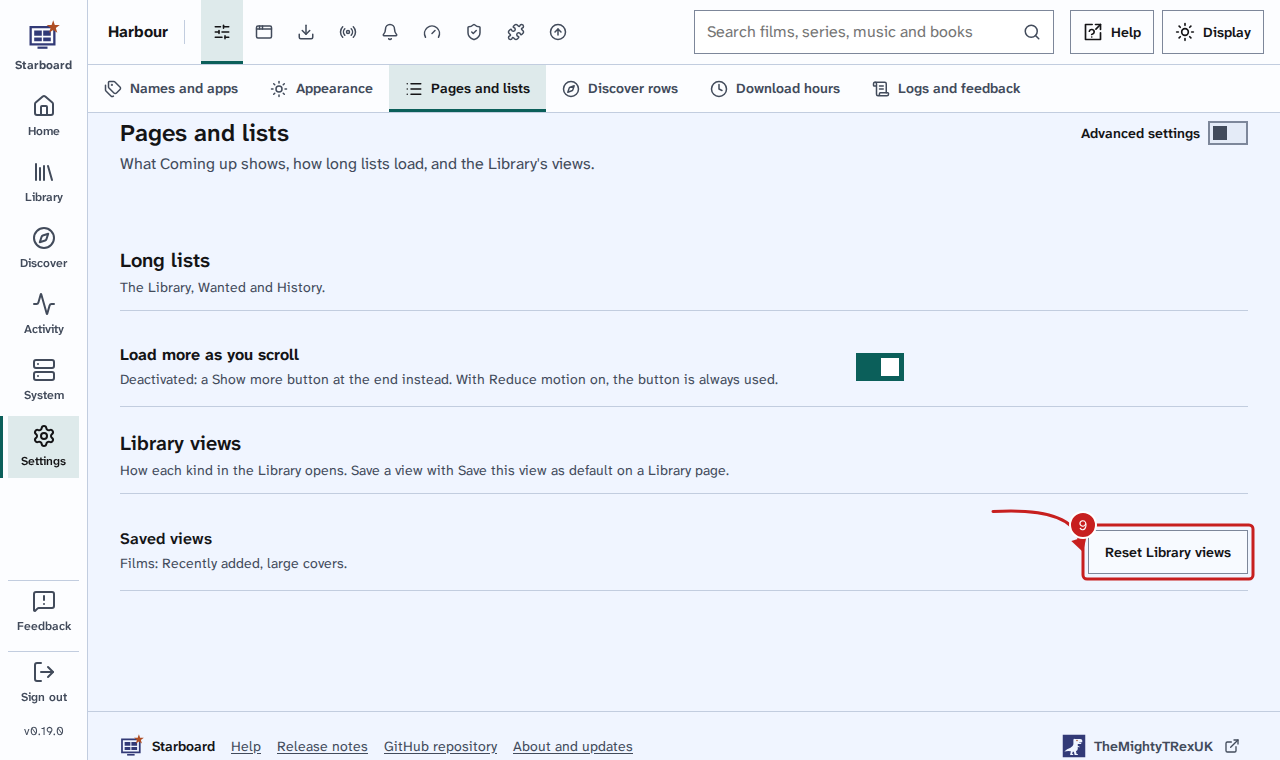
When you change the order, the layout, the cover size or a filter, Save this view as default appears. Select it, and that kind always opens that way, on any device you sign in from. To go back to A to Z with medium covers, go to Settings, then General, then Pages and lists, and select Reset Library views.
Things to note
- To add something new, use Search: it searches your library first, then finds what you do not have yet. Read Search for and add films, series, music and books.
- Networks, Collections, Stations, Series and Authors group the same titles another way. Select a group to show its titles on the wall.
- Something added in the last few minutes may take a moment to appear. Starboard reads the list again from Reelix when it is more than five minutes old.
- Covers come through Starboard, so your browser never contacts the image sites. To show plain tiles instead, go to Settings, then Performance, activate More settings, and deactivate Posters on Coming up and the Library.
- With the keyboard, Tab reaches the letter row once. Use the arrow keys to move along the letters, and Enter to jump. The page moves to that letter's heading.
If it does not work
- Add Reelix with its key first: Starboard has no Reelix with a key. Install Reelix with Install apps, or add it in Settings, then Apps, then Manage apps, with its key. Read Find an app's API key.
- Showing what Starboard read last time: Reelix did not answer the last time Starboard asked. The page shows the list from before, and Starboard tries again in a few minutes. Check that Reelix is running on the Apps page.
- There are no films in Reelix yet (or series, books and so on): Reelix holds none of that kind. Find some with Search and add them.
- A cover shows only the title: the image site did not send a picture, or covers are inactive.
- Reelix could not search in Choose a download: read the message under it. Check that Reelix has sites to search. Read Choose the sites Reelix searches.
Find out more
This page on GitHub, where the help is written.