On this page
How-to
Update Starboard
Update Starboard from its own page, with Update now, or let it update itself in the quiet hours. Either way it backs up your settings, installs the newest release and goes back to the version you had if the new one does not start. When updates are waiting, Install all updates installs them all in one go, and What is new gives the notes of every one of them together. You can also run one command on the server.
Before you begin
- A terminal open on the server. Read The terminal: entering commands.
- Know which way you installed Starboard: with the installer, or from the ready-made image. If your Starboard folder
has a file called
update.sh, you used the installer.
Find out whether an update is out
- Starboard's version is at the foot of the side menu. When a newer one is out, a red dot appears beside the version and pulses gently (it keeps still when Reduce motion is on). Select the version to go to Settings, then Updates. About and updates in the footer of any page goes there too.
- At the top of Updates, a notice says "Version 0.20.0 is out", for example, with a Release notes button that says what changed.
- To find out now, without waiting for the next check, go to Settings, then Updates, and select Check for updates at the top of Ready to update. It asks Starboard, the apps, Reelix, the plug-ins and Jellyfin for new versions, and says what it found.
For this to work, Check GitHub for new releases must be activated. It is on the Updates page, under Update Starboard on the server instead. What changed in every version is on Settings, then Updates, then Releases.
Update from Starboard's page
This works if you used the installer and Starboard has Docker access, or if you installed it without Docker.
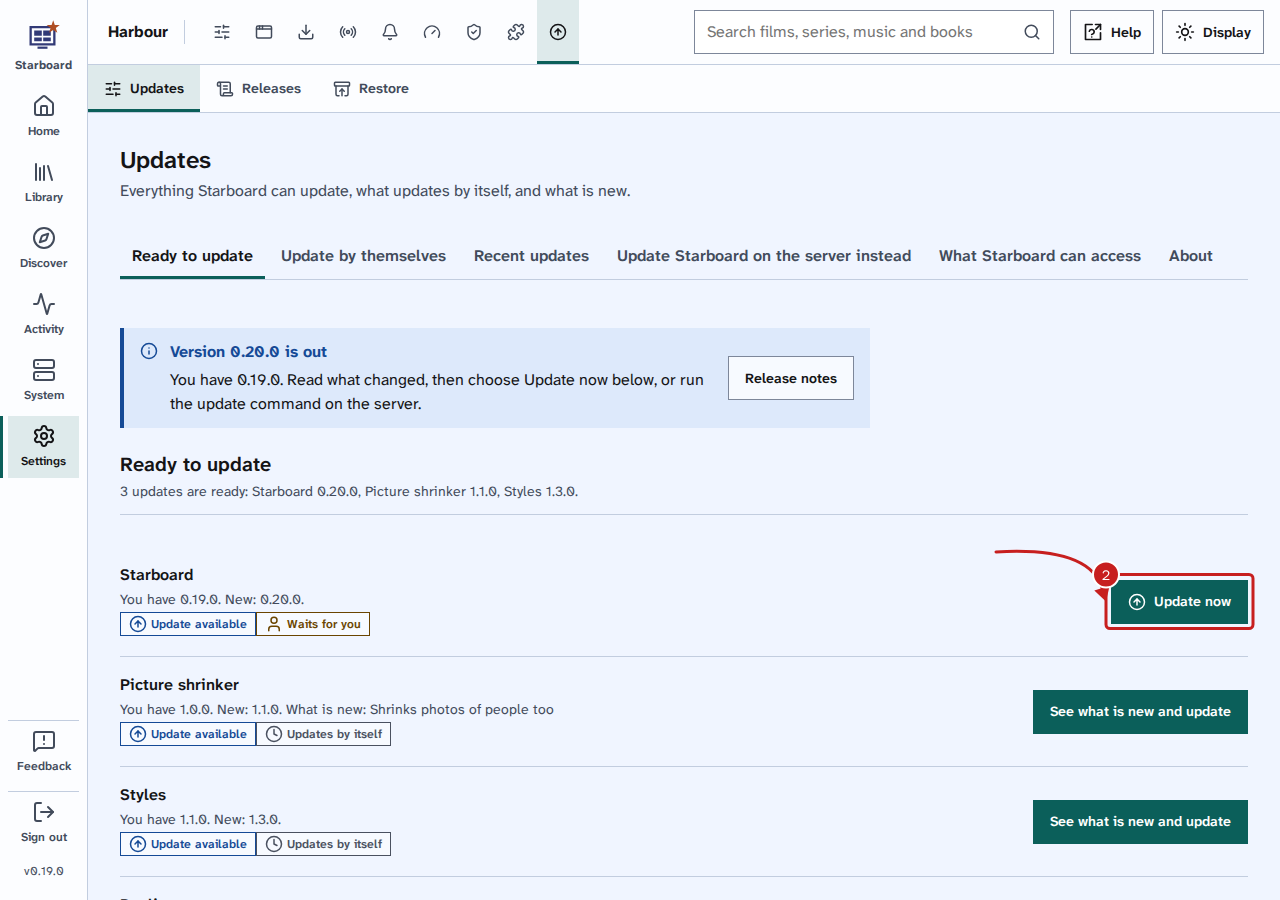
- Go to Settings, then Updates. The page opens on Ready to update. It lists Starboard, Reelix, each plug-in and Jellyfin's plug-ins, with the version you have, the new one and whether it waits for you or updates by itself.
- Beside Starboard, select Update now.
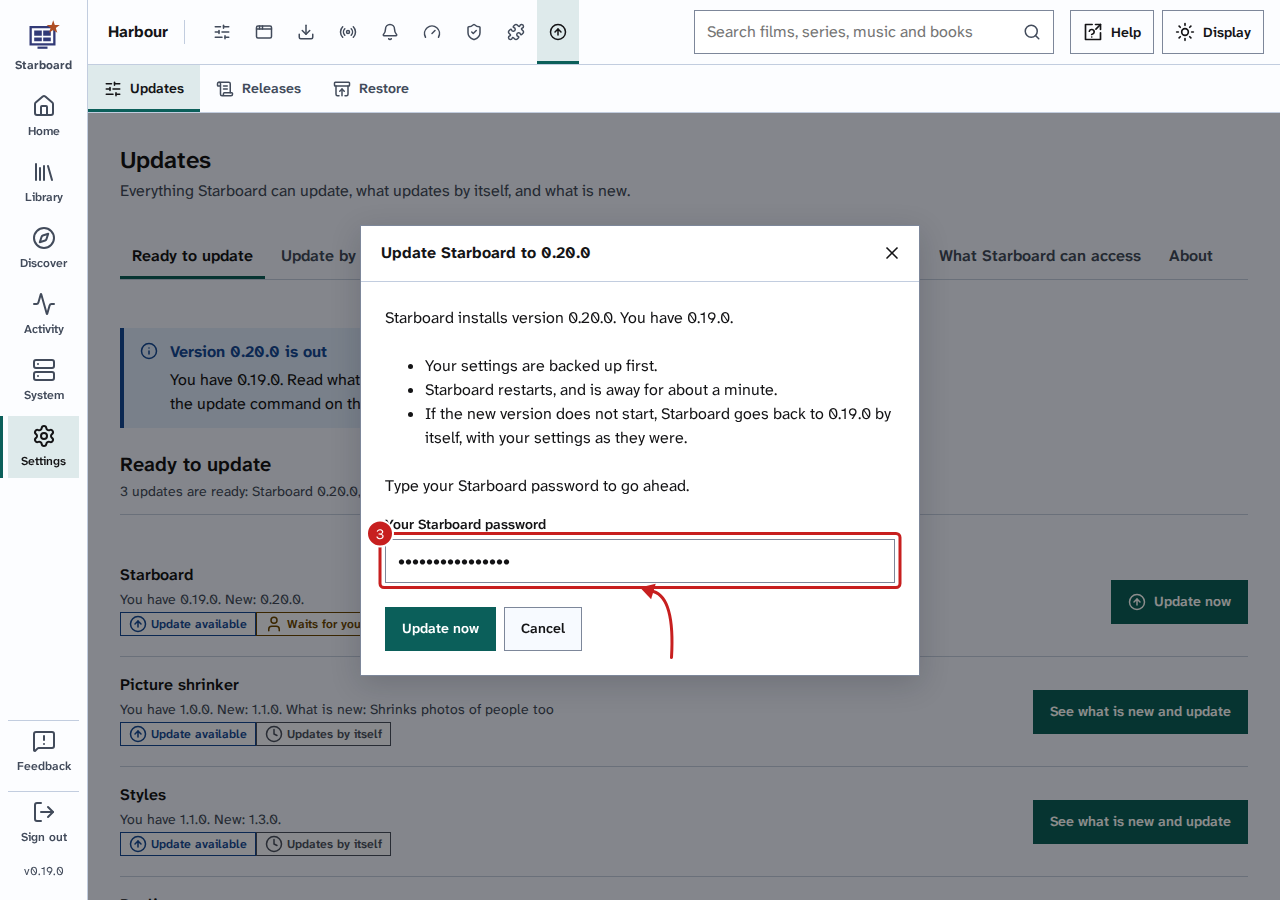
- A dialog says what happens: your settings are backed up first, Starboard restarts and is away for about a minute, and it goes back to your version by itself if the new one does not start. Enter Your Starboard password and select Update now.
- A dialog shows each step with its state: checking, backing up, getting the new version, building it, restarting and checking that it answers. While Starboard restarts, the dialog loses touch for about a minute and reconnects by itself.
- When it ends, it says Starboard is updated. Select Done, then What is new to choose any new settings.
Closing the dialog does not stop the update. If Update now is not there, the page says why, such as a Starboard from the ready-made image, which you update on the server.
Install all updates at once
When one or more updates are waiting, for Starboard, Reelix, your other apps or plug-ins, you can install them all with one action. They still install one at a time, because that is safer on a small server: each one makes its copy first, is checked afterwards and goes back by itself if it does not work, and the rest carry on.
- Go to Settings, then Updates. At the top of Ready to update, select Install all updates. The button says how many are waiting, such as Install 1 update or Install all 6 updates. To read their notes first, read What is new in every update.
- Enter Your Starboard password and select Continue. Starboard checks each waiting update.
- A dialog lists what will install, in the order it installs. Under Held back for you, it lists any update that always waits for you, with the reason: - a plug-in that asks for new permissions, or comes as a zip file: update it on its own page; - a big change, such as Radarr 5 to 6: read what is new first and update it on its own; - anything Starboard cannot update from here, such as an app that Docker Compose did not start.
- Select Install 4 updates, for example.
- A panel shows each update with its state: Waiting, Updating, Done, Went back or Held back, and how many have finished, such as "3 of 5". You can leave the page, and it carries on.
- When it ends, the panel says how it went, such as "4 of 5 updated. Went back by itself: Sonarr".
The order is always the same:
- Your other apps, then Jellyfin's plug-ins. Jellyfin installs its plug-ins but does not restart yet.
- Starboard's plug-ins.
- Reelix.
- Jellyfin restarts once, for all its plug-ins. If someone is watching, it waits until nobody is, and the panel says so.
- Starboard itself, last, because it restarts Starboard. The panel loses touch for about a minute and reconnects by itself.
Recent updates lists the whole batch as All updates, with each update under it.
What is new in every update
Before you install, you can read the notes of every waiting update in one place.
- Go to Settings, then Updates. At the top of Ready to update, select What is new, beside Install all updates.
- A slide-out opens with the notes of each waiting update, from the version you have to the new one: Starboard, Reelix, each plug-in and each app, each under Added, Changed, Fixed and Security. An update that gives no notes says so, with a link to its release page.
- Select Close, or press Escape, to go back to Ready to update.
Let parts update by themselves
Starboard, Reelix, your other apps, Starboard plug-ins and Jellyfin's plug-ins can each update by themselves.
- Go to Settings, then Updates, and select the Update by themselves tab.
- Under When they update, choose In your download hours or In the quiet hours (always 01:00 to 06:00). Without download hours, both mean 01:00 to 06:00. The line under the choices says which hours are used now.
- Activate the switch of each part you want, such as Starboard: update by itself. Each part is deactivated until you activate it. Beside each one, Copy first, Checked by and Way back say what is copied before the update, how the new version is checked and how it goes back if it does not work.
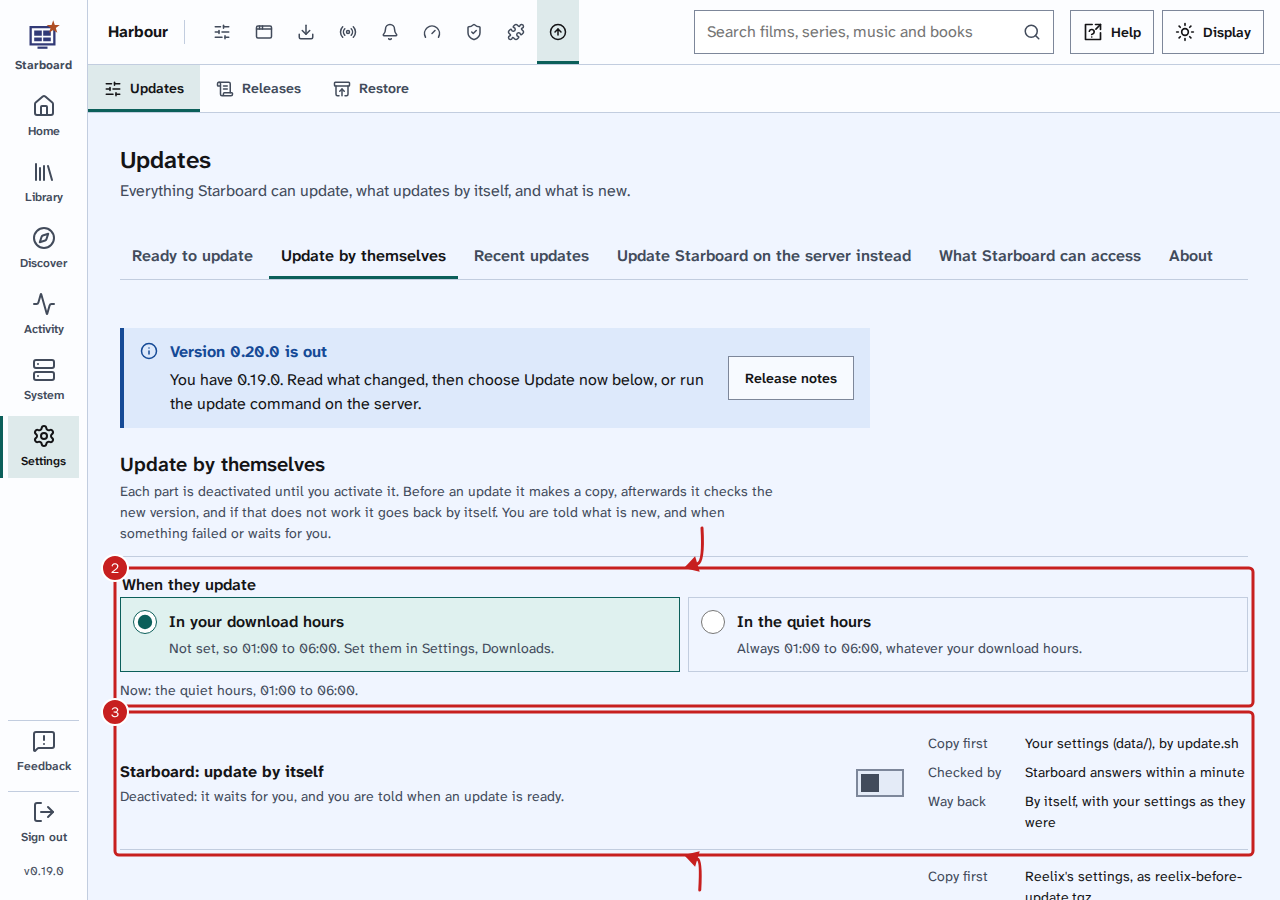
Each part backs up and checks in the same way as Update now, and you get an alert either way if alerts are active. A version that did not install is not tried again by itself: Update now tries it again. Jellyfin's plug-ins cannot go back by themselves, as Jellyfin keeps no older version. Read Updates for Reelix.
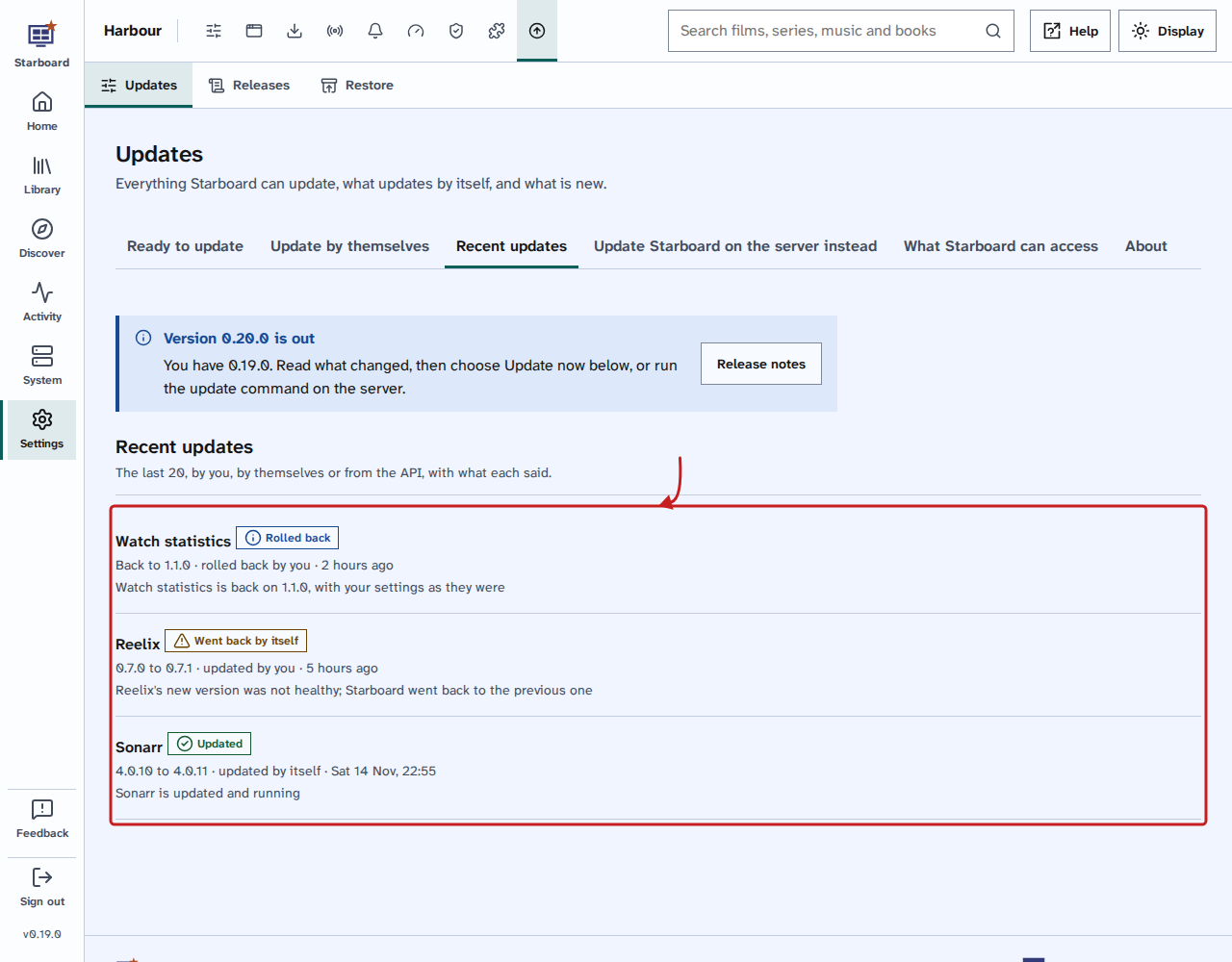
Recent updates, the next tab, lists the last 20 updates: by you, by themselves or from the API, with how each ended, such as Updated, Rolled back or Went back by itself.
Steps if you used the installer
You can update on the server instead, for example when Starboard does not open.
- Go to the Starboard folder:
cd ~/starboard- Run the updater:
./update.shIt shows "You have:" and "Available:" with two version numbers, then lists what changed. It backs up your settings, installs the new version and restarts Starboard.
- Wait for the prompt to come back. The last line says "Updated to" and the new version.
- Reload Starboard in your browser.
If you only want to know whether an update is out, without installing it, run ./update.sh --check.
Steps if you used the ready-made image
- Go to the folder that holds
compose.image.yaml:
cd ~/starboard- Make a copy of your settings first, in case you need to go back. This saves the
datafolder in one file:
tar -czf starboard-data-before-update.tar.gz data- Download the newest image:
docker compose -f compose.image.yaml pull- Start Starboard again with the new image:
docker compose -f compose.image.yaml up -d- Reload Starboard in your browser.
After the update
- Select Release notes in the footer of any page to read what changed.
- If the new version brings settings to choose, a notice says "Starboard 0.15.5 is installed" and how many things there are to choose. Select Choose now to choose them in a slide-out over the page you are on, or Open as a page. It asks only the new questions. Remind me later in the slide-out leaves them for later.
Things to note
- The updater keeps a backup of your
datafolder in thebackupsfolder each time it runs, named with the date. It never sends anything anywhere. - If the new version does not start, the updater goes back to the version you had and puts your settings back. The last lines say "Back on" and the version.
- If the
image:line in your Compose file ends in a version, such as:0.7.2instead of:latest, pulling does not change it. Change the version in the file first. Read Steps if you used the ready-made image for how to edit it. - To update your other apps, read Update your apps. To update a plug-in, read Update a plug-in and roll it back.
- One update runs at a time, for Starboard, its apps and its plug-ins. Install all updates runs them one after another, in the order in Install all updates at once.
- A script or an AI assistant can start an update, or install all updates, through Starboard's API, with a key that has Updates ticked. Read Use Starboard's API.
If it does not work
- "Already up to date": you have the newest release. Nothing changed.
- It stops after "What changed", and nothing is updated: versions up to 0.9.0 stop there when more than 30
changes came since your version. Nothing has changed yet. In the Starboard folder, save a copy of your settings,
then update by hand, with the version you want in place of
v0.9.0:
tar -czf backups/starboard-data-before-update.tar.gz datagit checkout --quiet v0.9.0docker compose up -d --buildStarboard is back within a minute. From the next version, ./update.sh works again however much has changed.
- "Stopped: files in this folder have been changed": a file that came with Starboard was edited. Move any changes
you want to keep somewhere else, then put the files back as they were with this command, and run ./update.sh again:
git checkout -- .Your settings are safe: they are in data and .env, which this does not touch.
- "Stopped: this folder is not a git clone of Starboard": you are in the wrong folder, or you used the ready-made
image. Run cd ~/starboard, or follow the steps for the ready-made image.
- "Starboard is still not starting": read what went wrong with docker compose logs starboard, then read
Starboard does not open.
Find out more
This page on GitHub, where the help is written.