How-to
Connect Reelix to Jellyfin and Audiobookshelf
When Reelix adds a film, an episode or an audiobook, it can tell Jellyfin and Audiobookshelf at once. The new file then shows in them straight away, not at their next scan. Starboard connects them with the API keys it already has.
Before you begin
- Jellyfin or Audiobookshelf is on Settings, Apps, Manage apps, with its API key. Read Find an app's API key.
- You know Reelix's admin password. If Starboard set Reelix up, it is the same as your Starboard password.
Steps
- Go to Settings, then Apps, then Reelix.
- Activate More settings at the right of the heading.
- Select the Media servers tab, then Show media servers. Enter your Reelix password, then select Continue.
- Select Connect Jellyfin or Connect Audiobookshelf. Starboard adds it to Reelix with its key, and tests it.
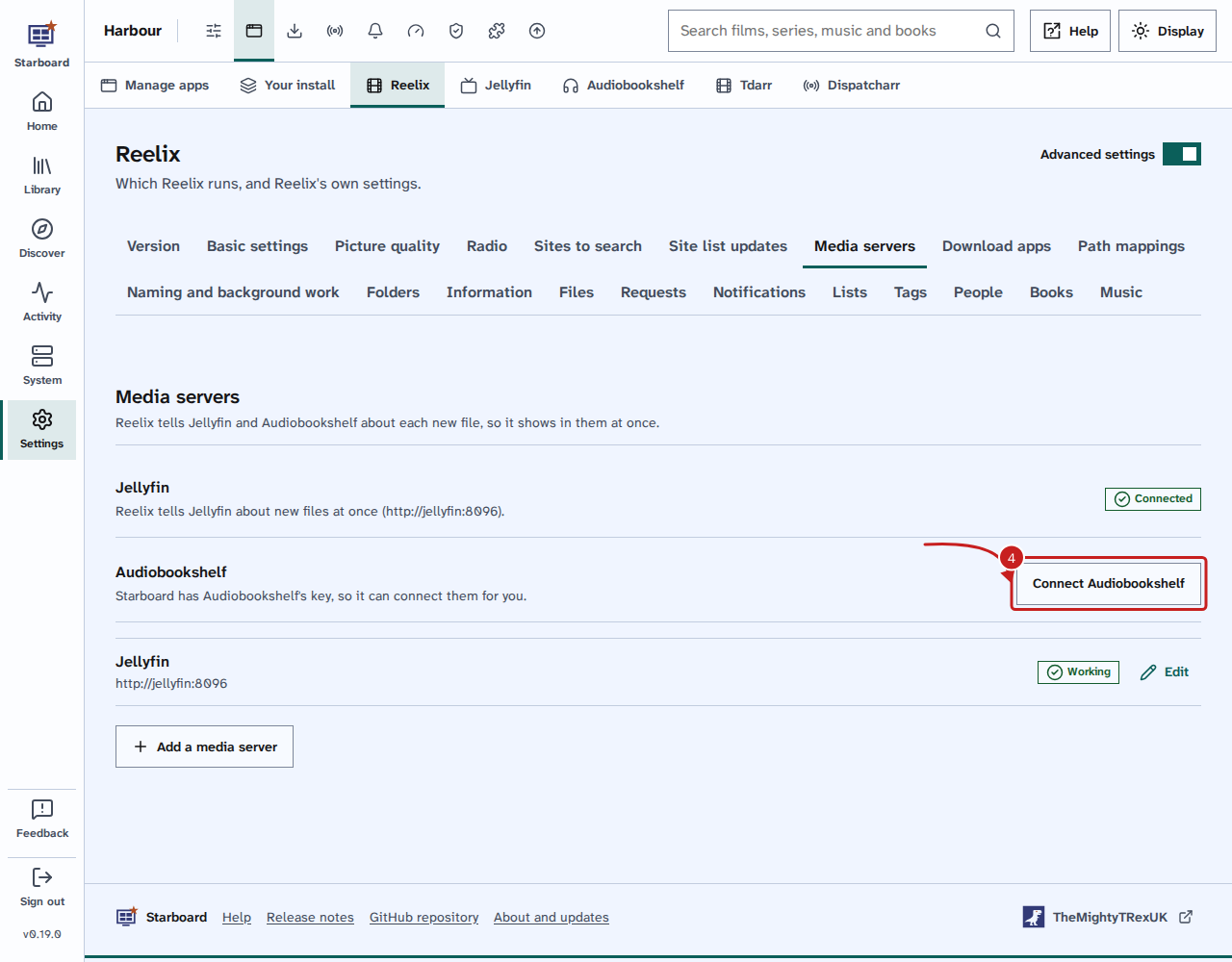
- Check that it shows Connected, and that the list under it shows it as Working.
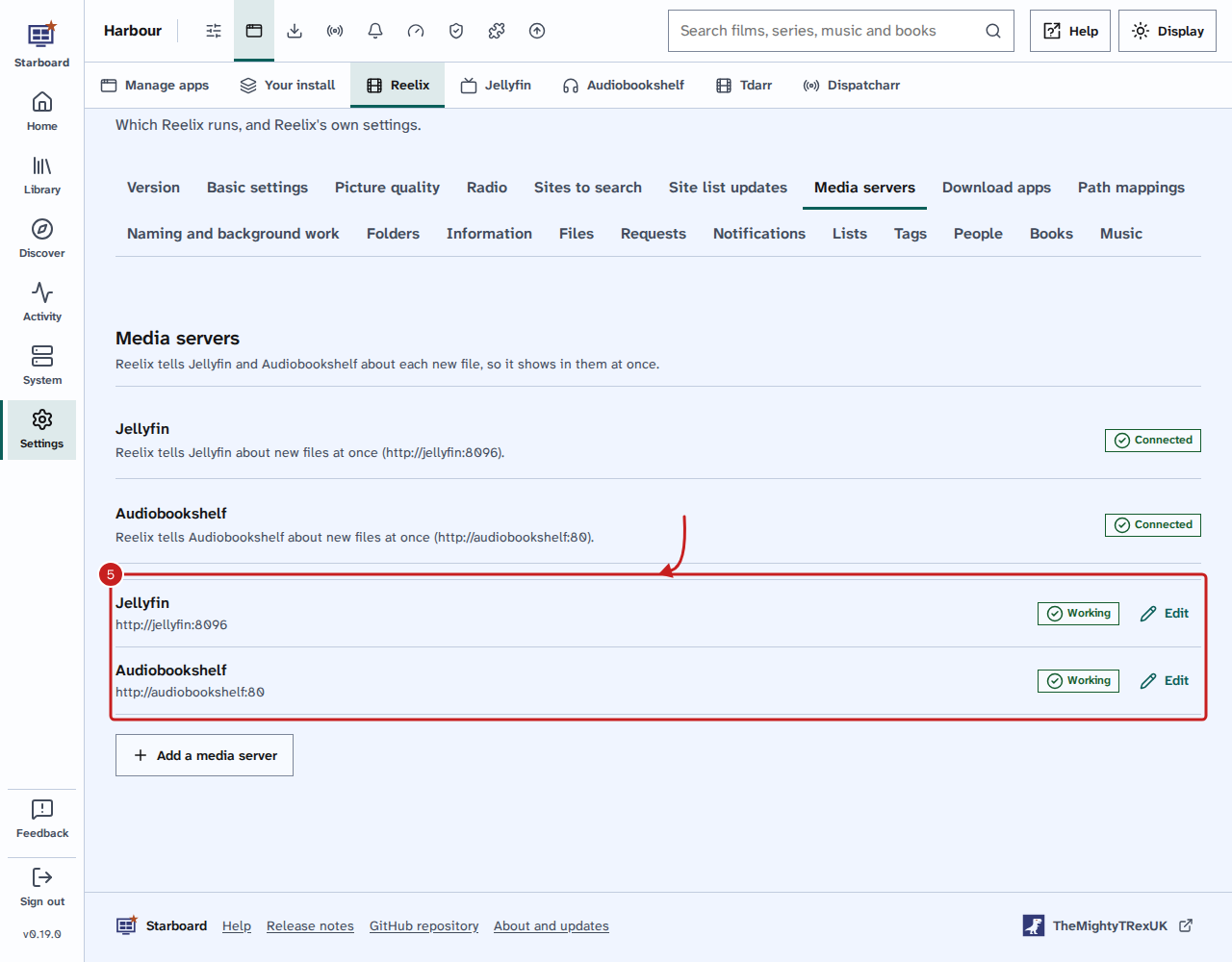
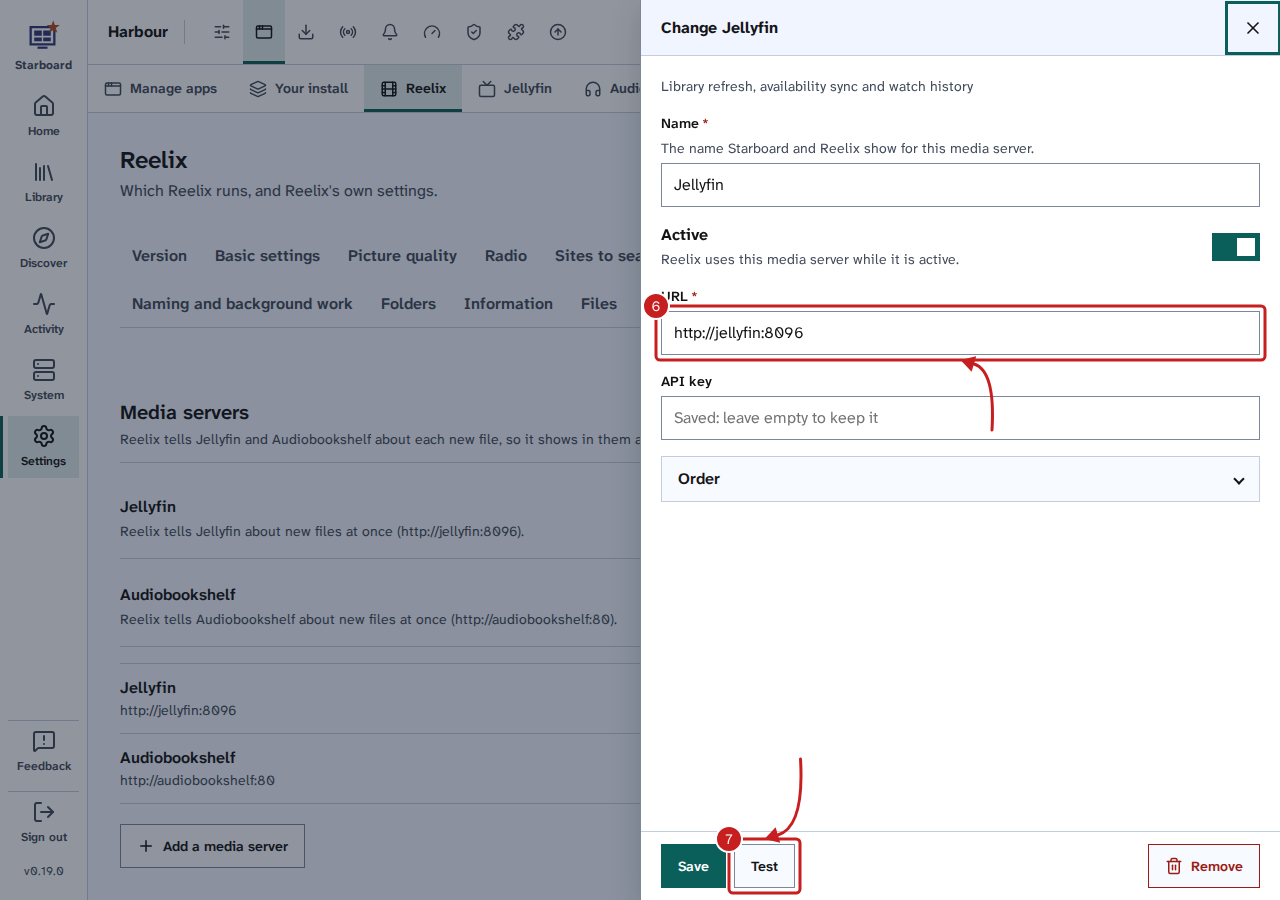
- To change the address or key Reelix uses, select Edit beside it in the list. Change the URL or the key.
- Select Test, then Save.
Things to note
- Install apps with Starboard connects them for you when Starboard already has their keys: when it sets Reelix up, and when you run it again later.
- When Starboard installed them, Reelix reaches them by name:
http://jellyfin:8096andhttp://audiobookshelf:80. For one on another computer, Reelix uses its address in Manage apps.
If it does not work
- Add Jellyfin's API key first or Add Audiobookshelf's API key first: Starboard has no key for that app. Add it in Change an app's details.
- The test did not pass: Reelix cannot reach that address. Select Change, check the URL, then select Test.
- Reelix's password is not the same as Starboard's (in the log after Install apps): connect them on this page instead.
Find out more
This page on GitHub, where the help is written.