How-to
Change Reelix's settings in Starboard
Settings, Apps, Reelix shows Reelix's own settings, so you do not need Reelix's pages. Reelix keeps them behind its admin password, so each section asks for it before it opens.
Before you begin
- Reelix is on your dashboard. Install apps with Starboard adds it, or add your own Reelix: read Add an app.
- You know Reelix's admin password. If Starboard set Reelix up, it is the same as your Starboard password.
Steps
Open a section
- Go to Settings, then Apps, then Reelix. The page opens on Version. Each section has its own tab under the heading, such as Basic settings and Sites to search.
- For any other section, activate More settings at the right of the heading. More tabs appear. The sections are in Which settings are where.
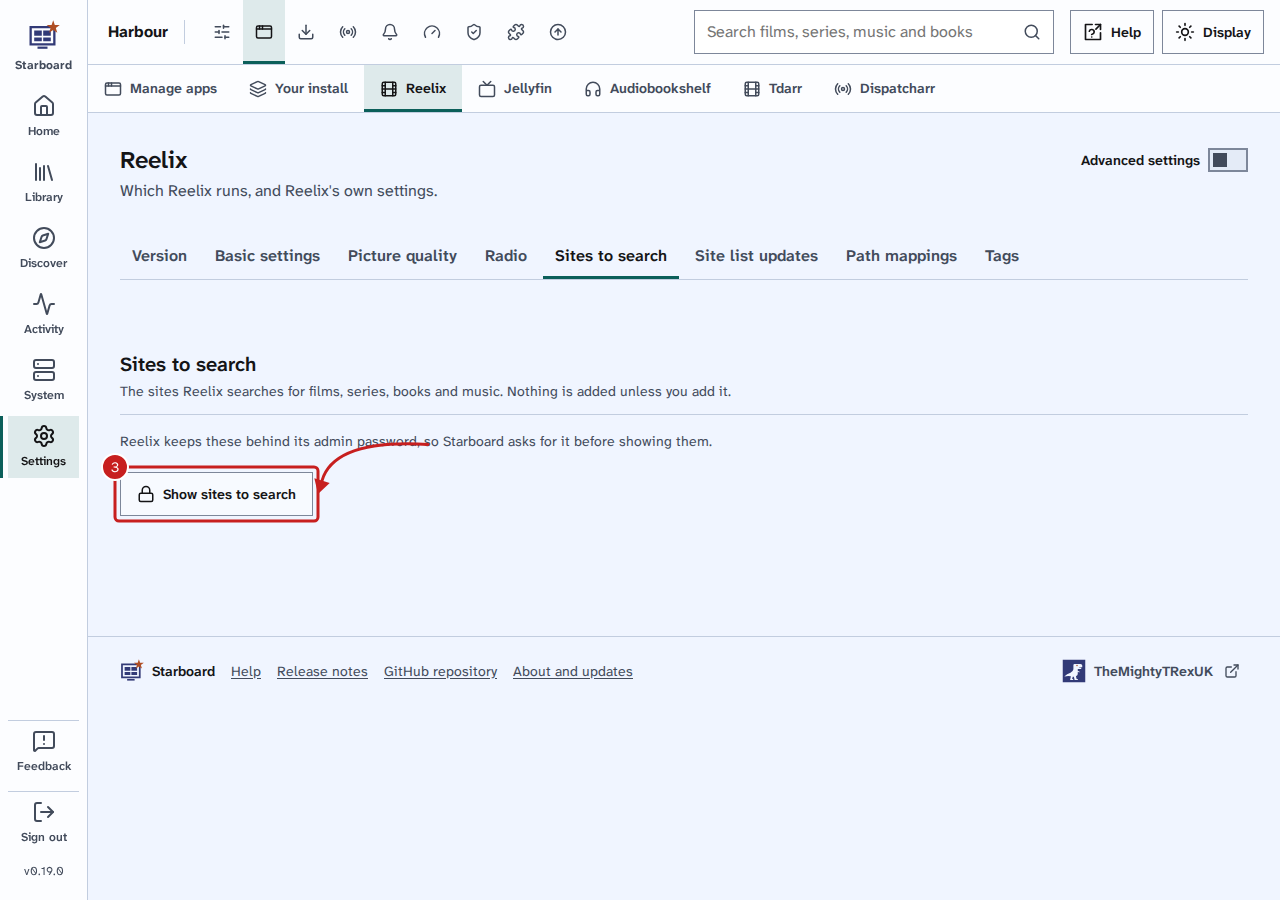
- Select the section's tab, then its Show button, such as Show sites to search.
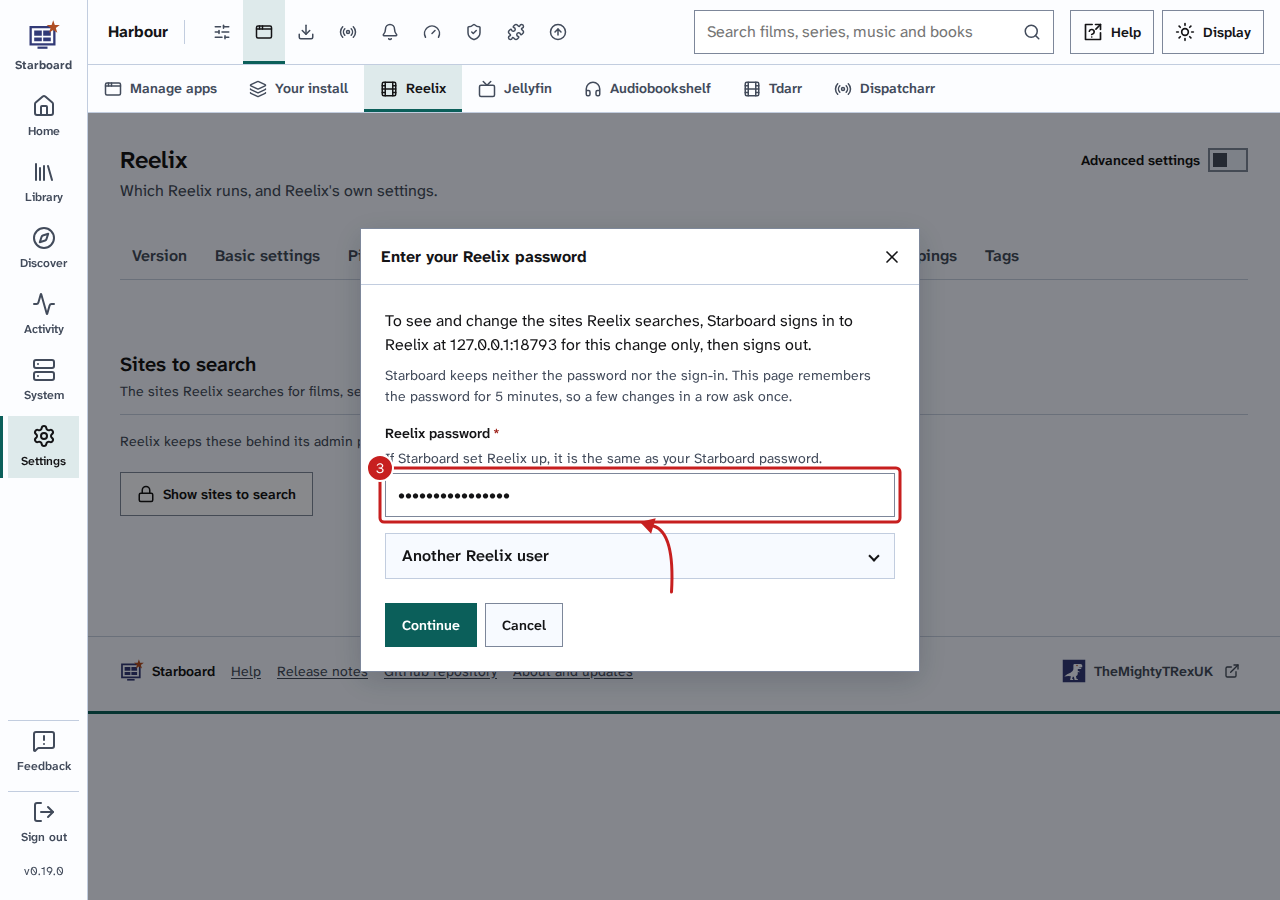
- Enter your Reelix password, then select Continue. If your Reelix admin user is not called
admin, open Another Reelix user and enter its name first.
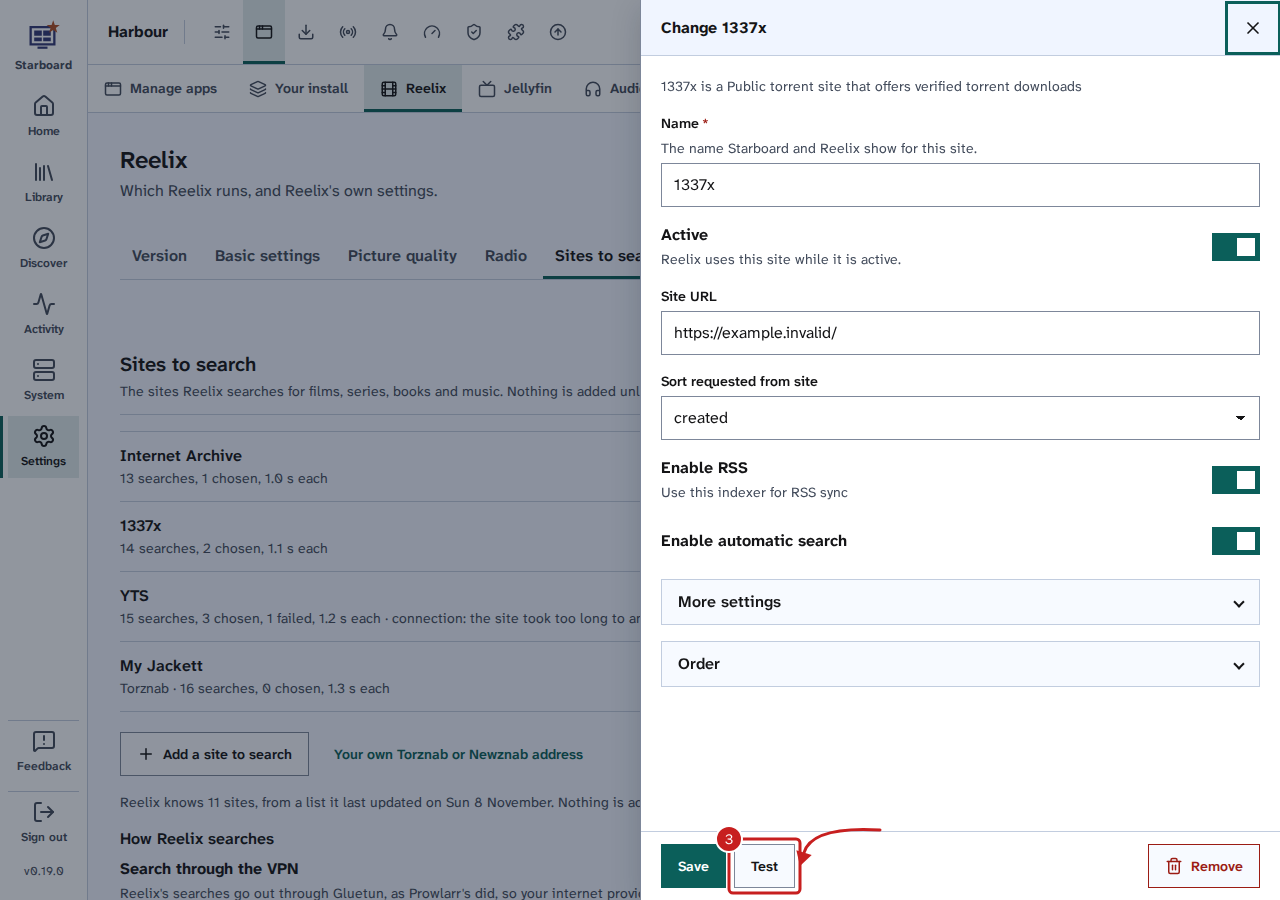
Change a site, media server or download app
Sites to search, Media servers, Download apps, Notifications and Lists are lists, with each one's state.
- To change one, select Edit beside it: the Change panel opens. To add one, select the button under the list, such as Add a site to search, then choose one.
- Change the fields. More settings holds the ones most people leave as they are.
- Select Test. Reelix tries the settings and says whether The test passed.
- Select Save.
Change the other settings
- Basic settings save each change as soon as you choose it. The TMDB key has its own Test the key and Save the key.
- The other sections are forms. Change the fields, then select Save.
Things to note
Which settings are where
Shown at first:
- Basic settings: the TMDB key, Picture quality, Language and Who can ask.
- YouTube and Spotify, in the full version only.
- Sites to search. Read Choose the sites Reelix searches.
Under More settings:
- Media servers. Read Connect Reelix to Jellyfin and Audiobookshelf.
- Download apps, Naming and background work, Folders, Notifications and Lists.
- Information: Language of details and Region, each chosen from a list.
- Files, Requests, People, Books and Music.
Version says which Reelix runs. Read Switch between the two versions of Reelix.
Passwords and secrets
- Starboard does not keep Reelix's password. It signs in to Reelix for each change, then signs out. The page remembers the password for 5 minutes, so a few changes in a row ask once.
- A secret, such as an API key or a password, shows empty when you change something. Leave it empty to keep the one Reelix has. If you change the address, Reelix asks for the secret again.
- Remove asks first. Reelix stops using that one and forgets its settings.
- Reelix's warnings show on Apps, in Reelix's details and on System, each with a link to the section that fixes it.
If it does not work
- Reelix did not accept that password: check it and enter it again. If you changed the admin password in Reelix, use that one.
- Too many attempts: wait 15 minutes, then try again.
- Reelix is not on your dashboard: add Reelix first. Read Add an app.
- Reelix could not be asked: check that Reelix is running on Apps.
Find out more
This page on GitHub, where the help is written.