On this page
Reference
Zoom and large screens
Starboard works with your browser zoomed in up to 400%, with its own Text size up to 175%, and with both together. It also fills large displays, such as a television. Nothing needs to be activated for zoom: every page lays itself out again to fit.
When would you use it
- You zoom the browser in to read, or use a magnifier.
- You want bigger text without changing the layout.
- You use Starboard on a television or a large monitor, from further away.
Zoom in the browser
Press Ctrl and + to zoom in, Ctrl and minus to zoom out, and Ctrl and 0 to go back to 100%. On a Mac, use Command instead of Ctrl. Zoom makes everything bigger, pictures included.
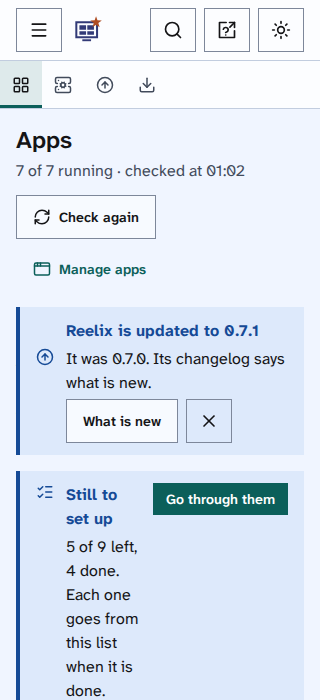
As you zoom in, the page needs less width:
- Cards and rows move into fewer columns.
- At the width of a phone, the side menu moves under Menu in the header, and the search under the search button.
- At 400% zoom on a computer, the page is 320 pixels wide. Every page is checked at that width, and nothing needs sideways scrolling, apart from inside a wide table or a row of covers, which scroll on their own.
Text size
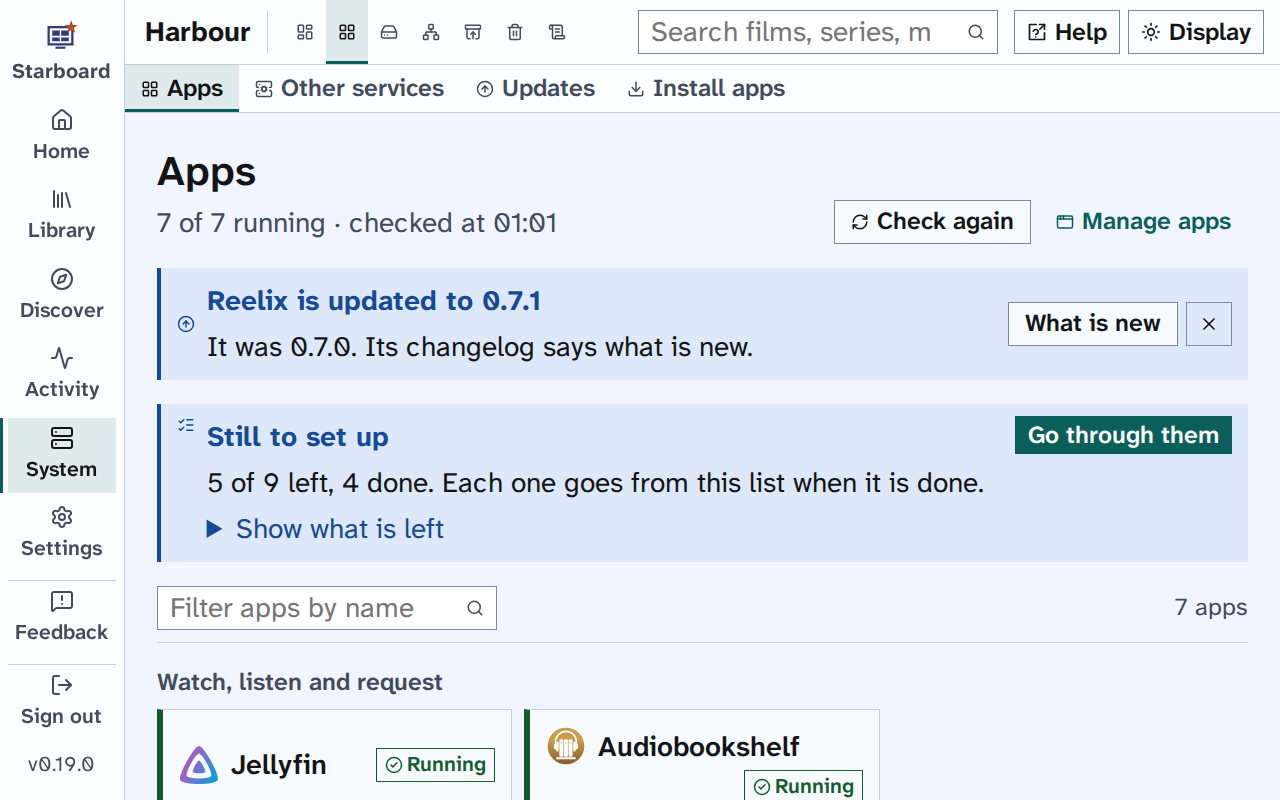
Text size in Display makes only the text bigger, up to 175%, and keeps the layout. Every page is also checked at 175% for anything that needs sideways scrolling. Read Change text size and spacing.
Large screens and televisions
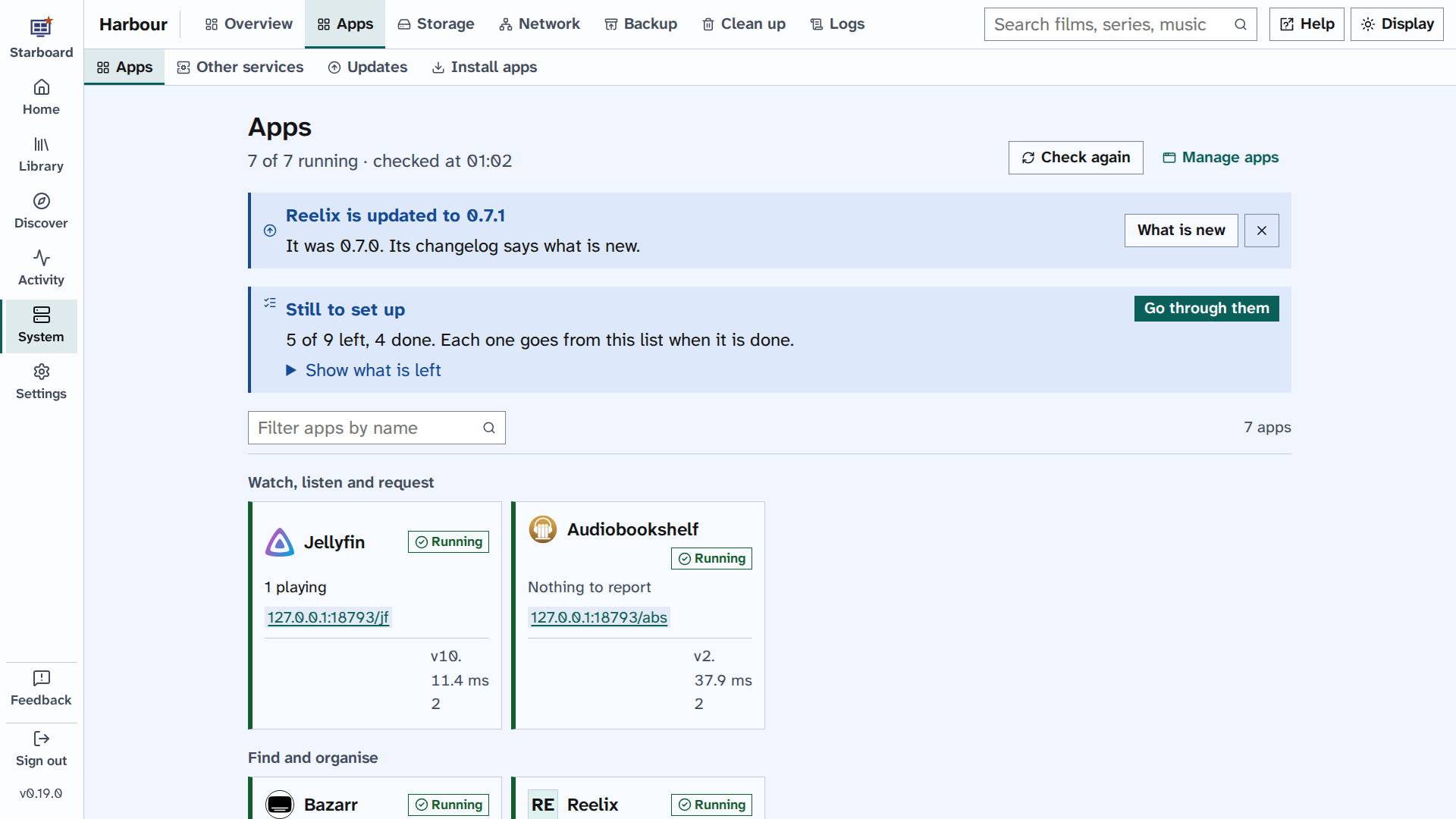
On a wide display, Starboard uses the width: more cards in each row, and Settings across the whole page. From across a room, set Text size to 150% or 175% in Display on that browser; it is kept for that device only, so your phone and computer keep their own sizes.
Things to note
- Pinch to zoom on a phone or tablet is never blocked.
- A magnifier, such as Windows Magnifier or Zoom on a Mac, works as on any web page. Problems are shown beside the field they are about, and saved notes beside the control you used, so they are near the control you used.
- Zoom in your browser is kept by the browser for each site, and Starboard's text size is kept in the browser too.
- Zoom up to 400% is checked through the 320 pixel width; it has not yet been tried on its own on every page. Read Limits and known gaps.
Find out more
This page on GitHub, where the help is written.