How-to
Set up everything with the Run first script
Once Linux is installed, the Run first script sets up everything else. It checks the computer, installs Docker and anything else that is missing, downloads Starboard and starts its installer. Then the set-up opens in your browser, or carries on in the terminal. It takes about 15 minutes.
Before you begin
- A computer with Linux installed: Linux Mint 22.3 (recommended), Debian 13, Ubuntu Server 26.04 or Raspberry Pi OS (64-bit), or a later version, with or without a desktop. Read Install Linux on a computer. Each system has its own page: Linux Mint, Debian, Ubuntu Server and Raspberry Pi OS.
- The computer is connected to the internet. Read Connect to the internet, by cable or Wi-Fi.
- The password you use to sign in to that computer. It is asked for when something needs installing.
- A terminal open on that computer, or connected to it. Read The terminal: entering commands.
Steps
- Copy this command into the terminal and press Enter:
curl -fsSL https://raw.githubusercontent.com/TheMightyTRex/starboard/main/run-first.sh | bashCopy and paste it if you can. main/run-first.sh is in small letters, with a hyphen, and the GitHub account is
TheMightyTRex. A difference gives "error: 404", which means "not found". Read
Capital letters matter.
The | is the vertical bar. Its key is in different places on different keyboards. Read
Symbols that are in different places on different keyboards.
These two commands do the same with no |:
curl -fsSL -o run-first.sh https://raw.githubusercontent.com/TheMightyTRex/starboard/main/run-first.sh
bash run-first.sh- The first question is about its display. Press Enter for the standard display. For accessible mode, enter
aand press Enter: plain lines with no boxes or colour, for software that reads text aloud. Your choice is kept for the whole installation. -
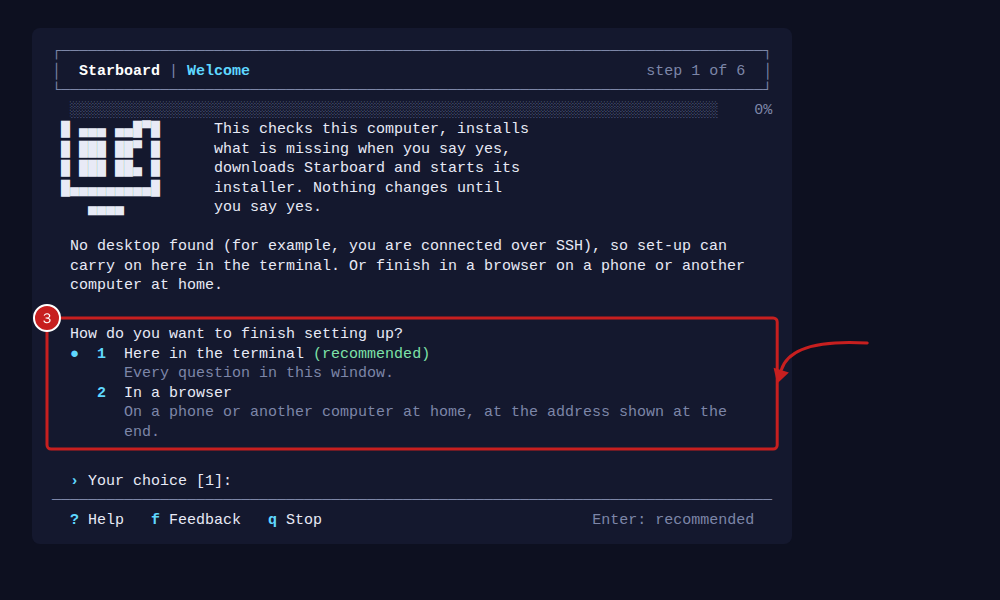
Welcome: choose how to finish setting up. In a browser is recommended when the computer has a desktop. Here in the terminal is recommended when it has none, such as over SSH. Press Enter for the recommended answer.
-
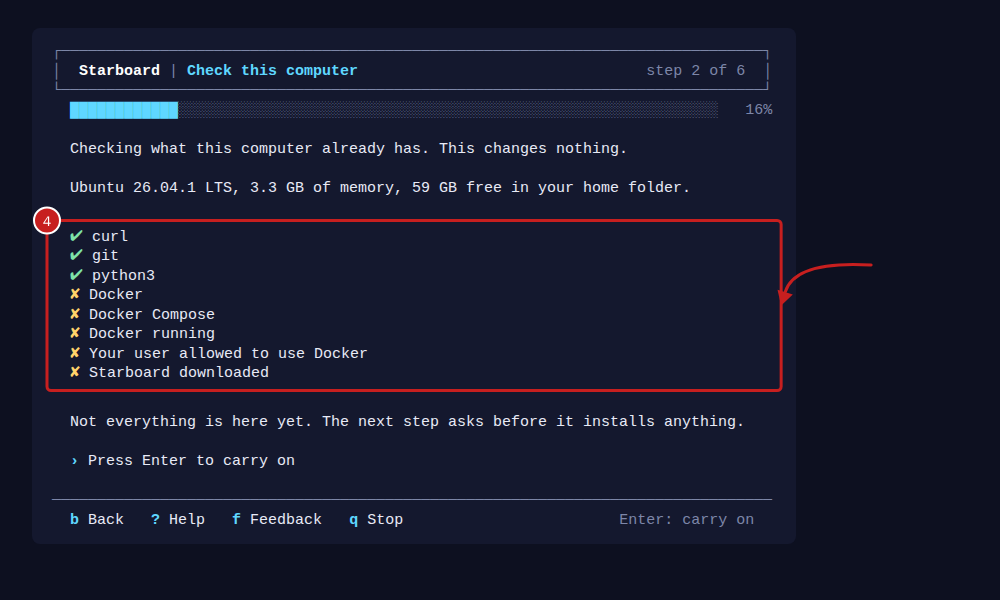
Check this computer: it lists what is already there, with a tick, and what is missing. This changes nothing.
-
Install what is missing: it shows the commands it will run. Press Enter to install them. When sudo asks for your password, enter it and press Enter. Nothing shows as you enter it.
If Linux is installing its own updates, which is common soon after Linux is installed, the script waits for them.
A progress bar called Waiting for Linux to finish installing its updates shows what is installing, how many
are done and how much is downloaded. The script then carries on by itself. If updates start part-way through, it
waits and tries again by itself.
6. Download Starboard: it downloads Starboard into a folder called starboard in your home folder, or updates
it if it is already there.
7. Ready to install: check the summary and press Enter to start Starboard's installer.
8. Install Starboard: answer the installer's questions. If you are unsure, press Enter for the recommended answer.
Read What the installer asks. The script tells the set-up
what it found on this computer, such as disks and apps already running, so it can recommend the right answers.
9. Finish setting up:
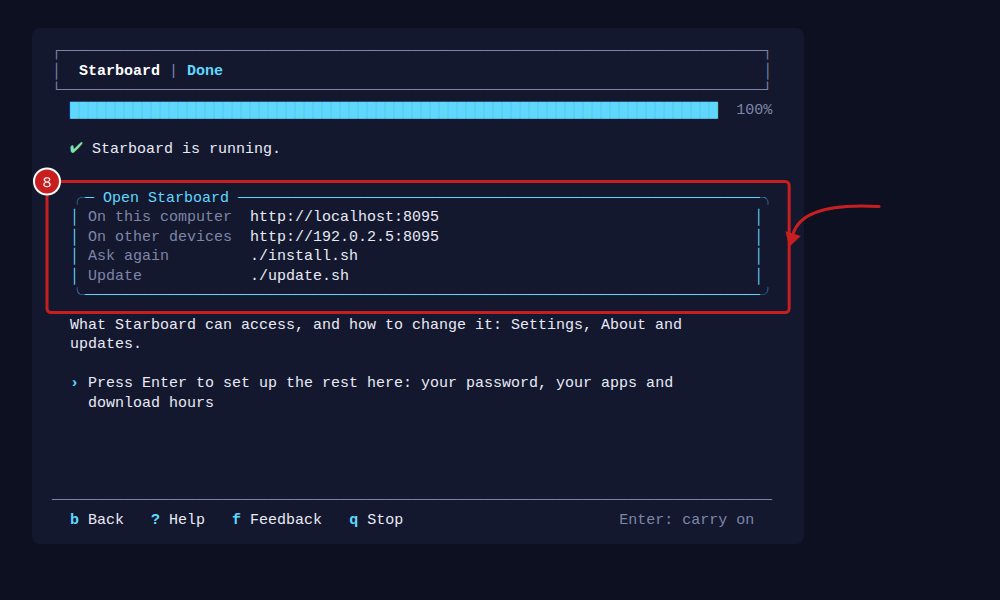
- In a browser, on a computer with a desktop: the set-up page opens by itself with the setup code filled in.
Read Create your password and sign in, then
Set up your dashboard after installing.
- In a browser, with no desktop: open the address it shows on a phone or another computer at home, and
enter the setup code it shows.
- Here in the terminal: answer the set-up questions. Read
Set up Starboard in the terminal, with no browser.
At the end, the script makes the set-up's changes to this computer, such as disk health. It asks for your password again if sudo needs it.
How to answer
- Press Enter on its own to take the recommended answer.
- Enter
bto go back a step,?for help with the step, orqto stop. Stopping changes nothing more, and you can run the script again at any time. - Each step starts on an empty terminal window. The heading and progress bar stay at the top of the window, and the keys stay on its last line.
Things to note
- You can run it again at any time. It installs only what is missing, and updates Starboard if it is already downloaded.
- To check the computer with no changes, add
--check:
curl -fsSL https://raw.githubusercontent.com/TheMightyTRex/starboard/main/run-first.sh | bash -s -- --check- To read the script before running it, download it, read it with
less, then run it:
curl -fsSL -o run-first.sh https://raw.githubusercontent.com/TheMightyTRex/starboard/main/run-first.sh
less run-first.sh
bash run-first.sh- It never runs as administrator by itself and never keeps your password. sudo asks for it, only when something is being installed.
- It allows your user to use Docker. This is the same as administrator control of the computer, so run it only as
your own user. Sign out and back in once afterwards, so
dockercommands work in new terminals too.
If it does not work
- An error number, such as "Error RF-11": find it in Run first and installer error numbers, which says what it means and how to put it right.
- "The requested URL returned error: 404": the address has a difference. Copy and paste it instead.
- "Command 'curl' not found" or "curl: command not found": a new Debian does not include curl. Use the same
command with
wgetinstead:
wget -qO- https://raw.githubusercontent.com/TheMightyTRex/starboard/main/run-first.sh | bashIf wget is missing too, install curl with sudo apt install curl, then run the first command again. Do not use
the sudo snap install curl that Ubuntu suggests. Read RF-10.
- "This Linux is not one this script knows how to install on": install Docker by hand with
Install Docker, then run the script again.
- "exists but is not a Starboard download": read RF-30.
Find out more
This page on GitHub, where the help is written.