On this page
Reference
How Starboard is tested for accessibility
Starboard is tested against WCAG 2.2 level AA with automated checks on every page, a check of the reading order, a walk of the main tasks with the keyboard alone, and a contrast check of every colour. They run on every change before it is merged, and again before every release. This page says what each check does, and what checks cannot catch.
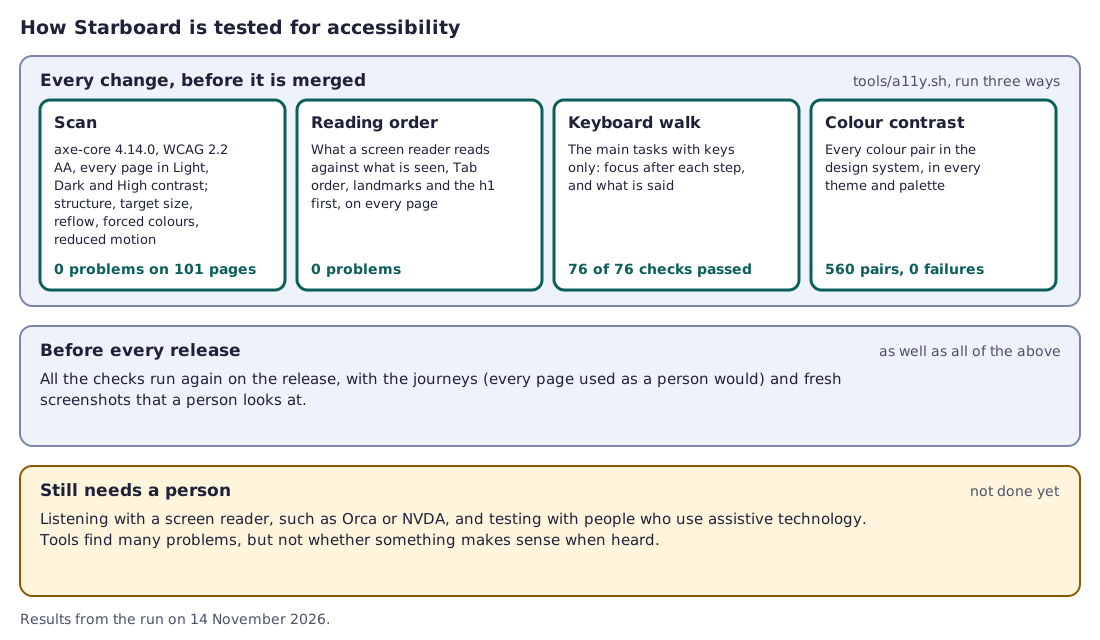
The diagram shows the same steps as the sections on this page, with the latest results. The figures and their dates are in Latest test results.
When would you use it
- You want to know whether Starboard will work with your tools before you install it.
- You want to know how a result was reached, or repeat a check yourself.
- You make plug-ins and want to know what Starboard checks.
The standard accessibility test
Every accessibility test of Starboard is all four of these parts, never a scan alone. They run against an example server with made-up data, so nothing real is read.
| Part | What it checks | How it runs |
|---|---|---|
| The scan | Every page against WCAG 2.2 AA with axe-core, in Light, Dark and High contrast; page structure; target size; reflow at 320 pixels wide and at 175% text; Windows' contrast themes; reduced motion; the side menu and header at every text size | tools/a11y.sh and LAYOUT=1 tools/a11y.sh |
| Reading order | What a screen reader reads against what is shown, on every page, at computer and phone widths, and in each design of the Apps page | ORDER=1 tools/a11y.sh |
| Keyboard walk | The main tasks with keys only, checking where focus is and what is said after every step | TASKS=1 tools/a11y.sh |
| Colour contrast | Every text and control colour pair in every theme and colour palette | The design system's tools/contrast.py |
The scan
- Rules: axe-core runs every WCAG 2.0, 2.1 and 2.2 rule at levels A and AA on each page, three times: in the Light theme, the Dark theme and High contrast.
- Structure: one level 1 heading, headings in order, a header, navigation and main content, Skip to main content as the first Tab, a page title, a polite live region, the page's language, a label for every field and a name for every button.
- Keyboard: up to 45 Tab stops on each page, checking that the focus outline shows, that focus never lands on something hidden, that nothing traps it, and that the sticky header never covers it.
- Size: every button, tick box and choice is at least 24 by 24 pixels.
- Reflow: nothing needs sideways scrolling at 320 pixels wide, or at 175% text.
- Slide-outs: focus moves into Display and accessibility, stays inside with Tab, and goes back to Display after Escape.
- Windows' contrast themes: the focus outline stays visible in forced colours.
- Reduced motion: with reduced motion asked for, nothing on the Apps page moves for longer than 50 milliseconds.
- Menus at large text: the side menu and the header on eight pages, at 100%, 125%, 150% and 175% text, with and without wider spacing, in Light, Dark and High contrast, at 1280 and 1366 pixels wide and at phone width, and in windows 600 and 700 pixels tall. It fails if a word breaks in the middle, a name runs past an edge, items overlap, a menu item or the search box is cut off, or the page scrolls sideways. The scan's own reflow rule cannot find a menu that cuts off its own items, so this part checks for exactly that.
Reading order
A screen reader reads, and Tab moves, in the order of the page's code. The page shows its own order. The check compares the two on every page, at computer and phone widths: anything read later but shown clearly earlier, or Tab that jumps back up a column, is a finding. It also checks that the landmarks come in order and that the page's level 1 heading is the first thing in the main content.
Keyboard walk
The main tasks are done with keys alone, as a screen reader user would. After each step, the check records where focus is, and what was said. The tasks include: sign in, skip to the main content, search, open a film, change a setting, change an accessibility option in Settings, edit an app in a slide-out, make and revoke a key, show more of a list, delete a file, select several items, the Live TV channel lists, release notes, copies of backups, a plug-in's notices, tables, cards, recommendations and settings, and each Reduce motion choice against the device's own setting.
Colour contrast
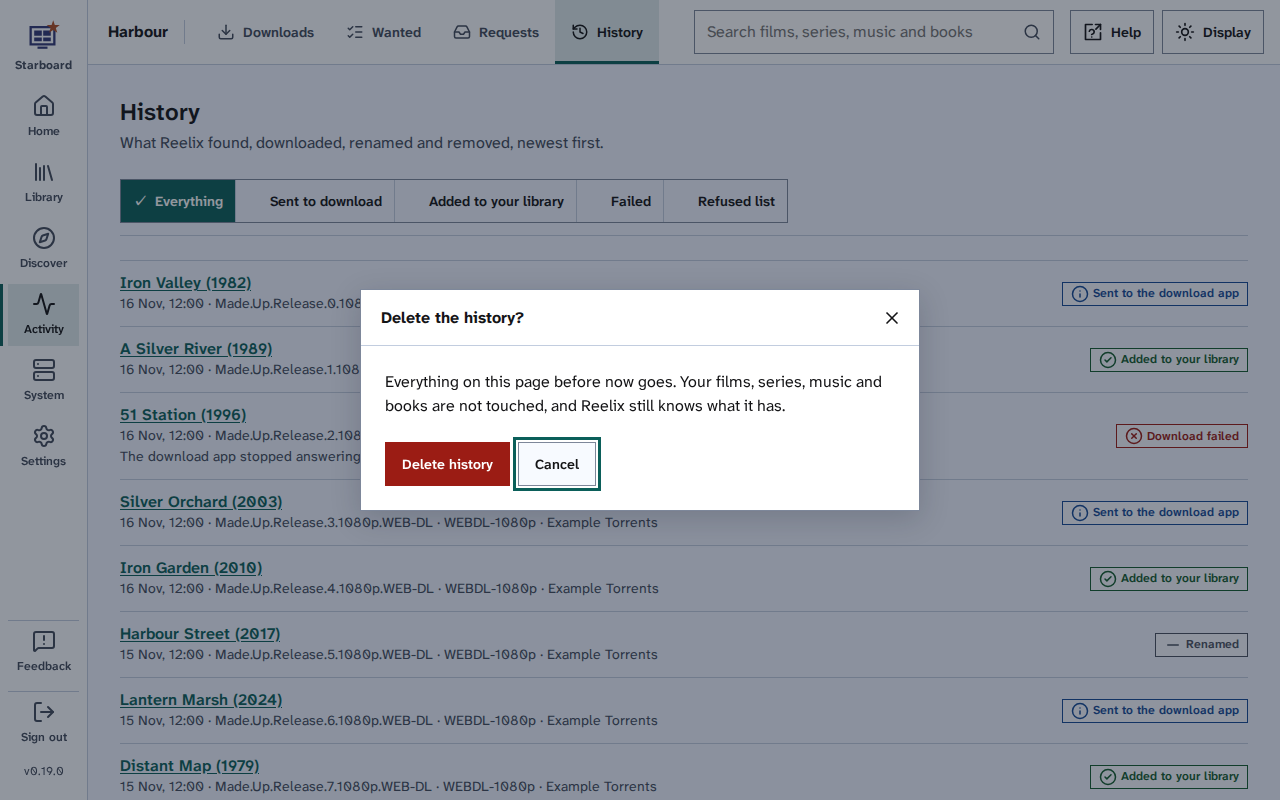
The design system checks every pair of text and background, control border and focus outline, in Light, Dark, High contrast and High contrast dark, and in light and dark for every one of the own style colour palettes: 4.5 to 1 for text, 3 to 1 for borders and the focus outline.
Plug-ins
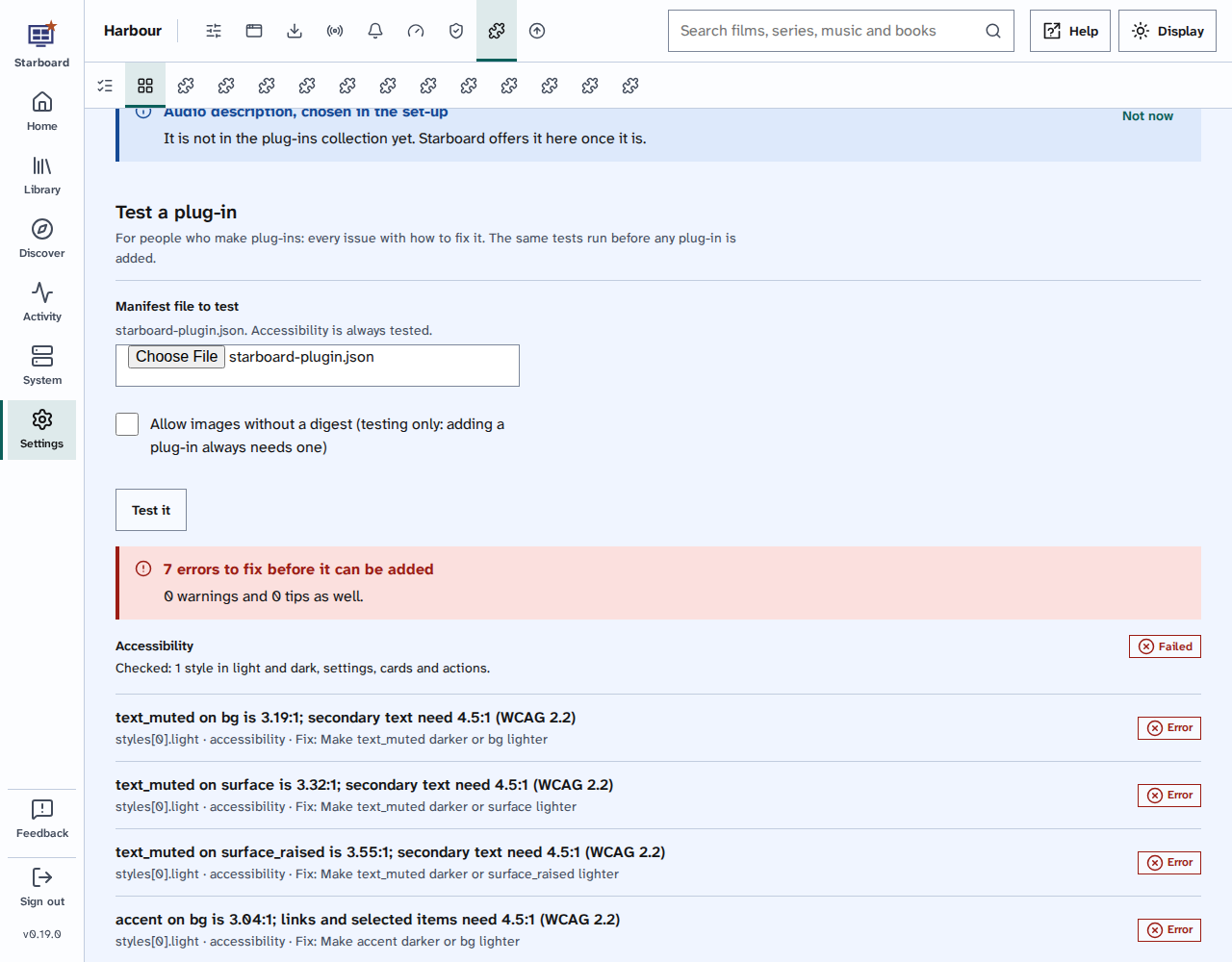
Plug-ins are checked too, by the plug-in tester, before any plug-in can be added. Its accessibility tests are never left out: every style's colours in light and dark, and the labels, hints, card titles and button words people read.
The help centre
The help is checked for its writing rules and links by tools/check-help.py. Every picture in it has a text
description, and every diagram says the same thing in words.
When the checks run
- Every change: the scan, reading order and keyboard walk run before a change is merged, with the unit tests, the journeys (every page used as a person would) and the help checks. A finding is fixed, or checked by hand and shown to come from the test itself, before the change goes in.
- Every change to colours: the contrast check runs, and must show 0 failures.
- Before every release: all of them run again on the release, with fresh screenshots that a person checks. The results are listed with each release in Security: how Starboard protects you, and how it was tested.
What automated checks cannot catch
Tools find many problems, but not all. They cannot tell:
- whether something makes sense when heard, such as a label that is correct but confusing
- whether people can follow the order of a task, or a message is clear
- how a particular screen reader, browser and device behave together
- whether alt text describes a picture well
- what people who use assistive technology every day find hard
That needs people. Listening with a screen reader, and testing with people who use assistive technology, has not been done yet. Read Limits and known gaps.
Run the checks yourself
The checks are in Starboard's repository and need Docker. From the repository's folder, this runs the scan:
bash tools/a11y.shThis runs the reading order check:
ORDER=1 bash tools/a11y.shThis runs the keyboard walk:
TASKS=1 bash tools/a11y.shThis checks the side menu and header at every text size:
LAYOUT=1 bash tools/a11y.shEach one starts its own example server with made-up data, and prints one line for each finding and a summary.
Find out more
This page on GitHub, where the help is written.